


Digital Video Essentials (DVE) Overview
|
|
Digital Video Essentials (DVE) DVD MSRP: $24.99 [ Buy Now ] |
|
Pros |
Cons |
|
|
Introduction
The world of high-quality consumer display devices and home theater has really taken off over the last 15 years The tools and information to get one's television set looking its best, however, has been elusive and relegated to the few professionals and videophiles who did their research. I say few professionals because there are numerous professionals with the know-how to repair a display, but who are usually oblivious when it comes to making one look good.
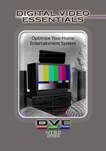
Fortunately for the consumer, there is help. One of those sources for help is Joe Kane Productions' Digital Video Essentials. The first Video Essentials was available on laser disc back in 1996 and then on DVD in 1997. In 2003 they released Digital Video Essentials (DVE) that has been improved and updated for 16:9, HD, DLP and LCD display devices. You can read more about Joe Kane Productions [ here ] and [ here ].
I was an early adopter of laser disc and SVHS, but was never satisfied with either's picture quality on my display. I was constantly adjusting and readjusting in an attempt to get things to look better - or at least how I thought they should look. It was only recently that I understood why . My display, like so many others, was never set to any kind of reference standard. Quite simply, it was never calibrated correctly. From the very first time I watched and used the first Video Essentials DVD, I was downright amazed, impressed and blown away. Amazed by the information it contained - impressed at the ease of use and helpful explanations - and blown away by the results I achieved. If you have never calibrated your display, then arm yourself with the new DVE DVD and a remote control because the differences will be significant.
The DVD
 Let's first start off with what Digital Video Essentials is and what it is not. DVE is designed for the home user to properly adjust their display's user controls and then evaluate its performance. It also has a full array of test signals to calibrate and evaluate your home theater's audio set up. Digital Video Essentials does not explain how to use the advanced test patterns or how to enter your service menu and perform a more advanced calibration. That should be left to an ISF trained professional as you can actually damage or disable some televisions. That being said, there are some displays that allow more user control than others, and in those instances, the advanced test patterns can be very useful. For the scope of this review I will discuss only the user controls that are common to every display, leaving service menu adjustments for the professionals.
The first Video Essentials program provided an education in audio and video - and this version is equally educational in nature. I would suggest you first go through the entire DVD and soak everything in before making adjustments. There is a wealth of knowledge contained within this program. The sections on progressive scan signals and MPEG decoding are explained in excellent "layman's" detail. Also explained is grayscale, or the color of gray, along with a brief history lesson on video and why it has evolved into what it is today. It is fascinating stuff, and even seasoned tweakers may learn a few new things.
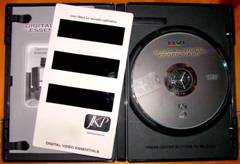
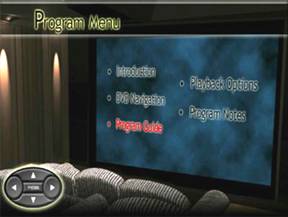
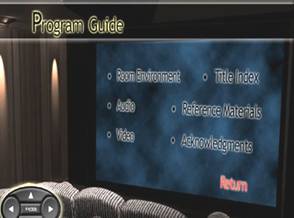
There are many improvements with this DVD version of Digital Video Essentials and one of the biggest is navigation of the DVD itself. It's now a snap to navigate thanks to a much improved menu system. Also improved upon are the color filters. There are now three of them (similar to what is provided with the AVIA disc) which are all mounted on one sturdy card for easy switching between the 3 colors. There is also an included chapter listing of all the test patterns for direct navigation.
The format and mastering has been revamped from the original. DVE was mastered in 1080p/24 and then down-mastered to 480p/24 and 576p/25 and is presented in 1.78:1 anamorphic video. The live action test video footage looks amazing. The director of photography was Allen Daviau who worked on one of my favorites movies "Empire of the Sun".
Some things I would like to have seen included are: an example and explanation of aspect ratios and an explanation of the IRE settings found on most DVD players. I also feel strongly that convergence of CRT based projectors should have been explained, though this could easily take up its own DVD. They do provide the patterns but don't mention it at all and it can certainly make a dramatic improvement to the look of a CRT-based display.
The Process
After several minutes of some cool space shuttle footage and the lengthy introduction, you are brought right to the Program Menu where you can start the process of calibrating your display. It is recommended that displays be warmed up at least 30 minutes prior to doing any adjustments (this is especially important for CRT-based displays). While waiting, you may wish to go through the audio setup first.
Calibrating Audio
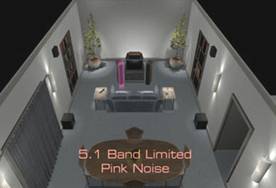 The Audio Setup section guides you through all of the necessary steps to getting your system balanced. The only extra equipment needed for this is a Sound Pressure Level (SPL) meter (available at any Radio Shack for around $40). There are also sections that will test phasing of your speaker system as well as sweep modes to assist with proper bass integration. One very useful test is the Buzz and Rattle test. This test sweeps through low frequency tones to help locate anything that may be rattling in your room. All of these tests are adequate for getting volume levels set correctly and evaluating your system's audio performance. However, unless your sub has a relatively flat response within your room, you will have more work to do. This is not covered with this DVD and is another topic unto itself. The onscreen graphic representations of your speaker system, combined with the pink noise tests makes for a slick way to see if your system is placing sounds in the correct space. At one point the sound of bullets goes whizzing around your head and will likely cause any unwary listeners to jump out of their seat. Consider yourself warned and feel free to scare a friend or family member with it too!
Calibrating Video
The basic video adjustments include.
- Brightness (black level)
- Contrast or picture control (white level)
- Color
- Tint or Hue
- Sharpness
If you are new to video calibration then you may be thinking that setting these parameters is trivial. The truth, however, is that accurately adjusting these settings without the proper test patterns is nearly impossible. You simply cannot eyeball it. In order for your display to render a picture the way the director intended for you to see it, your display has to be set to a known reference standard. In this case it is the NTSC standard. This DVD will help you achieve that goal.
Brightness
The first setting you will be adjusting is the Brightness control. In reality, you are not adjusting the "brightness" of the set at all but rather the level of black . This is one of the many misunderstood concepts you will learn about with this DVD. The new pluge pattern makes it very easy to set correct black levels. There are now three black bars as opposed to two and they explain in detail what to do if you don't see all three. This was an issue with the first video essentials and some DVD players. On my display it was simple to get it almost perfect the first time. I was able to clearly see all three bars; and lower the Brightness control until the outermost bar just disappeared into the surrounding black. After setting the contrast, you may have to come back and readjust brightness. These two settings are quite often interactive so expect to tweak them after the initial settings are dialed in.
Contrast
After setting the Brightness the first time, you will move on to Contrast, which is actually known as the peak white level. Contrast is easy to adjust on some displays but can be difficult on others. My display fell into the difficult category and I had to use the supplied pattern and another technique you can read about here. However, this experience was based on my display and my perfectionist personality that drives me to achieve the best results humanly possible. In most cases, simply following the instructions supplied by DVE, will get you close enough, if not right on. Remember to check the Brightness setting again after setting Contrast. Don't be alarmed if your setting seems low; every CRT display that I have calibrated always ends up being lower than the 50% point - most times much lower. Realize that with CRT-based devices you may have just increased the lifespan of your television by allowing it to operate at the proper luminance levels.
Color and Tint
After getting brightness and contrast set, you will move on to Color and Tint. Contrary to what you may have been told in the past, there is no accurate way to adjust Color and Tint without the proper color patterns and color filters. You will most likely find that your display falls into the category of having color decoder errors and may require a professional to get it correct.

Setting Color and Tint is very simple with the provided filters and the new color bar pattern. You will be instructed to adjust both controls, one at a time, using the blue filter. You will find that Color and Tint are interactive and you will have to go back and forth several times to get them both correct - just like you did with Brightness and Contrast. When you are finished adjusting these settings you should see the blue pattern below when viewing the color bars through the blue filter.
Now once you have blue set correctly you can check your color decoder for errors. If your decoder is functioning correctly, then the patterns below are what you should see when looking through the red and green filters. Don't be alarmed if what you see varies from what is shown below. This is the case for many displays, especially in the red channel (red push), and simply indicates what are commonly referred to as "color errors."
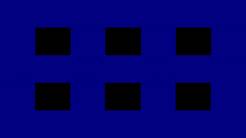
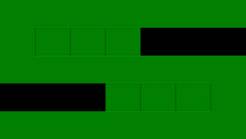

If you have errors (a likely scenario), then you will find help in dealing with them in the troubleshooting section of the DVD. If the errors are severe, you may have to live with a compromise or call a professional to fix the problem. The good news is that even with decoder errors and a compromise, your display will still look much better that it did before. In any case, start with what this DVD tells you to do and watch it for a few days before going back and tweaking further. You will no doubt have to tinker a bit until you are satisfied with the color settings.
Sharpness
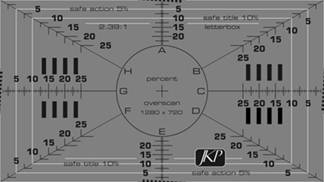 The last setting you will be adjusting is Sharpness. This may be the easiest of the settings to get correct the very first time since, for many displays, the correct setting for Sharpness is all of the way down or off. I have calibrated about a dozen CRT-based displays with this DVD and this was the case for all of them. The Sharpness control adds extra information that is not part of the original signal and is not needed with modern NTSC or ATSC signals. You will be instructed to look at this pattern and then turn down the Sharpness control until the extra information disappears. Extra information will show up as edges being added to the original lines. It will be very noticeable in the center cross and the circle around it. Turning your sharpness all the way down should allow everything to remain naturally sharp and in focus. On some (mostly digital) displays however, setting the Sharpness control all the way down may result in a soft or out of focus picture. In this case, raise the level until the picture is clear but no extra edges are added. If your set has SVM (Scan Velocity Modulation) or VM as it is sometimes labeled, look for a way to turn it off. If you look at this pattern and toggle SVM off and on, you will notice the black lines appear to get fatter when SVM is enabled; it is adding extra information that is not part of the original content. This is explained in more detail on the DVD.
Once you have finished with Sharpness you are done with the basic user controls. If you encountered a problem, then I recommend looking in the troubleshooting section for an answer. It is advisable to go through it anyway as it contains some very good information. Be sure to watch the video footage in the reference materials section, and check out the "chip chart lady" as well. It is a little added bonus for those of us who had the first Video Essentials DVD.
Conclusion and Final Thoughts
My display has been calibrated from the very first day I brought it home. However, if I choose one of the factory defaults and compare it to the calibrated settings, the original defaults are not viewable in my opinion. With the factory settings, colors are boosted beyond normal, edges are hard and have that soap opera video look, blacks are grey and whites too bright (obscuring detail). With the calibrated settings, colors are accurate and blacks are deep while still retaining shadow detail. The picture has a natural "film" look to it. It is like viewing a different display. If I were to judge my display by the factory settings I would never have purchased it. The truth is, you can't accurately compare brands of display when you are looking at them in the store. Remember, these units are uncalibrated and configured from the factory to make an impression to customers viewing them under full neon lighting. The best advice I can give you in deciding on a new display is to do your homework, and make sure they have a return policy. Better yet, try and find a dealer or installer that has an ISF certified calibrator in-house and has already setup the displays you are interested in.
After having listened and watched through this entire DVD, I found its educational potential amazing. It made me realize how misinformed the public (myself formerly included) tends to be about proper display calibration and its role on achieving maximum performance. Looking back I certainly wish I had something like this when I bought my first laser disc player. It appears that manufacturers are getting wiser and are now including options for turning off undesirable settings and allowing the user access to more adjustments previously only available in the service menu. This is a great step forward and one I know the Home Theater Alliance is reaching for as well. With the big push for high definition television, I believe it will just get better from here on out. Perhaps the day when we can buy a pre-calibrated display or projector is not too far off. Until then we have tools like Digital Video Essentials, and if you are serious at all about your home theater, then you need to own this DVD.
 Subscribe to our newsletter