Samsung BD-P1000 Blu-ray Disc Player Review
Samsung BD-P1000 Blu-ray Disc Player
- Product Name: BD-P1000 High Definition Blu-ray Player
- Manufacturer: Samsung
- Performance Rating:


- Value Rating:
- Review Date: August 27, 2006 20:00
- MSRP: $ 999
|
Key Specs:
|
Output:
** Component output for CSS-encrypted DVD discs is limited to 480i/480p only. BD software can lock out resolution above 480p via ICT and DOT tokens. Firmware Updates: Upgradeable via CD-ROM General Specification:
|
Pros
- Picture CAN look good on well-authored material
- 1080p upconversion of standard DVDs
- Excellent build quality
- Bargain price if compared to reference and esoteric upscaling DVD players costing much more
Cons
- Expensive debut (not atypical)
- Awkward remote
- MPEG-2 software underwhelming for most part
- Slow startup and menu navigation speed
- Most advanced features not fully implemented (or at all)
- Dolby TrueHD and DTS-HD nowhere in sight
- Strict EDID implementation means it may not work at 1080p resolution with 1080p-capable displays
- Underwhelming software performance and availability
BD-P1000 Overview and Build Quality
Not a day goes by that I don't get inundated with emails or news reports of something going on in the new high resolution DVD "format war". I am determined to avoid the tendency to break into loquacious bouts of opinion regarding the formats and simply stick to reviewing this rather fine looking piece of machinery. Believe me, it's easier and it makes my job a whole lot more pleasant if we keep the comparisons to their own articles where they belong. With that being said, Samsung is the first product to market for Blu-ray Disc and, as such, carries the burden of taking heat for anything not yet performing up to snuff with respect to the player's capabilities. As we go through the various functions and utilities of the BD player, you'll get to experience what I did and perhaps get a glimpse inside what makes this $1000 high resolution player tick.
First Impressions and Build Quality
The Samsung player looks slick. Its piano gloss finish is quite attractive and the player feels substantial, despite the fact that it only weighs in at just over 9 pounds. Access to the player's innards was granted through three rear Philips screws and two very industrial looking allen-head screws on each side of the player.
HDMI is aptly handled by the Silicon Image SiI 9030CTU-7 chip which is spec'ed for 25-150MHz use and 1080p applications. At heart, this is an HDMI 1.0 compliant chip, but standards seem to change faster than the imprinting of silicon does in this industry. The SiI 9030CTU-7 can handle just about anything needed for Blu-ray and more, including 4:2:2 - 4:4:4 up-conversion, 24-bit YCbCr 4:2:2, 1080p and WSXGA (1680x1050) resolutions, DVD-Audio support (not implemented here), 192kHz and 96kHz audio, and more.
 A Broadcom chip handles MPEG-2 and H.264 video decoding (just like with the Toshiba
HD-A1 HD-DVD player). This is a 64MB chip as far as we can tell and is located nearby the Genesis
Faroudja FLI8638-LF chip which is an
"all-in-one"
chip that is capable of handling digital
conversion, 10-bit DCDi deinterlacing, scaling, TrueLife video enhancement, and even dual channel 1080p
support. To say that there is a lot of expensive silicon on this motherboard would be an understatement -
and make no mistake, this is a motherboard and the BD player is a PC. It just runs Java instead
of Windows (which probably means it will crash a lot less than your desktop or laptop).
A Broadcom chip handles MPEG-2 and H.264 video decoding (just like with the Toshiba
HD-A1 HD-DVD player). This is a 64MB chip as far as we can tell and is located nearby the Genesis
Faroudja FLI8638-LF chip which is an
"all-in-one"
chip that is capable of handling digital
conversion, 10-bit DCDi deinterlacing, scaling, TrueLife video enhancement, and even dual channel 1080p
support. To say that there is a lot of expensive silicon on this motherboard would be an understatement -
and make no mistake, this is a motherboard and the BD player is a PC. It just runs Java instead
of Windows (which probably means it will crash a lot less than your desktop or laptop).

On the back of the unit we see that Samsung has made provisions for HDMI and component video outputs, composite and s-video (standard definition DVDs only - no Blu-ray), both coaxial and optical S/PDIF outputs, and a multi-channel audio output in addition to a mixed L/R analogue out. Right now it seems that the studios are only releasing uncompressed PCM tracks and allowing that to play through via HDMI and the 5.1 outputs. So far, the audio sounds great.
Author's Note on High Resolution Audio, HDMI 1.1, and the BD-P1000
One of the workarounds for high resolution 7.1 audio was to output the format via analogue outputs. Since this player only has 6 analogue outputs, it seems as if the manufacturers have opted to "hobble" the player to only support PCM, Dolby Digital or DTS bitstream content via these outputs. Dolby Digital Plus is also supported which is a higher bitrate version of Dolby Digital and offers much improved fidelity (though we haven't seen any supporting software as of yet). HDMI 1.1 is the format included with this player and, from what we have seen, it won't be upgradeable to handle DTS-HD and Dolby TrueHD natively until there is a chip/player upgrade (firmware won't cut it).What users should realize, however, is that HDMI 1.1 will allow manufacturers to convert the HD audio formats to uncompressed PCM and send them out of the HDMI outputs. Yes, HDMI 1.1 can handle 8 channels of uncompressed PCM. In addition, a legacy format like Dolby Digital will always be available via the coax or optical outputs. The end result is that these players should still have a nice long shelf life (you may not have discrete 7.1, but a lack of audio remixes and uncertainty on surround speaker layout may render this moot anyway)
BD-P1000 Set-Up, Remote Control, and Standard DVDs
Player Set-Up & General Use
Hitting the 'Play' button on the remote powers up the unit and engages the disc... 50 seconds later. Stopping a disc and then resuming play takes about 12 seconds and, should you only press 'Stop' once, restarting play from where you left off is a breezy 2 seconds. Skipping chapters is responsive, but navigating menus had a very annoying one second delay, so you were always waiting for the player to "catch up" when selecting scenes or changing playback options. It's 2006 and the next generation formats still cannot allow access to the '(Player) Menu' without first stopping the disc playback.
While a disc was set in the tray, pressing the 'Play' button occasionally didn't initiate any player response. You'd have to hit the 'Open/Close' button before being able to use the disc. Other times it worked as expected. Some discs started with the primary feature, which I liked, and others are authored to drop you to the main menu. You still cannot skip past the legal warnings on most discs. This is almost childish, though it is a function of the software not the player.
Each of the BD discs we reviewed included a 5.1 uncompressed PCM audio track. The difference between this and the default Dolby Digital 5.1 track was often surprising. On one disc the uncompressed track was ~5dB louder than its Dolby Digital counterpart. We were also surprised to hear a difference in audio output from the S/PDIF coax jacks when selecting uncompressed PCM audio (not supported via S/PDIF). We'll address more in the viewing/listening evaluations.
Remote Control
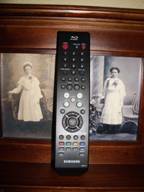

Samsung isn't exactly known for its creative and ergonomic remote controls. With so many layouts to choose from and the fact that this player represents a major technology step and entirely new format, the choice to only slightly modify its existing display remote was puzzling at best. The remote is billed on the Samsung site as being a "universal remote". It isn't and I can't see why it should be since this is a transport and hardly the brains of anyone's AV system.
The remote fits well in the hand, narrow and with buttons that are accessible when using just your
thumb. The keypad is surrounded by the Player/Setup menu functions instead of the Disc or Popup menu,
as would be more appropriate and useful.
Four color buttons (red/A, green/B, yellow/C, and blue/D) are positioned near the bottom of the remote and are provided to "allow access to common functions of the Blu-ray disc player." Initially, the only function I found that used even one of the buttons was in the Player menu where red/A could switch between Memory Card and Disc options. Later, additional buttons became useful when playing audio CDs or Memory Cards.
Remote Functions

Popup Menu System
One of the coolest aspects of the Blu-ray format is the ability to overlay menus (complete with their
own sound effects) onto the movie and select options. The scene will play out in the background while
the menu system allows you to select various audio and/or subtitle options. This came in handy later as
we compared the uncompressed PCM audio to the Dolby Digital track.
One odd thing we noticed while watching the BD release of Memento was that the
Popup menu sound effects were disabled when not selecting the uncompressed PCM audio -
and this
while using the S/PDIF coax output (which isn't typically spec'd to support uncompressed PCM audio).
This held true in other Blu-ray titles as well and seemed to be a limitation either of the software
titles or the implementation of Popup menu audio and high resolution output from the player. It could
simply be that you cannot overlay the second layer of audio sound effects with Dolby Digital output,
however what it was doing via S/PDIF remains a mystery (in The Fifth Element we also noticed some audio
artifacts during S/PDIF playback when selecting the Uncompressed PCM track. The Popup menu has an
automatic timeout function and disappears after 15 seconds if not used.


New Blu-ray Disc software menus

Subtitle
The
'Subtitle'
button on the remote allows cycling or direct selection of subtitles for the
current movie.
Audio
When selecting foreign languages, English subtitles are
"automagically"
enabled. In
addition, you can bring up commentary tracks through this method of cycling tracks.
Marker
&
Repeat
The
'Marker'
button allows users to store and recall up to 10 points throughout a disc. The
Bookmark OSD will stay up forever until you disengage it by again pressing the
'Marker'
button.
'Repeat' can replay the current title or Chapter, and the 'Repeat A-B' function works as expected so you can endlessly loop a contiguous passage.
Info
The
'Info'
button allows access to title and chapter navigation as well as audio, subtitle
and angle selection. The
'Info'
screen will disappear from the display after ~30 seconds if
not used.
The '(Player) Menu' and 'Disc Menu' buttons are inverted in our opinion, meaning that you are more apt to want to use the disc menu than the '(Player) Menu' button - though if you constantly bounce between disc and memory card this may not be the case. In case you haven-t yet figured it out, we-ve renamed the regular 'Menu' button to the '(Player) Menu' button as it controls the essential browsing and configuration of the player and media within.
Playing or Displaying Non-BD Formats and Media

CD Audio
The CD mode of the Samsung player displays the tracks on the disc in sequential order. You can repeat a
song or album and there is a random feature as well. These are all accessed by cycling through modes
using the Yellow/C button on the remote control. A playlist can be made using the function made
accessible by the Blue/D button on the remote (the interface gives you all the visible cues
you'll need). While in Playlist mode you can arrange the tracks anyway you want (including
duplicate entries). Exiting or entering the Playlist mode stops the current song, unless you depart by
pressing the Red/A button. At this point playback proceeds sequentially. Tracks can be skipped and
paused and you can fast forward or rewind in 2X, 4X, or 8X speeds.
Memory Cards

The BD-P1000 cannot continue playback of a CD while displaying images from the Memory Card reader. To access photos from a card (we used an SD card) select the '(Player) Menu' and choose the Memory Card reader with the Red/A button. Navigate to the 'Photo' menu and hit the right arrow to see sub-folders and images on the card. You can select one image at a time or run a slideshow in Fast, Medium, or Slow speeds. Between the player speed and a slower memory card your pictures are likely to have a small hourglass in the middle of them for a majority of the time as the player loads up the next picture. In our opinion this is a major dropped ball and makes the player almost worthless for displaying photos in high resolution.
The pictures were shown in their proper aspect ratio and the clarity was impressive.
On a 42"
LCD screen the results were very pleasing. Bringing up the
'Info'
menu
during photo playback (or hitting the
'Zoom'
button) allows you to zoom in on an area of
the picture, achieving what appeared to be a pixel-to-pixel representation of the source resolution of
the photo. Once zoomed, you could use the navigation buttons to, well, navigate around the photo. The
'Info'
button also allows you to initiate a slideshow and lets you rotate images 90, 180,
or 270 degrees (always clockwise to eliminate confusion). When rotated, an image can no longer be
zoomed and slideshow mode must first be disengaged. Rotating is apparently a RAM-buffered event and no
photos are actually rotated on the memory card. Weak support.
DVDs
OK, here's where I really think the Samsung needs to be evaluated. Let's do the math -
Buy a $1000 (or more) high-end DVD player or get a next-generation format player for the same price?
This is one of the markets that Blu-ray and HD DVD should really dominate. In my opinion, the video
scaling and upconversion in this player are fantastic. The video output looked phenomenal and was quite
comparable to my Denon DVD-3910 reference DVD player (which retails for $1499 by the way). So, when you
take this angle, Samsung's BD-P1000 may actually be a bargain for high-end users. I took this
into full consideration when delivering the final value rating to the player at the end of the review.
While the hardware issues (EDID and 1080i/p) caused me to somewhat lower the overall rating, we
can't forget that this is a pretty darn good quality upconverting DVD player.
BD-P1000 Measurements and Viewing Evaluation
Compatibility
The Samsung BD-P1000 Blu-ray Disc player can handle BD-ROM, BD-RE/R, DVD-Video, Audio CD, DVD-RAM,
DVD-R/RW, and CD+/-R/RW. JPEG and MP3 on CD is supported, though supposedly DVD+R/RW formats are not
(don't worry, it played several DVD+R discs just fine for us). SACD and DVD-Audio are not
supported, but most of these discs have DTS tracks and those formats appear to be working themselves
into a niche market (DVD-Audio) or extinction (SACD) regardless.

Video and Audio Measurements & Testing
Since the Samsung BD player is certain to be used for upconverting standard DVDs to 1080p via HDMI, it was imperative that we explore how well the player handled the source interlaced signals coming off of standard definition DVDs. In particular, we were looking for solid deinterlacing and jaggie reduction performance, noise reduction and the ability to easily navigate unflagged 2:3 cadences. With an on-board FLI8638-LF chip, we were optimistic about the BD-P1000's abilities to perform with legacy media.
All final test scores were derived using the Samsung BD-P1000's HDMI output in 1080p mode unless otherwise specified.
Audioholics/HQV Bench Testing Summary of Test Results
Perfect Score is 130
Samsung BD-P1000 Benchmark total score:
73/130
(The Faroudja
FLI8638-LF chip seems to be well-implemented, though we were disappointed by the lack of meaningful
noise reduction)
|
Test |
Max
|
Results
|
Pass/Fail |
|
Color Bar |
10 |
10 |
Pass |
|
Jaggies #1 |
5 |
5 |
Pass |
|
Jaggies #2 |
5 |
3 |
Pass |
|
Flag |
10 |
10 |
Pass |
|
Detail |
10 |
10 |
Pass |
|
Noise |
10 |
0 |
Fail |
|
Motion adaptive Noise Reduction |
10 |
0 |
Fail |
|
Film Detail |
10 |
10 |
Pass |
|
Cadence 2:2 Video |
5 |
0 |
Fail |
|
Cadence 2:2:2:4 DV Cam |
5 |
0 |
Fail |
|
Cadence 2:3:3:2 DV Cam |
5 |
0 |
Fail |
|
Cadence 3:2:3:2:2 Vari-speed |
5 |
0 |
Fail |
|
Cadence 5:5 Animation |
5 |
0 |
Fail |
|
Cadence 6:4 Animation |
5 |
0 |
Fail |
|
Cadence 8:7 animation |
5 |
0 |
Fail |
|
Cadence 24fps film |
5 |
5 |
Pass |
|
Scrolling Horizontal |
10 |
10 |
Pass |
|
Scrolling Rolling |
10 |
10 |
Pass |
|
Total Points |
130 |
73 |
|
All tests were done with the HDMI outputs at 1080p. Any failed tests were checked in 720p as well.
Comments on Audioholics DVD Torture Tests
For the full list of features and testing, please see our DVD Player Benchmark Testing article. While we would have loved to see this $1000 player score better than anything costing less than that on the standard definition DVD market, this was not the case. The player did well, but lacked real noise reduction implementation and the ability to handle unflagged cadences other than 2:3. As we mentioned earlier, player response was very poor and remote functions while in the disc menu systems seemed to lag.
The Moving Zone Plates test failed instantly in both the horizontal and vertical resolutions with significant moiré and flickering. The 2-3 Zone Plate test fared much better, at least horizontally, until around +/-9. Vertically, it failed to pass. 2-2, as expected based on the HQV scoring above, which also failed.
Layer changes took an unimpressive 2.25 seconds, which will be very noticeable on dual layer standard definition DVDs.
One odd thing I noticed while using AVIA Pro was that the patterns would 'cycle' every 7 seconds with either a brief, or as long as 2 second, pause - at which point the pattern would break up or go to half resolution. The effect was similar to what sometimes happens when pausing a DVD on some players. This skipping was not present on any of my other DVD players and seemed to be a flaw in the way the BD-P1000 handles the cycling of fixed images or patterns as opposed to constant moving video.
Another puzzling fact is that the first batch of players were shipped with the Genesis FLI8638-LF chip configured to a high level of noise reduction. Given the poor noise reduction performance, I'm not sure that this has any real positive effect on the picture. Jim Sanduski, senior VP of marketing for Samsung's Audio and Video Products Group, issued a statement saying that " Samsung is currently working to revise the default settings on the noise-reduction circuit in the Genesis scaler chip to sharpen the picture. All future Samsung BD-P1000 production will have this revision and we are working to develop a firmware update for existing product."
Viewing Evaluation
While the 1080p deinterlacing tests were done on a Samsung HL-S5688W 56" DLP rear projection television, viewing evaluations were done using a Westinghouse LVM-42w2 monitor. What we didn't expect was the fact that the BD-P1000 absolutely refused to send 1080p to the Westinghouse display. Apparently the strict implementation of EDID for setting display resolutions prevented the Samsung from allowing the fully-compliant 1080p monitor to mate with it at the maximum resolution. To say this is disappointing is an understatement, especially since the player already has a mechanism in place to deal with incompatible monitors (you can eject the disc and hold the fast forward button on the front panel.) Based on Samsung feedback (or lack of it) this does not seem to be something that will be fixed with a firmware update.
We did the viewing test in the Westinghosue because, in comparing 1080p output with 1080i output we quickly ascertained that there was really no difference. This confused us, to say the least, until we heard back from Samsung about how the player handles 1080p/60 content. Apparently the player deinterlaces all 1080p/60 content into 1080i and then pumps it back into 1080p for the display. Because of this, the "1080p" Blu-ray player's 1080p output is no better than its 1080i output provided you have a decent deinterlacing display. This also means that the Blu-ray player has lost one of its only advantages over the competing Toshiba HD DVD player. Both are essentially 720p/1080i max resolution players. As HD DVD seems to be paying closer attention to its mastering process (and the VC-1 CODEC does a better job at maximizing use of disc space) this also explains the word-of-mouth picture quality advantage that HD DVD seems to be getting.
BD:
The Fifth
Element
It's no secret that the Blu-ray Disc release of The Fifth Element
is possibly the biggest software train wreck that has occurred in a long time. It was so bad, that Sony
is purported to be re-releasing it already from a cleaner master print.
This has not been
confirmed, but you can perhaps see that when we compared the two discs we were somewhat disappointed.
Film grit and artifacts (the non-digital kind) abound and render a very dirty picture (similar to
watching a well-used print in the theater). It's digital -
it should be cleaned up and
frankly the people at Sony Pictures should know better.


Helios
HVD2085
(left) vs. Samsung BD-P1000 (right)
In each example I could see a bit more actual resolution in the Samsung image (look at hair and the edges in the hieroglyphics, but the amount of noise and film artifacts which showed on the screen took away from the overall quality of the film. In all honesty the Superbit DVD is a nicer presentation as the picture is cleaner and more pristine. This is a critique of the software. If all things were equal, the BD version would win out due to better (real) edge detail.
BD-P1000 Viewing, Listening Evaluations and Conclusion
BD: Memento
This is one of my favorite thriller/suspense movies. It keeps you on your toes and has some incredibly
well-shot footage, especially with lots of outdoor scenes, vehicle lines and facial close-ups with
plenty of skin detail. Taking a look at the close-ups you could really see that this DVD as a better
quality transfer, lending itself to an impressive presentation.
The picture could stand to be a bit sharper overall, but the image varied from scene to scene - making it difficult to know the root cause for any picture quality issues.
Helios
HVD2085
(left) vs. Samsung BD-P1000 (right)


Overall, detail abounded in various scenes. In particular the hair, skin detail and
tattoo textures were clearly visible as was the dirt on the hood of the car in the bottom comparison.
When comparing real 1080i/p vs. scaled 1080p it's all about detail, so if I sound like a broken
record it's simply because items like hair, skin and various textures are where you most clearly
see the differences. This is one of the better masters I had see in a Blu-ray Disc title and it was
nice to see that not every disc suffered from the bad mastering that plagued many titles. Blu-ray won
the comparison on resolution grounds, but I have to note that we did see a slightly bluish color cast
in comparison to our other players.
BD: House of Flying
Daggers
Again, this title seemed promising and then we received it only to
become disappointed in the overall graininess of the picture. And I DO mean the picture was grainy. The
graininess seemed to become a major problem as it interacted with the noise reduction settings of the
player -
producing a crawling grainy pattern that seemed to dominate each scene.
The film was also noticeably jumpy, having a persistent up-and-down motion as it played. We shot some photos below to try and capture the noise phenomenon, but obviously without providing motion it's hard to get the full effect.


A grainy picture dominated this movie, rendering it as one of the worst BD
transfers yet in my opinion.
During some key scenes there were optimal points to discern fine edge detail and resolution, but this was not the choice movie with which to test out the benefits of the Samsung BD-P1000 player versus standard definition DVDs.


Listening Evaluation
We fired up the 5.1 analogue outputs and took a listen to the Samsung BD-P1000 in both Dolby Digital and PCM-uncompressed modes. There is no real music-only titles available so we focused mostly on credit music where some of the best tracks of any movie are kept (as any industry insider knows, this is where the composer can let it rip without having to tone it down for the Director.) We were pleased to find that we really liked the increased quality present in the uncompressed PCM tracks. I think this is a case of "never had it, never missed it". Once the uncompressed tracks were compared with the Dolby Digital tracks, high-end clarity and the perceived low frequency extension increased audibly.
As mentioned above, some titles had a different volume level for the uncompressed PCM tracks when compared to their Dolby Digital counterparts. Memento , for example, had about a 5dB difference in level, making it hard to compare tracks (we got good at quickly adjusting volume during the pause of reacquiring the stream). Other titles like House of Flying Daggers had level matched tracks that were easy to compare. Overall, I'd have to say that I wish standard DVDs had more advanced audio for films - until you hear some uncompressed tracks in close comparison, you may not realize what you are missing. That's a home run for high definition DVDs and I am now looking forward to the new lossless Dolby and DTS formats which we imagine will start arriving sometime in 2007 (with hardware support that is).
Conclusion
Let's understand something. The $999 Samsung BD-P1000 is for those consumers who want, and can afford, the latest and greatest. This is an early-adopter product. With these products come several factors: Buy it, and you will 1) have the greatest level of quality available in DVD (compared to standard definition, this is not a statement on comparing formats), 2) be subject to the occasional bug or issue associated with a first-generation product, and 3) pay more than what these products will eventually cost once early adopters allow manufacturers to recoup R & D and bring down prices.
What can we say overall about the BD-P1000? It's a decent product - worth every penny to those who have the funds and demand the latest and greatest gadgets. It is also, however, an immature product. For those looking to work on a budget, you can afford to wait a bit and settle for standard DVD upconversion to 720p/1080i which is now available in decent form for less than $150. For those looking at high end DVD players with upconversion capability, the Blu-ray player now looks very tempting indeed and might actually save you some money.
We are very disappointed with the software available for Blu-ray. It seems very unpredictable and adds one more level of "buyer beware" to an already uncertain marketplace. When it's all said and done, my vote is for everyone to rush out and buy these players - once you do the prices will come down and "mere mortals" can then enjoy high definition without having to empty their wallets of quite so much cash. So, support those of us who can't afford the latest gadgets - buy these players up!
http://www.samsungdigital.com
The Score Card
The scoring below is based on each piece of equipment doing the duty it is designed for. The numbers are weighed heavily with respect to the individual cost of each unit, thus giving a rating roughly equal to:
Performance × Price Factor/Value = Rating
Audioholics.com note: The ratings indicated below are based on subjective listening and objective testing of the product in question. The rating scale is based on performance/value ratio. If you notice better performing products in future reviews that have lower numbers in certain areas, be aware that the value factor is most likely the culprit. Other Audioholics reviewers may rate products solely based on performance, and each reviewer has his/her own system for ratings.
Audioholics Rating Scale
 — Excellent
- — Very Good
- — Good
- — Fair
- — Poor
| Metric | Rating |
|---|---|
| High Definition Video Performance | |
| Standard Definition Video Performance | |
| High Definition Audio Performance | |
| Analogue Audio Performance | |
| Bass Management | |
| Build Quality | |
| Ergonomics & Usability | |
| Ease of Setup | |
| Features | |
| Remote Control | |
| Performance |  |
| Value | |
Clint Deboer was terminated from Audioholics for misconduct on April 4th, 2014. He no longer represents Audioholics in any fashion.
View full profile Subscribe to our newsletter