Denon DVD-5910CI DVD Player Review
Denon DVD-5910CI
- Product Name: DVD-5910CI
- Manufacturer: Denon
- Performance Rating:

- Value Rating:

- Review Date: October 19, 2006 20:00
- MSRP: $ 3800
Video Features
- DDVC (Dual Discrete Video Circuit) proprietary technology
- Realta HQV chip by Teranex
- HDMI 1.1 (HDCP Compatible – SiL9030) - With Selectable Scaling – 480p/720p/1080i/*1080p and DVD-Audio Output
- DVDO-HD Scalar by Anchor Bay Technologies
- Dual, Discrete 14-bit, 216MHz Analog Devices Video DACs (480i/480p)
- 10-bit Pixel Image Correction
- 10-bit I/P converter, capable of performing one trillion operations per second
- 8MB Buffer to minimize layer change
- 10-bit Precision Video Scaling™ by DVDO
- HDMI 1080p / DVI 1080i Digital Video
Audio Features
- HDCD Decoder
- Full digital bass management featuring AD Melody 100 Sharc processing
- Burr-Brown PCM-1792 24/192 Audio DACs (DSD/PCM Discrete)
- IEEE-1394 ports
- Advanced AL24 Processing
- DENON LINK III, for high-grade audio transmission
- WMA 9 (Audio only), MP3 Audio Decoder for CD-R/RW, DVD-R/RW Discs
- Pure Direct Modes (User Selectable - Video/Digital/Display Off)
- THX Ultra®-certified
Physical Attributes
- Weight: 42 lbs
- Dimensions: 17.1" W x 6.7” H x 17.1” D
Pros
- Top of the line video performance
- Unsurpassed audio performance
- Unparalleled build quality
- Simultaneous output of scaled HDMI and 480p Component Video
Cons
- Expensive
- No HD DVD or Blu-ray Disc support
- Audio Dropout between DTS CD track changes via Denon Link
Denon DVD-5910CI Technology Overview
While watching old Looney Tunes cartoons as a child, I always recalled Bug Bunny's nemesis (i.e. Yosemite Sam, Elmer Fudd, etc) say "it has everything but the kitchen sink" seconds before they'd get knocked upside the head with said item. When Denon announced the 1080p upgrade to the DVD-5910 I quickly put us on the list to receive a review sample. I had a mindful eye when the FedEx guy arrived at my front door. Lugging this nearly 50lb box up my flight of steps to the Audioholics Showcase system, I couldn't help but wonder if Denon did, in fact, ship me the kitchen sink as part of a package deal with this DVD player. Enter the DVD-5910CI - Denon's latest flagship DVD player packaged in a rugged chassis that would make most receivers envious. Seriously, this DVD player looks out of proportion to all receivers but Denon's own venerable AVR-5805.
Comparative Differences of the DVD-5910/5910CI and
DVD-3930 DVD Players
For those wondering what the difference between the DVD-5910 and DVD-5910CI is, I tabulated them below along with a direct comparison of Denon's own DVD-3930CI.
|
Metric |
DVD-5910 |
DVD-5910CI |
DVD-3930CI |
|---|---|---|---|
|
Simultaneous output of scaled HDMI and Component Video |
Yes, 480p |
Yes, 480p |
Yes, 480i |
|
480i Pass-thru via HDMI |
No |
No |
Yes |
|
Audio DAC's |
PCM-1792 |
PCM-1792 |
PCM-1796 |
|
HD Scalar |
DVDO-HD Scalar by Anchor Bay Technologies |
DVDO-HD Scalar by Anchor Bay Technologies |
Realta |
| Max Upscale Resolution | 1080i | 1080p | 1080p |
|
IEEE 1394 Outputs |
Yes (2) |
Yes (2) |
No |
| Denon Link |
Ver 2 |
Ver 3 | Ver 3 |
|
THX Certified |
Ultra |
Ultra |
No |
|
Dimensions (W x H x D) |
17.1"
x 6.2"
x 17.1" |
17.1"
x 6.2"
x 17.1" |
17.1"
x 5.2"
x 13" |
|
Weight |
41.9 lbs |
41.9 lbs |
25.3 lbs |
Audio Components
There is no doubt the DVD-3930CI wins hands down in the value category and certainly delivers in every category nearly as good as the 5910CI flagship unit. There are however discernable differences in parts usage such as the Burr Brown DAC's. One would think that the higher numbered DAC (PCM-1796) would be superior to the lower number unit (PCM-1792), but this is NOT the case. Aside from the 30% component cost adder of the Burr Brown PCM-1792s found on the DVD-5910CI and the PCM-1796s found on the DVD-3930 there are significant specification difference between these two DAC's. The PCM-1792s have superior dynamic range (about 3dB better), better channel to channel separation (about 4dB) and better filter characteristics, particularly with respect to superior Stop Band Attenuation(-130dB on the 1792s vs -98dB on the 1796s) as well passband ripple. The 1792s also appear to have greater drive capabilities than those of the 1796s which isn't surprising since the 1792s are the Burr Browns flagship DAC's and arguably some of the highest performance multi function audio DAC's ever created. Whether or not a consumer could hear a sonic difference between these units depends upon many factors such as: hardware implementation, quality of upstream components and loudspeakers, room acoustics, listeners hearing capabilities.
Other notable featured about the audio prowess of the DVD-5910CI include:
- Independent PCM and DSD Decoders
- Separate PCM-1792 DAC's for 2 Channel mix down outputs
- Advanced AL24 Processing on all channels
- Denon Link and IEEE-1394 Outputs
- SACD Audio Filter Select (50 or 100 kHZ)
- HDCD Decoding
- Bass Management for HDMI output
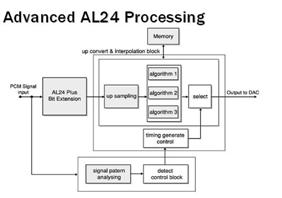
Denon's AL24 processing, found on many of their high-end receivers and DVD players is a 24-bit reproduction technology utilizing real-time bit extension, up-conversion and interpolation algorithms proprietary to Denon. Over the last few years, we've tested many Denon AVRs and DVD players and always found them to be among the best in low level linearity, with a superbly low noise floor. The DVD-5910CI was a prime example of this based on our extensive listening tests and measurements.
DVD-5910CI Build Quality and Remote Control
We decided to take a peek under the hood of the Denon DVD player dream machines to make sure some marketing clown at Denon didn't stuff a few 10lb weights in the chassis to give them their heft. Don't laugh, I am waiting for the day some esoteric manufacturer does this. Many already do this with amps and processors via an ultra thick front faceplate and chassis. Open some of these products up and you will find mostly air. This was NOT the case with either of these DVD players however.
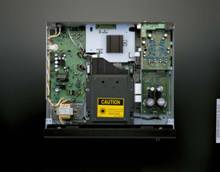
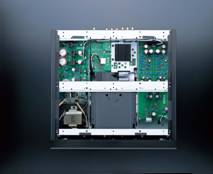
Denon DVD-3930CI (left pic) & Denon DVD-5910CI (right pic)
As you can see in the pics above, both of Denon' s newest DVD players are superbly constructed. Both machines utilize E-core transformers and switching power supplies, though the power supply section of the DVD-5910CI looks roughly double the size with a higher component count, particularly regulators and power supply capacitors. The DVD-5910CI also has a more robust transport, and according to Denon contains a special protein coating and damping materials that suppress vibrations from disc spinning.
The DVD-5910CI utilizes 4 block discrete construction to eliminate mutual interference between circuit boards and incorporates a four layer chassis base to dampen external vibrations. This is the type of construction and materials that puts the "high-end" in true high-end components such as this player.
The transport is also built of sterner stuff. It's typical to find a flimsy plastic drawer on most DVD players out there but the DVD-5910CI once again sets the bar in rugged build quality and choice selection of the best parts to show of its high-end stature.
Denon DVD-5910CI Features
Denon significantly raised the bar in DVD video and audio performance with the introduction of this new flagship player. The DVD-5910CI brings several significant technologies to the consumer home entertainment arena. Most notably, because it was the world's first consumer product to incorporate the Realta/HQV chip from Silicon Optix. The chip performs over 1-trillion video processing operations per second, significantly improving standard definition video. This technology was previously only used by broadcasters for video processing but is now at the fingertips of discriminating A/V enthusiasts who flip the bill for this dream machine.
The DVD-5910CI is also the world's first DVD player to feature the critically acclaimed DVDO 10-bit Precision Video Scaling technology from Anchor Bay Technologies, a critical video processing step. The Precision Video Scaling circuitry is very impressive and does a tremendous job at digital video upconversion, cross-conversion, and downconversion as we discovered in our viewing evaluations.
The DVD-5910CI also features Denon Pixel Image Correction (DPIC), exclusive 10-bit correction circuitry that samples a total of nine pixels to detect the impact of a "target" pixel, then process in vertical, horizontal and diagonal parameters and separates algorithms for brightness and color. DPIC not only features per-pixel motion and noise adaptive processing but also per-pixel detail enhancement.
DVD-5910CI A/V Block Diagram
In the video block, we see ESS Vibrato MPEG / DVD-Audio Decoder interfaced with the REALTA HQV 10-bit processor at the heart of the video core. The HQV processor feeds the Analog Devices dual discrete 216 MHz/14-bit video ADV7314 DACs which allow for 480i or 480p resolution via component video outputs and sends 480i to the s-video and composite video outputs. The Anchor Bay DVDO scalar is connected in parallel to HQV and utilized to scale all the common resolutions (480p, 720p, 1080i, and 1080p) to HDMI and DVI simultaneously for digital transmission to your display device.
The ESS processor also handles DVD-Audio and interfaces directly with the AD Melody 100 SHARC processing for bass management and PHY for digital transmission of DVD-Audio via HDMI, IEEE1394 and Denon Link. Should you go the analogue route, Denon employs its AL24 bit processing before doing the D/A conversion via the PCM-1792 DACs. Note the independent DACs for mixed Front Left and Right channels for second source audio applications. The DVD-5910CI also has an independent SACD decoding circuit to keep it in its native DSD format should you decide to bypass bass management. Denon gives the option of outputting DSD over its PHY digital connections to IEEE1394 and Denon Link3 or you can employ bass management, AL24 processing and D/A conversion for discrete analogue outputs. You can also transmit two channel 44kHz / 16bit PCM converted SACD via the HDMI output, but I would advise against it if you desire the best possible sound reproduction of this high resolution format.
Some of the key features:
- DVI-D (HDCP) and HDMI digital video outputs (simultaneous with 480p component video and other outputs!)
- Two component video outputs (BNC and RCA)
- S-video and two composite video outputs
- Denon Link 3 for DVD-A & SACD pass thru
- HDMI Ver. 1.1 with 1080p video support, DVD-A and SACD
- Two active IEEE 1394 ports
- Coaxial and optical digital outputs
- Multi-channel analog audio outputs
- DVD-Audio/SACD support with discrete circuitry
- Realta/HQV chip from Silicon Optix
- 10-bit Precision Video Scaling technology from DVDO
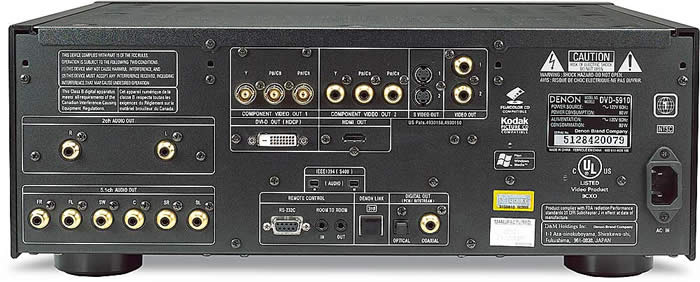
Denon DVD-5910CI Back Panel
The DVD-5910CI back panel resembles that of a sophisticated AV Receiver, nevermind a DVD player. It sports 6CH analogue outputs, independent 2CH analog outputs, 2 sets of component video outputs (BNC and RCA), 2 composite video, 2 S-video, DVI, HDMI, IEEE1394, Denon Link 3, Toslink and Digital Coax. Best of all, all outputs are active SIMULTANEOUSLY!
Remote Control
Denon' s DVD player remote controls have always been pretty ordinary but functional. The DVD-5910's remote is definitely improved upon from their status quo. Finally they incorporated a backlight feature but the button is in an awkward location that I found myself mistakenly hitting the Top Menu button slightly below it in my dark theater room. I would have liked to see the backlight button side mounted for easy and unmistaken access. The remote is a rather bulky 9" x 2 1/4" but has pretty good tactile response and can easily be operated by one free hand. It"s nice to see an open/close feature along with a power on/off feature incorporated into the remote. Best of all if you accidentally power down the unit with the tray out, it retracts the tray before turning off. This has been a welcomed new feature for Denon players in the last couple years. Let"s face it, with the price tag on this player, you will likely program a universal type remote and pull out the original on the infrequent occasion when specific player tweaks need to be made.
Denon DVD-5910CI Setting Up the Player
The DVD-5910CI's newest trick in its feature bag is its ability to upconvert to 1080p via its HDMI and DVI outputs. There are caveats however. You need a display that can accommodate 1080p - and if you're routing HDMI through your receiver, you better make sure its capable of handling 1080p. Some of the newer Denon models such as the AVR-3806, AVR-4306, AVR-4806 and the AVR-5805CI sport this ability.
HDMI YCbCr vs RGB
When setting up HDMI, you must consider the following selection of HDMI YCbCr or HDMI RGB. In most cases, the former is the appropriate one to use (and is the only one that takes advantage of the 10 bit processing power of the 5910CI) with the latter being utilized mostly for computer type displays. It really depends on how the color space conversion of your display is done so I suggest trying both settings and if you don't see a notable difference, use the YCbCr setting.
Normal vs Enhanced
There are two settings for HDMI.
Normal - signals are output to HDMI/DVI via digital RGB video range of 16 (black) and 235 (white)
Enhanced - signals output to HDMI/DVI with a digital RGB video range of 0 (black) to 255(white)
Normal is representative of Studio RGB levels for video playback which is likely how most DVDs are encoded. Keep it on the Normal mode to ensure you can display blacker-than-black and whiter-than-white information..
Picture Adjustment Menu 0 or +7.5 IRE
In most cases, you will leave this setting at +7.5 IRE and calibrate your black level accordingly. Denon offers the ability to change to 0 or +7.5IRE for greater calibration flexibility with more displays. Ideally you want black set at +7.5 IRE so that you can see below black info on the display. This is how it's done in the studio during the mastering process. Denon defaults the player to +7.5 IRE but if you use any of its memory settings, you will have to make sure you manually set each one to +7.5 IRE before calibrating your display. I found this out the hard way when I calibrated my display in default mode (+7.5 IRE) and later switched to Mem 1 to turn on the DNR and Enhancer features and later found I was crushing black levels since the player was now set to 0 IRE.
For more information on IRE levels, check out this post at HTF: Black Level 0 or +7.5IRE
Basic Video Setup
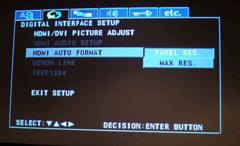
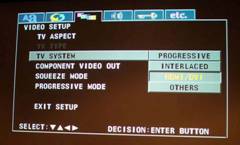
Some of the basic video configurations you will have to make on your DVD-5910CI to get started include:
- TV Aspect Ratio: select wide 16:9 or 4:3 to match your display screen type.
- TV Type :select NTSC, Pal or Multi
- 4:3PS: play wide DVDs in pan & scan mode with sides of picture cut off
- 4:3LB: play wide DVDs in letterbox mode with black strips on top and bottom
- Wide (16:9): play wide DVDs in full mode
- TV System: select interlaced or progressive or HDMI/DVI
- Component Video Out: select interlaced or progressive independent of HDMI/DVI output
- Squeeze Mode: used to properly center 4:3 images with pillar boxes on the sides on a 16:9 screen
- Resolution: This allows the DVD player to scale to your displays native resolution. I found Auto mode to properly select the native resolution of my display if I had the player set to native instead of MAX panel resolution which in my display was 1080i. On some 1080p displays, you may experience problems with the player auto selecting 1080p if you set it for native. In this case, you may wish to set it for max panel resolution or select the proper resolution manually.
- Progressive Mode: video mode selection, we suggest using Auto since the integrated HQV processing does perfect cadence and flag detection on its own. As you will find in our HQV testing, the other Video modes simply don't perform as well.
Advanced Video Setup
The DVD-5910CI, like most of the higher end Denon units, has provisions for adjusting contrast, brightness, sharpness, hue, and gamma correction. This is particularly useful when connecting multiple sources to a display on a common video input.
DNR (Dynamic Noise Reduction) - recommended setting +1. Other have reported issues such as motion blur or what I refer to as video persistence if a setting greater than 1 is used but I didn't see this issue at all even at the max setting of +3. Denon must have since then addressed this issue via firmware (perhaps by readjusting the maximum rate of noise reduction available).
Enhancer - emphasizes the contour or sharpness of the image.
CCS - performs removal of color signal component for images in which the color signal component is mixed with the brightness signal. This feature is mostly used for still image purposes.
Audio Setup
HDMI
HDMI ver 1.1 wont pass native SACD, thus if you desire to transmit audio and video down the HDMI pipe, you must either convert the signal to PCM, use IEEE1394 digital, Dlink3 for Denon compatible hardware, or take the six conventional analogue connections from the DVD player to your processor. If you have a processor with active IEEE1394, I'd recommend using that for a total audio solution in lieu of HDMI. Of course if you have a Denon receiver with enabled Denon Link 3, that is your best bet, especially since it's a more robust, digitally balanced solution for audio with extremely low jitter.
IEEE1394
IEEE1394 is a great one-cable solution to serve your audio needs, but be certain that your processor or receiver has an active IEEE1394 interface and not just a dead port found on many of the esoteric processors from the likes of Sunfire and others.
Editorial Note on IEEE1394:
EEE 1394 is a balanced interface low voltage differential serial interface. It is a pair of LVDS signals (2 pair) in addition to very aggressive grounding for those systems that are not galvanically isolated (the "b" form of 1394 supports both copper and optical connections, and the copper connections can be transformer coupled if necessary). It's an extremely fast external serial bus standard that supports data transfer rates of up to 400 Mbps (400 million bits per second). It is used primarily for multimedia devices such as camcorders, computers, digital audio recording workstations and, in this case, a digital transport for high resolution audio.
Denon Link 3 (DLink)
Denon Link is Denon's own proprietary low jitter balanced digital interface that communicates only with Denon Link-enabled electronics. You need to match the Denon Link version of the player to your receiver since DLink 3 uses a different signal format from DLink 2nd edition and below. Denon Link 3 allows for all current formats (except the newest DD+, DD TrueHD and DTS HD) to be passed digitally, including SACD. DLink 2 will pass all of these formats except SACD. If your Denon receiver is only Denon Link 2 or lower, be sure to configure it as such in the DVD player setup menu and connect either the IEEE1394 digital connection for SACD or the 6CH analogue outputs. DLink 2nd (Auto) automatically switches from Dlink to IEEE1394 for SACD if it detects digital signal otherwise it reverts to analogue. Of course if you want convenience over sound quality, you can use HDMI to convert SACD to 2CH PCM and again have a single cable solution for all of your audio formats.
Bass Management & Advanced Audio Setup
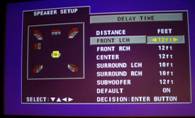 We haven't found a single DVD player
to date with the comprehensive bass management system found in some of the better receivers and
processors on the market.
That being said, Denon DVD players offer just about the best bass
management we've seen in any DVD players regardless of price.
Just like with previous Denon
players, you have the ability to adjust trim level, and delay settings for every channel including the
subwoofer.
Best of all, the settings are applied to SACD.
Unfortunately, however, the delay
settings are still limited to 1ft adjustability, 1dB precision on the channel trims, and inaccurate
test tones (mostly for the subwoofer channel), all which are bettered by good $500 AVR receivers these
days
We haven't found a single DVD player
to date with the comprehensive bass management system found in some of the better receivers and
processors on the market.
That being said, Denon DVD players offer just about the best bass
management we've seen in any DVD players regardless of price.
Just like with previous Denon
players, you have the ability to adjust trim level, and delay settings for every channel including the
subwoofer.
Best of all, the settings are applied to SACD.
Unfortunately, however, the delay
settings are still limited to 1ft adjustability, 1dB precision on the channel trims, and inaccurate
test tones (mostly for the subwoofer channel), all which are bettered by good $500 AVR receivers these
days
The crossover is not limited to 80Hz like most DVD players. Denon gives the following options for crossover settings: 40, 60, 80, 100, and 120Hz.
Source Direct
Source Direct bypasses bass management but maintains channel trims and delay settings. This is the only way to get SACD in native DSD format but unadvisable in most cases unless you are connecting the player to external bass management system such as an AVR receiver with bass management on its external multi channel inputs. Source Direct automatically boosts bass by +5dB for DTS and +15dB for SACD to ensure proper format level matching when connected to a processor.
Bass Enhancer
Bass Enhance outputs bass to the subwoofer channel for 2CH CDs when using the analogue outputs. This is particularly useful for those who don't have full range speakers and require the subwoofer to be active for 2 channel program material when playing SACD.
SACD Filter
There are two settings: 50kHz and 100kHz. We recommend 50kHz to reduce out of band noise inherent with the DSD noise shaping. This will ensure no noise will reach your loudspeaker tweeters at high output levels.
ETC Menu
Kind of an odd name to label this portion of the menu, it does however house some important features you should not overlook. In the ETC Menu, be sure to properly set the player mode to "Audio" under Player Mode or it wont default to the lossless MLP track when you insert a DVD-Audio disc.
Pure Direct
This gives users the ability to toggle the following circuits on and off: Digital output. Video output, and Display. You can even save two user settings or use "All Off" mode if you're a purist at heart and need the psychological reinforcement that you are now achieving the best possible fidelity playback of your DVD player despite the likely unmeasurable difference.
Denon DVD-5910CI Measurements & Analysis
Unfortunately, I have not fully set up all of my Audio Precision test suites to run the full compliment of analog audio tests but this is a work in progress. In the meantime, I did some spot checking via the analog outputs to verify the DVD-5910CI is up to redbook standards.
Running some test signals, I was able to confirm via my analog oscilloscope that the DVD-5910CI had no problems handling 0dBFS+ signal levels as some players often have, especially when they engage their upconverting processing.
See: Issues with 0dBFS+ levels on Digital Playback Systems
I also measured signal jitter via digital coax and toslink and found both interfaces to be extremely low with the latter being slightly lower than the former which measured at an impressive 130psec. In comparison, I connected the worst DVD player I own to my Audio Precision test gear - the Xbox gaming system. I measured a whopping 1.87nsec of jitter which was about 14 times worse than I measured on the DVD-5910CI.

I also threw up a digital Eye pattern to see just how well the digital signals of the DVD players were transmitting. The Red line shows the AES3 limits as per standard. A CD/DVD player must be able to produce an eye pattern via its SPDIF outputs outside the vertical limits of the red box in order to properly transmit the signal. The Eye pattern (green - represents the DVD-5910CI, Blue - represents the XBOX) should follow a similar shape to the red AES pattern. In the real world you will never have a perfect rectangular shaped eye pattern as per AES3 but the more box like it is, the less bandwidth roll off and jitter the interface will suffer from. As you can see, both players meet the AES3 standard just fine, but the DVD-5910CI's eye pattern is superior to that of the XBOX (no surprise there). For skeptics thinking all digital outputs are created equally, think again! It's clear as to why the DVD-5910CI exhibited such a low noise floor. Aside from its excellent component usage and layout, the player was carefully designed for the lowest amount of jitter possible making it a robust design that will work flawlessly with any processor/receiver. Bravo!
Editorial Note About Jitter:
Jitter is effectively the difference in time between when an event should happen and when it actually occurs. Jitter can affect clock signals, data signals or both and if allowed to pass unchecked through an audio system, it can lead to very poor audio performance, introduction of errors, high distortion and audio dropouts.Jitter can introduce problems in two areas of an audio system - at the digital interface or at the audio converter. If jitter occurs at the digital interface, it can cause a loss of lock and data corruption. If it is caused at the audio converter, it can cause sampling inducted errors, distortion and out of band noise.
DVD-5910CI Operation and Video Tests/Evaluation
In operation, the DVD-5910CI is as smooth as butter. Its menu navigation is much faster than the tortoise DVD-5900 but not quite as fast as the rabbit DVD-2900. It showed an unswerving ability to play beaten up DVDs and CDs demonstrating excellent tracking capabilities. The only operational glitch I found was when playing back DTS CDs there was an irritating 6-7 second pause between track changes when using Denon Link. During that time you can hear relays switching in the DVD-5910CI as if it was trying to lock onto the signal type. This became a bit of a nuisance when playing DTS CDs that continue songs between track changes. I asked Denon to look into this as I have never experienced this issue on other Denon Link enabled players (the problem was not evident on the DVD-3930CI, for example) and couldn't make it happen for anything other than DTS CDs via Denon Link. DTS DVDs played just fine via Denon Link so unless you have a wide selection of DTS CDs you may never notice this problem. Alternatively, you can always switch over to HDMI, Toslink or COAX connection type during DTS CD playback.
Video Tests
Audioholics/HQV Bench Testing Summary of Test Results
Perfect Score is 130
Denon DVD-5910CI Benchmark total score:
130/130
(The
best
player we've reviewed to date, matching the lower cost Denon DVD-3930CI)
|
Test |
Max
|
1080p
|
1080p
|
1080p
|
|
|---|---|---|---|---|---|
|
Color Bar |
10 |
10 |
Pass |
Pass |
|
|
Jaggies #1 |
5 |
5 |
Pass |
Pass |
|
|
Jaggies #2 |
5 |
5 |
Pass |
Pass |
|
|
Flag |
10 |
10 |
Pass |
Pass |
|
|
Detail |
10 |
10 |
Pass |
Pass |
|
|
Noise |
10 |
10 |
Pass |
Pass |
|
|
Motion adaptive Noise Reduction |
10 |
10 |
Pass |
Pass |
|
|
Film Detail |
10 |
10 |
Pass |
Fail |
|
|
Cadence 2:2 Video |
5 |
5 |
Pass |
Fail |
|
|
Cadence 2:2:2:4 DV Cam |
5 |
5 |
Pass |
Fail |
|
|
Cadence 2:3:3:2 DV Cam |
5 |
5 |
Pass |
Fail |
|
|
Cadence 3:2:3:2:2 Vari-speed |
5 |
5 |
Pass |
Fail |
|
|
Cadence 5:5 Animation |
5 |
5 |
Pass |
Fail |
|
|
Cadence 6:4 Animation |
5 |
5 |
Pass |
Fail |
|
|
Cadence 8:7 animation |
5 |
5 |
Pass |
Fail |
|
|
Cadence 24fps film |
5 |
5 |
Pass |
Fail |
|
|
Scrolling Horizontal |
10 |
10 |
Pass |
Pass |
|
|
Scrolling Rolling |
10 |
10 |
Pass |
Pass |
|
|
Total Points |
130 |
130 |
|
(80) |
|
*HDMI output was set at 1080p.
Comments on HQV Testing
As with other Denon players we've tested, the AUTO progressive mode is the only mode that the player should typically be in. With a maxed out score of 130, the DVD-5910CI ranks the highest of our tested DVD players to date. It's no surprise, of course, since the HQV testing methodology was designed around the REALTA video chipset present in this player. This player scored equally well to the DVD-3930CI we recently reviewed in every video test we performed.
Setting DNR
&
Enhancer Features
DNR and Enhancer settings are adjusted by hitting "Pic Adj" on the remote control, selecting a memory setting, and navigating to Image Quality Adjustment 3. The "E" graphic represents Enhancer and the dots in space represent DNR. The close up shot pictured here is none other than Peter Gabriel via his head cam on "Digging in the Dirt" from his fabulous Secret World Live concert DVD. I was able to use the Repeat A-B feature on key discs such as this one or Star Trek Insurrection , but ultimately found HQV produced the most repeatable results.
The HQV Benchmark DVD played an important role in helping me more accurately set DNR and Enhancer features of the DVD-5910CI. With tests such as Noise Reduction and Motion Adaptive Noise Reduction, the benefits of DNR were very apparent. On setting 0, you could clearly see noise artifacts in the background images of the flower and roller coaster, respectively. As soon as I engaged DNR to +1, the background cleared up significantly as did the detail around the images I was observing. I felt that setting the DNR to +3 slightly dulled the image, thus I left it set at +1 and called it a day.
Enhancer seemed to act like an elaborate sharpness control. It did help increase edge detail but only if you kept the setting in check. I found obvious ringing and increased noise if I pushed it any harder than +3 and ultimately settled on +1 for my evaluations. The desired settings for this may vary based on the material you are viewing.
Setting Proper Black / White Levels
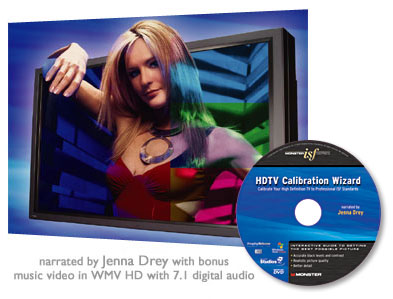
As much as we question the sales tactics utilized by Monster Cable in retail environments, they did partner with the Imaging Science Foundation (ISF) and Microsoft Studios to produce an excellent video calibration disc known as the HDTV Calibration Wizard . Just bypass the shameless promotions Noel Lee does on the importance of using Monster cable products for achieving the best picture and definitely bypass the cheesy music video from Jenna Drey that actually makes Britney Spears look talented. I use this disc to get accurate black and white level settings on my video setup when I'm in a hurry and don't want to pull out all my video geek gear to get nearly the same results. When I ran the Black Level test, I was unable to see the floating X at the top left of the screen that Jenna Drey referred to, even though I was increasing the brightness control on my display. A light bulb slowly but surely went off in my head and I realized somehow my absolute Black Level must have been set incorrectly. Jenna also confirmed that within seconds of my realization that I had the IRE set to 0 instead of +7.5. Setting the player to + 7.5 IRE and properly adjusting the black level to where the X was no longer visible did the trick. I then set the White Level by adjusting the contrast control just below the point where any shadow detail in the shirt was lost or where the buttons on the guys shirt became invisible. Getting your black and white levels correct is half the battle to ensuring proper picture playback. Setting proper Grayscale via our tutorial article is also very important too but requires the use of the right test gear and know-how. Calling a pro such as an ISF installer is recommended if you desire to truly maximize the picture quality of your system.
Viewing Evaluation
I tested the DVD-5910CI with all of the displays in the Audioholics Showcase system which include the Sceptre X37SV-Naga 1080p 37" LCD flat panel, Samsung HLS5688W 56" rear projection 1080p DLP, and the Yamaha LPX-510 720p LCD front projector. The DVD-5910CI was scaled to the native resolution of each display (1080p for the Sceptre and Samsung, 720p for the Yamaha).
LOTR: Fellowship of the Ring
Despite this movie not being the latest release of the month, it remains one of my all time favorite reference discs for a variety of reasons: superb content, video and sound quality. The scene where Frodo meets up with Gandalf in the Shire is simply stunning when played on a properly calibrated display. Of course a high quality playback device such as the Denon DVD-5910CI more than qualifies. Scaled to the native resolution of my display, the image seemed almost HD-like in quality and clarity. Panning scenes in the Shire were seamless. The shadow detail in the trees, and delineation of the blades of grass were simply astounding. The two minute scene I planned on demoing unsuspectingly turned into a three hour viewing session of the entire feature film.
Star Trek - Insurrection
I chose this movie because of the difficulty many DVD players have with 2:3 pull down on the opening scenes of the Ba-ku planet just before we learn of Starfleet's personnel engaging in covert operations. The moving diagonal lines in the garden scene tend to be too much for some DVD players de-interlacers. This was not the case via the DVD-5910CI, many thanks to bag of tricks this player sports. Instead motion was fluid, while the picture maintained excellent detail with no visible jaggies or moiré. Color was again spot on and the movie overall had a very deep, film-like quality to it. Denon's enhancer and DNR features helped sweeten the picture ever so slightly that went unnoticed until I used the Repeat A-B feature to compare before and after results.
Batman Begins
This is arguably the best Batman movie to date. This is a great movie to use as a reference because of all of the dark scenes throughout. On my older DVD-5900, I experienced severe macroblocking via my Samsung 1080p DLP display. This was not the case via the DVD-5910CI and we likely have the new HQV processing to thank for that. The older DVD-5900 used a Faroudja-based processor which overemphasized this problem on many DVD recordings showing its ugly symptoms on some of the modern high resolution digital display devices such as my Samsung DLP.
I was pleased with the excellent black levels I was able to achieve via the DVD-5910CI. Image detail was about the best I've seen on this movie and I was able to clearly see excellent contrast between the dark black logo on Batman's chest and the lighter shade of black evident on his uniform.
Listening Tests and Conclusion
With such a wide gamut of audio configuration options, I decided to conduct a reasonably controlled listening test to determine the audio quality of each type of output from the DVD-5910CI. I connected analogue, coax, toslink, HDMI, IEEE1394 and Denon Link 3 to my AVR-5805 and level matched each input so that on the fly switching revealed no audible differences. Using a very high quality set of Sennheiser HD 600 headphones I began listening to some very familiar CDs in my collection from the likes of Special EFX, Pat Metheny and Dire Straits. During my listening evaluations, I had Clint toggle inputs so I could instantaneously compare any notable sonic differences I was hearing. He took note of my reaction each time without revealing what connection method I was listening to at any given time. Starting with Special EFX Collection CD we went back and forth between all connection methods on tracks "Jamaica Jamaica" and "Hands of the Healer". These are just two examples of tracks on this excellently recorded CD that contain amazing amounts of high frequency detail and ambience with no annoying compression artifacts or noise. Each time Clint toggled the inputs, I was delighted with sonic bliss. The AVR-5805 was driving my headphones with authority and the DVD-5910CI was transferring the CD as pristinely as I've ever heard. We repeated this exercise with cuts from Pat Metheny Still Life Talking and Dire Straits Brothers in Arms. For brief moments I thought I was hearing slight sonic differences between input modes, but I later found that there was no statistical evidence to support a personal preference regardless of what connection type I was listening to from the DVD-5910CI.
Whether it was analogue, or digital, the 5910CI sounded phenomenal. I've always loved the sound of Denon DVD players and receivers because I've found them to do some of the best work in DAC implementation in the industry regardless of price. This experience only reaffirmed my belief that Denon knows digital audio. While at first I was a bit perplexed that I was unable to discern audible differences, I soon realized that my AVR-5805 also employs the same PCM-1792 DACs and AL24 processing. Thus the best of the best has been implemented on both ends of the audio interface between the receiver and DVD player. When we conducted similar tests using an Oppo player, the results were certainly more obvious, especially with the mediocre PCM conversion audio performance we heard on that particular player. Suffice it to say, I was pleasantly surprised to find Denon was a master of all domains on this machine. Rest assured whatever audio connection method you use, you are in for the best achievable audio experience within the limits of the format being played back on this machine.
For the rest of my listening tests, I took full advantage of the Denon Link 3 connection between my AVR-5805 and the DVD-5910CI. What a treat to finally have all the major formats decoded digitally at the receiver with full bass management, time delay and channel trim optimization. Somebody pinch me as I waited so long for this day to come that I am still not convinced this isn't a dream.
SACD
SACD is truly where this player flexed its proverbial muscles. So many other universal players botch this area up due to lack of proper bass management and/or time delay integration or just plain old poor implementation.
I picked up some killer Jazz SACDs from the Jazz Depot . A particular favorite of mine is from High Note records kinda JAZZY kinda FUNKY which is a compilation of soul jazz that just gets your foot tapping. Track #7 "Peach Cobbler" by Bill Heid is my favorite on the disc. The combo of Bill's B-3 organ and Joe Magnarelli's trumpets sent tingles down my spine the first time I heard it. Despite the fact that it's only a 2CH recording, the soundstage is larger than life and the trumpets sound so real that I soon found myself in an audio nirvana coma that I didn't come out of until the 7+ minute song was over. The bass was extended and clean and I enjoyed the tactile response my riser platform extended to my chairs. This player certainly had an ability to accurately squeeze out all of the low frequency detail this disc had encoded. The DVD-5910CI played this disc masterfully. The background noise was virtually non-existent and the level of detail and clarity was just about as good as it gets short of the real thing (live un-amplified musical performance). I decided to play this track back using my AVR-5805's Pro Logic IIx Music Mode and the experience was even better. It truly sounded like a multi-channel recording. Thanks to Denon Link, the audio signal was kept in the digital domain even up to the post processing of PLIIx ensuring no sonic degradation. In the past, when I ran SACDs or DVD-Audio discs with players connected via analogue through my processors decoder, I heard perceivable sonic degradation from the extra conversion process. What a delight to now have the ability to apply post processing features to any audio format with no penalty to fidelity. If this isn't just cause for you to upgrade your processor to one with enabled IEEE1394 or Denon Link 3, I don't know what is. Most of my non-critical music listening these days is done in multi-channel regardless if the disc is only a 2CH recording.
I wanted to see what this player could do with a true 5.1 multi channel SACD recording so I fired up the Jaco Pastorius Big Band Word of the Mouth Revisited SACD. Jaco fans or fretless bass fanatics, this is a must have disc. Track #11 "Wiggle Waggle" is chock full of excellent bass lines, drums and trumpets to get your soul grooving. The DVD-5910CI confidently and faithfully rendered the full potential of this recording. I wasn't sure what was more amazing, the channel to channel separation or the amazing clarity and silky smooth details I was hearing from the instruments. It was easy to discern all of the instruments in this recording and separated me from my system and threw me into the performance. Track #13 "Continuum" had a bit higher noise floor in the recording but the dynamics and lack of compression were second to none. The reverb from the bass guitar was surreal. If you want to hear a great chill song, this is the one for you. Everything ties together nicely towards the end with some much fluidity.
DVD Audio
After my very positive SACD listening session, I was eager to find out how the DVD-5910CI delivered on multi channel DVD-Audio. Thus I called upon some of the excellent recordings from AIX Records . Although they may not carry many mainstream artists, these are some of the highest quality multi-channel recordings I've ever heard. They lack the compression so commonly found today on many of the newer recordings. Lowen & Navarro Carry On Together is a shining example of how multi-channel should be done and if more of the mainstream recording engineers followed suit, DVD-Audio would likely be a more appealing format among audiophiles. "Cold Outside" is a breath of fresh air. I absolutely loved the unadulterated sound of the drums and can't recall more than a handful of recordings where they sounded so real and dynamic. The DVD-5910CI showed off its audio mettle to deliver what I call that "better than being there" experience. The vocals were crystal clear and the piano seemed to fill the soundstage way beyond the plane of the speakers. The MLP track was simply amazing. I later switched over to the DTS 96/24 track which was shot in HD video and presented in anamorphic video. The audio quality was still equally satisfying while the video was a true delight to my eyes. It's one thing to hear great fidelity but another to hear and see it of equal measure.
Concert DVDs
Lately I've been really getting into the concert DVD experience. It's one thing to have great audio surround you, but another to experience real footage of the band performing your favorite music. Some of my particular favorite concert DVDs with respect to audio and video quality, especially musical content range from artists such as Eric Clapton, Peter Gabriel and Pat Metheny.
Peter Gabriel -
Secret World Live
This is an absolute "must have"
DVD for all Peter Gabriel fans and IMO represents his pinnacle live performance
not just because of his world renowned theatrics but because of the awesome musical talent he
surrounded himself with, and excellent song selection and performance renditions.
This DVD opens with "Come Talk to Me" from his US CD. Manu Katché brings this song to new life with his amazing drumming, perhaps some of the finest I've heard in rock these days. The DTS soundtrack came across cleanly with relatively low levels of compression. The noise floor was very low, thanks to the awesome digital front end of the DVD-5910CI mated with the AVR-5805, allowing me to hear all of the subtle instrumental details Peter Gabriel and his band love to incorporate into his unique music. The most memorable and often repeated track on this disc was the last song on the disc and a classic for Peter Gabriel "In Your Eyes". Paula Cole delivers a stunning vocal performance along side Peter Gabriel and the song just keeps delivering stunning audio performance with an enveloping surround experience you lose yourself in for the full duration of the song. Although this DVD doesn't have the most pristine video quality, the DVD-5910CI processor enhancement and noise reduction features help improve picture quality. If you aren't a Peter Gabriel fan, I can confidentially assure you that you will be after experiencing this DVD on a truly excellent reference system with the DVD-5910CI at the heart of it.
Recommendations
If you are after the very best in a DVD playback system with respect to audio or video performance, look no further than the DVD-5910CI. Be cautioned that it takes the very best acoustically and light controlled room, high performance loudspeakers and amplification to realize the full potential of this machine. For best results, I wholeheartedly recommend pairing this DVD player with an AVR-5805CI receiver. This will allow you to take full advantage of the very best digital connectivity path - Denon Link 3 to handle all of your audio needs. Alternatively, I would advise choosing a processor with active IEEE1394. In my opinion, there is no good enough excuse NOT to take advantage of the full digital audio connectivity path that this machine offers. The only exception I can think of is if your processor has inferior DACs and/or bass management features in comparison, but at that point, I'd say its time to get a new processor. Sure you can pair this player with a "high end" processor via six analog connections and let the player handle bass management, but it would still be a second rate option compared to letting the AVR-5805CI or equivalent IEEE 1394 enabled processor handle it. While the DVD-5910CI offers about the best bass management system I've seen in a DVD player, it is still not up to the standard of a top notch processor or receiver. The proper place for signal management is at the processor, NOT the DVD player. This is the best way of ensuring optimal signal processing, time alignment, calibration, and channel level matching between source types. If you do choose to mate this DVD player with an esoteric processor that lacks IEEE 1394, then I'd suggest choosing one that allows for independent channel trim settings for different input or signal types.
Use this player in nothing but the finest of home theater installations and it will immensely reward its user (and the installer). Place it in a mediocre setup, and the user will likely not appreciate its capabilities over lower priced DVD players. For the ultimate audio and visual experience, this player comes with my highest recommendations!
Conclusion
Let's face it, the Denon DVD-5910CI isn't inexpensive. At $3,800 you can buy Denon's closest competitor (ironically their own DVD-3930CI) which has nearly the same guts and performance with their mating AVR-4306 receiver and still have $300 left over to purchase an XBOX 360 gaming system. On the flip side, you could spend nearly three times the asking price of the DVD-5910CI and get a poorly designed esoteric player in a fancy chassis from a so called "high-end" company with significantly lower audio and video performance and features. Welcome to the realm of high-end.
The Denon DVD-5910CI represents the pinnacle of DVD technology. Simply put, it has pushed the envelope of performance for conventional DVD and then some. Denon should never make a better standard definition player - there's really nothing else to improve upon at this point. If your install favors the audio side of the equation and you want the very best, than there really is no substitute to the DVD-5910CI. The ability to have all of its audio and video outputs simultaneously active is a custom installer's dream come true in terms of flexibility and configurability. Its implementation of the latest audio and video processing technologies and components, combined with its unsurpassed build quality makes the Denon DVD-5910CI a lone wolf in the high-end market of DVD dream machines.
If you want a player that also comes with everything but the kitchen sink, than this is for you. All you need now is a good popcorn machine and, unfortunately, Denon hasn't yet incorporated this feature into their flagship DVD players.
What About Blu-Ray and HD DVD?
By now, you're probably wondering why we are even bothering to review conventional high end Universal DVD players on the advent of Blu-ray and HD DVD storming the marketplace. To put it frankly, this simply hasn't happened yet. The players that have been launched on both sides were met with mixed success from reviewers and users alike. While HD DVD seems to have its act together more so than Blu-ray, I believe we are still a number of years away from wide adoption of these formats into the consumer electronics industry. Until I see flawless performance from these players with abundant software, I would advise our readers to still hold onto their high-end DVD players and possibly buy a cost effective HD DVD or Blu-ray machine as an auxiliary device to play the new high definition software as it slowly gets released into the market. Keep in mind that to this day, there is no HD DVD or Blu-ray player than can also handle DVD-Audio or SACD formats. Thus if you are an adopter of these formats, you will still need a high-quality Universal DVD player.
Until HD DVD and Blu-ray can get their act together with respect to licensing their technology for mainstream hardware adoption, and the software becomes as commonplace as DVD, I will stand by Clint DeBoer's following assessment in the editorial: The Top Ten Reasons why HD Formats have Already Failed
The Score Card
The scoring below is based on each piece of equipment doing the duty it is designed for. The numbers are weighed heavily with respect to the individual cost of each unit, thus giving a rating roughly equal to:
Performance × Price Factor/Value = Rating
Audioholics.com note: The ratings indicated below are based on subjective listening and objective testing of the product in question. The rating scale is based on performance/value ratio. If you notice better performing products in future reviews that have lower numbers in certain areas, be aware that the value factor is most likely the culprit. Other Audioholics reviewers may rate products solely based on performance, and each reviewer has his/her own system for ratings.
Audioholics Rating Scale
 — Excellent
- — Very Good
- — Good
- — Fair
- — Poor
| Metric | Rating |
|---|---|
| Standard Definition Video Performance | |
| Analogue Audio Performance | |
| Bass Management | |
| Build Quality | |
| Ergonomics & Usability | |
| Ease of Setup | |
| Features | |
| Remote Control | |
| Performance | |
| Value |  |
Gene manages this organization, establishes relations with manufacturers and keeps Audioholics a well oiled machine. His goal is to educate about home theater and develop more standards in the industry to eliminate consumer confusion clouded by industry snake oil.
View full profile Subscribe to our newsletter