


Samsung HL-T5087S Rear Projection DLP Review
Samsung HL-T5087S
- Product Name: HL-T5087S
- Manufacturer: Samsung
- Performance Rating:

- Value Rating:
- Review Date: January 05, 2008 00:00
- MSRP: $ 2399
VIDEO
Screen Size: 50"
Aspect Ratio: 16:9
Resolution: 1,920 x 1,080
Contrast Ratio: 10,000:1
DNIe™: Yes
Digital Noise Reduction: Yes
AUDIO
Sound Effect System: TruSurround
XT
Sound Output (RMS): 10W x 2
Input & Output (Side): HDMI-3,
composite (AV)-2, S-Video-2
Headphone: No
Input & Output (Back): PC
input (D-sub)
Tuners: NTSC
/ ATSC / Clear QAM
Dimensions:
Set size(WXHXD) - 45.2" x 31.8" x 13.4" (inch), Package
size(WXHXD) - 49.6" x 36.8" x 17.4" (inch)
Weight: (Set) 61.3 Lbs. (Package) 77.4 Lbs.
Pros
- Super bright
- Great color
- Deep blacks
- Super small frame
Cons
- Poor viewing angles
- Component video issues
- Poor remote response
- Lack of serious calibration options
- Banding
HL-T5087S - First Impressions and Setup
At CEDIA this year, two things excited us about Samsung's new rear projection DLP display offerings. First was the fact that they were using LED technology. LEDs promise to extend lamp light up to 20,000 to 50,000 hours, don't requires the use of a color wheel, and have a shorter warm-up cycle. Also, all of Samsung new DLP displays can utilize their new DLP 3-D technology. With an external box and a set of cool glasses, the Samsung can run very exciting 3-D games. Unfortunately, they didn't bother to send a 3-D box and shades so we weren't able to test out this new feature. We saw it at CEDIA and, while cool, it was a little disorienting. Oh well, they can't take LED away from us.
First Impressions and Build Quality
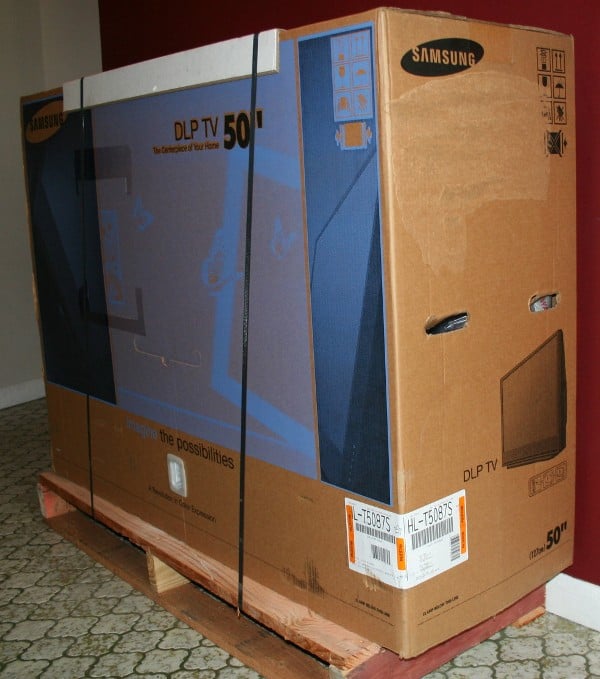 I've
reviewed a number of flat panel LCD and Plasma displays from 42 to 50 inches
and I can tell you this - moving the Samsung HT-T5087S was a joy in comparison.
At only 63 lbs, I could easily lift it and place it on my component cabinet. I
wouldn't recommend it, but I could do it. It was well-packaged (strapped down
to its own half pallet, no less) with the appropriate amount of protection. I
prefer to see these displays double-boxed, but for all intents and purposes,
it's probably a useless gesture. What exactly is that one extra layer of
cardboard supposed to do anyway?
I've
reviewed a number of flat panel LCD and Plasma displays from 42 to 50 inches
and I can tell you this - moving the Samsung HT-T5087S was a joy in comparison.
At only 63 lbs, I could easily lift it and place it on my component cabinet. I
wouldn't recommend it, but I could do it. It was well-packaged (strapped down
to its own half pallet, no less) with the appropriate amount of protection. I
prefer to see these displays double-boxed, but for all intents and purposes,
it's probably a useless gesture. What exactly is that one extra layer of
cardboard supposed to do anyway?
My first impressions were all very positive with the huge flat screen bordered by an impossibly thin edge and the trademarked Samsung logo and power button on the bottom-center of the unit. The little cut out just below that serves not only as a place to reflect the accent light, but also the sound from the speakers. The right side of the unit has all the inputs and outputs with the removable power cord located just around the corner on the rear of the unit. The HL-T5087S has two full HDMI inputs and one HDMI/DVI input (made to be used with a DVI source - also has analogue audio inputs), 2 component video and analogue audio inputs, 2 composite video and analogue inputs, and one composite output with analogue and optical audio outputs. You should be set for connections except that there is no way to get audio to the unit digitally except through the HDMI inputs. I'd like to see a coax or TOSLink input as well.
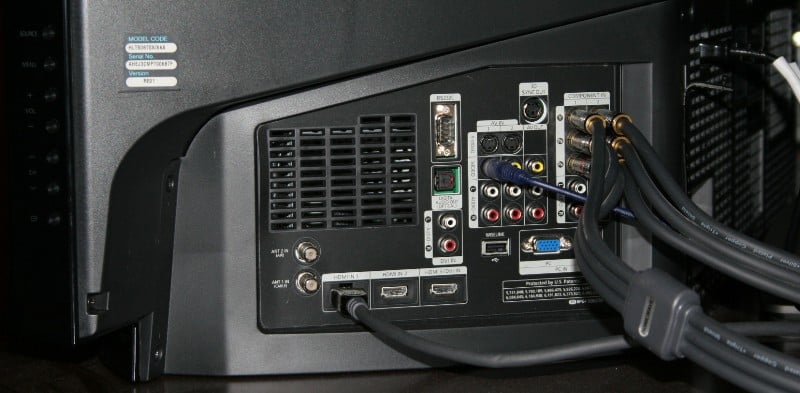 Now, if you want to connect up a
PC, they've also got you covered with a VGA input and an audio jack. RS-232C is
present as is a USB input for portable media such as MP3 files (man, does
EVERYTHING play MP3's these days?) and jpegs and movies. Personally, the USB would
do better on the front of the unit as many installations are looking to hide
the majority of the display, making the side less than accessible. A little
door would make it all but invisible.
Now, if you want to connect up a
PC, they've also got you covered with a VGA input and an audio jack. RS-232C is
present as is a USB input for portable media such as MP3 files (man, does
EVERYTHING play MP3's these days?) and jpegs and movies. Personally, the USB would
do better on the front of the unit as many installations are looking to hide
the majority of the display, making the side less than accessible. A little
door would make it all but invisible.
The conspicuous power button on the front just begs for little fingers - and my children were more than happy to oblige. The funny part was that it turns on and off with a short sound effect eerily reminiscent of jumping into the bottom of a box to get a coin on Super Mario Bros. which was plenty loud enough to hear from an adjacent room. The first time they started playing with the set, I could hear it and spent a long while trying to figure out what the sound was. Kids. There are buttons on the side for volume, channel controls, menu and source that are near impossible to see much less operate. I suppose in a well-lit room you could use them, but I had to turn on every light in the vicinity or run for a flashlight if I wanted to use them.
Set-Up & General Use
If you've set up one display you've set them all up - at least as far as connections go. I ran a single HDMI from my receiver to the HL-T5087S, a pair of component cables (for my Xbox 360 and from the Denon DVD-3910), and a composite cable from the receiver "just in case". Hey, don't mock it. In my business, you can always count on that composite to work when everything else fails (thank you, HDMI). Everything on the panel is well laid out and separated so you shouldn't have much of a problem. I wouldn't mind seeing the outputs separated from the inputs (they are mixed in currently) though this is really a minor gripe.
What isn't so minor is the (suspected) firmware issue I had. Now, I review a lot of displays so I'm used to my fair share of problems, but this one had my head shaking. At first I thought I had hit a wrong button but it turns out that it wasn't me. Apparently, there is a "show mode" for this (and other) Samsung displays that reverts them back to the factory (torch) settings every 20 minutes or so. This can be fixed by a few button presses (apparently). My issue was different. First, I couldn't get the display to play any sound through the speakers via the HDMI input. Now remember that I had heard clearly (from the other room no less) the power on/off sound effect so I know the speakers work. I checked my receiver's settings and even connected the player directly to the set with no luck. When I finally got sound out of the speakers using an analogue connection, the results were tinny and thin (as to be expected). Let me sum up - if you're going to spend $2400 on a display, cowboy up and buy some speakers you tight-wad.
All of that was mostly just a minor annoyance (and actually, for me, it was a bonus as I never use the internal speakers anyway - one less setting to adjust) but I had some major problems with the settings. Now, this is a true story. I'm saying that because I read so many, "And my wife could hear the difference from the kitchen" reviews that it makes me want to puke. I had some family over and we've got the lights dimmed and we're watching TV. My father looks at me and says, "Man, this thing is so bright it's hurting my eyes." I realize that I'm squinting as well. So I check the settings and sure enough, it's in torch mode. Now, no display has ever been in my setup for longer than 5 minutes before I've switched it from "Dynamic" to just about anything else. In this case, I had chosen "Movie" as even "Standard" seemed a bit bright. Confused by this change of setting, I switched it back and made a mental note to check it later. After everyone had gone to bed, a few minutes of investigation revealed that it wasn't operator error (or kids) but that every time I turned the display off or switched inputs, it reset the HDMI input to Dynamic. So, off I go to the Internet (again) to see what the deal is. Well this, apparently, isn't some sort of weird setting but a firmware issue. No problem right? I'm a reviewer; I update firmware all the time. The display has a USB port on the back so this should be as easy as pie right?
Wrong.
I visit the Samsung website just to find that they are very, VERY reticent about handing out firmware updates. They have a few for their LCDs and Plasmas but nothing for their DLPs. Well, that's a pain because it would require a service call. Of course, if I had bought this unit, it would be under warranty and I probably wouldn't be too put out by it, but as a reviewer it's a pain. The only thing to do is to take meticulous notes and be prepared to either leave the set on a lot or re-enter settings every time the unit is powered up. Now, remember those little fingers and that "impossible not to press" button on the front of the unit? Oh yeah, this was a fun review.
HL-T5087S - Menus and Remote
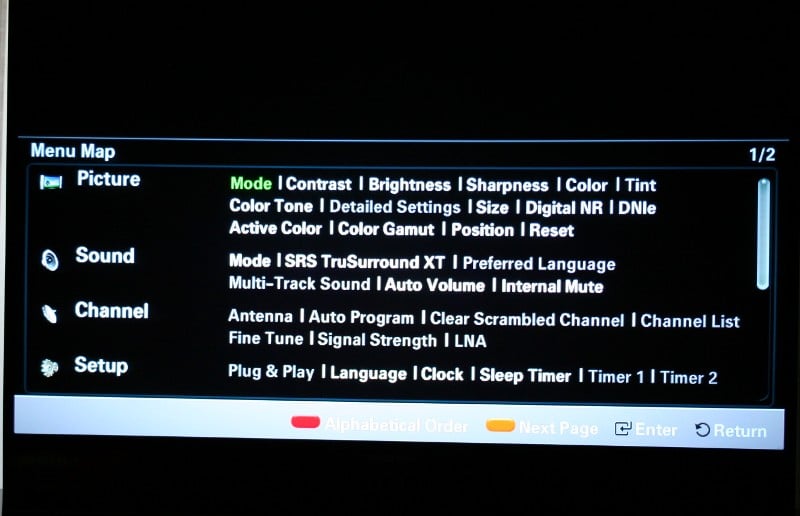 Usually I like
to start from the first menu and work my way through. This time, however, I
really want to mention a particular menu fist. The very last menu item is the Menu Map. This has every one of the menu
items on 2 pages. Each of the options is listed with the active and available
ones in white and the unavailable ones in gray. This is an immensely helpful
menu, not just for the reviewer that is looking for a quick list of all the
menu items, but also for the user that doesn't want to search for a particular
setting that they can't quite remember the location of. Once you select an item
and hit Enter, you are immediately
taken not only to the correct menu screen, but your cursor is placed directly
on the item of interest. This is probably the best thing to happen to menus in
a long time. Of course it isn't graphically pretty or nearly as intuitive as
the other menus but it has the advantage of putting nearly every item on a
single page. Once you've used the display enough, I imagine this might become
your preferred method of navigation. I'd love to have to option of having this
menu as the default menu rather than the Picture
menu.
Usually I like
to start from the first menu and work my way through. This time, however, I
really want to mention a particular menu fist. The very last menu item is the Menu Map. This has every one of the menu
items on 2 pages. Each of the options is listed with the active and available
ones in white and the unavailable ones in gray. This is an immensely helpful
menu, not just for the reviewer that is looking for a quick list of all the
menu items, but also for the user that doesn't want to search for a particular
setting that they can't quite remember the location of. Once you select an item
and hit Enter, you are immediately
taken not only to the correct menu screen, but your cursor is placed directly
on the item of interest. This is probably the best thing to happen to menus in
a long time. Of course it isn't graphically pretty or nearly as intuitive as
the other menus but it has the advantage of putting nearly every item on a
single page. Once you've used the display enough, I imagine this might become
your preferred method of navigation. I'd love to have to option of having this
menu as the default menu rather than the Picture
menu.
Picture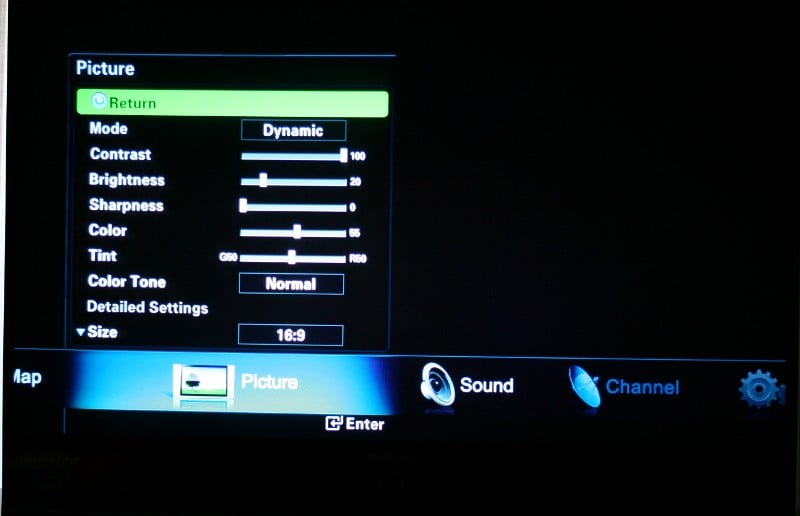 The Picture menu has all the adjustments to calibrate the look of the
set. You'll notice some old standards like Contrast, Brightness, Sharpness,
Color, and Tint. You can choose the Mode (Movie, Standard, or Dynamic) and make
adjustments to each. Those adjustments are retained for each of the settings so
if you are routing your video to your display through a single HDMI cable, you
can flip the settings easily if you wish. Color Tone gives you the choices
between Normal,
Warm1, Warm2, Cool1, and Cool2 (Warm1 and 2 are only available under the Movie
mode). You can also choose the size of the screen (16:9. Zoom1, Zoom2, Wide
Fit, 4:3, or Just Scan). Depending on the incoming signal, some of these
options will be grayed out (you can't zoom on a 1080p signal for example).
Digital Noise Reduction can be set from Off to High (with Low and Medium in-between)
or Auto. Under Color Gamut, you can choose Wide (full color spectrum of the
display), Normal
(described as a "flat and natural" color tone), or sRGB.
The Picture menu has all the adjustments to calibrate the look of the
set. You'll notice some old standards like Contrast, Brightness, Sharpness,
Color, and Tint. You can choose the Mode (Movie, Standard, or Dynamic) and make
adjustments to each. Those adjustments are retained for each of the settings so
if you are routing your video to your display through a single HDMI cable, you
can flip the settings easily if you wish. Color Tone gives you the choices
between Normal,
Warm1, Warm2, Cool1, and Cool2 (Warm1 and 2 are only available under the Movie
mode). You can also choose the size of the screen (16:9. Zoom1, Zoom2, Wide
Fit, 4:3, or Just Scan). Depending on the incoming signal, some of these
options will be grayed out (you can't zoom on a 1080p signal for example).
Digital Noise Reduction can be set from Off to High (with Low and Medium in-between)
or Auto. Under Color Gamut, you can choose Wide (full color spectrum of the
display), Normal
(described as a "flat and natural" color tone), or sRGB.
The DNIe (Digital Natural Image engine) is an interesting little setting that you can only adjust on Dynamic or Standard modes. It is designed to give you a more detailed image with detail, contrast and white enhancement. What I really liked about it was that it had a "Demo" mode where it would show you the difference between the on and off settings on each side of the screen. Letting the Demo run while some casual viewing, it was obvious that the DNIe "on" side definitely had blacker blacks, more saturated colors, and greater contrast. It'd be nice to see other menu items with a Demo mode to make it easier for the user to more decisively select their preferences.
Sound menu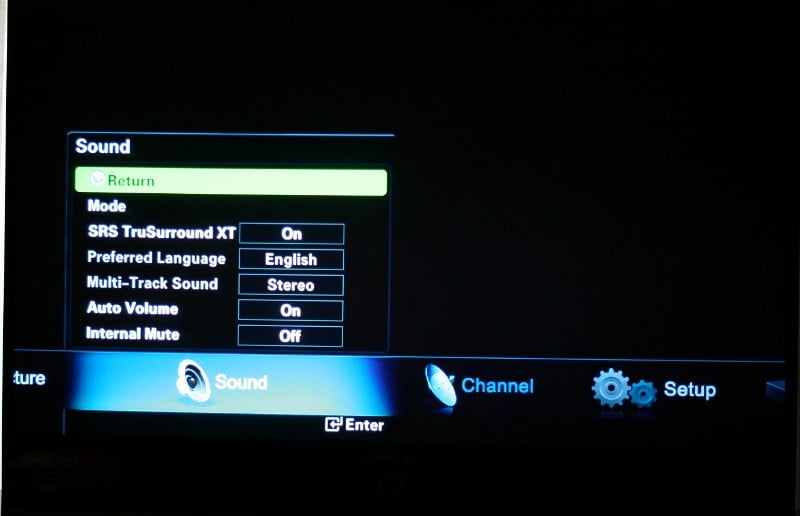 Like many sets, the HL-T5087S has a version of DSP-enhanced
audio to simulate surround. TruSurround XT (which is most likely neither "tru"
nor "surround") can be activated from this menu as can Automatic volume
control (correcting for overly loud commercials) and Internal Mute (for those
of you who prefer to use real speakers). If you are running your antenna, cableTV
or satellite directly to your display you can also choose which language and
track type (SAP, Stereo, Mono) when available. There is a "Mode"
selector with a 5-band equalizer with 10 up and 10 down settings at 100, 200,
1000, 3000, and 10000 Hz and a balance control. You have the choice of Standard
(flat), Music (100, 3000, and 10,000 bumped up a bit with the rest down), Movie
(100, 300, 1000 bumped up ad the rest down), Speech (100 bottomed out, 300 bumped
down, and the rest a bit higher than flat), and Custom (you can set yourself).
Of course, you can adjust each one of the predetermined modes and there is a Reset
button on the bottom if you don't like your adjustments (the Reset only applies
to the mode you're on and not any of the others).
Like many sets, the HL-T5087S has a version of DSP-enhanced
audio to simulate surround. TruSurround XT (which is most likely neither "tru"
nor "surround") can be activated from this menu as can Automatic volume
control (correcting for overly loud commercials) and Internal Mute (for those
of you who prefer to use real speakers). If you are running your antenna, cableTV
or satellite directly to your display you can also choose which language and
track type (SAP, Stereo, Mono) when available. There is a "Mode"
selector with a 5-band equalizer with 10 up and 10 down settings at 100, 200,
1000, 3000, and 10000 Hz and a balance control. You have the choice of Standard
(flat), Music (100, 3000, and 10,000 bumped up a bit with the rest down), Movie
(100, 300, 1000 bumped up ad the rest down), Speech (100 bottomed out, 300 bumped
down, and the rest a bit higher than flat), and Custom (you can set yourself).
Of course, you can adjust each one of the predetermined modes and there is a Reset
button on the bottom if you don't like your adjustments (the Reset only applies
to the mode you're on and not any of the others).
Setup menu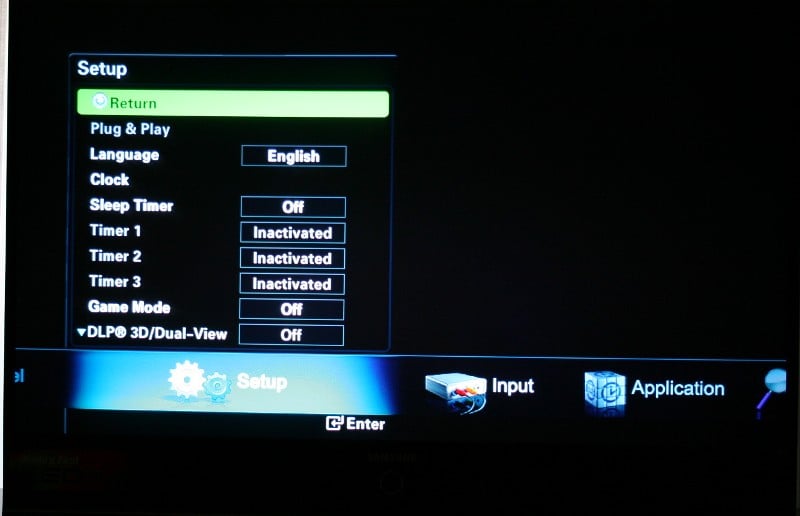 From the Setup
menu you can select the menu language (English, Spanish or French), set the
clock time, sleep timer, set timers for the set to go on and off at specific
times (so the dog has something to watch I suppose), set the menu transparency,
and look for a software update on a USB key (don't mess with this unless you
are serious - it resets your display to factory defaults even if you don't do
an update). Know that funky light that shines just below the big power button
on the front? You can adjust that from this menu as well - standby only,
watching only, on, and off. There are other interesting settings like Color
Weakness which allows you to calibrate for a personal color deficiency in your
eyesight. You can basically boost Red, Green, or Blue (and any combination thereof)
up to nine times. Game Mode is available from this menu as is enabling the 3D
mode.
From the Setup
menu you can select the menu language (English, Spanish or French), set the
clock time, sleep timer, set timers for the set to go on and off at specific
times (so the dog has something to watch I suppose), set the menu transparency,
and look for a software update on a USB key (don't mess with this unless you
are serious - it resets your display to factory defaults even if you don't do
an update). Know that funky light that shines just below the big power button
on the front? You can adjust that from this menu as well - standby only,
watching only, on, and off. There are other interesting settings like Color
Weakness which allows you to calibrate for a personal color deficiency in your
eyesight. You can basically boost Red, Green, or Blue (and any combination thereof)
up to nine times. Game Mode is available from this menu as is enabling the 3D
mode.
Input and Application
menus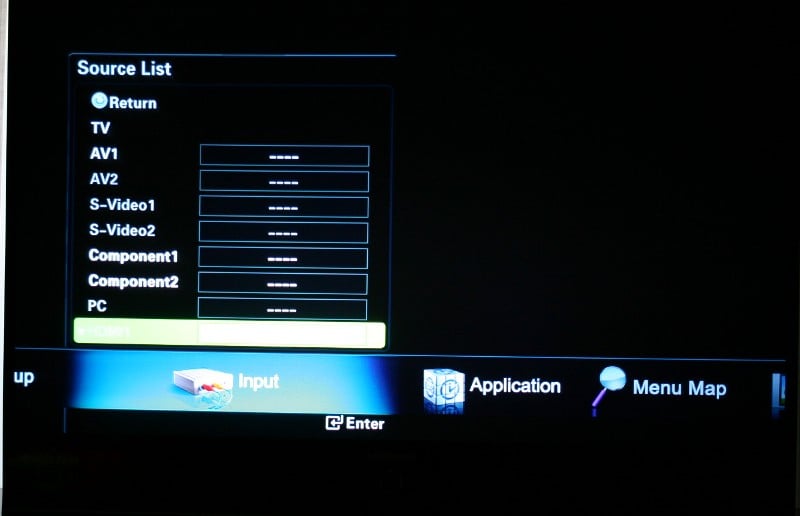 The Input mode is
pretty limited to selecting which input you'd like to view and renaming each
input. Unfortunately, they don't give you a keypad to use but make you choose
from a list. The list is fairly comprehensive but is generally limited to a
single source per input. Honestly, I wanted to label HDMI 1 (my main connection
for both my cable box and DVD player) something like "This is the one,
honey" to make things easy on the wife. That wasn't on the list. What I
was on the list were things like VCR, DVD, Satellite STB, TV, and less common
selections like Internet TV Recv., PC, Game, and Camcorder. The Application menu lets you access
information on a USB drive like JPEGs, movies and other content through an
application called WISELINK. WISELINK lets you view rotate or zoom pictures,
view a folder's contents as a slideshow, and even select an MP3 on the drive as
background music during the slideshow. And since toasters these days are playing
MP3s, so is the HL-T5087S.
The Input mode is
pretty limited to selecting which input you'd like to view and renaming each
input. Unfortunately, they don't give you a keypad to use but make you choose
from a list. The list is fairly comprehensive but is generally limited to a
single source per input. Honestly, I wanted to label HDMI 1 (my main connection
for both my cable box and DVD player) something like "This is the one,
honey" to make things easy on the wife. That wasn't on the list. What I
was on the list were things like VCR, DVD, Satellite STB, TV, and less common
selections like Internet TV Recv., PC, Game, and Camcorder. The Application menu lets you access
information on a USB drive like JPEGs, movies and other content through an
application called WISELINK. WISELINK lets you view rotate or zoom pictures,
view a folder's contents as a slideshow, and even select an MP3 on the drive as
background music during the slideshow. And since toasters these days are playing
MP3s, so is the HL-T5087S.
One of the things that I really liked about the HL-T5087S is how they optimized it for use with a HTPC (home theater PC). There is a VGA port on the back and a whole list of menu items specifically geared toward maximizing your PC experience. Obviously, the 3D gaming functionality is marketed toward people that are using this DLP with a computer, but being able to select your specific resolution, horizontal and vertical frequency, and horizontal and vertical polarity can be a huge plus.
Remote Control
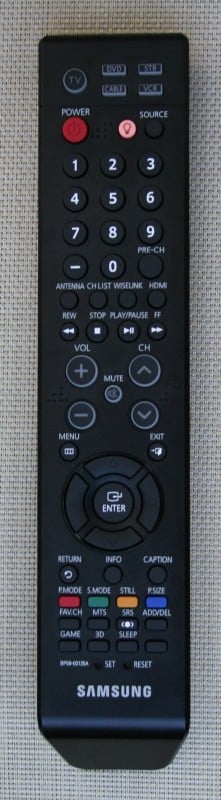 The remote provided with the HL-T5087S is long, thin and
black. The Backlight button (inconveniently placed near the top but in the
middle of a bunch of buttons) only illuminates the control button (lets you
know what component you are controlling), the Channel up and down buttons, the Mute
button, and the Volume up and down buttons. Not a one of these buttons ever
interested me in the dark. Buttons like source and aspect ratio would have been
much more useful. Also useful would have been a button for each source instead
of just a source scrolling button. To be fair, there was a button that brought
you straight back to the HDMI input (thanks for that) but it was nearly
impossible to find in the dark so I almost never used it. The aspect ratio
button (labeled P.Size) was also nearly impossible to locate (even with the
lights on). The remote was unresponsive with at best only 2/3rds of my commands
going through with often less than 1/2 registering. You can program this remote
to control other devices though I don't know why you would.
The remote provided with the HL-T5087S is long, thin and
black. The Backlight button (inconveniently placed near the top but in the
middle of a bunch of buttons) only illuminates the control button (lets you
know what component you are controlling), the Channel up and down buttons, the Mute
button, and the Volume up and down buttons. Not a one of these buttons ever
interested me in the dark. Buttons like source and aspect ratio would have been
much more useful. Also useful would have been a button for each source instead
of just a source scrolling button. To be fair, there was a button that brought
you straight back to the HDMI input (thanks for that) but it was nearly
impossible to find in the dark so I almost never used it. The aspect ratio
button (labeled P.Size) was also nearly impossible to locate (even with the
lights on). The remote was unresponsive with at best only 2/3rds of my commands
going through with often less than 1/2 registering. You can program this remote
to control other devices though I don't know why you would.
HL-T5087S - Measurements and Glitches
Calibrating this set was a bit of a pain. I'm using both the Sencore ColorPro5000 and Colormetre HCFR software. Basically, Sencore is great for calibrating your set but doesn't give you the pretty graphs that we like to show in our reviews. That's where Colormetre comes in. Well, when I went to measure the color temp of the default settings (Dynamic and Standard) with Sencore, all I got was N/A. Thinking that was weird, I tried the Colormetre which has a bit of an adjustable scale. Still nothing. Finally, I tried Movie mode and got about 7500k (not a bad reading before calibration) which means that my measurement tools were in fact working. It seems that the blue is so far off that it is reading somewhere above 15000k! Now that is high! In essence, the picture has an overall washed out appearance with a slight blue tinge. Seeing how far out the blue measured, I couldn't help but wonder if the LED technology was somehow affecting the reading. Contrast ratings were very good (Dynamic was so bright that in a dark room you'd find yourself squinting from time to time) with a post-calibration contrast ratio of 1100:1 on movie mode with a color temp of 7500k.
Dynamic - over 15000k (2200:1 contrast ratio)
Standard - over 15000k (1750:1 contrast ratio)
Movie - 7500k (1100:1 contrast ratio after calibration)
Calibration options were very limited on the HL-5087S with basic Color and Tint controls only augmented by a "My Color Control" screen under "Detailed Settings" under the Picture menu (got it?). Unfortunately, there were no Low/High gain and cut controls for Red, Green, and Blue like we would expect. Instead we found more nebulous controls for Red, Green, Blue, Yellow, and Pink that had no discernable affect on the picture either by eye or through measurements. Essentially, you are stuck with the Movie mode/Warm 2 setting for best evening viewing. I could find little effect of any of the "Detailed Settings" options leading me to believe that it is a menu that is used on other displays but disabled for this one. I ended up with these settings:
Mode - Movie
Brightness - 20-35 (depending on lighting conditions)
Contrast - 90 (default)
Sharpness - 0
Color Tone - Warm 2 (default)
Color Gamut - Wide (default)
And these measurements (with no real work on my part):
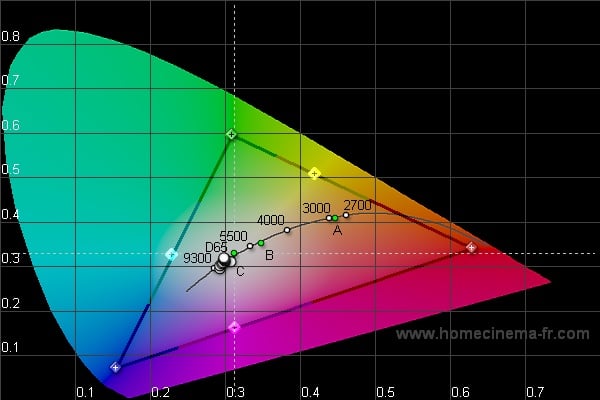
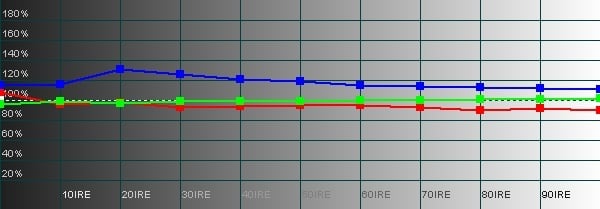
CIE (left); RBG Levels (right)
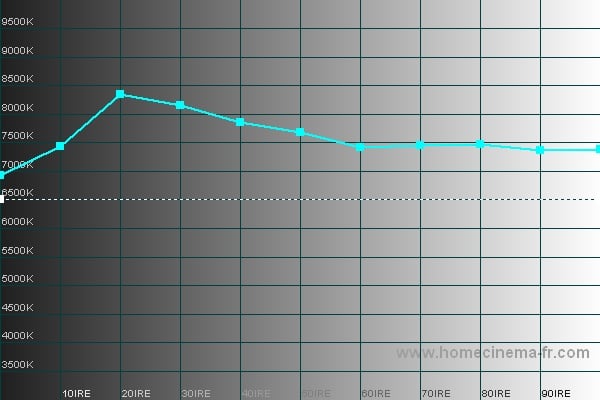
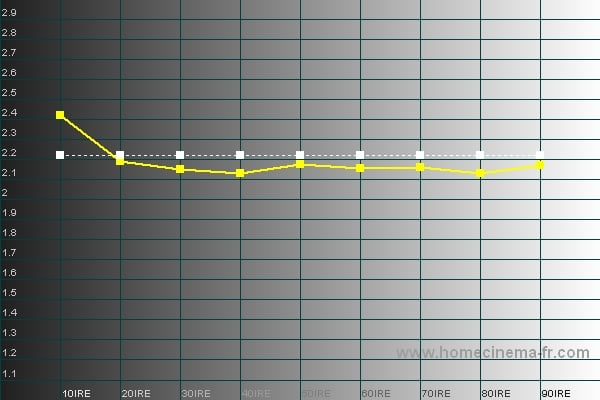
Color Temp (left); Gamma (right)
It's not all that surprising that you'd want to use a different brightness setting depending on the lighting conditions in your room. What we usually suggest is that you use the Movie mode for your nighttime viewing and adjust one of the other settings for your daytime viewing. Unfortunately, you don't have a lot of control over the calibration of this display (meaning you'll have to call someone to get into the service menus for you to make those adjustments) so you can't do that. Your only real option is to remember to adjust the brightness for each lighting condition or to live with one of the washed out, bluish, and overly-bright Standard or Dynamic settings for daytime viewing. What I did was to live with the Dynamic setting after bumping the brightness way down and engaged the DNIe setting (which I felt gave a bit better saturation to the colors and blacks as well as counteracted some of the blue). It wasn't as good as changing the brightness on the Movie mode on Warm2, but it was easier and I tended to fiddle with it less (lowering considerably the amount of family tension in the house).
Audioholics/HQV Bench Testing Summary of Test Results
Perfect Score is 130
Samsung HL-T5087S Benchmark total score: 80/130. All tests were run through component inputs.
|
Test |
Max |
Results |
Pass/Fail |
|
Color Bar |
10 |
10 |
Pass |
|
Jaggies #1 |
5 |
5 |
Pass |
|
Jaggies #2 |
5 |
5 |
Pass |
|
Flag |
10 |
10 |
Pass |
|
Detail |
10 |
10 |
Pass |
|
Noise |
10 |
10 |
Pass |
|
Motion adaptive Noise Reduction |
10 |
10 |
Pass |
|
Film Detail |
10 |
0 |
Fail |
|
Cadence 2:2 Video |
5 |
0 |
Fail |
|
Cadence 2:2:2:4 DV Cam |
5 |
0 |
Fail |
|
Cadence 2:3:3:2 DV Cam |
5 |
0 |
Fail |
|
Cadence 3:2:3:2:2 Vari-speed |
5 |
0 |
Fail |
|
Cadence 5:5 Animation |
5 |
0 |
Fail |
|
Cadence 6:4 Animation |
5 |
0 |
Fail |
|
Cadence 8:7 animation |
5 |
0 |
Fail |
|
Cadence 24fps film |
5 |
0 |
Fail |
|
Scrolling Horizontal |
10 |
10 |
Pass |
|
Scrolling Rolling |
10 |
10 |
Pass |
|
Total Points |
130 |
80 |
|
Comments on Audioholics DVD Torture Tests
To be honest, I was a bit surprised at these results. I didn't think the set would score as well as it did. The big problem that isn't reflected above is the excessive banding the HL-T5098S displayed. I was noticing it constantly which was kinda nice in that I could show my wife what it was, though I imagine I'd be a bitter little boy if I had purchased this set. This display is one of the first I've come across to pass the noise reduction tests. If you want absolutely no noise you'll have to set the NR control to High but I don't recommend it as you'll start to notice some artifacts. The Film Detail fail was disturbing as was the lack of 2:3 pulldown. I did engage the "Film Mode" option but the unit still didn't manage to pass these unflagged tests. All in all, this set scored very well and should provide a very good picture in most cases. Feed it a progressive signal and you'll bypass the poor 2:3 pulldown issues.
Issues, Glitches, and Hiccups
Sometimes I scatter some of the oddities I find with equipment throughout the review but in this case I'm going to list them all in one place. Honestly, I feel like there is more than a good chance that this set had some sort of firmware issue. Regardless, this is some of the weirdness that I encountered.
No
480p through component?
When
I'm running through my evaluations, I sometimes like to switch back and forth
with the Denon DVD-3910 from interlaced (display doing the processing) to
progressive (player doing the processing). This gives me a chance to view a
"known reference" as I'm familiar with the Denon and know the tests
it can and cannot pass. Unfortunately, whenever I'd switch to progressive
output (through component) it would give me an error message. Now, in the next
component input I was running my Xbox 360 in full 1080p without a problem so I
can't explain these results.
HDMI
defaults to Dynamic
All
these calibration and settings I've been talking about? Well, every time you
turn the set off or change an input, the HDMI switches back to Dynamic picture
mode. It remembers any changes you made to the Dynamic setting (or any of the
other settings) but you'll be right back to Dynamic. Annoying? Oh yeah. What
was really weird, it that it didn't do this to any of the other inputs.
Substandard
remote
The
remote just doesn't seem to work all that well. Sure the backlight is useless
but if the display does what you say at the time you say it, that makes up for
it doesn't it? In this case, only 1 out of every 2 or 2 out of ever 3 commands
was recognized. Not to mention the lack of individual buttons for each input…
well, substandard pretty much sums it up.
No
sound
Don't
ask me why the speakers didn't work with the HDMI input because I don't know.
They just didn't. Weird.
HL-T5087S - Viewing Evaluaiton and Conclusion
The HL-T5087S puts out a fairly spectacular picture especially in regards to brightness and color reproduction. The blacks are truly black (especially when comparing to some of the early LCDs on the market) and the use of an LED lamp ensures both an increased bulb life expectancy and an apparent lack of rainbow effect (since it eliminates the need for a color wheel and speeds up the single-chip color transitions). I was actually a little disappointed that I wouldn't have a chance to experience rainbow effect. This is the first DLP product I've spent a considerable amount of time with and I'd hoped to be able to complain about it like some of my reviewer friends.
One of the first things I noticed was a really limited viewing angle. I sit about 10 feet away and my eyes were positioned about 1/3 of the way up the screen from the bottom. From this position, I could see a bit of a shadow on the top corners of the screen. While not distracting, it was clearly visible especially when you moved your head. Over the evaluation period, I got used to it and I don't think it seriously distracted from the viewing experience, but it was there.
DVD: Nightwatch
This review is filled
with movies that I rented because of recommendations from people on the
Audioholics forum or listeners of AVRant. Nightwatch was the former. A Russian
movie, this transfer had the distinction of being the only foreign language
movie I've ever heard of that didn't have a language track in the original
language (English, French, and Spanish only). I had heard that the original had
done some interesting things with the subtitles that I was looking forward to checking
out. Unfortunately, none of that made it into this transfer. The movie itself
is sort of a Russian version of Underworld
(with the uber-hottie Kate Beckinsale replaced with some weird looking Russian
guy that keeps getting his butt kicked). I can't say I loved this movie or even
really understood all of it, but I blame that on the English language transfer.
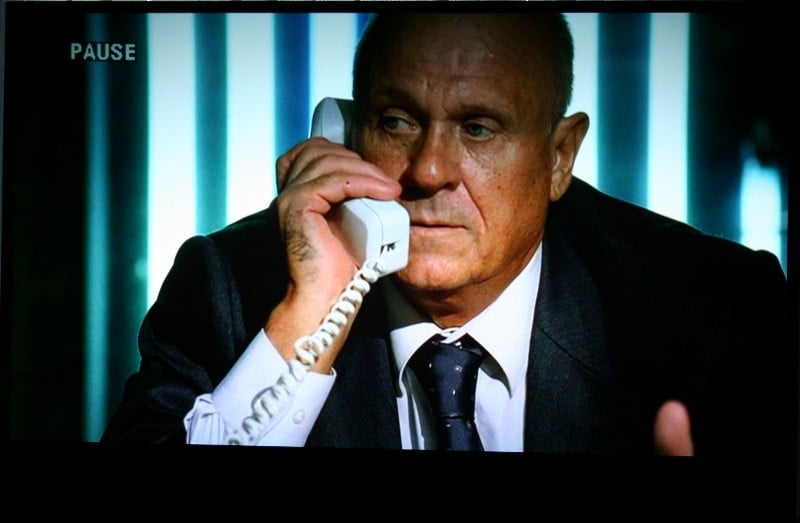
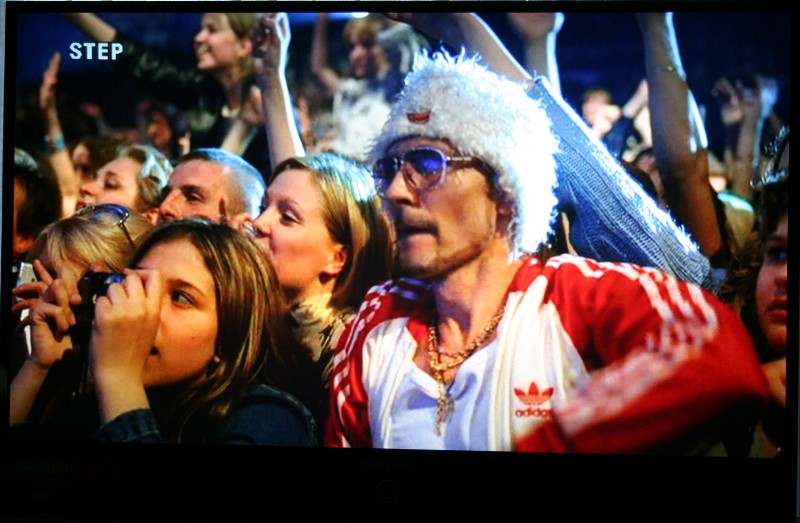
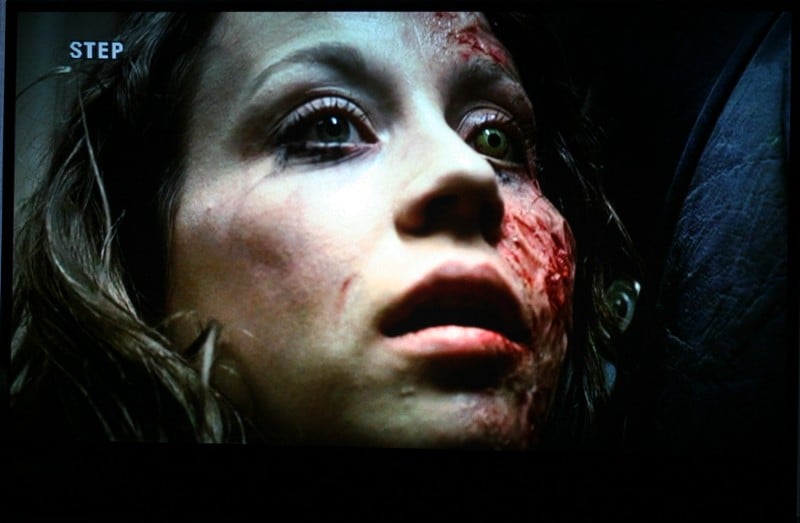
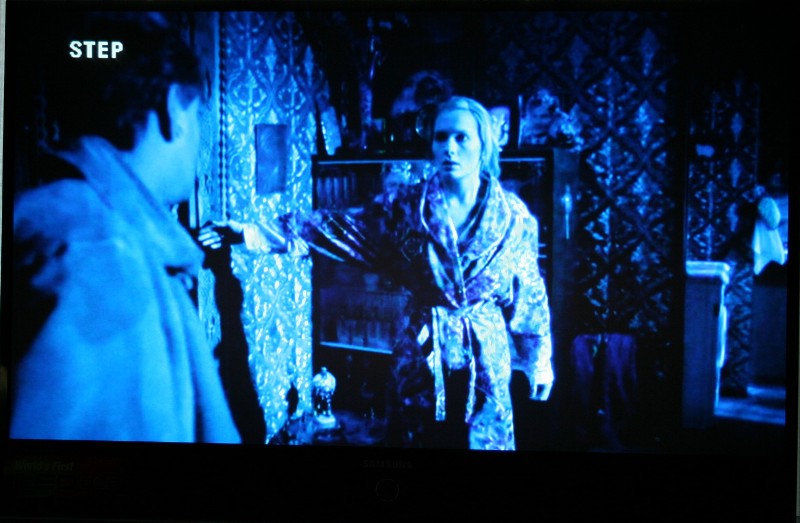
This movie is filled with dark scenes and subdued colors. The Samsung HL-T5087S
did a great job with all the blacks while still being able to render the detail
in the backgrounds. When there was color on the screen (mostly red) it really
popped. This was a great movie to check out your brightness. I could pop it in,
pause it on almost any random frame, and calibrate from there.
DVD: Casshern
Casshern is a live action movie based on an anime television series
that was released in 1973 (we make remakes of old TV programs, I guess the
Japanese are just following suit). If you're into Anime, you know the plot -
Boy dies (or something), boy gets weirdo suit of armor, boy becomes an
unstoppable killing machine. Throw in a few environmental themes and an
underlying message that technology specifically and mankind in general is
destroying each other, society, the planet, and the universe and you're set.
Casshern borrows heavily from the style of movies such as Sin City and Sky Captain and the World of Tomorrow (mostly from the latter). Everything is heavily stylized and the Anime influence in both the themes and the way the movie is shot is extremely obvious. Many of the graphics are rudimentary but it seems that it was as much a directorial choice as a budgetary one (the film was made for ~$6 million). The colors are heavily oversaturated and the HL-T5087S just looked gorgeous as it presented everything in bigger than life colors. It was surreal to watch and quite interesting visually. As with all the other viewing evaluations, the HL-5087S's one flaw of color banding did pop up from time to time.
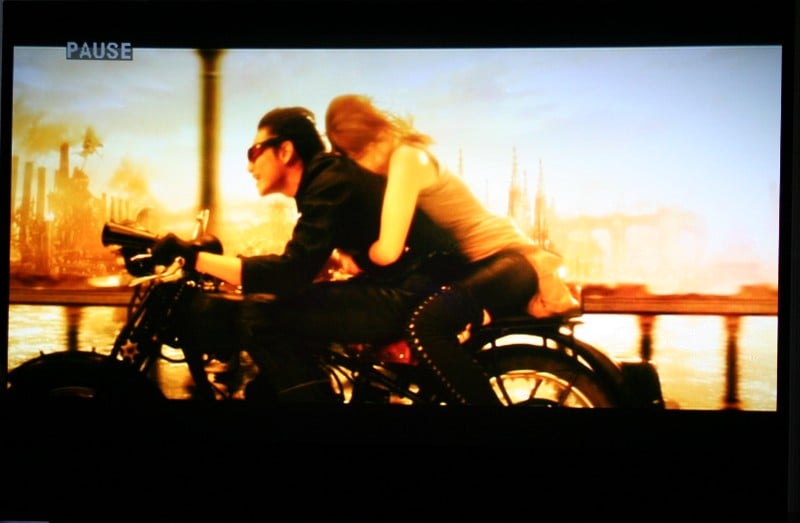
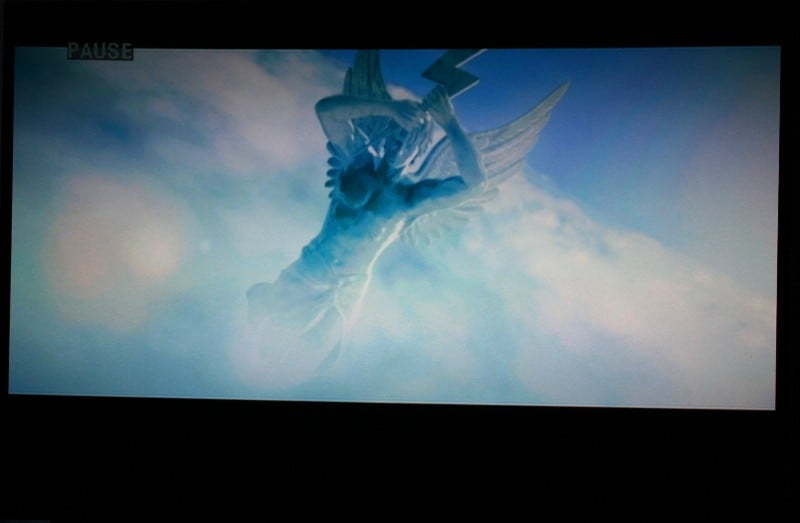

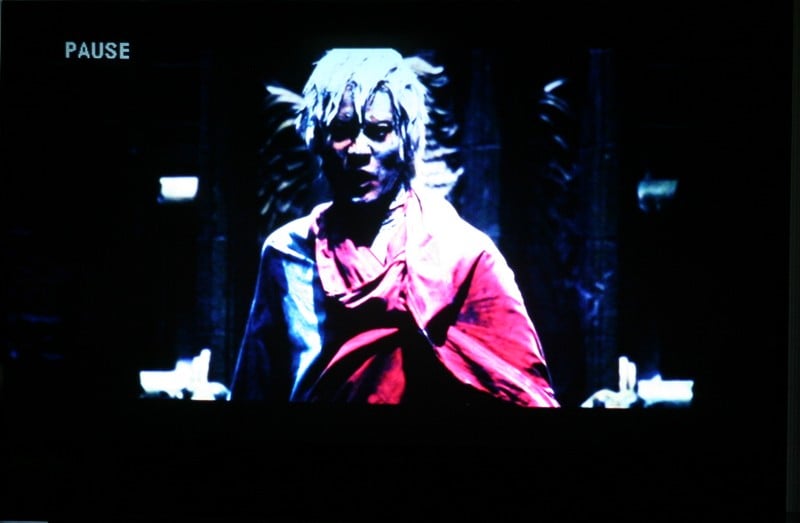
HDTV: Heroes, Alien Insect:
Praying Mantis, LOTR:ROTK
You gotta love HDTV
and you've also gotta laugh at those dissenters who claim they can't see a
difference. You must not be looking. Heroes
and Lord of the Rings: Return of the King
looked stunning on the Samsung. What really caught my attention, however, was a
show in Discovery HD Theater called Alien
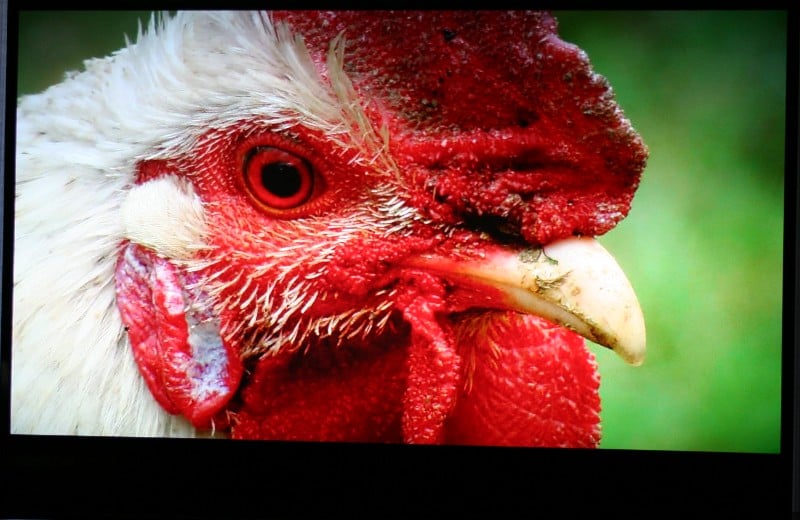
Insect: Praying Mantis. Holy COW! Those bugs looked awesome! They were so
lifelike and vivid that I could feel the kids pressing close just in case the
huge insect crawled off the screen. The colors were vivid and the detail was
amazing. You can see so much on a screen this size in HD.


Xbox 360: Halo 3
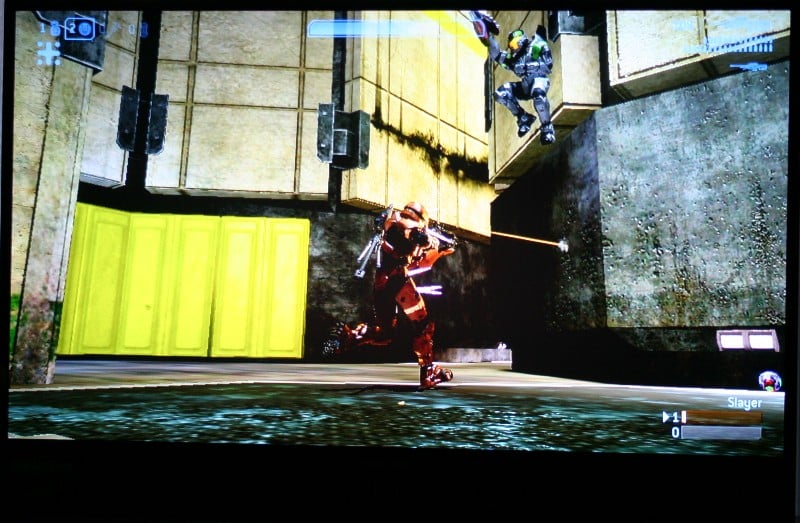
As much as I like to complain about getting headshotted by 15 year olds, you have to love playing Halo 3 in glorious 1080p over component video with a group of friends at or about your same level. While the graphics aren't up to the level of something like Gears of War or BioShock, they really got the water right. Even during gameplay I'd notice a few instances of banding which was annoying but other than that I couldn't fault the HL-T5087S. I tried out and ended up using the Game Mode which switches you to Dynamic and optimizes the display for games. I can't say I noticed much of a difference between the graphics when using the normal Dynamic mode vs. Game mode but while others were complaining that they couldn't see because their display was too dark, my picture was as clear as a bell. Enjoy a few pics of me killing some of my fellow Audioholics.


Conclusion
 While the HL-T5087S does a lot of
things right, it also whiffs a few. The glitches and other oddities aside, the
remote stinks, the viewing angle is extremely limited, and banding is apparent
even on HD sources. Sure, it reduces noise like crazy but who'll notice it
while they're watching the moiré pattern run across the buildings in the
background? It's as bright as can be and the colors and black levels are truly
astounding. The calibration options are extremely limited (though with Movie
Mode and Warm2, you get pretty good color with no work on your part) and 2:3 pulldown
was non-existent. The Menu Map is a
feature we'd like to see implemented in every component we review from this
moment on. The first foray into LED DLP for Samsung is hit or miss. Hopefully,
Samsung will learn from this set and the next generation will truly be
something to behold.
While the HL-T5087S does a lot of
things right, it also whiffs a few. The glitches and other oddities aside, the
remote stinks, the viewing angle is extremely limited, and banding is apparent
even on HD sources. Sure, it reduces noise like crazy but who'll notice it
while they're watching the moiré pattern run across the buildings in the
background? It's as bright as can be and the colors and black levels are truly
astounding. The calibration options are extremely limited (though with Movie
Mode and Warm2, you get pretty good color with no work on your part) and 2:3 pulldown
was non-existent. The Menu Map is a
feature we'd like to see implemented in every component we review from this
moment on. The first foray into LED DLP for Samsung is hit or miss. Hopefully,
Samsung will learn from this set and the next generation will truly be
something to behold.
Samsung HL-T5087S
$2399
Samsung Electronics, Inc.
Samsung
105 Challenger Rd.
Ridgefield Park, NJ
07660-0511
About
Samsung Electronics America, Inc.
Headquartered
in Ridgefield Park, NJ, Samsung Electronics America, Inc. (SEA), a wholly owned
subsidiary of Samsung Electronics Co., Ltd., markets a broad range of award winning,
advanced digital consumer electronics and home appliance products, including HDTVs,
home theater systems, MP3 players, refrigerators and laundry machines. A recognized
innovation leader in consumer electronics design and technology, Samsung is the
HDTV market leader in the U.S.
and is the only manufacturer that produces all four major digital television
technologies.
The Score Card
The scoring below is based on each piece of equipment doing the duty it is designed for. The numbers are weighed heavily with respect to the individual cost of each unit, thus giving a rating roughly equal to:
Performance × Price Factor/Value = Rating
Audioholics.com note: The ratings indicated below are based on subjective listening and objective testing of the product in question. The rating scale is based on performance/value ratio. If you notice better performing products in future reviews that have lower numbers in certain areas, be aware that the value factor is most likely the culprit. Other Audioholics reviewers may rate products solely based on performance, and each reviewer has his/her own system for ratings.
Audioholics Rating Scale
 — Excellent
- — Very Good
- — Good
- — Fair
- — Poor
| Metric | Rating |
|---|---|
| Detail and Resolution | |
| Deinterlacing & Scaling | |
| Contrast and Black Levels | |
| Color Reproduction | |
| Noise Reduction | |
| Calibration Options | |
| Build Quality | |
| Ergonomics & Usability | |
| Ease of Setup | |
| Features | |
| Remote Control | |
| Fit and Finish | |
| Performance | |
| Value | |
As Associate Editor at Audioholics, Tom promises to the best of his ability to give each review the same amount of attention, consideration, and thoughtfulness as possible and keep his writings free from undue bias and preconceptions. Any indication, either internally or from another, that bias has entered into his review will be immediately investigated. Substantiation of mistakes or bias will be immediately corrected regardless of personal stake, feelings, or ego.
View full profile Subscribe to our newsletter