


Pioneer Elite PRO-940HD Plasma Television Review
Pioneer Elite PRO-940HD
- Product Name: Elite PRO-940HD Plasma Television
- Manufacturer: Pioneer
- Performance Rating:

- Value Rating:
- Review Date: December 05, 2006 19:00
- MSRP: $ 3499
Plasma Panel Technology
- High Definition / XGA Resolution (1,024 x 768p)
- 42” Diagonal /16:9 Widescreen Aspect Ratio
- Deep encased cell structure
- Crystal emissive layer
- First surface PRO color filter
- New dielectric layer
Pure Drive Video Features
- Pure Drive II video system
- ACE IV (Advanced Continuous Emission IV)
- Active/Intelligent DRE (Dynamic Range Expansion)
- Advanced PureCinema
- Intelligent Color Enhancement
- Selectable Color Zone Mapping
- Color management system
- Color temperature adjustment
- Digital noise reduction
- MPEG noise reduction
- Block noise reduction
- Digital CTI (color transient improver)
- Natural resize
- Natural enhancer
- Digital chroma decoder
- ISFcc calibration ready
Home Media Gallery
- Supported audio : LPCM, MP3, WMA, WMA9 PRO, AC3, WAV
- Supported video: WMV9, MPEG1, MPEG2-PS, MPEG2-TS, MPEG-ASP
- Supported photo: JPG, TIFF, PNG, BMP, GIF
- Microsoft PlaysForSure compatible
- DLNA compliant/IP network compatible
Dimensions: 41” x 26.75” x 4.5”
Weight: 69.5 lbs.
Convenience Features
- Fully-integrated media receiver
- Built-in dual NTSC and ATSC TV Tuners
- CableCard interface
- Independent HDMI inputs with 1080p/24 capability
- Aspect Ratio Control: Wide, Zoom, Cinema,
Full, 4:3, and “dot by dot” for PC)
- TV Guide ON Screen interactive program guide
- AV selection memory (Standard, Dynamic, PURE, Movie, Games, User)
- Split screen/Picture-in-Picture
- V-chip
- Full function backlit learning remote control
- Table top stand included
Audio Features
- 13 watt x 2 Stereo Amplifier with built-in Stereo
Speakers and TruBass
- SRS WOW/FOCUS/TruBass
- Bass boost loudness
Networking & Misc Connectivity
- RS-232C
- USB 2.0
- LAN (RJ45) Ethernet for networking
Inputs
- Antenna x 2 (F-Type Connection, NTSC/ATSC)
- HDMI (with HDCP) x 2
- Composite x 3 with L/R audio
- S-video x 2 with L/R audio
- Component Video x 3 with L/R audio
Outputs
- Composite Video x 1 with composite L/R Audio
Pros
- Beautiful piano gloss finish
- Unbelievable picture quality
- Integrated TV Guide ON Screen Program Guide
- Integrated Media Gallery
- Dual ATSC and NTSC tuners
- 1080p support via dual HDMI inputs
Cons
- Limited navigation on Home Media Gallery functions
Technology Overview and Build Quality
I got a chance to check out the PRO-940HD at this
year's CEDIA Expo. What was really nice was the display Pioneer had up which showed each successive
generation of plasma technology throughout the years. Looking at first and second-generation plasmas and
comparing them to today's models was simply staggering. Blacks were gray, resolutions were not what
they are now and overall the format has since then matured considerably. Taking a look at today's
latest-generation panels, you wonder how far the format can go and if it can get much better. I'll
summarize the review with this: "It's all about the blacks!"
Plasma has long battled (successfully) against LCD technology for presenting a better image, darker black levels, and more accurate color. While other formats and technology are seemingly on the horizon, I don't believe anything will exist in the short term to battle these two competing formats. With that said, let's take a look at Pioneer's top of the line Elite plasma model.
Breaking Down the Features (i.e. what does all the marketing lingo mean?)
The Pioneer PRO-940HD is a 9th generation plasma panel. They don't come any newer than that and the improvements are numerous. You may be able to find a cheaper display, but until you grab ahold of an Elite plasma you'll finally understand what you're missing.
-
First-Surface Pure Color Filter
Reflected light off the surface of the screen is a big problem for most plasma displays. Pioneer's First-Surface PRO Color Filter reduces this by eliminating the second layer of glass typically found over top of the plasma glass. Most of the secondary reflections occur on this glass... so Pioneer got rid of it. This new filter is said to improve contrast ratios over previous generations by 20% on Elite PRO models (when combined with other technologies). It also saves on weight - which is a nice "side effect" of the new manufacturing method.
-
Deep Encased Cell Structure
Pioneer's way of developing the plasma cell structure physically separates each pixel by putting four walls around it, creating a deeper area for the phosphors. Because of this there is much less light leakage into adjacent plasma cells. This results in a clearer image and better control over color.
-
ISFccc Calibrations Configuration
All of the Elite model plasma displays offer the ISF Custom Calibration Configuration Mode (ISFccc or ISF C3). Designed and licensed from the Imaging Science Foundation. It allows a certified calibrator to adjust contrast, tint, sharpness and color levels for both day and night time viewing... something any true videophile will want. This feature gets unlocked and shows up in the menu when enabled by an ISF technician.
-
Advanced PureCinema II
Judder... We're all so used to it, but it's not good. Pioneer's Elite plasmas are the only displays we know of that reproduce film content faithfully by using 3:3 film-to-video conversion at 72 Hz. This eliminates completely the 2:3 pull-down we're all used to in typical display viewing. It's smooth - so smooth, you'll probably think something's wrong.
-
Home Media Gallery
The Home Media Gallery allows you to connect an Elite plasma to any home network via Ethernet (with or without a hub). Simply ensure that the PC has Windows XP SP2 and Windows Media Connect installed (a free application from Microsoft) and you can access all of your digital content - movies, music and photos - from any PC. Even if you have several PCs networked together (like I do) you can pull various media off each one. Windows Media Connect allows you to set up what will be shared on each computer. Cool? Yeah it is.
Build Quality, Aesthetics and Inputs
The Pioneer PRO-940HD came directly from the manufacturer, so my experiences with delivery and packaging are not typical. One funny thing to note is that the box, while brand new, arrived off the truck at my home looking like someone had driven a forklift into it. Pioneer is the Timex of plasma companies however as this display seemed to take a lickin' and keep on tickin'. Build quality seems to be a strength.
Once unboxed, the Pioneer is a beautiful thing to behold. It has a nice piano finish beveled bezel (try saying that ten times fast). It comes with a low-profile bottom-mounted speaker that stretches across the entire display. The speaker has a metal grill with very small perforated holes. An integrated stand compliments the Pioneer display and elevates it to a perfect viewing height, giving it enough stability, while not being oversized. The left side of the display has a set of composite and component inputs, L/R audio and a USB input. The right gives users access to Power/standby, Input, volume, channel and TV Guide buttons. On the back of the unit, however is where the Pioneer PRO-940HD reveals an almost unlimited array of inputs.
There are definitely enough discrete inputs on the Pioneer PRO-940HD to satisfy most users ... and this is just part of the back panel.
Pioneer couldn't fit everything onto the back side of the display. As a result, the bottom of the display also features an array of inputs including: 10/100 Ethernet port, dual discrete 1080p-compatible HDMI inputs, CableCard slot, dual antenna (F-connector) inputs, RGB PC (HD15) input, G-LINK IR emitter port, and RS-232C port. You want fries with that? No problem.
Input Confinguration and Using the Television
There are several features we look for in displays that we've come to expect. One of those is the ability for each input to retain its own calibration settings. If this is not the case, and inputs are shared, then you cannot truly calibrate the system fully for various components and uses. The Pioneer correctly allows for full, independent calibration of all inputs (they had to or the guys at ISF would have never given them a certification). The other important item we look for is the ability to directly select each input via remote. This not only makes it easy to use the television, it also aids in setting up a universal remote control. After using this set for several weeks I found that this Pioneer plasma has about every feature I could ever wish for in a television... and then some.
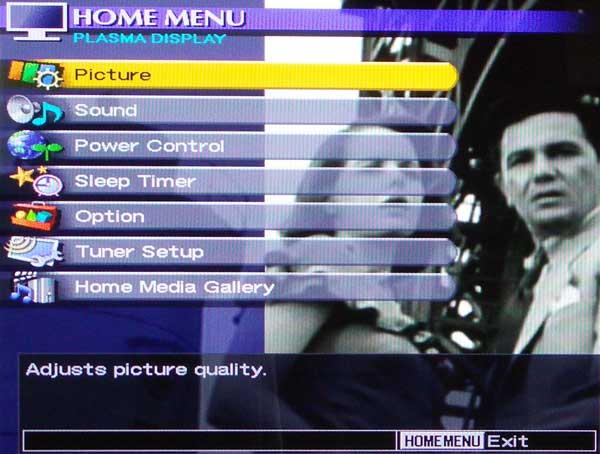
PRO-940HD as a Television
The Pioneer PRO-940HD makes an excellent TV for several good reasons. One, it has one of the best TV tuners I've ever seen. Feeding cable into this unit results in pristine, almost digital-like images. While the ultimate potential of your system will depend upon the quality of your local cable TV or OTA broadcasts, the Pioneer does a phenomenal job at not skimping on its tuner section. I have utilized several televisions in this testing location and none of them has looked as good as this plasma. Lines were crisper, there was less noise, and responsiveness was above-par.
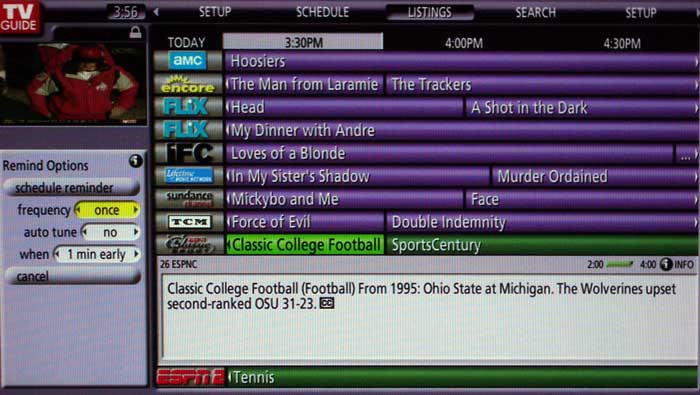
The tuner interface of the PRO-940HD is something that makes most other television sets we've seen look like child's play. This is a professional looking GUI interface and for the most part everything is laid out in an easy to follow and logical manner. Upon first connection and power up, the system will prompt you to enter the country and zip code, and determine whether you have cable and/or OTA signals running to the TV. The TV Guide system will give you a selection of local cable providers to match your existing service. It then proceeds to ask if you have a VCR (or disc recorder) connected to the set so that you can optionally record shows. Control over an external device is provided through use of the G-Link port on the back of the set and provided IR emitter.
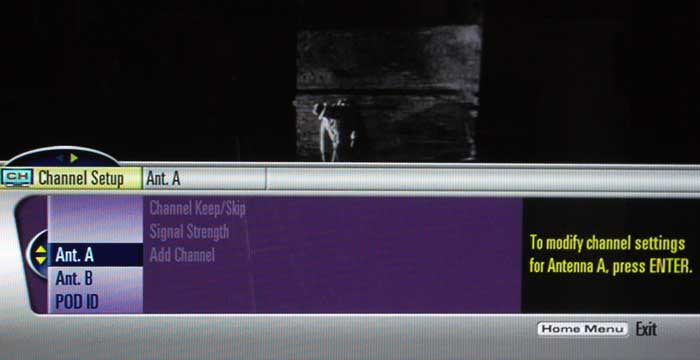
I didn't test the recording functions of the system - mostly because I have no use for VCRs or DVD recorders at this time (with a VidaBox Lux Media Center and an HD DVR this isn't something that I find necessary.)
PRO-940HD as a Display
Aside from TV, the Pioneer Elite plasma has an array of features that makes it an excellent choice for use with other source components like DVD players and Home Theater PCs. I connected our review sample to a Denon DVD-3910CI for the majority of our testing and found that I couldn't ask for a better display. While feeding the Pioneer a 480i component video signal I had access to all of the plasma's high-end processing features, such as PureCinema and Noise reduction. To say that these functions were numerous is an understatement. I'll try to break down each function in the menu system.
Basic Picture Adjustments
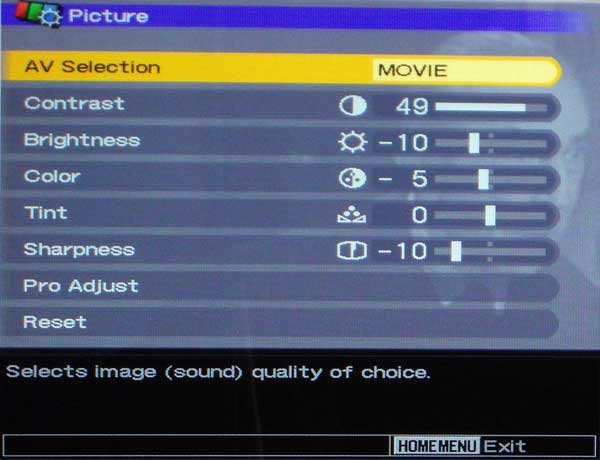 From the main menu you'll find access
to the Picture Menu which houses Brightness, Contrast, Color, Tint and Sharpness controls. My default
settings when using the HDMI inputs and a Denon DVD-3910 DVD player in 720p mode were as follows:
From the main menu you'll find access
to the Picture Menu which houses Brightness, Contrast, Color, Tint and Sharpness controls. My default
settings when using the HDMI inputs and a Denon DVD-3910 DVD player in 720p mode were as follows:
Contrast: 49
Brightness: -10
Color: -5 (note
default
for Movie mode)
Tint: 0
Sharpness: -10
Pro
Features and Advanced Adjustments
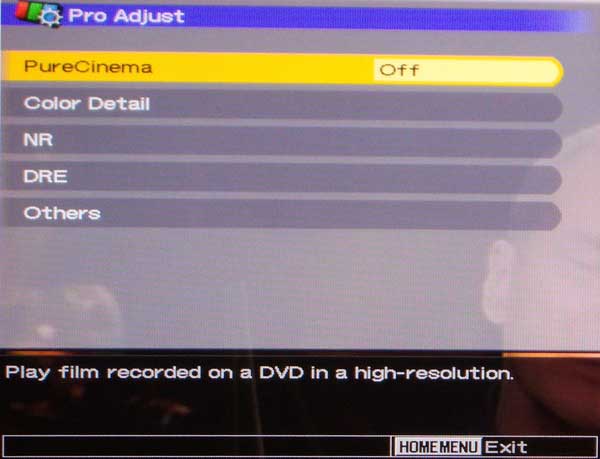
Low: 6000K
Mid-Low: 6800K
Mid: 7700K
Mid-High: 8700K
High: 9700K
As you may guess, it appears that Mid-Low is the best default choice to use when running this display out of the box - at least with the HDMI inputs. We're not sure of the tolerances, but I feel comfortable recommending this setting if you're trying to hit D65 white.
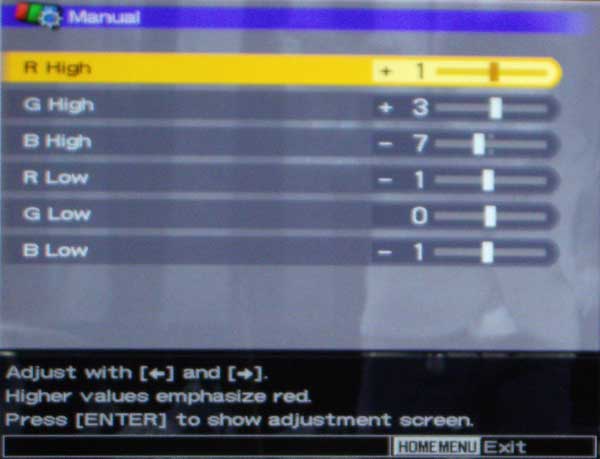
R High: +1
G High: +3
B High: -7
R Low: -1
G Low: 0
B Low: -1
The same Color Detail submenu also gives access to the CTI (Color Transient Improvement) setting which increases the steepness of color edges without causing ringing. This is accomplished by sampling the non-processed input signal, a twice-delayed input signal and a derivative of a once-delayed input signal and providing an output signal with steep color edges. Full 4:4:4 color would be nicer, but most DVD transports don't really give us that option. To see this in effect, simply put up some color bars and look at the transitional edges between colors. Adjacent Magenta and Yellow colors show the CTI effect best as do Red and Blue. The processing is quite subtle but there is a difference.
The Color Management functions are a toy in my opinion and are only to be use to amuse yourself or by persons looking to compensate for visual impairments. Intelligent Color didn't seem to do anything after my set was calibrated, so either the effects are extremely subtle or it takes very particular conditions in which to be noticeable.
The Noise Reduction features of the PRO-940HD are outstanding. You'll want to keep the NR and MPEG NR settings to Low or Mid (at the most) to avoid smearing on motion scenes. I was unable to get BNR (Block Noise Reduction) to visibly affect any of the source images I fed the display, but this function is designed for high definition "mosquito" noise reduction. I also tend to shy away from Dynamic Contrast and Black Level modes, however I would encourage you to experiment with the different settings, especially given the slight s-curve gamma response we found in the calibration section of this review. The Automatic Contrast Limiter will actually bring up white levels during darker scenes in order to increase overall dynamic picture output. This is a pretty nifty feature and is a very practical feature that many will want to engage cautiously depending upon your viewing environment. If you have perfect light control, you may opt for having a fixed contrast and leaving your dark scenes as dark as possible.
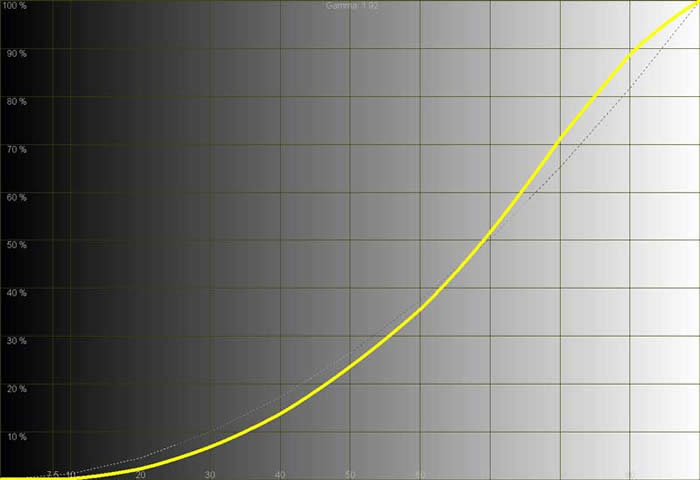
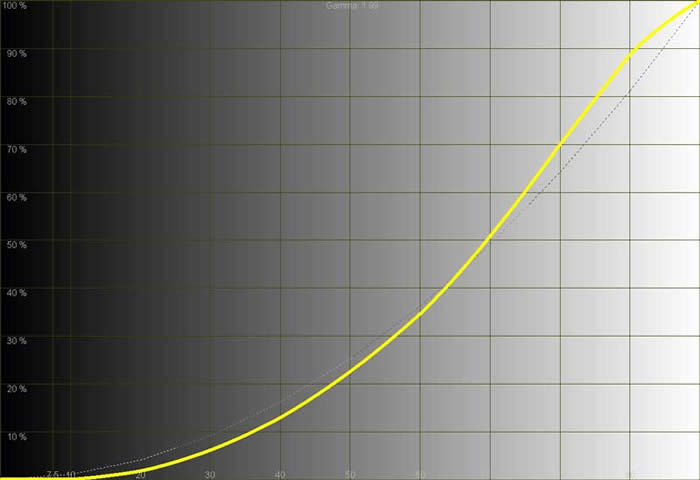
We also tried all three gamma modes and got various response curves, getting progressively lower (brighter) results from Gamma 1 up to Gamma 3. I'd probably go for Gamma 1 (which we measured at 2.12) assuming you are going for a richer, darker image.
Using the Television Continued and Remote Control
PureCinema Mode -
A
Lesson in Judder
I was extremely excited to test Pioneer's almost legendary PureCinema mode whereby the panel goes into 72Hz refresh mode and bypasses 2:3 pull-down issues by translating 24fps film into 72fps video (3:3). What I found was rather curious, and told me that this function will need to be set to taste. To get a better idea of how PureVision was affecting DVD video in real time I set the output of my Denon DVD-3910 to 480i and fed component video to the Pioneer. I queued up several video clips, but let's take Gladiator, Chapter XIV (14) "I Shall Cheer for You" where Maximus enters the marketplace and there is a beautiful, slow tilt down the side of the Coliseum. With Pure Cinema engaged in ADV (72Hz, 3:3) mode, the picture appeared to have artifacts which blurred the image somewhat and caused subtle jumpy lines during the tilt motion. In Standard mode, jaggies were completely eliminated and the image looked about as pristine as you can get (though judder was still present). I repeated this effect with several other scenes, many of which involved CG effects. I wasn't going to be satisfied, however, until I figured out exactly what might be happening.
Let's take a look at what PureCinema Mode is doing in ADV (3:3) as compared to Standard (2:3). In ADV mode, the system is cranking out 72 frames per second:
AAA BBB CCC DDD EEE FFF GGG HHH III JJJ KKK LLL MMM NNN OOO PPP QQQ RRR SSS TTT UUU VVV WWW XXX
The above represents 72 full frames of video occurring each second. No judder and no pull-down required. Each of the 24 frames per second (labeled A-X) stored on the DVD are recreated 3 times each. When we look at the Standard Mode (2:3) however, we get something like this:
AA BBB CC DDD EE FFF GG HHH II JJJ KK LLL MM NNN OO PPP QQ RRR SS TTT UU VVV WW XXX
2:3 pulldown takes 24 frames and yields 60 frames. It doesn't take a math genius to figure out that the eye is getting a lot more picture information using the ADV mode. Typically (and logically) this would appear to be a good thing... and it generally is. In reality, however, there are times when the on-screen image will suffer as a result. I found that this typically occurred with CG animation and wide, sweeping pans that involved highly-detailed images. The 24 fps film lacks a lot of information for these types of shots (they simply do not exist due to the speed of the film vs. on-screen motion). As a result, when the Pioneer triples up the frames you can get a bit of strobing and artifacts even though the image isn't jaggie or being incorrectly recreated.
Why does 2:3 pulldown fare any better? It's not necessarily better , it just tends to mask the issue through the judder and lower total frames. In the theater, 24 frames goes by so quickly your eyes simply perceive motion blur - as intended. When you "fill in the blanks" you sometimes introduce some issues that weren't perceived before.
On or off? Your choice. I actually liked it for 95% of all content viewed. The few artifacts I did see were competing against judder-free motion which is truly a thing to behold.
Audio Performance
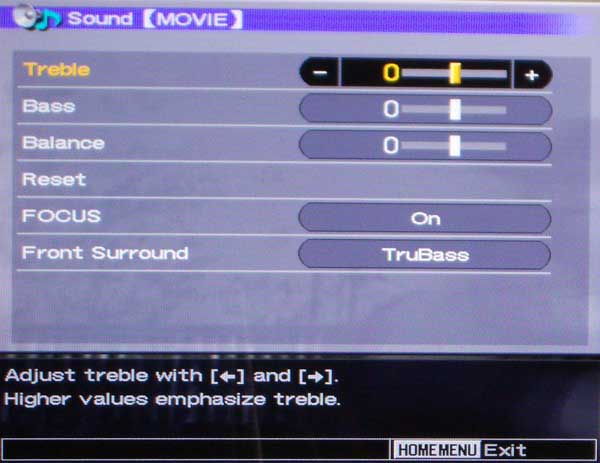 How does the PRO-940HD function in terms of audio? HDMI
audio is passed through to the television in 2.0 and the onboard speakers are actually quite good. They
won't fill a 3000+ square foot room or provide chest-thumping bass, but they definitely get the job
done. The low profile of the speakers and ability to engage some interesting options make it a cut above
the typical speakers found in many entry-level televisions. A Focus option allows the set to "elevate"
the sound to the center of the set using DSP. This is an on or off function and
seemed to work quite well in fact. I also tested out the SRS and TruBass functions of the set. SRS is a
great feature for those who simply cannot accommodate surround sound in their rooms. The effect is
immersive, though a bit "phasey". It's definitely an improvement if you're trying
to get emotionally involved in a movie and not doing critical listening. TruBass elevates some of the
lower frequency information into the frequency range of the television's speakers and gives
listeners the perception of lower bass response. If you have a subwoofer connected to the system
I'd recommend leaving this off, but if you don't, then feel free to engage it and hear a
taste of what you are missing.
How does the PRO-940HD function in terms of audio? HDMI
audio is passed through to the television in 2.0 and the onboard speakers are actually quite good. They
won't fill a 3000+ square foot room or provide chest-thumping bass, but they definitely get the job
done. The low profile of the speakers and ability to engage some interesting options make it a cut above
the typical speakers found in many entry-level televisions. A Focus option allows the set to "elevate"
the sound to the center of the set using DSP. This is an on or off function and
seemed to work quite well in fact. I also tested out the SRS and TruBass functions of the set. SRS is a
great feature for those who simply cannot accommodate surround sound in their rooms. The effect is
immersive, though a bit "phasey". It's definitely an improvement if you're trying
to get emotionally involved in a movie and not doing critical listening. TruBass elevates some of the
lower frequency information into the frequency range of the television's speakers and gives
listeners the perception of lower bass response. If you have a subwoofer connected to the system
I'd recommend leaving this off, but if you don't, then feel free to engage it and hear a
taste of what you are missing.
Screen Size
Adjustments
 There are five (5) modes for viewing material on the plasma display. Each has its
particular uses or strengths and users can cycle through the modes using the remote control:
There are five (5) modes for viewing material on the plasma display. Each has its
particular uses or strengths and users can cycle through the modes using the remote control:
4:3 - This mode enables side bars to appear on the screen (which can be configured to either solid gray or as black and white zoomed representations of the on-screen content. Oddly enough the bars cannot be configured to black, largely (we're guessing) due to efforts to prevent permanent or even temporary burn-in effects.
Full - This mode will be the most common mode and plays back 16:9 anamorphic content in its proper aspect ratio. It also expands 4:3 content evenly to fill the entire screen.
Zoom - This will evenly zoom the picture such that letterbox content can be seen closer to full screen.
Cinema - This mode is for 14:9 letterboxed content (a format that is a punt for weenies who can't handle 16:9 on 4:3 screens) and basically offers a different stretch level.
Wide -
This is a logarithmic scaling mode whereby the edges of the screen are
stretched farther than the center. Do NOT use this for 4:3 sports or you will almost certainly get a
headache.
There are several other modes for PC including a Dot by Dot mode which does a pixel-perfect resolution match to the screen.
PRO-940HD as a Media
Center
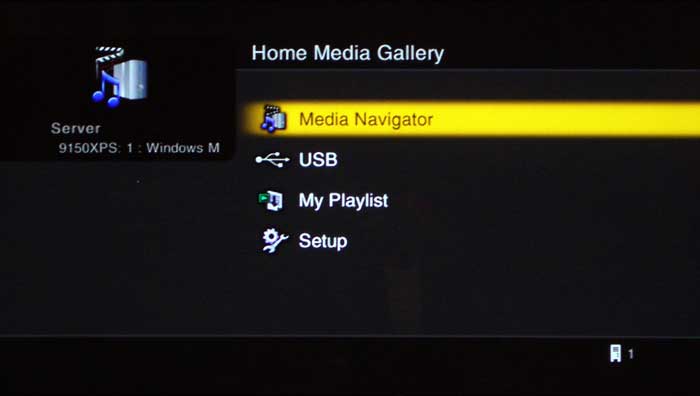
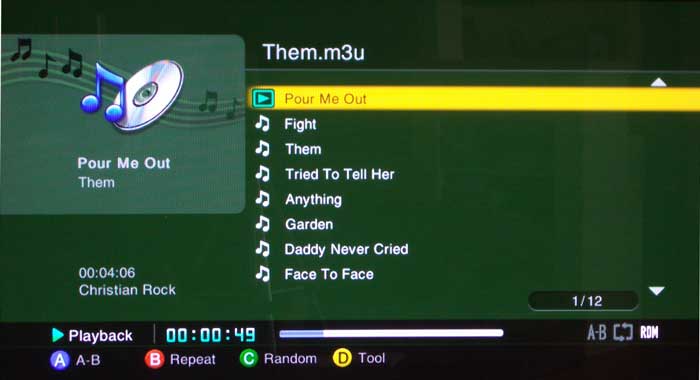
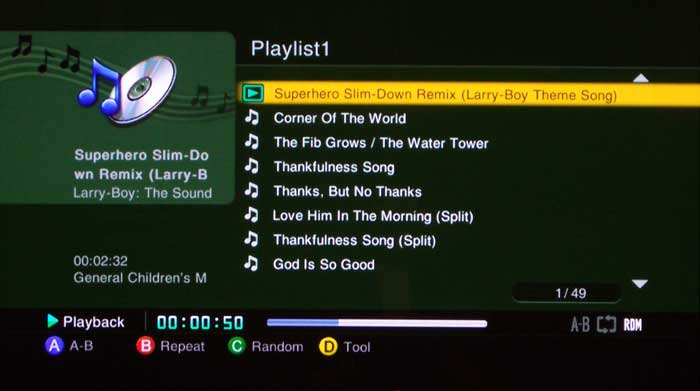
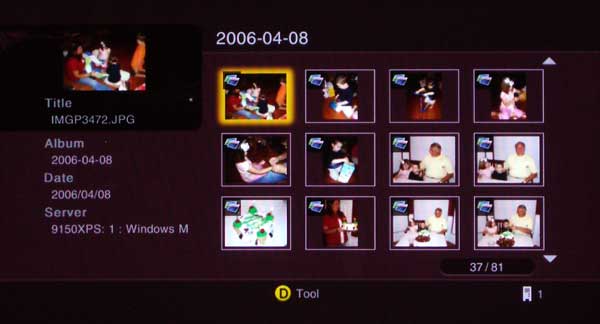
Having a Media Center in your living room is quite a bonus for a television - especially when it comes without any extra boxes or cables to connect. The Home Media Gallery is easily accessed via the remote control - there's a big button called "Home Menu" that brings you to the place where you can select the Home Media Gallery. From there you can select the Media Navigator to browse videos, music and photos, connect to a USB drive, or view your playlists. A setup menu is available for checking version numbers, performing firmware updates or adjusting your network settings. If it were wireless it would be the perfect TV... but to be honest, it's getting pretty close as-is.
Remote Control
Pioneer opted to leave the more complicated and less-used features underneath a flip up cover located at the bottom of the remote. While this makes more a more clean appearance, it's an aesthetics thing and targeted towards not confusing any "significant others" who might have to use the remote to change volume or channels. One of the more comical results of this hide-away rears its head during use of any PIP or POP functions. You select PIP mode by toggling the "Split" button underneath the cover. Want to change the size of the primary screen? Jump up to the "Size" button near the top of the remote. Want to swap sources or move a PIP window to a different part of the screen? Go back down to the bottom. You get the idea.
The remote provides for direct input selection of all inputs... and this is an important and oft-missed feature that should be commended. In addition, the remote is entirely backlit, except for the buttons underneath the closed cover. The backlight stays on for a frustratingly short 5 seconds if no buttons are pressed. The good news is that pressing any button will activate the backlight. Comically, the dedicated light button is actually pretty difficult to activate compared to the other buttons, so you may want to get used to just hitting that "Enter" key in the middle of the keypad. Overall this is a great remote and it serves its purpose along with having the capabilities to control other devices in your system when needed.
Calibrating the Television
We used Datacolor's Colorfacts Professional 6.0 software to measure and help calibrate black and white levels on this plasma television. The Pioneer was a pleasure to calibrate and seemed to "hold" its calibration well rather than showing improvements at the two primary calibration points alone - a common trait among more budget-oriented televisions... I call it "rubberband" calibration syndrome. The overall theme of this display continued to be "black levels". It repeatedly made up for the lack of overall brightness inherent on plasmas with exceptionally dark blacks and it generated real world contrast ratios (we measured 661:1 ANSI before calibration) that were impressive for a calibrated flat panel display.
CIE Chart -
Color Reproduction
&
Saturation
Potential
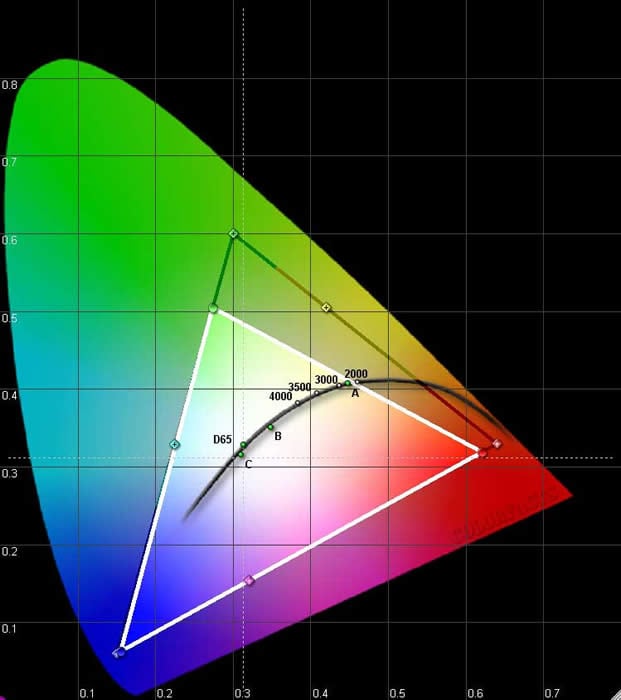
Using a signal generator is best for capturing extreme RGB color data, however we ran the test using an AVIA Pro DVD as our source for color. That, combined with setting the Intelligent Color and Color Space menu settings to their lowest possible points may have contributed to the diminished greens we see here. In practical viewing, the Pioneer still looked extremely vibrant and colorful.
|
Before
|
After Calibration
|
 |
 |
|
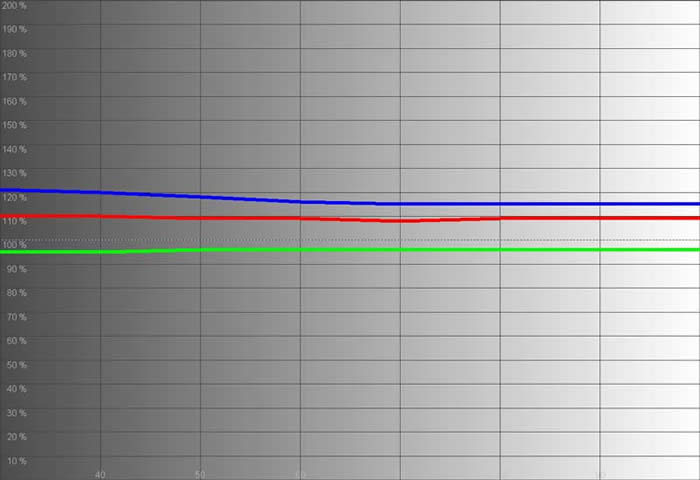
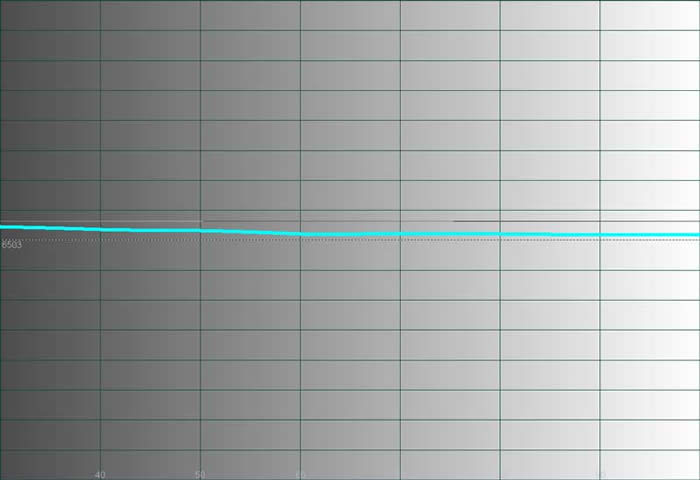
We first determined that the best color temperature starting point was 'Mid-Low'. Our 'Before' measurements showed a display with excessive blues and reds throughout the entire luminance range. Even this isn"t bad compared to the defaults of many models we've seen, however. |
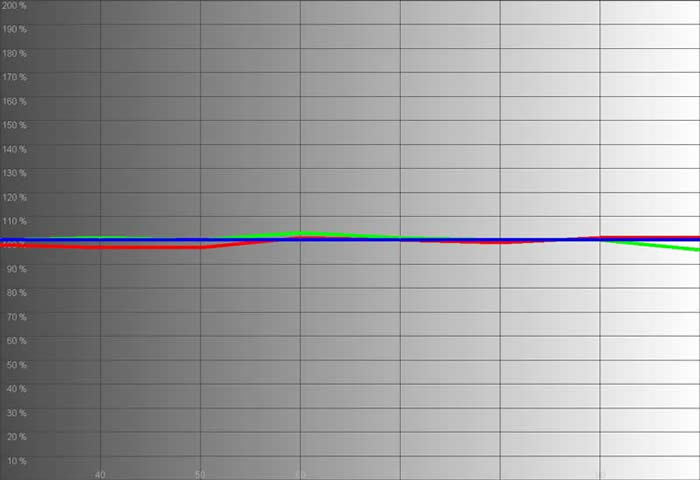
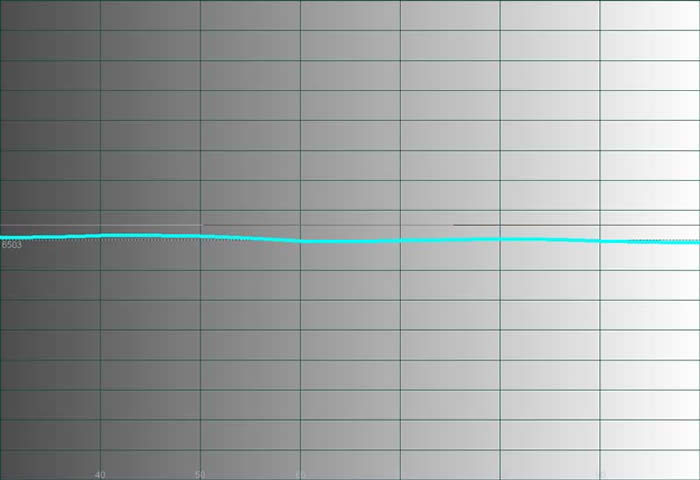
Calibration yielded excellent results that didn't jump around too much across the working range of the television. The resulting grayscale was flatter than ever. There as no "rubberband syndrome" on this calibration. |
 |
 |
|
The starting gamma luminance curve was actually a bit brighter than we desired, and blacks took on a more grayish tint. |
After calibration and setting the black levels a bit more accurately we still had the slight s-curve gamma response, but the results were extremely pleasing to the eye and shadow information could be discerned in great detail. |
 |
 |
|
The color temperature reading before calibration was approximately 6800K. Not bad. |
We actually managed to get it almost exactly to D65 across the entire range. |
Brightness uniformity on this display was an impressive 98%. It's hard to match this on LCD displays and even lesser plasmas don't typically fare quite this well.
Audioholics/HQV Bench Testing Summary of Test Results
Perfect Score is 130
Pioneer PRO-940HD Benchmark Score: 85
(one of the better flat panels we've
tested)
|
Test |
Max
|
Component 480i |
Component
|
|
|---|---|---|---|---|
|
Color Bar |
10 |
10 |
Pass |
|
|
Jaggies #1 |
5 |
5 |
Pass |
|
|
Jaggies #2 |
5 |
5 |
Pass |
|
|
Flag |
10 |
10 |
Pass |
|
|
Detail |
10 |
10 |
Pass |
|
|
Noise |
10 |
10 |
Pass* |
|
|
Motion adaptive Noise Reduction |
10 |
10 |
Pass** |
|
|
Film Detail |
10 |
10 |
Pass |
|
|
Cadence 2:2 Video |
5 |
0 |
Fail |
|
|
Cadence 2:2:2:4 DV Cam |
5 |
0 |
Fail |
|
|
Cadence 2:3:3:2 DV Cam |
5 |
0 |
Fail |
|
|
Cadence 3:2:3:2:2 Vari-speed |
5 |
0 |
Fail |
|
|
Cadence 5:5 Animation |
5 |
0 |
Fail |
|
|
Cadence 6:4 Animation |
5 |
0 |
Fail |
|
|
Cadence 8:7 animation |
5 |
0 |
Fail |
|
|
Cadence 3:2 24fps film |
5 |
5 |
Pass |
|
|
Scrolling Horizontal |
10 |
0 |
Fail*** |
|
|
Scrolling Rolling |
10 |
10 |
Pass |
|
|
Total Points
|
130 |
85 |
|
|
*Noise reduction was excellent on this display. **Set NR to low to avoid motion adaptive artifacts, but even set at high the smearing isn't too obtrusive. ***Horizontal scrolling text overlays tear when PureCinema is enabled.
Comments on HQV Testing
What surprised us about these results was the Scrolling Horizontal test. This is the first display that I've seen fail it. This was unusual given the PRO-940HD's overall scoring and performance in other areas. For some reason, and no matter what alternative IP settings I selected in the Advanced menu, combing was evident in horizontal scrolling text overlays. Turning PureCinema mode 'Off' completely fixed the horizontal scrolling, but it also removed jaggie reduction and implementation of correct 2:3 pulldown. Noise reduction on this set was exceptional; though going beyond a 'Low' setting will begin to introduce some smearing and Motion Adaptive artifacts. The 'High' settings will actually result in a loss of significant detail, so stick to 'Low' or 'Medium' on these features (this applies to both NR and MPEG NR).
I ran a series of Moving Zone Plate tests and found the Pioneer to be very good at both low and high speed 2:3 pull down deinterlacing. The standard Zone Plate tests failed completely and the 2:2 tests were only marginally acceptable. With these tests I am mostly focusing on 2:3, so the Pioneer did very well, however its cadence and flagless error correction support leaves some room for improvement.
Viewing Evaluation and Conclusion
These viewing sessions were fun. I'll admit that I was going after darker program material as well as vibrant colors. I wanted to see just how well the Elite Pioneer plasma could "peer" into the dark. The measurements said it would do exceptionally well, but it was high time we put up more than just test patterns and generated signals. I'll minimize the comments and show as much of the imagery as I can. Of course, cameras and direct-view displays don't always get along... hopefully you can get the general idea without too much distraction.
DVD: Lord of the Rings: The
Two Towers
If ever there was a movie that didn't need an introductino...
Battle sequences and armor, facial and landscape detail made this a
pleasure to watch. Every time I thought I had captured my last image
another would excite me into snapping off another photo. There is so
much to see in these movies I was having a hard time figuring out how
to "bring"
readers into my reference room to see this display.
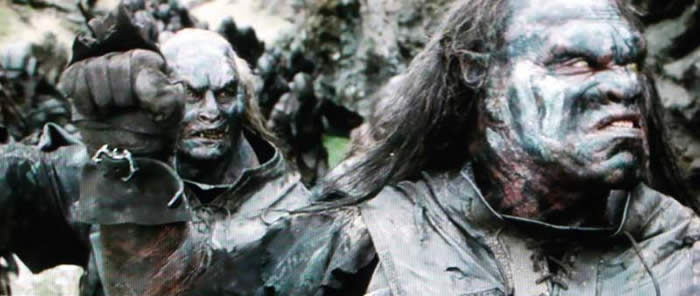
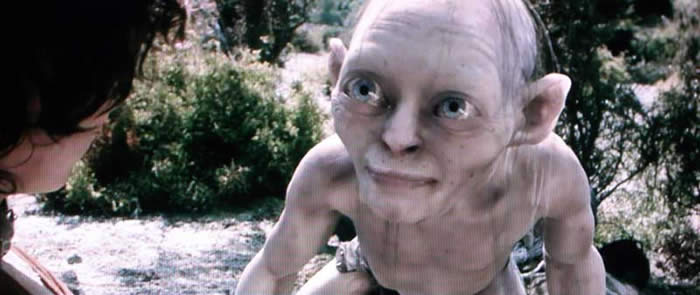
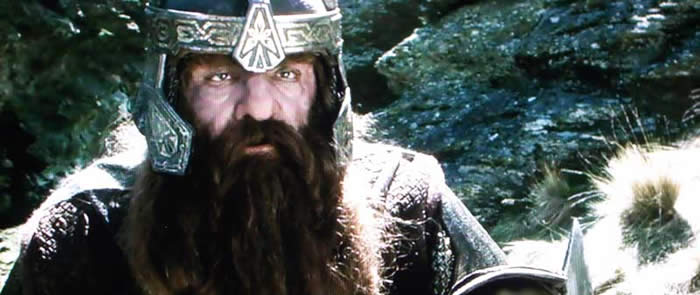
When you see such clean CG as Gollum and such incredibly detailed special effects makeup as was used on making up the orcs, there is no denying that having a television that can peer into the nooks and crannies of the image will deliver a more lifelike, three-dimensional picture. This is the case with the Pioneer Elite plasma. Watching DVDs is simply more life-like than with a brighter or more washed out display.
DVD: Pirates of the
Caribbean: Curse of the Black Pearl
Like LOTR, this movie had an amazing amount of black detail. It
also added a surprising amount of color, however, which almost popped
off the screen in some scenes. These moments of displaying some bright
red from the English military uniforms allowed me to see that the
plasma certainly didn't have a practical deficiency in the reproduction
of reds, despite the results of the CIE chart.


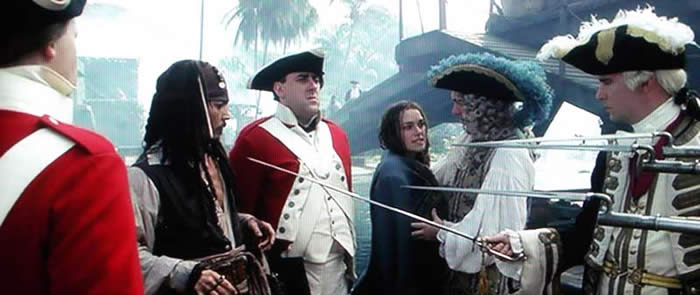
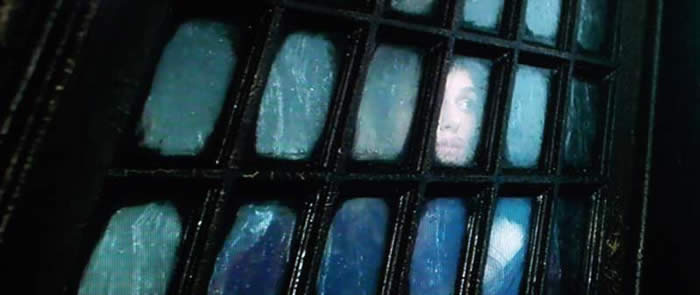
What's our theme again? Oh yes, black levels. Let's understand something, you can crank up an LCD or lesser plasma to show the details present in a dark scene, but to have it displayed at very low IRE levels is the key to a truly good display. The PRO-940HD pulled it off. Details without washing out the blacks or turning them gray - now that is something I'll pay a premium for!
DVD:
Serenity
Serenity
, the only film I know of that was made despite the TV series being cancelled within the
first season. Joss Whedon's amazing "comeback"
film has some great color, exceptional
film quality and plenty of "plasma-testing"
scenes to make me want to reach for it early when
testing out a display. It also sounds killer, but that's just fluff.



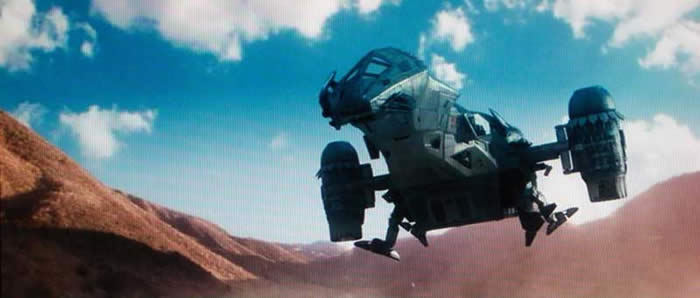
This film looked fantastic on this display. The last time I had seen it was on a DLP front projection system and the plasma really gave it a depth that I hadn't seen before. Granted, the screen size was much smaller, but that only makes the detail pop out even more. The ending fight scene when they are trapped in the hallway fighting the Reavers showed off excellent details within the shadows and dark areas of the scene. This is a scene (and not the only one) that would be completely diminished on a sub-par display.
Television: Misc Shows
I watched a complete hodgepodge of television shows which reaffirmed to me that the Pioneer Elite has one of the best analogue cable TV tuners I've ever experienced. Fortunately for consumers, they didn't just toss in cheap processing and circuitry to get by. I would have to guess that even utilizing a CableCard in this display would not deliver much improvement for the analogue cable channels. Some of the material I watched included CSI: Miami, Futurama, and several Discovery Channel and History Channel shows.


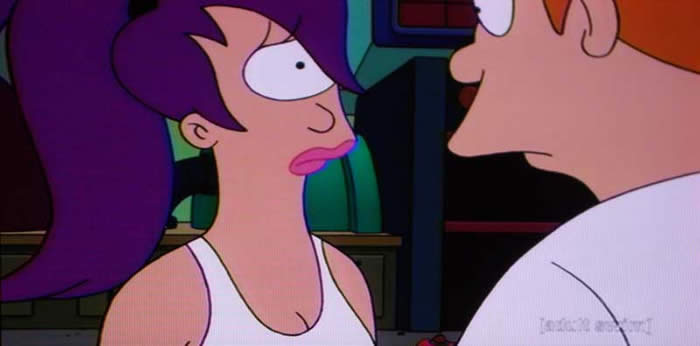
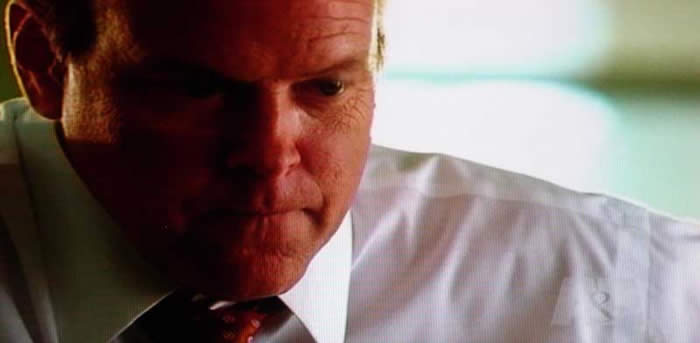
Even if you're watching the 10 o'clock news, you'll see a difference
between this display and a typical entry-level flat panel. Engaging the different screen size modes
showed me that the PRO-940HD has excellent scaling capabilities. Whether I was using the Full Mode or
stretching the image asymmetrically across the screen, lines were smooth and clean. This is simply a
great television set.
Temporary Burn-in Effects
I couldn't get this set to show me any burn-in effects from normal use. I also didn't abuse it on purpose. Judging from my past experiences, I would say that this 9th (ninth) generation plasma is a much harder panel to burn-in. No one who purchases a plasma display should attempt to view tons of non-full-screen 4:3 content for extended periods of time. However with the new panel technology and the fact that Pioneer doesn't really allow you to abuse this panel, it is unlikely that users will ever experience significant or lasting burn-in effects. Contrast this against an entry level model I reviewed earlier which suffered temporary burn-in effects from just a few minutes of abuse.
Conclusion
This plasma television is a cut above the rest. I've used several entry level models and it's easy to think that you can get a much cheaper flat panel display... and you can. But when you add up the features, look at the quality and sit back for a preview, you quickly realize that there is more to a flat panel display than simply being flat. Pioneer's Elite PRO-940HD is a diamond among other precious stones (and some unpolished pieces of quartz). I started out by saying that "It's All About the Blacks..." and that's true, but with the additional features, you'll find yourself quickly justifying the additional expense to get away from the entry level models. Highly recommended and a bar to which other displays of all kinds should be measured.
The Score Card
The scoring below is based on each piece of equipment doing the duty it is designed for. The numbers are weighed heavily with respect to the individual cost of each unit, thus giving a rating roughly equal to:
Performance × Price Factor/Value = Rating
Audioholics.com note: The ratings indicated below are based on subjective listening and objective testing of the product in question. The rating scale is based on performance/value ratio. If you notice better performing products in future reviews that have lower numbers in certain areas, be aware that the value factor is most likely the culprit. Other Audioholics reviewers may rate products solely based on performance, and each reviewer has his/her own system for ratings.
Audioholics Rating Scale
 — Excellent
- — Very Good
- — Good
- — Fair
- — Poor
| Metric | Rating |
|---|---|
| Detail and Resolution | |
| Contrast and Black Levels | |
| Color Reproduction | |
| Calibration Options | |
| Build Quality | |
| Ease of Setup | |
| Remote Control | |
| Performance | |
| Value | |
Clint Deboer was terminated from Audioholics for misconduct on April 4th, 2014. He no longer represents Audioholics in any fashion.
View full profile Subscribe to our newsletter