


Universal Remote MX-700 Home Theater Master Review
Universal Remote MX-700 Home Theater Master
- Product Name: MX-700 Home Theater Master
- Manufacturer: Universal Remote Control, Inc.
- Performance Rating:

- Value Rating:
- Review Date: February 21, 2004 19:00
- MSRP: $ 349
Features and Benefits
|
Specifications
|
Pros
- Powerful programming interface
- High quality tactile buttons
- One of the most ergonomic remotes we've ever used
Cons
- Programming interface not for the weak of heart
- Serial connection required (no USB support)
- Slow updating
MX-700 Remote Overview
 When I first heard I was to receive an MX-700 remote control to review I was mildly
receptive. I was fairly happy with my Yamaha learning remote control, one that came with the RX-V3000
receiver I own. What I primarily liked about that receiver's remote was its ability to automatically
facilitate audio-follows-video switching and its dedicated receiver volume control. In using the Home
Theater Master MX-700, I underwent an entire change in understanding of how well a remote control can
function. While the small LCD of my Yamaha remote allowed for control of devices without affecting the
current selected inputs, the fully-functional multi-pane LCD screen of the Home Theater MX-700 allows for
tremendous flexibility in controlling all of your devices efficiently and ergonomically.
When I first heard I was to receive an MX-700 remote control to review I was mildly
receptive. I was fairly happy with my Yamaha learning remote control, one that came with the RX-V3000
receiver I own. What I primarily liked about that receiver's remote was its ability to automatically
facilitate audio-follows-video switching and its dedicated receiver volume control. In using the Home
Theater Master MX-700, I underwent an entire change in understanding of how well a remote control can
function. While the small LCD of my Yamaha remote allowed for control of devices without affecting the
current selected inputs, the fully-functional multi-pane LCD screen of the Home Theater MX-700 allows for
tremendous flexibility in controlling all of your devices efficiently and ergonomically.
With that in mind, lets dive into the MX-700 with an attempt to understand its strengths, usefulness and its function as a home theater component rather than just a simple utility. I think that , like me, once you understand what a true home theater remote control can do, you will understand just what it is you are missing.
Ergonomics and Style
One of the things I find absolutely necessary for a remote control to be useful is a good, ergonomic interface. This is where touch-screen LCD remotes fail, in my opinion. Full-face LCD touch screen remote control units are generally bulky and force the user to frequently utilize two hands to perform basic functions. The MX-700 shatters this by presenting itself as a single-handed remote. It is designed to fit comfortably in one hand, with all buttons accessible. I find myself able to slide the unit up and down in my hand to access all buttons with my thumb, including the customized LCD buttons. When you do utilize your other hand, you'll find it natural as well. I couldn't help but think they must have done a tremendous amount of R & D to arrive at such a sensible design, but then I looked at the history of Home Theater Master and their products lines and see that the MX-700 is a natural evolution of a company that knows remote controls.
MX-700 Remote MX Editor Software Programming
 So How Do We Begin?
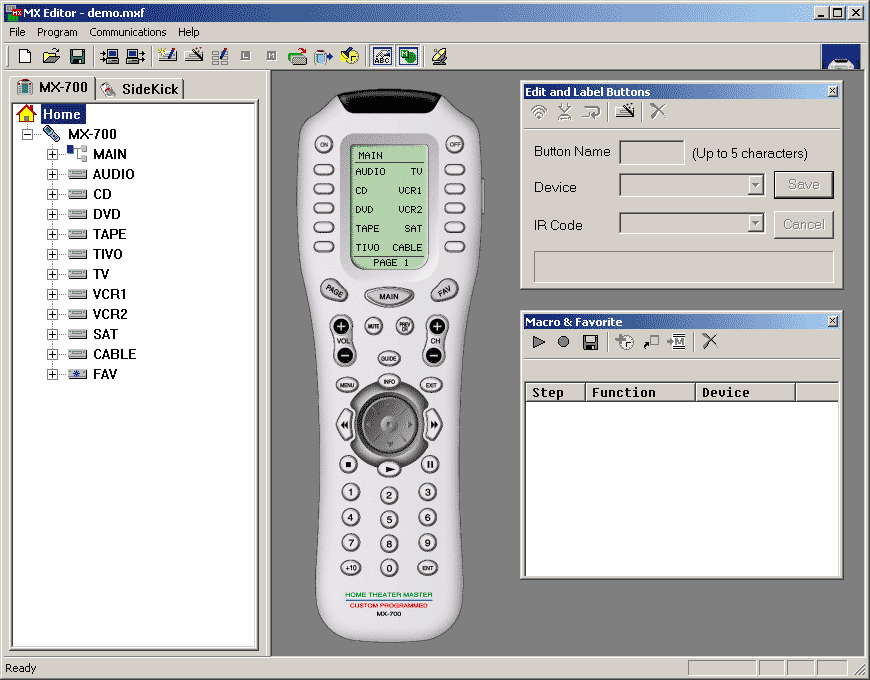
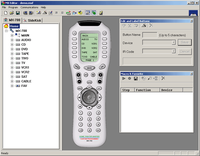
Unlike other programmable remote controls there is no way to program the MX-700 (or accompanying sidekick remote) apart from the MX Editor software, available as a free download at www.hometheatermaster.com . This is by design as the MX-700 remote control is meant to be a professional OEM product, intended for high-end home theater installations and enthusiasts who want the best money can buy. The remote controls actually used to come in 3-packs, but are now available in single units packs with a CD-ROM containing the software and instruction manual. The only paper "instructions" are more of an overall feature set which you can then leave with the user as a short overview on the general use of the remote control (once you've programed it for their equipment.) If you're looking for something that doesn't require a computer interface, consider the MX-500, and if RF is your bag, then the MX-800 gives you all the functionality and power of the MX-700, but with an RF interface so you don't have to physically point the remote control at your audio equipment.
Programming of the remote control is accomplished through the use of the MX Editor software which links to the MX-700 (and Sidekick) via an RS-232 to 1/8" mini TRS cable. Only 3 pins of the cable are really used, and we'd recommend getting additional cables directly from Home Theater Master if you need more (for instance, if you bought an OEM 3-pack to split with friends.) Replacement cables are only $10.
Using the MX Editor Software
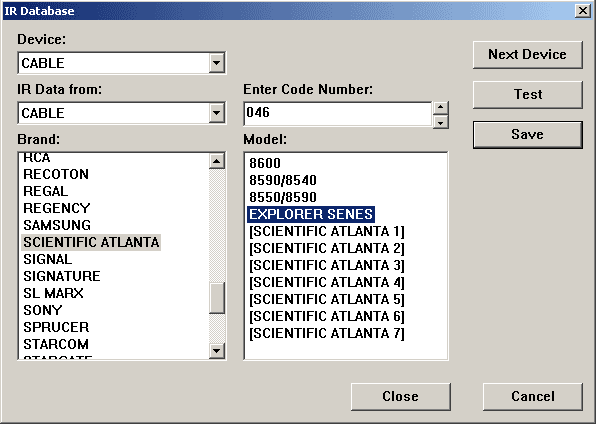 Except for a couple quirky interface issues, using the MX Editor
software was a breeze. You are basically dealing with a visual
representation of the MX-700 remote control, with access to all of the
buttons and a database of IR commands from many industry remote
controls. The first thing to do is run a 'Live Update' from the help
menu to get the latest firmware, IR codes and software updates. I found
the IR database to be fairly complete, though it lacked exact
name-matching entries for my HK FL-8350 CD player, my Toshiba 32A40 TV,
and my Sony DVP-550D DVD player. When I say it lacked exact
name-matching entries, it had entries for an HK FL-8550, a generic
Toshiba, and a Sony DVP-550 (actually, come to think of it, my RX-V3000
was referred to as an 'RX-3000'). The Sony and the Yamaha were typos,
while the HK referred to a similar CD player model. In either case,
using these codes enabled me to have the MX-700 programmed fairly
quickly with the IR database codes.
Except for a couple quirky interface issues, using the MX Editor
software was a breeze. You are basically dealing with a visual
representation of the MX-700 remote control, with access to all of the
buttons and a database of IR commands from many industry remote
controls. The first thing to do is run a 'Live Update' from the help
menu to get the latest firmware, IR codes and software updates. I found
the IR database to be fairly complete, though it lacked exact
name-matching entries for my HK FL-8350 CD player, my Toshiba 32A40 TV,
and my Sony DVP-550D DVD player. When I say it lacked exact
name-matching entries, it had entries for an HK FL-8550, a generic
Toshiba, and a Sony DVP-550 (actually, come to think of it, my RX-V3000
was referred to as an 'RX-3000'). The Sony and the Yamaha were typos,
while the HK referred to a similar CD player model. In either case,
using these codes enabled me to have the MX-700 programmed fairly
quickly with the IR database codes.
Customizing After Applying the IR Database Codes
 It would be great if that was all there was to it, but then again, I
could have bought a 5-in-1 remote control from Home Depot if that's all
I wanted. No, the power of the MX Editor software is in what you do
after
you apply the IR database codes. Your next step will be to decide what
modifications to make to enable your system to be operated most efficiently from the MX-700. Here are
some basic suggestions for a geral approach to what I feel is a practical programming setup:
It would be great if that was all there was to it, but then again, I
could have bought a 5-in-1 remote control from Home Depot if that's all
I wanted. No, the power of the MX Editor software is in what you do
after
you apply the IR database codes. Your next step will be to decide what
modifications to make to enable your system to be operated most efficiently from the MX-700. Here are
some basic suggestions for a geral approach to what I feel is a practical programming setup:
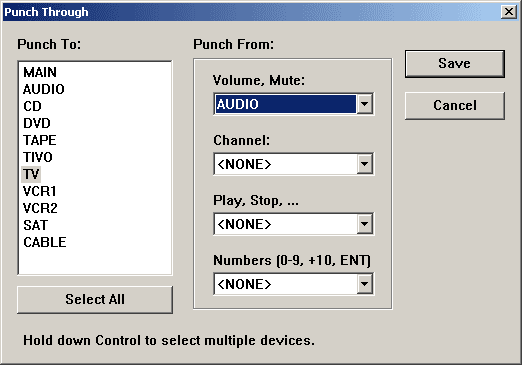
- Assign Punch-throughs for volume and mute functions - this enables to to access your receiver volume in all modes of operation. There's nothing more frustrating than watching a DVD or cable TV and having the volume control your television instead of the receiver.
- Keep it simple - there's a reason you have customizable buttons via the LCD. Don't assign receiver controls to number buttons in the hopes that you will eventually memorize your custom set up. Use the LCD labels and build a sensible remote that anyone in the family can use. My wife picked up the MX-700 after I programmed it and was using it without any guidance form me in less than a few minutes.
- Program all functions of each remote into the MX-700. You have up to 4 screens for each device. Use them so you never have to pick up the original factory remote, even if it's for some obscure function like angle or audio options on your DVD player. I was careful to program all of the setup functions of my RX-V3000 so that level controls and menu functions could be accessed without going back to the original remote.
- Put the most commonly used functions on the bottom of the first custom LCD page. This is the easiest place to reach. The higher up you go, the higher you have to stretch your hand to reach the buttons.
- Put the most commonly used functions on the first screen. You don't want to hit the 'PAGE' button unless you have to, so put all your common functions on the first screen.
- Create a device named "DSP" and place all your DSP programs on that LCD screen. This allows you to access DSP modes from any input mode without having to go to a sub-menu of the receiver page. You'll probably want the DSP to be in the receiver pages as well, so I actually asliased the DSP functionality to the new page (more on aliasing later.)
All in all, you can really get alot out of the MX Editor software. Next, we'll go into some specific programming tasks you'll use im programming the remote control to work for you.
MX-700 Remote Programming Process Overview
 Well, we've given you some pointers on what you'll want to focus on when programming the MX-700, but you
may want to also be aware of the general process involved in programming the unit, starting from scratch.
Here is a breakdown of the steps you will most likely take (keep in mind that the editing process is
somewhat flexible and you may choose to do things differently depending upon your needs):
Well, we've given you some pointers on what you'll want to focus on when programming the MX-700, but you
may want to also be aware of the general process involved in programming the unit, starting from scratch.
Here is a breakdown of the steps you will most likely take (keep in mind that the editing process is
somewhat flexible and you may choose to do things differently depending upon your needs):
- Download/install the MX Editor software and update to the latest version.
- Begin by opening the 'Create and Name Devices' window and proceed to assign your home theater devices to the main screen of the MX-700. As mentioned earlier, I'd recommend adding an additional device called DSP where you'll store your receiver's DSP modes. You can drag and drop any buttons in this window, the LCD Button Editor or the actual remote control itself.
- Click on each device and access the IR Database to assign a base set of codes for all device remotes.
- Learn any device remotes and remaining functionality that are not present in the IR Database.
- Assign 'Punch Through' functionality for master volume and mute to all devices.
- Go through each device and customize, add, and edit the custom LCD buttons using the 'LCD Button Editor' panel. Use the learning function in the 'Edit and Label Buttons' panel as needed.
- Assign your cable/satellite channel favorites to the FAV button/section.
- Assign any macros to the main buttons as needed. I generally set up macros to switch my inputs and jump to the corresponding control page for the device. If you do not have a receiver that has audio-follows-video-switching, this can be very helpful indeed.
- 'Download' you new remote controls settings to the MX-700.
- Test and make changes as needed.
The greatest thing about the MX-700 remote control is that you can go back and make changes. For new users, I predict you will probably download commands into your remote control at least 3-4 times before you get it the way you will like. As you continue to use the remote, you may decide to make changes from time to time - just be sure to save the remote control configuration so that you can recall your remote configuration. Should you lose this file, you can also upload your remote control into the MX Editor and go from there.
MX-200 Sidekick Remote & Conclusion
 The MX-200 Sidekick Remote
($79 MSRP option)
The MX-200 Sidekick Remote
($79 MSRP option)

Last but not least (well, OK, it is least, actually - but still cool!) the optional $79 MX-200 Sidekick remote offers you the ability to do what you've always wanted: give your grandparents or in-laws a remote that they can use without messing up your system. With the MX-200, you can set it up for a single device, usually the cable/satellite box, punch though the volume for the receiver, and set up a macro to turn on/off all appropriate devices.
The three favorite buttons can be assigned to television channels. I chose three favorites that were spread out so as to provide an easy way to jump through the gamut of available channels. The channel up/down controls will fill in any gaps between the three favorites. The MX-200 Sidekick also provides a simple back light button for use at night, lighting up all buttons for easy viewing. I've set up my own Sidekick for Cable TV use and it is fairly foolproof. Now, instead of having to explain my complex remote control system to my mother-in-law, I can simply hand her this small remote and know that she can operate the system with ease and clarity.
Conclusions and Opinions
I simply love being able to leave the MX-200 Sidekick with my in-laws when they come over and know that they will have a remote control they can understand and one that will allow them to watch TV without difficulty.
Quite simply, the MX-700 remote control is the ultimate remote control for home theater use. I've never experienced any better way to control my entertainment system. The programming methodology works and is fairly easy to use. I would say that I went from mild interest to complete enthusiasm after the first download, once I realized the potential of this new remote. Never has my system been more easy to control, nor have I ever had a remote control that my wife learned so quickly without any prompting or instruction from me. The optional Sidekick remote adds a wonderful "ease-of-use" tool for visitors or family members who may not be as familiar with your system. The only potential downside is its $349 MSRP, but compared to competitors like the Pronto Remote, which in my opinion is more cumbersome and not as ergonomic, the MX-700 is a bargain. In addition, the MX-500, which retails at $189, is available for those who can do without the computer interface and want the same great capabilities and performance.
Home Theater Master MX-700 Remote Control
MSRP $349
500 Mamaroneck Avenue
Harrison, New York 10528
914-835-4484
www.hometheatermaster.com
About Universal Remote Control, Inc.
Universal Remote Control, Inc. is one of the world's largest suppliers
of remote controls, and wireless and RF hand-held devices to the OEM,
and subscription broadcasting markets. The company markets and licenses
proprietary technologies, and software programming and related
development services capabilities to other industry-related companies
and consumer electronics manufacturers. They are a customer-driven
organization that is focused on meeting the ever-changing needs of the
market place, and are recognized as a developer of innovative,
leading-edge remote control products designed to operate a wide range
of home entertainment devices.
The Score Card
The scoring below is based on each piece of equipment doing the duty it is designed for. The numbers are weighed heavily with respect to the individual cost of each unit, thus giving a rating roughly equal to:
Performance × Price Factor/Value = Rating
Audioholics.com note: The ratings indicated below are based on subjective listening and objective testing of the product in question. The rating scale is based on performance/value ratio. If you notice better performing products in future reviews that have lower numbers in certain areas, be aware that the value factor is most likely the culprit. Other Audioholics reviewers may rate products solely based on performance, and each reviewer has his/her own system for ratings.
Audioholics Rating Scale
 — Excellent
- — Very Good
- — Good
- — Fair
- — Poor
| Metric | Rating |
|---|---|
| Performance | |
| Value | |
Clint Deboer was terminated from Audioholics for misconduct on April 4th, 2014. He no longer represents Audioholics in any fashion.
View full profile Subscribe to our newsletter