


Logitech Harmony One Remote Control Review
Logitech Harmony One Remote Control
- Product Name: Harmony One Universal Remote
- Manufacturer: Logitech
- Performance Rating:

- Value Rating:
- Review Date: September 21, 2008 22:40
- MSRP: $ 249.99
System Requirements
- Windows 2000, Windows XP, Windows Vista (PC); Mac OS X 10.3 or later (Mac)
- USB port
- CD-ROM drive
- Internet access
Package Contents
- Harmony One remote control
- Charging station
- USB cable
- AC adapter
- Lithium-ion battery
- Installation CD
- Installation guide
- 1-year limited hardware warranty
Pros
- Beautiful look and feel
- Nice, tactile button response
- Rechargeable with replaceable Li-ion battery
Cons
- Finicky touch screen
- Programming interface has received only cosmetic updates since inception
- No RF features or options
- Almost no icon choices for LCD screens
- Pricey
Build Quality and Programming
When a new Logitech Harmony Remote arrives on the scene I like to review it to update readers on the latest models in the line-up. With the introduction of the Harmony One universal remote I felt that Logitech had finally completely usurped the original Harmony design and replaced it with a "from the ground up" approach that reflected Logitech's penchant for svelte devices. In case you were still navigating through that last bit of pontifical text, I was giving them a high compliment. Logitech's Harmony One remote is quite possibly the most beautiful remote control I've ever held. Like a sports car that has endured countless hours in a wind tunnel, the One simply feels right and looks like it was sponsored by the Chevy Corvette. Come to think of it, with the recent rash of corporate sponsored television fare, I might need to see if it actually was before moving on...
Build Quality and Ergonomics
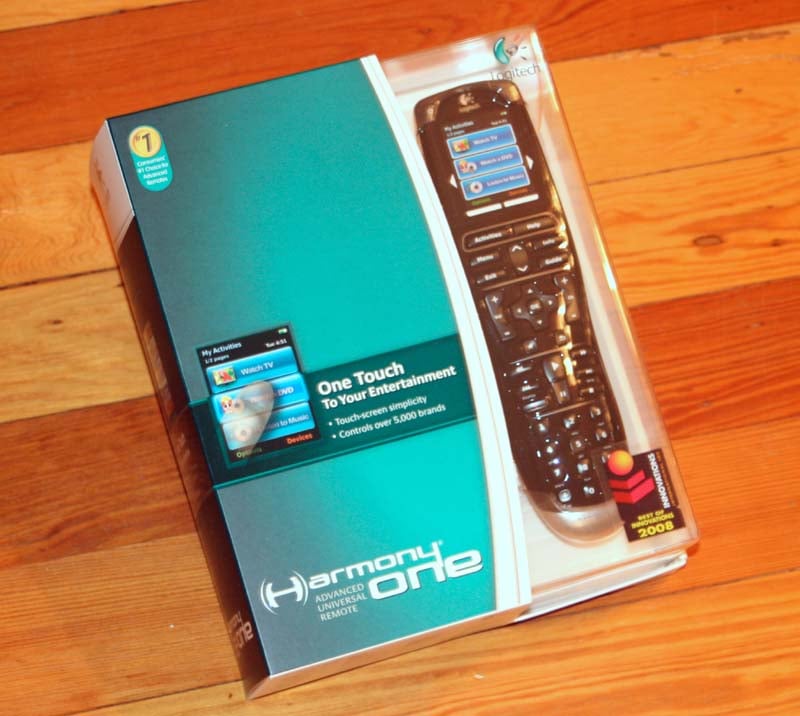 Logitech's new remote arrives in a
beautiful retail package that looks as good as the remote itself. Opening it up
you'll find the remote, its integrated charging cradle with AC adapter, Li-ion
battery, USB cable and installation guide. There is also a CD with the initial
remote control application, but the software is largely online-based, so expect
an update or two once you get it installed.
Logitech's new remote arrives in a
beautiful retail package that looks as good as the remote itself. Opening it up
you'll find the remote, its integrated charging cradle with AC adapter, Li-ion
battery, USB cable and installation guide. There is also a CD with the initial
remote control application, but the software is largely online-based, so expect
an update or two once you get it installed.
As hinted at above, the Harmony One just feels right in your hand. In fact, if you hold it naturally and remove all your fingers except your middle, the remote will balance perfectly, if precariously, atop your finger. While not a good balance for a throwing knife (which I don't recommend using for home theater anyway), the remote is perfect for controlling your AV electronics and using both the hard buttons and the 2.2-inch touch-screen LCD. Speaking of the touch-screen, it is of the capacitive variety. This means that you can get touch-screen capability while maintaining a solid, thin layer of glass across the face of the remote. The result is a beautiful, continuous finish that isn't interrupted by an inset, or bordered, LCD screen.
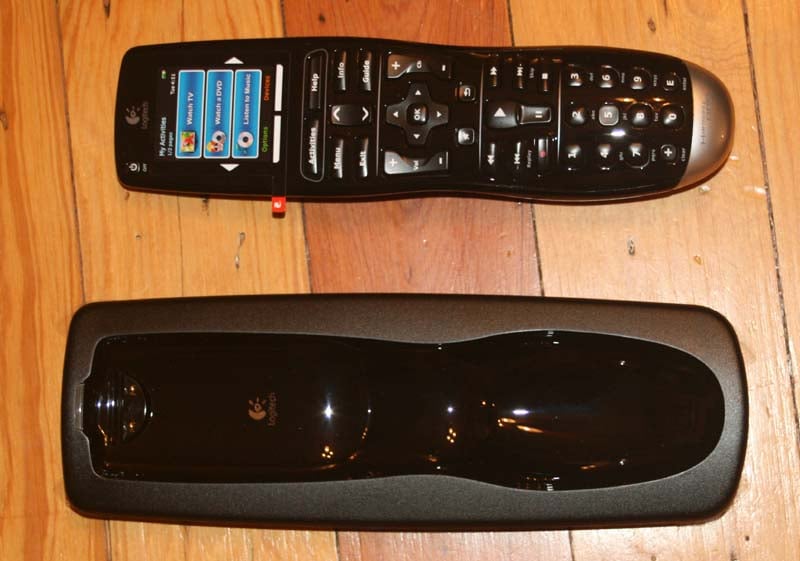 The unit recharges by being placed in
the charging cradle - a process I found much improved from the 880 model I
reviewed a couple years before. The remote simply slides right into the proper
position and I was never able to get it to "not" dock properly (and
believe me, I tried). When the unit is docked, the LCD lights up indicating
(with an animated graphic) that the battery is recharging. The LCD screen goes
black after several seconds to maximize charge time and not waste the usable
life of the backlight. Charging occurs rather quickly and since the battery is
Li-ion, users don't have to worry about memory effect. If you aren't planning
on using it immediately, just place it in the dock and you'll be good to go
when you need it.
The unit recharges by being placed in
the charging cradle - a process I found much improved from the 880 model I
reviewed a couple years before. The remote simply slides right into the proper
position and I was never able to get it to "not" dock properly (and
believe me, I tried). When the unit is docked, the LCD lights up indicating
(with an animated graphic) that the battery is recharging. The LCD screen goes
black after several seconds to maximize charge time and not waste the usable
life of the backlight. Charging occurs rather quickly and since the battery is
Li-ion, users don't have to worry about memory effect. If you aren't planning
on using it immediately, just place it in the dock and you'll be good to go
when you need it.
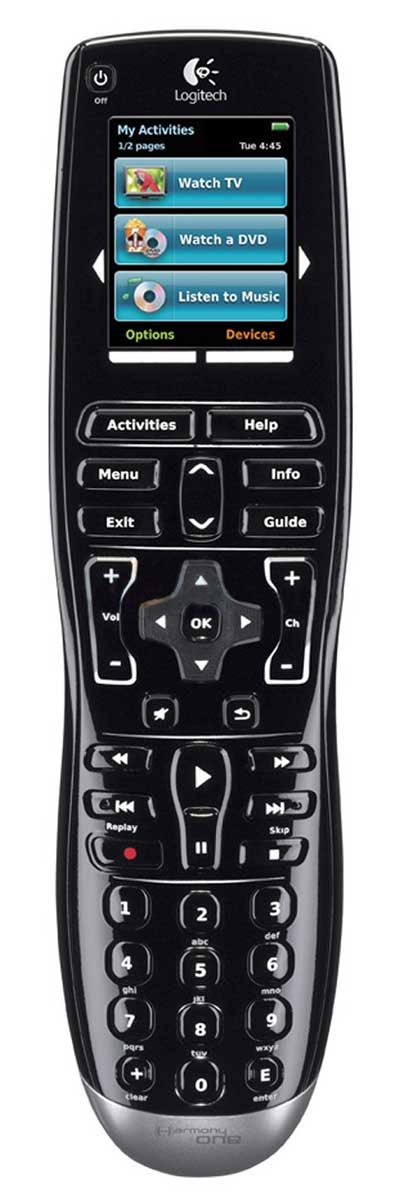 Now on the buttons. This remote is
nearly perfect in that the most-used buttons are within easy thumb-reach. The
only exception is the lower numbers of the keypad, which tend to be a stretch,
causing you to want to physically shift your hand lower on the remote. The face
of the remote is actually divided into 5 clear sections: LCD, Menu, Navigation,
Transport, and Keypad (these designations being mine). If you're like most
people, you will find yourself most often using the Menu, Navigation and
Transport functions. These sections are perfectly located in the central area
and the Harmony One makes it easy to thumb through any of the buttons in these
areas.
Now on the buttons. This remote is
nearly perfect in that the most-used buttons are within easy thumb-reach. The
only exception is the lower numbers of the keypad, which tend to be a stretch,
causing you to want to physically shift your hand lower on the remote. The face
of the remote is actually divided into 5 clear sections: LCD, Menu, Navigation,
Transport, and Keypad (these designations being mine). If you're like most
people, you will find yourself most often using the Menu, Navigation and
Transport functions. These sections are perfectly located in the central area
and the Harmony One makes it easy to thumb through any of the buttons in these
areas.
The LCD is in beautiful full color and remains active for about 9 seconds before going to sleep. It awakens, instantaneously, whenever the remote is picked up or jarred. This helps conserve battery life which I found to be acceptable but not stellar. I could get several days out of the remote if I was using it heavily (activating lots of DVR functions, for example). This isn't bad, especially since the remote can be plopped down onto its charging cradle at any time.
Setup and Programming
 There are two activities you'll be
doing with the Harmony One: Programming and, um, "Remoting." The
first part is simply your setup process which you have to do at the beginning
and if (or when) you upgrade a product. While Logitech gave a very handy
face-lift to the original Harmony programming application, it's still pretty
much the same - albeit with better graphics. That is to say that it works, it
just doesn't quite "sing" yet. I found the Logitech Harmony Remote
Software to be easy to use. It allows you to customize what functions go on the
LCD screens and set up a bunch of screens full of those custom remote commands.
What was disappointing was that users are not able to customize or create icons
for the Harmony One. The interface allows no dragging and dropping of new icons
and Logitech has only the bare minimum of graphical icons for just a few
functions - mostly colors and letters for game and DVR controls. It seems that
they should either allow you to create your own icons or provide you with a
good selection.
There are two activities you'll be
doing with the Harmony One: Programming and, um, "Remoting." The
first part is simply your setup process which you have to do at the beginning
and if (or when) you upgrade a product. While Logitech gave a very handy
face-lift to the original Harmony programming application, it's still pretty
much the same - albeit with better graphics. That is to say that it works, it
just doesn't quite "sing" yet. I found the Logitech Harmony Remote
Software to be easy to use. It allows you to customize what functions go on the
LCD screens and set up a bunch of screens full of those custom remote commands.
What was disappointing was that users are not able to customize or create icons
for the Harmony One. The interface allows no dragging and dropping of new icons
and Logitech has only the bare minimum of graphical icons for just a few
functions - mostly colors and letters for game and DVR controls. It seems that
they should either allow you to create your own icons or provide you with a
good selection.
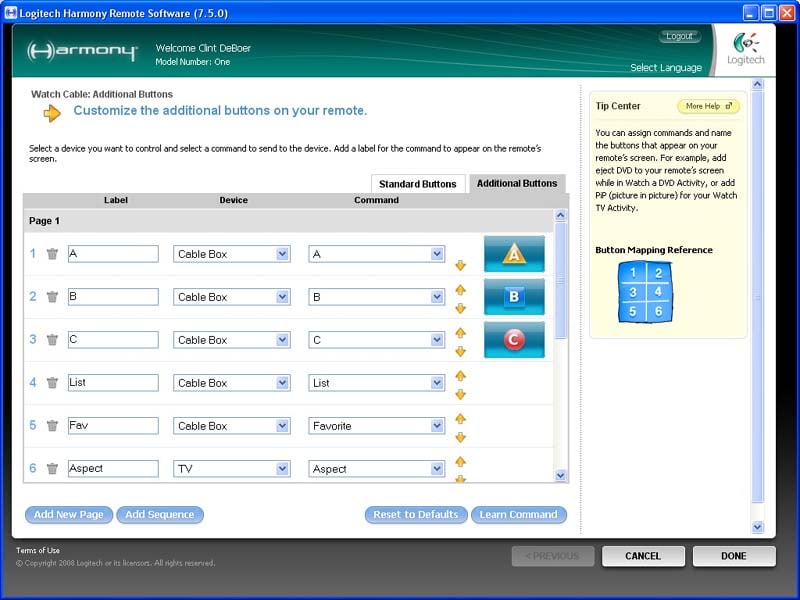
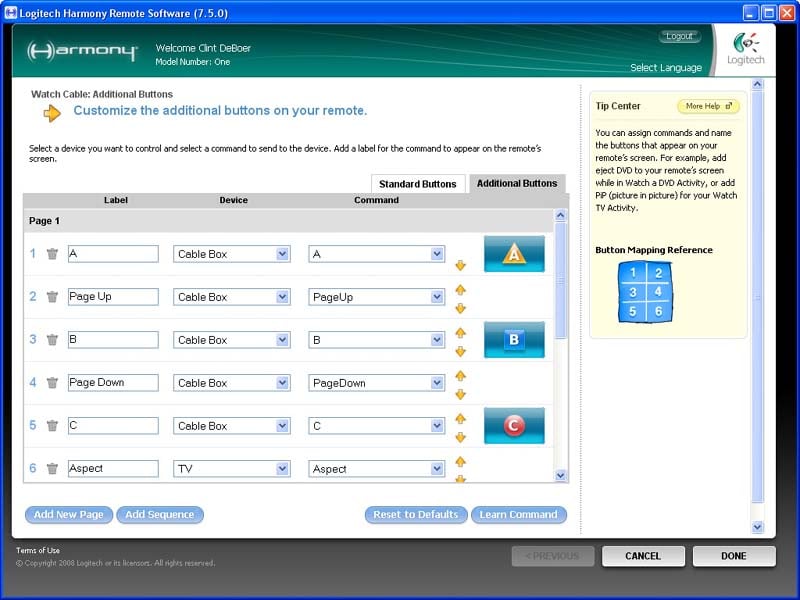
Default button settings (left); and Revised settings (right) There is a dearth
of iconic buttons
From the Logitech Harmony Help system, we can see that customization of the icons on the Harmony One is just not possible at this point:
To add icons to customize the buttons displayed on your Harmony remote's screen (for example, the X, Y, A, B buttons for your Xbox 360):
- From the Activities tab in the Harmony Remote Software, click the Customize Buttons button next to the appropriate Activity.
- Click the Additional Buttons tab.
- Enter the label name and select the device from the list.
- Select the command from the list.
- Once you have completed your customizations, click Done to save your changes.
List of special icons
- TiVo: Thumbs Up and Thumbs Down
- Xbox 360: X, Y, A, B
- Playstation: Cross, Circle, Square, Triangle
- Teletext: Red, Green, Blue, Yellow
- Digital Cable: A, B, C
In terms of actual programming I again found the Harmony database to be very well-equipped, though there were a couple items it didn't have for my Vizio LCD TV (currently in for review). In looking for the "Dash" IR command (used for directly accessing digital QAM channels), I quickly realized I'd have to use the learning function of the remote/software. I had just customized a bunch of buttons and figured I'd click on the "Learn Command" button to save what I had done and add the new function.
That was a mistake.
The software threw out all of my changes and sent me to the Learn Command page. All the button re-arranging I had done was lost. Of course I didn't find this out until after I had added the new learned IR command, but that only made it more of a surprise. A few more JavaScript-enabled warning messages would be expected if any particular action is going to leave a page without saving the changes. In my world this is Programming 101, but someone apparently needs to tell Logitech.
After learning the new command it was able to be selected in the dropdown list for that device and I was well on my way to completing my programming session.
Use, Macros and Conclusion
Hey, Look at That - Macros!
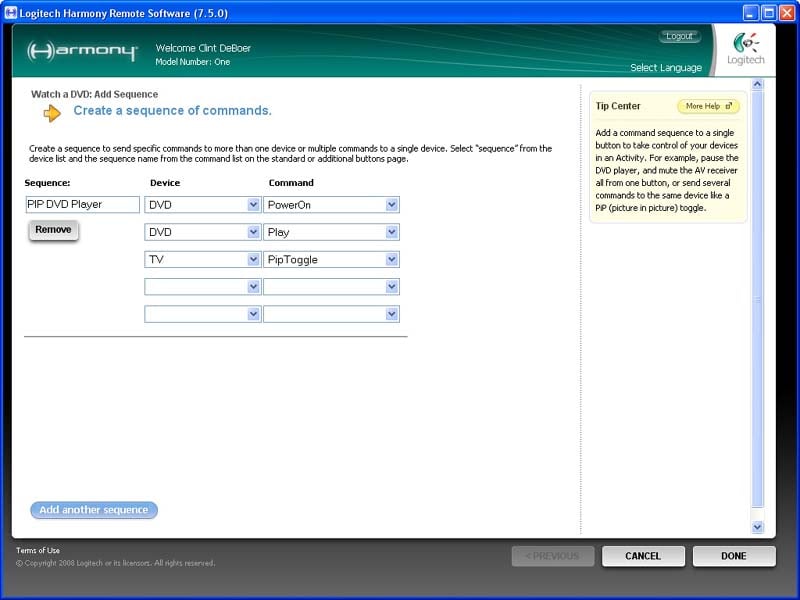 The Logitech Harmony software now
includes a method of adding "Sequences" which is Logitechian for
"Macros". Sequences are created in a separate area of the software
and can be selected much like a device. Each sequence is limited to 5 device
steps, and there are no options for delays. This is a step in the right
direction and it provides at least basic support for those who would like to
run multiple commands across different devices while not leaving an activity
(for example, muting the audio while activating closed captioning on a DVD
player).
The Logitech Harmony software now
includes a method of adding "Sequences" which is Logitechian for
"Macros". Sequences are created in a separate area of the software
and can be selected much like a device. Each sequence is limited to 5 device
steps, and there are no options for delays. This is a step in the right
direction and it provides at least basic support for those who would like to
run multiple commands across different devices while not leaving an activity
(for example, muting the audio while activating closed captioning on a DVD
player).
Timeout!
Logitech apparently believes that programming a remote control is akin to entering in your Social Security number or performing sensitive financial transactions online... or so I would think by the relatively short time-out each session is given. I'm sure they have a legitimate reason (no I'm not) but in either case I was nailed more than once for not saving when I decided to walk away from the desk for a few minutes to attend to another task. When I returned the system lost everything I had just done and informed me that I had to login again. This seems unnecessary and, I imagine, is going to be a real pain for most users. At least store the session variables.
Use and Functionality
 The Harmony is as good as the
equipment you use in your home theater. For use with products like the Vizio
display, which do not have dedicated input IR codes, the results can be
unpredictable and frustrating at times. Thankfully, the Harmony One has its
useful 'Help' button which quickly fixes any issues users may have with their
systems by refiring some or all of the macro commands until the system works.
The only thing I'd wish for was a smart on-board processor that recognized
repeated uses of the 'Help' command and factored it into future macro
executions. For example, the controller had a hard time reaching my DVD player
during discrete On/Off commands, and so the player is often left On or Off
unintentionally when an Activity or shut-down macro is issued. Since this has
happened several times, it would do no harm for the Harmony to execute the Off
command (or On command during boot-up) several times to ensure compliance. For
toggling power controls this isn't useful, but for those products which have
dedicated inputs and power controls the results would be better (and the remote
would truly be intelligent). I found that most of my IR difficulties were a
factor of how easy my equipment was to control, and not necessarily the fault
of the Harmony One.
The Harmony is as good as the
equipment you use in your home theater. For use with products like the Vizio
display, which do not have dedicated input IR codes, the results can be
unpredictable and frustrating at times. Thankfully, the Harmony One has its
useful 'Help' button which quickly fixes any issues users may have with their
systems by refiring some or all of the macro commands until the system works.
The only thing I'd wish for was a smart on-board processor that recognized
repeated uses of the 'Help' command and factored it into future macro
executions. For example, the controller had a hard time reaching my DVD player
during discrete On/Off commands, and so the player is often left On or Off
unintentionally when an Activity or shut-down macro is issued. Since this has
happened several times, it would do no harm for the Harmony to execute the Off
command (or On command during boot-up) several times to ensure compliance. For
toggling power controls this isn't useful, but for those products which have
dedicated inputs and power controls the results would be better (and the remote
would truly be intelligent). I found that most of my IR difficulties were a
factor of how easy my equipment was to control, and not necessarily the fault
of the Harmony One.
One of the things users, especially novices, will need to reinforce in their minds, is the necessity to keep the remote pointed at the equipment during the Activity start-up process. This is because the Harmony One has no provision for RF functions. Disappointingly the best remote (my opinion) in Logitech's entire line-up is without the ability to send out RF commands to a compatible base station. This is something I'd love to see added into a future model (the Harmony Two?) but as of CEDIA, Logitech hasn't yet indicated that it will be adding RF control to this style of remote anytime soon. There is also no indication that WiFi, barring any surprise announcements to the contrary, will be on the radar in any short amount of time.
Using the Harmony once programmed is easy and I never felt that I was missing any commands or tactile buttons. In fact, the remote seems eerily "psychic" in its ability to deliver the controls you'll need for everyday use. For those less common or obvious commands, the interface has matured enough to allow users to add in their own controls and tell the remote where to place them on the screen. This is excellent and truly makes for a flexible and successful remote control.
Conclusions
About Logitech
Logitech is a world
leader in personal peripherals, driving innovation in PC navigation, Internet
communications, digital music, home-entertainment control, gaming and wireless
devices. Founded in 1981, Logitech International is a Swiss public company
traded on the SWX Swiss Exchange (LOGN) and on the Nasdaq Global Select Market
(LOGI).
The Score Card
The scoring below is based on each piece of equipment doing the duty it is designed for. The numbers are weighed heavily with respect to the individual cost of each unit, thus giving a rating roughly equal to:
Performance × Price Factor/Value = Rating
Audioholics.com note: The ratings indicated below are based on subjective listening and objective testing of the product in question. The rating scale is based on performance/value ratio. If you notice better performing products in future reviews that have lower numbers in certain areas, be aware that the value factor is most likely the culprit. Other Audioholics reviewers may rate products solely based on performance, and each reviewer has his/her own system for ratings.
Audioholics Rating Scale
 — Excellent
- — Very Good
- — Good
- — Fair
- — Poor
| Metric | Rating |
|---|---|
| Performance | |
| Build Quality | |
| Ergonomics & Usability | |
| Ease of Setup/Programming/Integration | |
| Features | |
| Fit and Finish | |
| Performance | |
| Value | |
Clint Deboer was terminated from Audioholics for misconduct on April 4th, 2014. He no longer represents Audioholics in any fashion.
View full profile Subscribe to our newsletter