


Boston Acoustics MicroSystem CD Review
Boston Acoustics MicroSystem CD
- Product Name: MicroSystem CD
- Manufacturer: Boston Acoustics
- Performance Rating:

- Value Rating:
- Review Date: March 15, 2007 20:00
- MSRP: $ 499
Features:
- Legendary Boston Sound quality with unique BassTrac® circuitry
- High-sensitivity digital tuner locks in distant AM and FM stations
- For your convenience, the MicroSystem CD can be operated either by its credit card size remote or the simple controls on top
- 12 FM and 12 AM presets
- Slot-loading CD player
- CD, MP3, WMA, and CD-R playback
- Three auxiliary inputs, including a front-panel jack ideal for iPod or other MP3 players
- Two easy-to-use alarms can be set to music, beeper, or both
- Stereo headphone jack
- Easy-to-read display automatically dims in dark environments
- Illuminated on/off button
- Battery backup saves presets and alarm settings
- Alarm operates even in a power failure, so you’ll never miss the big meeting
- Go to sleep to one station and wake up to another
- Wake up to CD
Dimensions:
- 4.5 x 14 x 8.5" (113.9 x 355 x 216.8mm)
Weight:
- 9 lbs (4 kg)
Finishes:
- Charcoal and Polar White
Pros
- Sounds great for its size
- Lots of bass
- Fills up a room with sound
- Tons of alarm options
- Multiple inputs for connecting additional devices
- Selectable output configuration for different applications
Cons
- Pricey
- Refuses to let you sleep in
- Tiny sweet spot for stereo imaging
MicroSystem CD Build Quality and Remote
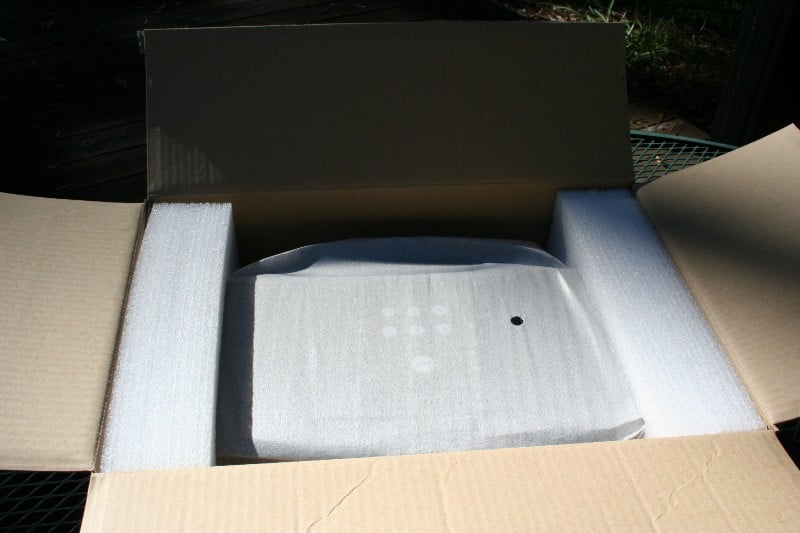 When one gets used to great audio, it is hard to stomach little else. After spending thousands on a home theater setup, a two channel rig, a decent pair of cans (headphones) and a headphone amp… well, perhaps your finely tuned ears are just too delicate for a simple Wal-Mart special clock radio. You need something a little more… refined. The Boston Acoustics MicroSystem CD is much more than just a clock radio, this unit purposes to be able to take “tabletop performance to the next level, with big, rich sound you never thought possible in a system this size.” Gee, I think I’ve heard this one before… but where? Hmm… Well, we’ll deal with that later. What is most important here is 1) how it sounds, 2) How it looks and 3) how well it works.
Build Quality
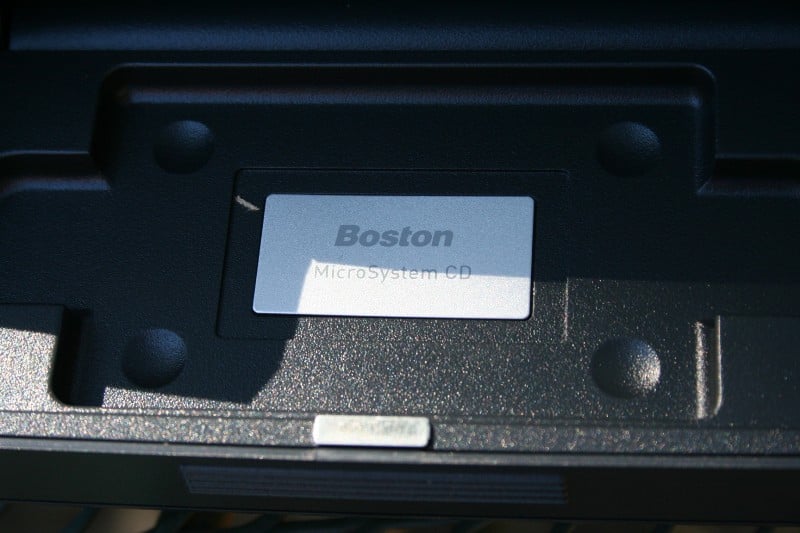
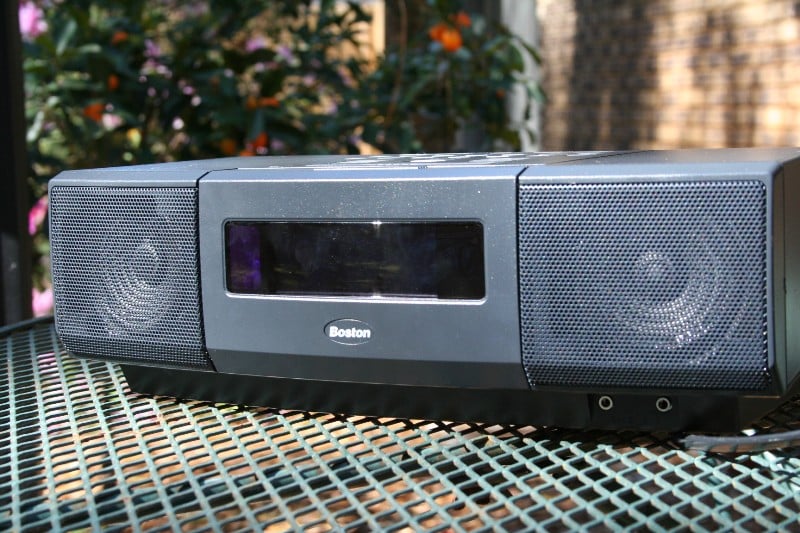 The MicroSystem CD is heavy for its size (most DVD players don't weigh 6 pounds!) and feels very sturdy. It arrived in a colorful box that should be very eye-catching on the shelf of your local electronics store. The review unit is black (charcoal) but it is also offered in white. There are speakers on either side with a port on the rear of the unit behind each of the drivers. The unit had a very low profile but is a little wide (good for separating the speakers for stereo response but bad for placement) so it may take up a bit of real estate on your dresser/nightstand. There is an attached power cord, a removable FM “wire” antenna, and a removable internal AM antenna. The AM antenna is plugged in externally but the antenna itself is located inside of the unit. This allows you easy access to the connection so you can disengage it if you’d rather us an external antenna. On the back of the unit there are two inputs and one line out (in case you feel the need to use this unit as a transport or you want to connect a subwoofer). There is also an 1/8th inch stereo input on the front that is designed to be utilized with iPods/MP3 players. A headphone jack is dangerously close to the iPod input with labels that are only legible when you are up close in bright light. There is a compartment on the bottom for a 9 volt “backup” battery.
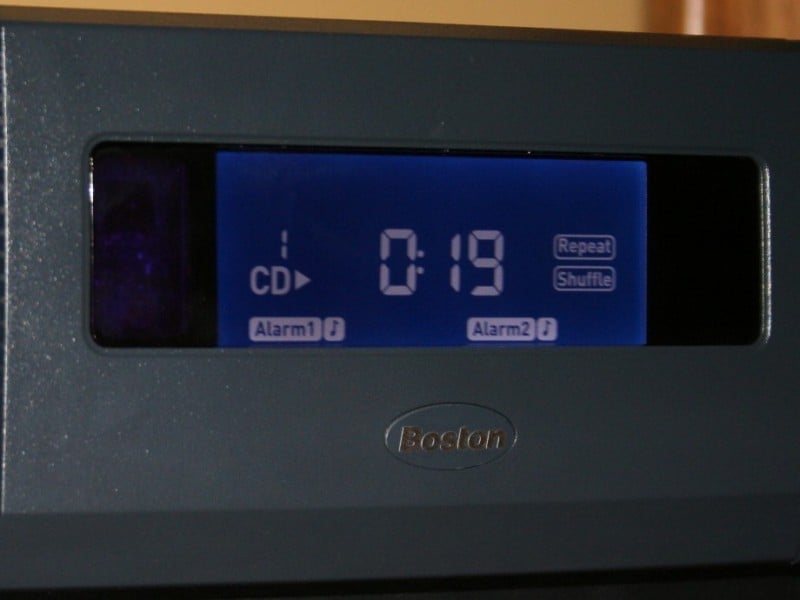 The front display dims under low light conditions which is still easily readable from across the room. I found that in my room, every time my shadow fell across the unit, the display would dim. This was neat in that it showed how responsive the dimmer function was, but also a little disconcerting. I’d always seem to see it out of the corner of my eye but by the time I got my head around to see what it was, the light would pop back on to full strength. Watch The Ring or a similar movie and then have that happen to you. I was afraid to answer the phone for a week. I found out later that the amount of light that triggers the dimming function can be adjusted manually by pressing and holding the Info button while adjusting up and down the level with the Volume buttons.
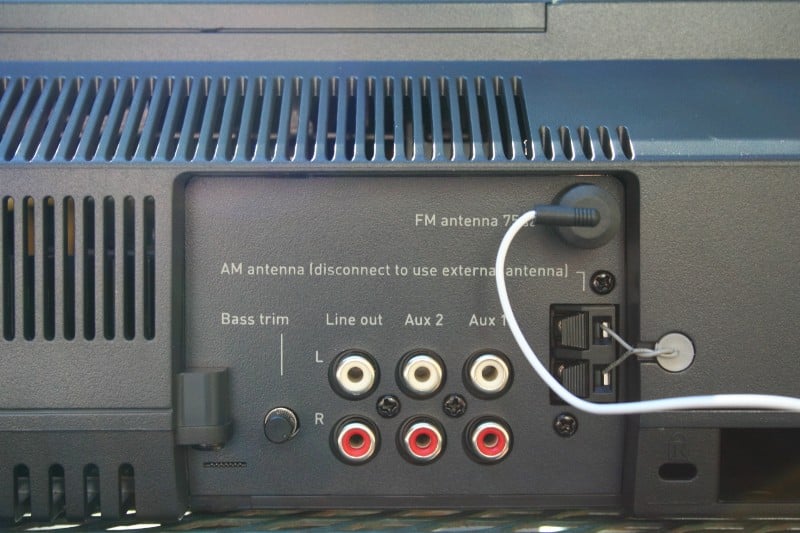 The back of the unit has a “Bass Trim” knob which can be used to attenuate the amount of bass coming from the unit. Since this unit is designed to maximize bass output, placement near walls/structures could create an overly “boomy” bass experience. The Bass Trim knob can be used to reduce the amount of bass if you can’t pull the unit away from the structures.
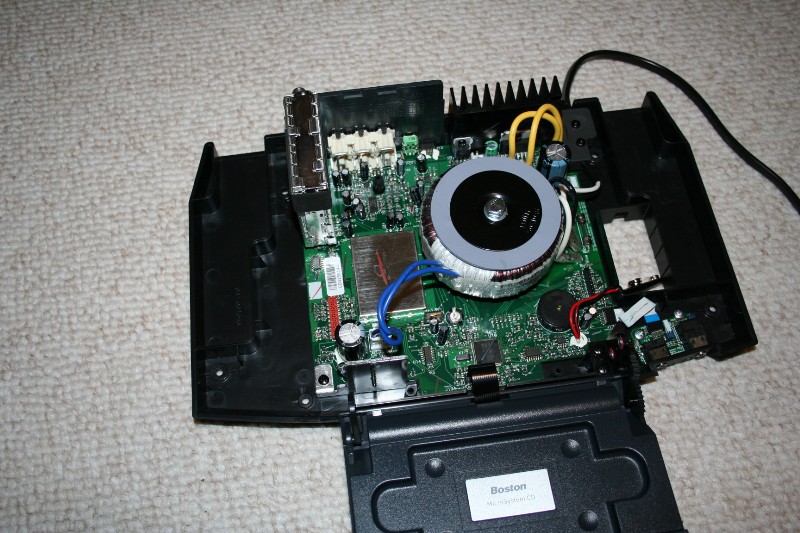
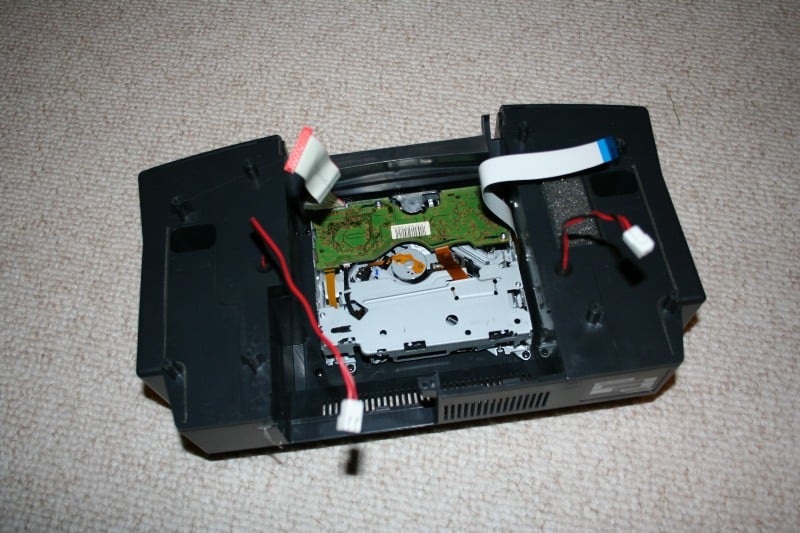
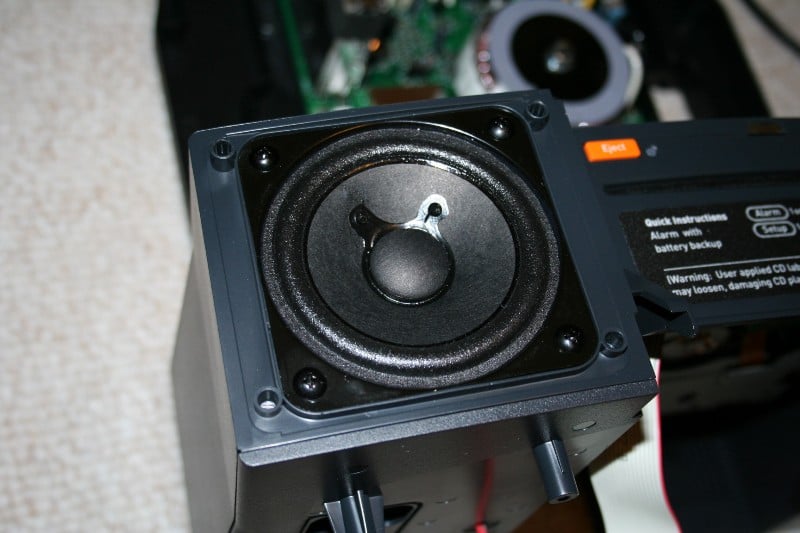
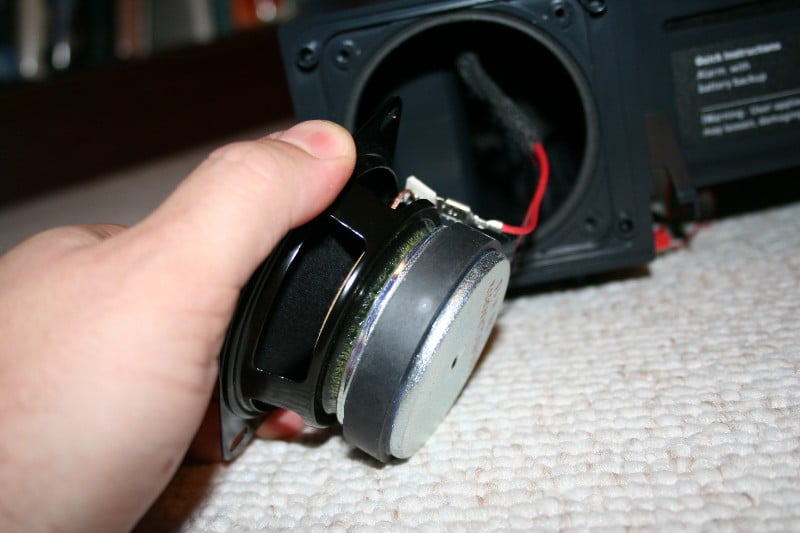
The drivers are 3” paper cone woofers. From the outside (through the grill) I thought they were coaxial but I was wrong. Behind each woofer is a cavernous space with only a modicum of polyfil to keep the cables from rubbing. Each side feeds into a small “port” which exits the rear of the unit. The electronics seemed densely packed into the enclosure with very little space that was not utilized by a circuit board, output device, or the monstrous toroidal transformer - very unlike the cavernous spaces found in most set-top radios. Overall, it is a very solidly built machine.
Remote
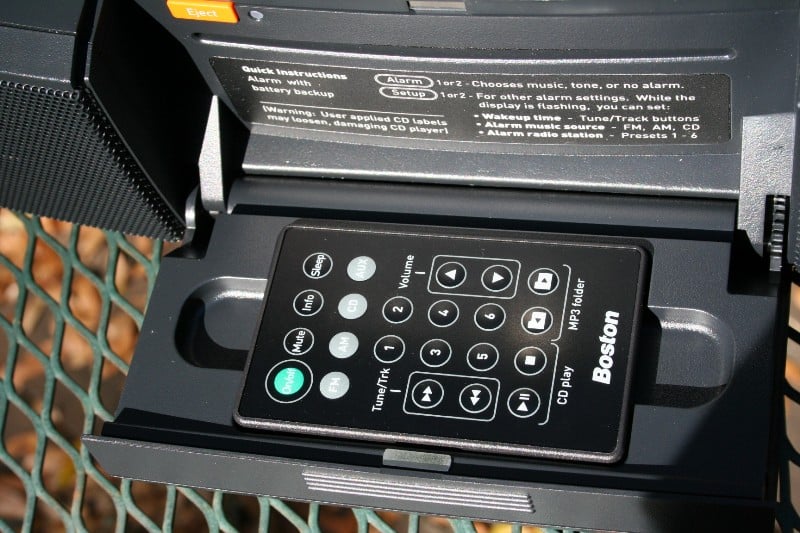 The remote hides neatly away in the fold down face of the unit. Honestly, this placement is so cool, I find myself using the remote even when I’m standing directly in front of the unit just so I can fold down the front. The remote is slightly larger than a credit card and about a 1/4 inch thick. It charges by sitting in its magnetic cradle. The buttons are bulbous and present a bit of resistance when pressed. There is no backlighting which for the most part isn’t a problem. You can even browse your folders on your iPod/MP3 player from the remote. The layout is fine though I wouldn’t mind seeing the 1-6 preset buttons being usable for track selection when controlling the CD (yes, I know it would only work for the first 6 but who cares?) It would also be nice if the “sleep” button were lighted so that you could see it if your alarm is set early. Of course, there is some value to making people get up (or turn on a light) so that they actually wake up. I know that I’m famous for turning off the alarm, lying back for “just a second” (I tell myself), and waking up hours later.
MicroSystem CD Setup and Use
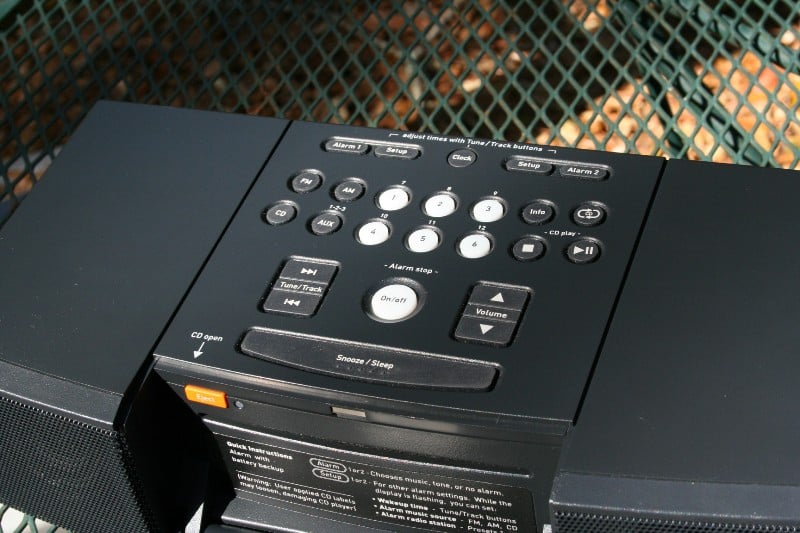 As you can
probably guess, setup is as easy as plugging in the power cord. In my room, the
provided FM antenna (just a wire) is more than enough to get a wide selection
of the crap radio stations around here. The internal AM antenna picked every
station that I know of in the area including the bible thumping, fire and
brimstone station. I didn’t do anything special to the antenna to increase
reception but I do live fairly close to just about everything. I appreciated
the ease in swapping out for a more powerful antenna (or even using the FM
radio signals present on some cable provider's feeds) if you have the need. Personally,
it wasn’t a problem for me.
As you can
probably guess, setup is as easy as plugging in the power cord. In my room, the
provided FM antenna (just a wire) is more than enough to get a wide selection
of the crap radio stations around here. The internal AM antenna picked every
station that I know of in the area including the bible thumping, fire and
brimstone station. I didn’t do anything special to the antenna to increase
reception but I do live fairly close to just about everything. I appreciated
the ease in swapping out for a more powerful antenna (or even using the FM
radio signals present on some cable provider's feeds) if you have the need. Personally,
it wasn’t a problem for me.
Setup: Clock Functions
I really don’t know how you’ll “need” to open the manual during the initial setup if you’ve EVER programmed a clock radio before. Next to the Alarm 1 and Alarm 2 buttons there are setup buttons. Between those is a Clock button. Press either of the Setup or the Clock buttons to adjust the settings. Use the track buttons (there are even instructions on the top of the unit telling you this) to adjust the time.
You have some options when setting the alarm. You can set it to wake you up to a buzz, to music, or to both (plays music for a while and then switches to a buzzer). Now, within music you can set it to wake you up to a particular station or you can set it to a specific track on a CD (MP3/iPod player and other Aux In sources cannot be used for alarms). What’s more, you can set different tracks/stations for each of the alarms. So my wife, who wakes up when a mosquito sneezes, can set hers to some mellow music that will just lull my “dead to the world” self into deeper REM sleep while I can wake up to angry white guys screaming about the injustices of being raised in Orange County. If someone takes out your CD, the unit defaults to a buzz. On top of all that, you can set individual volumes for each alarm that are independent of each other and independent of the last volume on the unit. So if you were blasting The Used the night before and didn’t turn the volume down, you’re still awoken to the gentle sound of the traffic report at near inaudible SPL the next morning.
Stopping the alarm (after it goes off) is as easy as hitting ANY BUTTON on the top of the MicroSystem CD or on the remote EXCEPT the ones marked Snooze or Sleep. This seems a little too easy to me but it does have the advantage of forcing those wanting a few extra minutes to really concentrate on finding the right key or risk oversleeping. To me, it would be better if only the On/Off button stopped the alarm. Hitting snooze gets you an extra 10 minutes. If you want more, you need to hit the button again within 3 seconds. Each subsequent push gets you an extra 5 minutes up to 60 minutes. For me, I would just go ahead and program the alarm an hour early ‘cause I KNOW I’m going to be mashing that Snooze button like I was playing Track & Field on the old NES. While you’re “snoozing,” you can tap the Snooze/Sleep button and the display will show you a count down of how much time you have left. This is another thing I like as I often wake up after hitting Snooze and try to do the complex math to figure out how much time I have left and whether or not it is worth it to try and go back to sleep.
If you want to use the sleep function normally, you just hold is down for >2 seconds while the unit is in use and it will default to 60 minutes. If you want it to turn off before that, you’ll need to hit the button again and it will decrease the time by 10 minutes. There is no provision or extending that time past 60 minutes however. Normally, 90 minutes seems to be the norm for the longest “sleep” time in my experience.
Battery Backup
Last but not least, there is the 9 volt backup battery I mentioned. How many of us have woken up to the radio and heard an announcement that half the city was without power during the night? Or that some of them are still without power? And how many of us turned off our alarms realizing that we had a built in excuse for being late to work that day. I know I, um, well, plead the 5th. But with the Boston Acoustics MicroSystem CD, those worries are a thing of the past. Not only will the unit remember your settings, but it will also still wake you up – even when the power is out! That’s right! No more worries about over sleeping. No more ready-made excuses for why you’re late the first day back from a long Christmas… sorry Festivus break. Wait… is that such a good thing…? And get this: you can’t even say, “The battery died so it didn’t remember my settings when the power came back on.” The settings of your alarm are saved even without the battery. It needs the battery to wake you up but not for remembering the settings. When I was taking apart the unit for the interior pictures, I had to unplug it and remove the battery. After dis- and re-assembling the unit, I plugged it in and lo and behold all of my radio presets and all of my alarms were still there! So your only real hope for sleeping in is if the power goes out AND the battery dies. Of course, there is a Battery Low light to let you know way before that happens so…
Oh, and in case you forget most any of this, the directions for programming the alarm are on the unit inside of the fold-down faceplate.
Using the CD
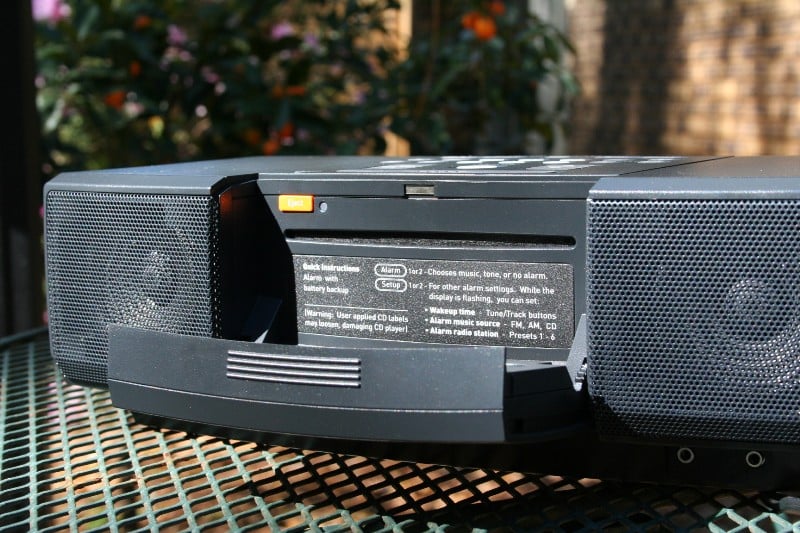 If you’ve
ever used a car radio, you will be familiar with this mechanism. It is a slot loading
CD player. It only takes one CD and there is a pretty orange Eject button. The
entire mechanism is hidden behind the faceplate so all you’ll need to do is
fold down the faceplate, press the orange button to eject your current CD,
press your new CD gently into the slot, and press Play. And don’t worry, you
won’t have to test the unit to see if there is a CD in there (for you Memento
types), there is a little red light that indicates that a CD is present. Just
look for that. Playing back a CD is standard fare. You can skip tracks, fast
forward/rewind (hold down the skip track button), pause, shuffle, repeat, and
shuffle and repeat. The shuffle and repeat functions are only available from
the top of the unit and not the remote.
If you’ve
ever used a car radio, you will be familiar with this mechanism. It is a slot loading
CD player. It only takes one CD and there is a pretty orange Eject button. The
entire mechanism is hidden behind the faceplate so all you’ll need to do is
fold down the faceplate, press the orange button to eject your current CD,
press your new CD gently into the slot, and press Play. And don’t worry, you
won’t have to test the unit to see if there is a CD in there (for you Memento
types), there is a little red light that indicates that a CD is present. Just
look for that. Playing back a CD is standard fare. You can skip tracks, fast
forward/rewind (hold down the skip track button), pause, shuffle, repeat, and
shuffle and repeat. The shuffle and repeat functions are only available from
the top of the unit and not the remote.
One other option you have is to play back WMA or MP3 files from a CD-R or CD-RW. If you save them in individual folders (rather than in one big glob) you can actually browse the folders using either the top of the unit or the remote. This is a very cool feature and it gives you a great deal of flexibility. You can also use these tracks (they are numbered continuously regardless of folder arrangement) for your alarm just as you would a CD.
Using the Radio
There are six preset buttons on the remote and on the top of the unit. For each AM and FM, there are 12 presets. To store a station all you need to do is locate the channel and hold down the appropriate preset button for a few seconds (works exactly like this in nearly ever car I’ve owned in the last 10 years). Once you get through the first six, you can set six more by tapping the button once and then pressing and holding it. When you want to access this station, you need to double press the appropriate button.
While I think this is all nifty keen-o, I’d like someone to describe to my why the AM and FM presets have to be separated. It has never really made much sense to me. Even when I lived in Los Angeles I never came close to needing 12 AM presets. Usually three would suffice. There have been times that between my wife and me, 12 FM presets wouldn’t be enough. Why can’t they just make 24 presets and let us choose whether they are AM or FM? On a unit of this complexity, I don’t think it is all that much to ask. And….. end rant.
Connecting other Devices
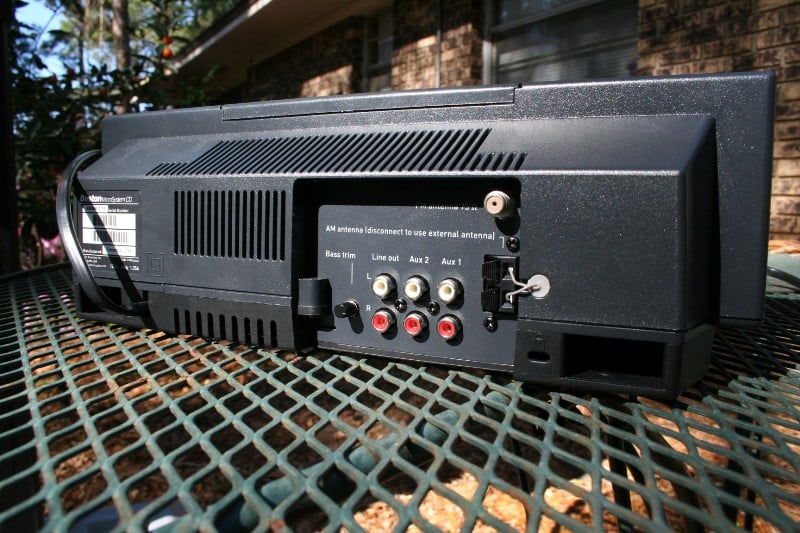 You’ve got
a myriad of options here. You’ve got the front 1/8th inch jack for your iPod, you’ve
got two more stereo line inputs for just about anything else (TV, DVD player,
CD changer, whatever). You’ve got a line out in case you want to use the unit
as a transport or perhaps you want to connect a subwoofer (make sure it has an
adjustable low pass crossover). You can determine what type of output is sent
by pressing and holding a few buttons at the same time. You can select:
You’ve got
a myriad of options here. You’ve got the front 1/8th inch jack for your iPod, you’ve
got two more stereo line inputs for just about anything else (TV, DVD player,
CD changer, whatever). You’ve got a line out in case you want to use the unit
as a transport or perhaps you want to connect a subwoofer (make sure it has an
adjustable low pass crossover). You can determine what type of output is sent
by pressing and holding a few buttons at the same time. You can select:
-
Fixed-level – This ignores the volume on the MicroSystem CD’s radio (use with something that has its own volume control)
-
Variable-level – Adjusts the signal based on the volume control on the MicroSystem CD (use with something that doesn’t have its own volume control – like an amp)
-
Subwoofer – Cuts the bass to the unit and sends a summed monaural signal to both left and right RCA jacks (use with, um, subwoofer).
Lastly, when connecting headphones, the speakers are disabled (as you’d expect). However, if you forget to unplug them, the alarm STILL goes off through the speakers. I swear… it is almost like Boston Acoustics doesn’t want you to oversleep!
MicroSystem CD Listening Tests and Conclusion
I opted for testing the Boston Acoustics MicroSystem CD in the designed environment – my bedroom. I could have taken it to the theater room but really, that isn’t what it is meant for. It was designed for a smallish, intimate room. So I plugged it in, stuck in a few CDs (one at a time mind you) and relaxed. And after my nap, I sat up, drank a little coffee, and repeated the whole process.
Rives Test CD 2
 I bought this CD long before I ever did a review for Audioholics and I’m certainly glad I did. It has come in handy for testing frequency response, for examining room problems, and for listening tests (with its included high rez recordings at the end). This time, I was just looking to get a handle on how low this MicroSystem “clock radio” could go. Much to my surprise I heard a little output at 50 Hz! It was low, but it was audible. The next two test tones (63 and 80 Hz) had much more volume but were accompanied by the constant whistle of air rushing through the two rear ports. It wasn’t until 100 Hz that I got good clean bass output without any port noise. For a clock radio, that’s pretty darn good!
Blue Man Group – CES Swag
 While walking through the Venetian Hotel during CES, we were all handed a demo CD by the Blue Man Group obviously meant to get us interested in going to the show. It contains four tracks:
-
Drum Finale Throwdown (from live shows)
-
Let it Ride (crappy song that should never be listened to twice… or even once)
-
The Complex (from The Complex CD/DVD) read the review
-
Klein Mandelbrot (from Audio CD)
Obviously, I skipped track 2. I’m intimately familiar with track 3 from my review of The Complex and the rest are just really good Blue Man material. Lots of fast percussion, low bass, and great use of the stereo/surround formats best describes their music. It is high energy and very interesting to listen too.
Well, kids, I gotta be honest with you. Yes, it presents a stereo image but unless you have your head in that 6 inch space between the two speakers you aren’t going to hear it. What I ended up doing was lying on my bed perpendicular to the front, facing the unit, staring at the display. From about 4 feet away, I still experienced a stereo image. Anything past that and the imaging just collapsed. Off axis response was pretty good with a bit less volume and zero imaging.
I’d rate sound quality as a 10 on the "vs. other clock radios" scale and pretty good overall. I am not at all disappointed with how the unit sounds in general. Vocals and the bass seemed pretty good though the high end was a bit attenuated. I noticed a muted quality to cymbals that is an obvious sign of a rolled off top end. Dynamics were decent considering the size of the drivers and the amount of information they were being asked to reproduce. What was really nice, though, was the amount of bass. I ended up fiddling with the Bass trim knob as I had the unit fairly close to the wall (there are no hash marks so if you want to remember your setting, you’re going to have to grab a pen or something) which tightened up the bass considerably. After adjustment, I can honestly say that I was more than just “pleased” with the amount of bass – I was impressed. This unit provides a big sound, one that easily fills a bedroom. It owes much of this “wow” factor to this bass response.
Recommendations
For a product at this price point, I’m going to expect a lot. Luckily, the Boston Acoustics MicroSystem CD has a lot to offer. I do have a few suggestions though:
-
I would rather that the dimmer sort of gradually adjust to the lighting conditions rather than flicker from one state to the other.
-
As I mentioned, the presets should be band independent (AM and FM intermixed)
-
Having one or both of the speakers be removable would seriously improve the imaging ability of this unit, though it might break up the elegance of the design
-
A backlight for the sleep button could be useful
Conclusion
 Someone one day decided that there was a market for high-end devices to wake you up in the morning. They figured that people might be interested in higher fidelity than the grating, harsh, compressed, monosyllabic drivel that comes from your “off the self” clock radios. I don’t know how big this market is, but the Boston Acoustics MicroSystem CD is a product that delivers. We all know that the MicroSystem CD is competing against a firmly establish, widely advertised product (they even have the same MSRP). But when you look at the specs and features, almost without exception the Boston Acoustics wins hands down. It will wake you up… no matter how much you don’t want to. It is pricy, but at the very least, you are paying for a quality product without any fancy gimmicks or marketing snake oil. Just don’t let your boss know about it. They may want to get one for everyone in the office! And that will be the end of all those “but my alarm didn’t go off” excuses.
The Score Card
The scoring below is based on each piece of equipment doing the duty it is designed for. The numbers are weighed heavily with respect to the individual cost of each unit, thus giving a rating roughly equal to:
Performance × Price Factor/Value = Rating
Audioholics.com note: The ratings indicated below are based on subjective listening and objective testing of the product in question. The rating scale is based on performance/value ratio. If you notice better performing products in future reviews that have lower numbers in certain areas, be aware that the value factor is most likely the culprit. Other Audioholics reviewers may rate products solely based on performance, and each reviewer has his/her own system for ratings.
Audioholics Rating Scale
 — Excellent
- — Very Good
- — Good
- — Fair
- — Poor
| Metric | Rating |
|---|---|
| Bass Management | |
| Ergonomics & Usability | |
| Ease of Setup | |
| Features | |
| Remote Control | |
| Build Quality | |
| Appearance | |
| Treble Extension | |
| Treble Smoothness | |
| Midrange Accuracy | |
| Bass Extension | |
| Bass Accuracy | |
| Imaging | |
| Soundstage | |
| Dynamic Range | |
| Fit and Finish | |
| Performance | |
| Value | |
As Associate Editor at Audioholics, Tom promises to the best of his ability to give each review the same amount of attention, consideration, and thoughtfulness as possible and keep his writings free from undue bias and preconceptions. Any indication, either internally or from another, that bias has entered into his review will be immediately investigated. Substantiation of mistakes or bias will be immediately corrected regardless of personal stake, feelings, or ego.
View full profile Subscribe to our newsletter