


Yamaha MusicCAST MCX-2000 Digital Music Server Review
Yamaha MusicCAST MCX-2000 Server
- Product Name: MusicCAST MCX-2000
- Manufacturer: Yamaha
- Performance Rating:


- Value Rating:
- Review Date: March 05, 2006 18:00
- MSRP: $ 1999
|
MCX-2000 Server MCX-A10 Wireless Client |
Speaker Output MCX-C15 Wired Client |
 Subwoofer Output
  Dimensions (W x H x
D):
Dimensions (W x H x
D):Pros
- Unlimited configurability
- PC connectivity and networking
- Endless entertainment
- Easy to setup and operate
- Unobtrusive
- Excellent sound quality
- Integrated XM/FM capability
Cons
- Doesn’t prevent or warn of double CD copy
- Limited Internet radio functionality
- High dependency on using OSD to operate
Yamaha MusicCAST MCX-2000 Introduction
I remember my first epiphany in digital playback convenience when I purchased a CD changer nearly 20 years ago. I was the cool kid on the block serving up labeled and categorized 6 disc magazine cartridges like they were going out of style. Pop one in, hit random, and you’ve got nearly 5 hours of music playback for up to a half dozen of your favorite artists. Little did I know, I was taking a mere baby step in music distribution. Welcome to the 21st century where science strives to make bigger and better tomatoes and the audio industry presses on to win over your hard earned dollars on the latest and greatest technological “must have” advancement.
Enter Yamaha’s MusicCAST MCX-2000 Digital Audio Server. Yamaha’s successor to the MCX-1000 previously reviewed by our own Clint DeBoer.
Some of the major added features of the MCX-2000 compared to its predecessor (MCX-1000) include:
- Larger Harddrive storage space (up to 160GB from 80GB)
- Integration of FM tuner and XM radio functionality
- Networking capability to play content from other computers’ internal network
- Internet radio support
- Support for a larger client Network with up to 15 simultaneous clients (5 wireless)
According to Yamaha, they wanted to incorporate many of the recommended features their customers were asking for such as a larger hard drive. With 160GB of storage, the MusicCAST MCX-2000 now has the capability of storing up to 60,000 songs. MusicCAST also now incorporates an FM tuner and has XM-ready features. They also added local area network (LAN) compatibility for use to stream and play content from other computers via an internal network (now you can use all those MP3s you downloaded and paid for). Finally, Yamaha added Internet radio support to offer users greater flexibility and almost endless choices for their streaming content.
Yamaha MCX-2000 Setup and Functions
Setting up the MCX-2000 couldn't be any easier. Gone is the hassle of running 3rd party software on a PC to copy CDs. Enter the era of convenience with a single front panel push button labeled " CD AUTO STORE ". Finally, someone developed a music storage system that doesn't intimidate my wife. Her comments when uploading CDs to the MusicCAST were along the lines of " That's it? Wow that's cool!".
Before ripping CDs, some critical setup is in order. Let's take a look at the back panel to explore all of our connectivity options - which on this system are plentiful.

Yamaha MusicCAST MCX-2000 back panel view
From left to right, we have the 802.11b/g antenna for wireless communications, composite and s-video connections, LAN (Ethernet/RJ45) connection, toslink I/O, analogue I/O, and RS-232. I would have liked to see provisioning for a digital COAX output in addition to the toslink connections. In my situation, I connected the MCX-2000 to my family room system (where most of the partying will be done) and also wanted to connect it to my main theater room upstairs but could only do it via analogue. Most users will opt for the wired or wireless clients, so my configuration scheme was a bit unusual as was trying to route the MCX-2000 as a source component through all of my audio systems rather than using its ancillary devices such as the MCX-A10 Wireless Digital Audio Terminal or the MCX-C15 Distributed Audio Controller.
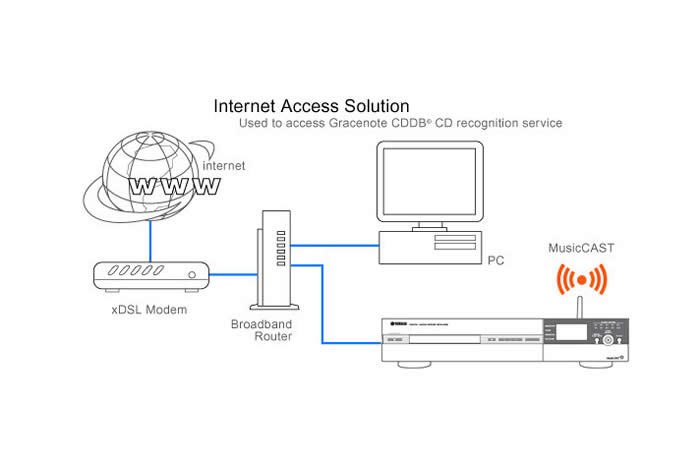
 I connected the MCX-2000 to my router using a straight-thru Ethernet cable as seen in the figure above.
This is how you connect your MCX-2000 server to the Internet to take advantage of
the Gracenote CDDB CD recognition service.
I connected the MCX-2000 to my router using a straight-thru Ethernet cable as seen in the figure above.
This is how you connect your MCX-2000 server to the Internet to take advantage of
the Gracenote CDDB CD recognition service.
MusicCAST comes armed with a very good GUI (Graphical User Interface) which has the same look and feel of what is in their most recent receiver line up. The first thing you will want to do is engage the "Easy Setup" feature to configure your music server and wireless/wired clients.
Note: Don't skip this step as I found out the hard way that it was impossible to get Ethernet connectivity to run Internet radio without running through this. It's quick and painless, and very straightforward.
 Next you want to select your encoding preferences in the
Recording menu
under
Setup
.
I chose "PCM + MP3" that way I had the option of retaining the uncompromised PCM
transfer for high quality recordings that I planned on doing critical listening to, or discarding it in
favor of the MP3 compression scheme which frees up considerable hard drive space.
I discarded PCM
data for all of my party music, 80's rock recordings and most of the wife's stuff since MP3 works just
fine for her (she isn't as critical as I am with fidelity.)
And yes, I did get permission with
the wife for doing this, unlike some of you other folks out there that would attempt to pull a fast one
on your significant other.
I selected 256kbps since it was virtually indistinguishable on
the recordings I chose to implement compression on.
According to the stats page on the MCX-2000,
this freed up hundreds of recording hours for us, which was needed given our vast musical tastes and
collection.
Next you want to select your encoding preferences in the
Recording menu
under
Setup
.
I chose "PCM + MP3" that way I had the option of retaining the uncompromised PCM
transfer for high quality recordings that I planned on doing critical listening to, or discarding it in
favor of the MP3 compression scheme which frees up considerable hard drive space.
I discarded PCM
data for all of my party music, 80's rock recordings and most of the wife's stuff since MP3 works just
fine for her (she isn't as critical as I am with fidelity.)
And yes, I did get permission with
the wife for doing this, unlike some of you other folks out there that would attempt to pull a fast one
on your significant other.
I selected 256kbps since it was virtually indistinguishable on
the recordings I chose to implement compression on.
According to the stats page on the MCX-2000,
this freed up hundreds of recording hours for us, which was needed given our vast musical tastes and
collection.

The first thing you will notice when ripping a CD into MusicCAST is that it almost instantly recognizes artist, title and song lists. This is no coincidence. The MCX-2000 is powered by Gracenote. Gravenote is an onboard (over 350k titles built in) and Internet-based database system (originally developed by volunteers, but then later licensed off) that contains informational content on virtually any CD you throw at it. The beauty of the MCX-2000 is it even works the album-labeling and categorizing magic with no Internet connection. You will still want to wire up the system to the Internet as I found several CDs that were not recognized until the MCX-2000 pulled the info from the Gracenote server online.
Wanna be slick? The MCX-2000 allows you to configure a Yamaha RS-232 equipped receiver automatically for use with the MusicCAST system. You can select the AV receiver input to which the MusicCAST will be connected, synchronize/slave power on/off of the receiver to the MCX-2000, change surround programs based on music genre, and even allow MusicCAST clients to broadcast audio from your receiver's tuner section. You can even set automatic playback and shutdown on each of your remote clients. How's that for custom configurability? It makes you wanna stay in the Yamaha family of products for your entire theater solution. Yes?
 XM, FM, Internet Radio
舑
Oh MY!
XM, FM, Internet Radio
舑
Oh MY!

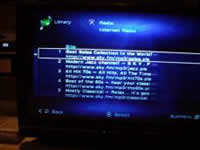
Did somebody say Radio? The MCX-2000 has that (FM at least) and much more. Manufacturers have made the push recently to integrate XM into their product lines. Yamaha is no different as they were one of the first to implement XM in their receivers and have now added it to the MCX-2000's arsenal of supported formats. Also new to the plate, is Internet radio. The MCX-2000 was preconfigured with URLs for five Internet radio stations via sky.fm.com. Browse the Internet for more free radio services, enter the URLs into the MCX-2000, and presto, you've got free radio with no commercials or annoying DJs. With just a few clicks on the remote, I was soon listening to Salsa, Jazz, 70's and 80's hits absolutely free. Well, not free of compression though. Just like XM, Internet radio is highly compressed. While it may be unpalatable for audiophiles such as myself, I found it mildly entertaining provided that I didn't do any critical listening and just enjoyed it as background music. The Salsa channel was very cool indeed and opened me up to music I was unfamiliar with- inspiring me to spend more time in the Salsa section at the record store. I was a bit disappointed that this Internet radio didn't include song info such as title and artist like XM does (as do most of the PC Internet radio players),. I was a bit perplexed that the 70's and 80's channels were being broadcast in 128kbps while the Salsa and Jazz channels were at a mere 96kbps. I'd rather see, or more appropriately stated - hear - less compression on the more demanding music. XM was no different. Most of the channels suffered excessive compression (no fault on the MCX-2000, mind you), making the vocals sound metallic and causing instruments to lack any real punch. Again, if you aren't that critical, you'd likely be satisfied with the fidelity of these services. At the very minimum, they expand your listening palette to new music which you could then purchase.
See my editorial on The Dumbing Down of Audio for further elaboration on pitfalls of compression playback.
 Web Browser Editor Feature

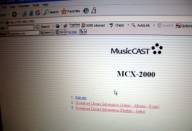
Once you've got the MCX-2000 connected to your PC network, you can edit text information in your music archive using a standard web browser that is running on a computer within your network. Text information including artist name, album title, song title, playlist name, and Internet radio station names from the preset radio list are editable. This is a very useful feature when you need to edit a large amount of information. I'm guessing, though, that a majority of users will simply opt to plug in a computer keyboard via the front panel of the MCX-2000 to do quick edits of music files.
To access the MusicCAST music archive from a PC, simply type the MCX-2000's IP address into your browser.
Streaming Music From Your PC
The original MusicCAST MCX-1000 lacked a critical feature for the more computer savvy customers which was found on other music server / HTPC solutions. This was the ability to stream audio from a networked PC. DiXiM Media Server software enables this ability. This software, after being installed on your PC, begins to operate immediately whenever the computer is booted up to publish the content contained in pre-specified folder(s). The content delivered to the MusicCAST MCX-2000 is processed specifically for delivering music over the PC network so that the original files aren't actually copied onto the MCX-2000 hard drive, but instead streamed from the linked PC on the network. Music streaming is available for mp3, m3u, wma and wave files.
 After you load up the DiXiM software
on your PC, the software will prompt you for a media server name.
Of course I labeled mine as
"Audioholics".
It is important to label this, especially if you plan on streaming music from more
than one PC on your network.
You then have to permit access for the MCX-2000 to link up with your
PC as seen in the picture to the right.
On the MCX-2000 simply enter the Network menu and select
the music server you want to stream music from.
One cool thing about this software is it actually
automatically identified most of my music folders on my PC that contained mp3 or other compatible music
files.
Additionally, on the MCX-2000 it actually retained the folder structure found on my PC
where I had the bands all categorized.
With this feature set in the MCX-2000 arsenal, the music
delivery capabilities are virtually endless. I was loving the fact I could now rekindle some of the old
progressive rock music I downloaded to my PC and haven't listened to on a stereo system in nearly a
decade.
I quickly navigated to my Peter Gabriel era Genesis folder and played cuts from Trespass,
Nursery Cryme, and Foxtrot.
Despite the fact it was playing a compressed mp3 file, I still loved
Watcher of the Skies
from Foxtrot, and listening to it in PLIIx Music Mode was simply
awesome!
After you load up the DiXiM software
on your PC, the software will prompt you for a media server name.
Of course I labeled mine as
"Audioholics".
It is important to label this, especially if you plan on streaming music from more
than one PC on your network.
You then have to permit access for the MCX-2000 to link up with your
PC as seen in the picture to the right.
On the MCX-2000 simply enter the Network menu and select
the music server you want to stream music from.
One cool thing about this software is it actually
automatically identified most of my music folders on my PC that contained mp3 or other compatible music
files.
Additionally, on the MCX-2000 it actually retained the folder structure found on my PC
where I had the bands all categorized.
With this feature set in the MCX-2000 arsenal, the music
delivery capabilities are virtually endless. I was loving the fact I could now rekindle some of the old
progressive rock music I downloaded to my PC and haven't listened to on a stereo system in nearly a
decade.
I quickly navigated to my Peter Gabriel era Genesis folder and played cuts from Trespass,
Nursery Cryme, and Foxtrot.
Despite the fact it was playing a compressed mp3 file, I still loved
Watcher of the Skies
from Foxtrot, and listening to it in PLIIx Music Mode was simply
awesome!
Yamaha MCX-2000 Music Management, CD Recording, Client and Remote
After uploading a dozen or so CDs, I got all jazzed up at the MCX-2000' s file management system. If only I could get it to organize my office so neatly and concisely. It correctly categorized my music by artist, and genre and even allowed me to perform related searches. Loading up some of my favorite Pat Metheny CDs and programming a compiled favorite song list for this artist, I soon was experience what die hard Metheny fans refer to as a Pat Attack . In fact, the MCX-2000 will allow you to program up to 1000 playlists and will furnish you with statistical playback habits. This is a handy feature to help you gauge just what music you and your family actually listen to on a regular basis.
My wife and I loaded up the MCX-2000 with popular party music and created groupings for Latin, Dance, 80's, etc in preparation for our upcoming house warming party. Our guests will be in for a pleasant surprise when they hear their favorite tunes uninterrupted. Most importantly, I don't have to worry about anyone fussing with the stereo gear (a big plus for me). I I even setup hot keys on my Universal remote so I could switch between party/dance favorites such as Carlos Vives to get our groove on, Steely Dan's Kid Charlemagne during cocktail hour, or Michael Franks' Burchfield Nines during dinnertime. There really are no configurability limits with MusicCAST allowing the listener(s) to choose exactly how they wish to playback and distribute music throughout the house.
Editorial Note of Caution about Uploading Music to the MCX-2000
Unfortunately the MCX-2000 isn't smart enough to realize when you install a particular CD more than one time to record it to the hard drive. Not knowing this, I accidentally popped in one of my favorite Marillion CDs Holiday's in Eden, on two separate occasions to upload it to the server and didn' t realize I had a double copy of this disc until I decided to play a few tracks from it a day or two later. With the powerful database Gracenote on board, I was really surprised Yamaha didn't include a menu option to flag a user when this situation occurs to ensure no double copies of CDs are made, unnecessarily eating up valuable hard drive space.
CD Recording
You assembled the perfect playlists and loving the musical liberty they bring you. Now what about when you leave the home? No problem. You can simply burn a playlist on a recordable CD and you're good to go. Should you choose to take advantage of MP3 compression to fit more of your songs on the CD, make sure in advanced that your car CD player supports MP3 format otherwise you will have to stick with PCM and may have to shorten your play list to 74-80 minutes so it will fit on the CD.
Editorial Note on CD Copying
The Yamaha MusicCAST can only record to AUDIO CD-R/RWs. This is due to the fact that the MCX-2000 is classified as a Consumer Audio Device, making it subject to the rules associated with SCMS (Serial Copy Management System) an outdated, useless copy protection system developed back when the RIAA was concerned with this new CD technology resulting in a loss of revenue due to pirating and CD-R/RW drives were not prolific in desktop PCs.More (most?) modern components of late have really started to skirt this limitation and we kind of wish Yamaha would also play it fast and loose, allowing the use of the less-expensive Data CDs.
Yamaha MusicCAST Wireless Client System
In case streaming music from your PC or serving up your entire music collection from one location to your home theater system isn't enough for you, Yamaha gives you the ability to stream music wirelessly from the MCX-2000 music server to 15 clients (up to 5 wirelessly) independently and simultaneously.
 MCX-A10 Client

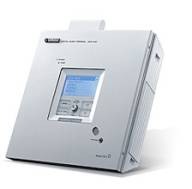
The wireless MCX-A10 main use is for locations where it makes it cost prohibited to run new Cat-5e cables. Older constructions and condos or apartments that a customer does not want to run cables to run multi-zone audio would opt for this solution.
LAN Port
The LAN port can be used in the event you want to
forego the 802.11b
wireless connection
or desire a greater
distance from the server than is possible.
AUX IN Jack
You can connect an external analogue source here. This would be
utilized if, for example, you were using the optional MusicCAST
speakers and wanted to feed an MP3 player, computer or other audio
device into the system as well.
 LINE
OUT L/R Jacks
LINE
OUT L/R Jacks
Connect your MCX-A10 to a receiver using these 2Vrms line out jacks. These are full range line
outputs.
SUBWOOFER Out Jack
If you are connecting the client to a receiver and speakers you can also send signal to a subwoofer via
the SUBWOOFER line output. This is a variable full-range mono output, so you'll want to engage your
sub's crossover and set it to the appropriate frequency for your system.
VIDEO OUT Jack
Connecting the video output of the MCX-A10 allows you to view the
contents of the LCD screen on an external monitor. This is nice if you
happen to be configuring the client into another home theater system
(like a bedroom system) or you plan to be too far away to read the LCD
display. Other than this, the LCD provides ample feedback for your
configuration and playback needs.
 SPEAKER OUT
Terminals
SPEAKER OUT
Terminals
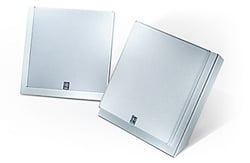
The spring-clip speaker terminals are rated to drive 17W x 2 into
4-ohms and the optional speakers are very nice looking and don't sound
bad for the $120 price. No they aren't going to replace your $2k/pair
tower theater speakers.
However, they are well constructed and weigh about 2.5 pounds each -
not too shabby when you figure in the fact that a decent set of
computer speakers will run you this much. I'd much rather listen to
these units. Like the MCX-A10 client, the speakers can also be
wall-mounted or positioned side-by-side with the main unit for a clean,
elegant look.
For more details on how the wireless client system functions and performs, check out our review of the original Yamaha MusicCAST MCX-1000.
Remote Control
 There
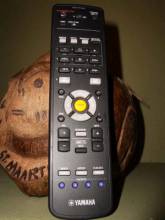
really isn't much to say about the remote for the MCX-2000 other than
it is functional and intuitive for the most part.
The circle buttons centralized in the remote are the ones most used to
navigate through the MCX-2000's GUI interface.
It has the ability to serve as a universal remote for situations where
the MCX-2000 acts as the demarcation point for a music system.
However those hooking the MCX-2000 into a home theater receiver would
likely opt for either using the receiver's remote or a good universal
one.
I rarely used this remote as I quickly uploaded its code to my
universal which incidentally is backlit.
Hand me a remote without backlighting and it will quickly find its way
into my storage bin (as this one did during a majority of my reviewing
session.)
There
really isn't much to say about the remote for the MCX-2000 other than
it is functional and intuitive for the most part.
The circle buttons centralized in the remote are the ones most used to
navigate through the MCX-2000's GUI interface.
It has the ability to serve as a universal remote for situations where
the MCX-2000 acts as the demarcation point for a music system.
However those hooking the MCX-2000 into a home theater receiver would
likely opt for either using the receiver's remote or a good universal
one.
I rarely used this remote as I quickly uploaded its code to my
universal which incidentally is backlit.
Hand me a remote without backlighting and it will quickly find its way
into my storage bin (as this one did during a majority of my reviewing
session.)
Yamaha MCX-2000 Listening Tests, Tips and Conclusion
A majority of my music listening was done via the MusicCAST digital outputs into my receiver which is the typical and usually preferred hookup method when mating the MCX-2000 with a home theater system. I spent more time than I care to admit listening to the archive of music I created. In fact, I found myself listening to stuff I ordinarily don't, not because it sounded fabulous on the MCX-2000 so much as it was there. If you are like me, you are probably all too familiar with the scenario of lacking motivation to load up your CD changer with discs you rarely listen too. When you have instant access to your entire music collection at your disposal, you find the motivation to broaden your listening palette. Such was my realization 2-3 hours after listening to my first song on the MCX-2000.
 If you don't have Shakira in your music collection, you don't know what you are
missing.
It has nothing to do with the fact that she is absolutely gorgeous or that she is a
superb dancer.
Her musical content as far as Latin pop goes is top notch.
It is obvious
both from her lyrics and passion in her voice that she pours her heart into her music.
My wife
uploaded her entire Shakira music collection which I left intact as PCM to preserve its
integrity.
I thought I would do a quick spot check to ensure the transfer went well and found
myself listening to nearly the entire
Oral Fixation Volume 1
disc.
Track#2
"La
Pared"
sounds killer in PLIIx Music Mode.
This song certainly qualified on one of our
favorites playlist.
Track# 3
"La Tortura"
and Track#8
"Las de la
Intuicion"
were more excellent examples of her high energy, thought provoking lyrics that get
your foot stomping and head spinning (that is if you understand Spanish).
I am still learning,
and luckily my wife is a great translator.
The MCX-2000 didn't miss a note
here.
The PCM transfer sounded every bit as good as the CD as I confirmed by switching back and
forth between the two in real time using my Denon DVD-5900 to play the CD.
If you don't have Shakira in your music collection, you don't know what you are
missing.
It has nothing to do with the fact that she is absolutely gorgeous or that she is a
superb dancer.
Her musical content as far as Latin pop goes is top notch.
It is obvious
both from her lyrics and passion in her voice that she pours her heart into her music.
My wife
uploaded her entire Shakira music collection which I left intact as PCM to preserve its
integrity.
I thought I would do a quick spot check to ensure the transfer went well and found
myself listening to nearly the entire
Oral Fixation Volume 1
disc.
Track#2
"La
Pared"
sounds killer in PLIIx Music Mode.
This song certainly qualified on one of our
favorites playlist.
Track# 3
"La Tortura"
and Track#8
"Las de la
Intuicion"
were more excellent examples of her high energy, thought provoking lyrics that get
your foot stomping and head spinning (that is if you understand Spanish).
I am still learning,
and luckily my wife is a great translator.
The MCX-2000 didn't miss a note
here.
The PCM transfer sounded every bit as good as the CD as I confirmed by switching back and
forth between the two in real time using my Denon DVD-5900 to play the CD.

I recently acquired an old collection of progressive rock CDs from one of my brothers, most of which I loved growing up as a child, but simply wouldn't commit to purchasing them because of over familiarity with the music, and usually low fidelity associated with poor transfers to CD. Thus, I threw a half dozen of them into the MCX-2000 and let her rip. First up was Emerson Lake and Palmer's Love Beach . Die hard fans will scold you for even mentioning this CD which in many ways represented their departure from the dying era of progressive rock to a more pop influenced decade known as the 80's. Despite the obvious feeble attempts of trying to sell out in a few of the tracks, some of the musical content on this CD in my opinion is still to this day, excellent. Thus I selectively copied the tracks worth listening too, such as the 20 minute song "Memoirs of an Officer and a Gentleman". I threw is some "Works Vol 1", "Pictures at an Exhibition", and "Brain Salad Surgery" and wham I had a rather diverse collection of some of the bands best music at my finger tips to enjoy and reminisce of the good ole days of progressive rock. The music sounded sterile in comparison to more modern recordings, but this was no fault of the MCX-2000 as it was a limitation of the recordings themselves.
 Moving on to some high quality recordings, I fed the MCX-2000 my Fourplay, Pat Metheny, Uncle
Festive, as well as the rest of my jazz collection of music.
Again, I retained the PCM data for
all of these recordings.
John
Scofield / Pat Metheny
I Can See Your House From Here
CD from BlueNote Records, is a close mic recording that portrays a
very intimate feeling sonically.
On a good system (and room for that matter), the speakers will
literally disappear and you will be left with two legendary guitarists
jamming away making some very cool lumpy jazz (free from the Jazzac
found on the radio these days).
Track #4
"Everybody's Party"
is an upbeat swing kinda song with phenomenally great guitar solos from
Scofield and Metheny along with some very dynamic drumming.
The MCX-2000 handled it with ease sounding every bit as transparent as
the original source disc when playing back the PCM.
Moving on to some high quality recordings, I fed the MCX-2000 my Fourplay, Pat Metheny, Uncle
Festive, as well as the rest of my jazz collection of music.
Again, I retained the PCM data for
all of these recordings.
John
Scofield / Pat Metheny
I Can See Your House From Here
CD from BlueNote Records, is a close mic recording that portrays a
very intimate feeling sonically.
On a good system (and room for that matter), the speakers will
literally disappear and you will be left with two legendary guitarists
jamming away making some very cool lumpy jazz (free from the Jazzac
found on the radio these days).
Track #4
"Everybody's Party"
is an upbeat swing kinda song with phenomenally great guitar solos from
Scofield and Metheny along with some very dynamic drumming.
The MCX-2000 handled it with ease sounding every bit as transparent as
the original source disc when playing back the PCM.
Useful Guidelines on CD Copying
As was the case with pretty much every Yamaha CD/DVD transport I have used in the past, the MCX-2000 was a bit finicky in playing back CDs that contained excessive scratches, dirt and blemishes. Perhaps one of the reasons I still have my 10 year old Sony ES changer on hand is I can literally run a knife over my CDs and they will still play on the Sony with no hiccups. This wasn't always the case with the MCX-2000 and I learned this lesson the hard way after I went to access some of the CDs I uploaded into the hard drive. I found two or three CDs that some of the tracks did not transfer well and you could hear distortion, high frequency crackling and skipping continuously throughout the particular tracks. In Yamaha's defense, not even my venerable Sony machine would play a couple of these blemished CDs. Thus I have listed some basic precautions when uploading music to your MCX-2000 to avoid later headaches and embarrassment when hosting a party and your Milli Vanilli music skips more than usual.
 Pre-Recording Guidelines

-
Make sure the surface of your CDs are clear of fingerprints, smudges and gunk.
-
Spot check each track for playability of your CD on the MCX-2000 before recording it.
-
Spot check playback of each recorded track of the uploaded CD to ensure it's free of clicks, pops, and other anomalies.
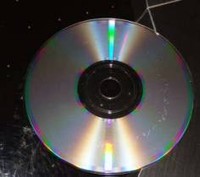
As you can see in the pic to the right, one of my favorite Steely Dan CDs didn't fare too well baking in my Slappa CD case in my car for the past two years. The gunk that can be seen on this CD is now literally engraved into the disc. I found about a half dozen or so of my CDs to suffer this ill fate. My advice is to burn copies of the CDs you want to listen to in your car. Don't store the originals in that heat (of course I live in Florida so it's a bit worse here.) In fact, you may even wish to create discs exclusively for the car which contain your favorite hits from each artist to avoid skipping tracks or thumbing through your entire Prince collection (or "artist formerly known as the artist formerly known as Prince", or whatever he considers himself these days) to get your quick 1999 fix.
Editorial Note on CD Sound Quality
There are many factors that influence the sound quality of source material such as:
- How the source material was recorded (ie. equipment, mics, etc)
- How the recording was mastered and transferred to CD (level, compression, etc)
For a more thorough discussion on typical ailments that plaque recording quality, we suggest reading the following articles on our site: Current Trends in the Recording Format Arena P1, Current Trends in the Recording Format Arena P2, Issues with 0dBFS+ Levels On Digital Audio Playback Systems, The Case for NOT going above 0 dBFS For Digital Playback Systems
Suggestions for Improvement
Despite the almost limitless configurability of the MCX-2000, there were of course some shortcomings just as there are with virtually all home theater equipment in the eyes of the anal retentive Audioholic. Listed below are some of the issues I would like see improved upon or incorporated into future iterations or upgrades of this product.
- Ability to recognize and prevent double copying of CDs
- Integrated web browser or navigation tool to more easily find Internet music stations
- Bigger front panel display and less dependency on using the OSD
This is a rather short list and a tribute to Yamaha listening to the feedback from custom installers, and reviewers to continually improve product features and usability.
Conclusion
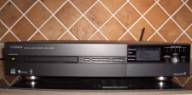 The Yamaha MusicCAST MCX-2000 is a dream come true to anyone
looking for an easy to use, intelligent file management and server
solution for their music database.
Though more tech savvy enthusiasts may opt for building a HTPC solution
to save a few bucks, they will still not likely be able to achieve the
usability of the MCX-2000, not to mention its elegant slim line chassis
and Yamaha brand name ensuring a great track record of reliability and
quality.
The MCX-2000 will be the hit at any of your social gatherings or
parties and although unobtrusive in appearance, will make itself known
to your guests when they hear all of the great songs, interruption
free, you selected for your playlists.
The Yamaha MusicCAST MCX-2000 is a dream come true to anyone
looking for an easy to use, intelligent file management and server
solution for their music database.
Though more tech savvy enthusiasts may opt for building a HTPC solution
to save a few bucks, they will still not likely be able to achieve the
usability of the MCX-2000, not to mention its elegant slim line chassis
and Yamaha brand name ensuring a great track record of reliability and
quality.
The MCX-2000 will be the hit at any of your social gatherings or
parties and although unobtrusive in appearance, will make itself known
to your guests when they hear all of the great songs, interruption
free, you selected for your playlists.
A Custom Installer can have a field day configuring and utilizing all of the great features of the MCX-2000. Because of its feature set, this will ensure a satisfied customer base and points with your clients once you empower them with the ability of streaming audio at the press of a button. This product truly redefines the way you listen to music and anyone previously unfamiliar with the power and flexibility of a music server, especially one that can stream music wirelessly, is really in for a treat.
My whole experience with this system has been one of delight. It brought me in touch with the music I grew up with and often forgotten widened my listening palette. Most importantly, it made me a superstar to my guests at a recent party we threw that went on until the early hours of the morning because of all of the dancing and non stop great music it served up. Now if only it could brew a pot of coffee...
A Wife's Perspective (contribution by Tica DellaSala)
Who would have thought that the electronics industry,
especially in this day-in-age, could make a product that was consumer
friendly.
I'm talking about the ease of use and facility of understanding the
different capabilities the product has to offer. The best part, the
instructions are even easy to read and understand.
You may ask, what is this little woman referring to? Well, I will tell you. I'll start by letting you know that this is currently my favorite toy. I used and abused it (not really, not yet) and I don't think I will ever get tired of mistreating it. Any ideas yet? No. That's Ok. It's no other than Yamaha's MusicCAST MCX-2000. This new baby is able to download and save hundreds of hours of quality CD recordings, as well as multi-server capabilities (Internet Radio, FM Radio, etc, etc, etc). The menus concocted by the engineers of this clever machine, are extremely easy to navigate through and decipher. No more need to have the "guys" run it for you (although, it is nice to feel serviced) - now we can do it too. But, it does feel great to have the ability to work this toy on your own. I have to tell you, ladies, this is an easy, likable, compact, and wonderful product to use. The best part - most of the music in it will be yours and yours alone.
About Yamaha Electronics
Yamaha Electronics Corporation (YEC), USA, based in Buena Park, California, is a wholly owned subsidiary of Yamaha. YEC offers Home Theater components and systems, featuring A/V Receivers, Amplifiers, DVD/CD, Speakers, Mini-Systems, Video Projection, as well as A/V & IT Convergence Products.
The Score Card
The scoring below is based on each piece of equipment doing the duty it is designed for. The numbers are weighed heavily with respect to the individual cost of each unit, thus giving a rating roughly equal to:
Performance × Price Factor/Value = Rating
Audioholics.com note: The ratings indicated below are based on subjective listening and objective testing of the product in question. The rating scale is based on performance/value ratio. If you notice better performing products in future reviews that have lower numbers in certain areas, be aware that the value factor is most likely the culprit. Other Audioholics reviewers may rate products solely based on performance, and each reviewer has his/her own system for ratings.
Audioholics Rating Scale
 — Excellent
- — Very Good
- — Good
- — Fair
- — Poor
| Metric | Rating |
|---|---|
| Analogue Audio Performance | |
| Build Quality | |
| Ergonomics & Usability | |
| Ease of Setup | |
| Features | |
| Remote Control | |
| Performance |  |
| Value | |
Gene manages this organization, establishes relations with manufacturers and keeps Audioholics a well oiled machine. His goal is to educate about home theater and develop more standards in the industry to eliminate consumer confusion clouded by industry snake oil.
View full profile Subscribe to our newsletter