


Slim Devices Squeezebox v2 Review
Squeezebox v2 Digital Music Player
- Product Name: Squeezebox v2 Digital Music Player
- Manufacturer: Slim Devices
- Performance Rating:

- Value Rating:

- Review Date: July 05, 2005 19:00
- MSRP: $ 299
|
System Requirements
Audio formats
Wireless Interface (wireless model only): 802.11b/g wireless networking with dual int/ext antennas; Bridging capability allows Ethernet devices to connect to the network through Squeezebox2; Automatic detection of available networks; Support for both WPA Personal and 64/128-bit WEP encryption Ethernet: True 100Mbps throughput; Shielded CAT5 RJ-45 connector; Automatic receive polarity correction Display: 320x32 VFD with brightness control Firmware: Flash-upgradeable; Network settings stored on non-volatile memory Architecture: 250 MHz 8-way multithreaded RISC processor; Field-upgradeable Xilinx CPLD; 64Mb high-speed RAM; 16Mb program flash Warranty: One year parts and labor; 30-day Satisfaction Guarantee |
Internet Radio
Analog RCA outputs
Digital S/PDIF outputs
Headphone output: Multifunction 1/8" jack (also functions as an IR blaster); 16-ohms minimum impedance; less than 0.03% THD Dimensions: 8.5"W x 1.9"H x 4.5"D (216mm x 48mm x 117mm) Finish: choice of Triple Platinum or Soft-touch Black |
Pros
- Wireless connectivity with good range
- Easy to follow setup procedure
- Digital coax and optical S/PDIF outputs
- Excellent audio quality
- Small footprint
- Flexible system with many customization options including fully-customizable navigation
Cons
- Average "no-frills" remote control and design
- No Direct Selection of Internet Radio from SlimServer software
- Unsearchable Help topics
Slim Devices Squeezebox v2 Introduction
Among some of the noticeable features of the Slim Devices Squeezebox v2 are:
- High fidelity Burr-Brown 24-bit DAC for analogue output
- Optical and coax S/PDIF outputs (simultaneously active with analogue output)
- Support for FLAC, Apple Lossless, WMA Lossless, AIFF, WAV, PCM, MP3, AAC, Ogg Vorbis, MP2, MusePack, and WMA
- 802.11b/g-based networking with bridgeable Ethernet port (allows other network devices to connect to the network through the Squeezebox2)
- Universal compatibility with Windows XP/NT/2000, Mac OS X, and Linux/BSD/Solaris
- Easy semi-automatic setup
The Squeezebox2 is a completely reworked product that follows the original Squeezebox. The differences between the two devices are substantial. The Squeezebox2 adds:
- 802.11g networking (optional)
- Grayscale vacuum fluorescent display (VFD) with more than twice the resolution (320x32 pixels)
- Animations, transitions and visualizers, including a full screen, 64-channel, 30 frame-per-second stereo spectrum analyzer.
- Wireless bridging which allows wired Ethernet devices to plug into the wireless Squeezebox2, and access your network
- SlimDSP, a scalable pure software architecture for all audio format decoding and signal processing functionality.
- Native FLAC support in the firmware
- High fidelity 24-bit Burr-Brown DAC
- High precision dedicated crystal clocks and separate linear power supplies for the audio stages
- 64Mbit buffer for extreme resilience to adverse wireless network conditions.
- SqueezeNetwork for access to your favorite internet radio stations, alarms, and more without a computer
- Option to add crossfades between songs
- Faster 100Mbps wired Ethernet interface
Slim Devices Squeezebox v2 Basic Setup
Marking itself as a truly innovative product, the Squeezebox2 was quickly configured in just a few easy steps. After connecting its digital coax S/PDIF output (optical also available) to the Emotiva DMC-1 processor and plugging in the provided AC adapter, the Squeezebox2 was ready to configure itself for use within my network.
Editor's Note
While there are several products on the market that address streaming audio needs and provide solutions, it is difficult to find one that addresses audio so well. The Squeezebox2 is alone in its combination of price point, connectivity options (optical and coax S/PDIF), DAC quality and wireless-G capability. Add to that the additional features such a VFD, bridgeable Ethernet port and flexible plug-in architecture and you've got a unique product with some rather compelling selling points.
The text on the vacuum florescent display prompts you to use the remote control to navigate through the setup process. We reviewed the wireless Squeezebox2 so the setup allows you to either connect to a wired (Ethernet) or wireless network (802.11b/g compatible). We selected wireless and proceeded with setting/acknowledging the correct country and selecting the correct wireless network.
The Squeezebox2 setup provides support for use within a 64/128-bit WEP, WPA Personal, or unsecured environment. Unbeknownst to the Squeezebox2, I had enabled hardware-based MAC address security on my wireless network. In order to allow the Squeezebox2 access to my network I simply entered its MAC address which was located on the bottom of the unit.
Pressing the right arrow on the remote control then starts the network configuration process and then brings you to a place where you can have the Squeezebox2 obtain its IP address automatically (DHCP) - the most common way to connect to a home network - or allow you to enter a manual IP address. The final step is to select your music server where the Squeezebox will automatically scan for shared music files, adding them to its database and enabling playback from the system.
Keep in mind that for the most part, you are simply pressing the right arrow on the Slim Devices remote control for all of these steps, allowing the Squeezebox2 to configure itself as needed in order to ready itself for use as a streaming media device.
Slim Devices Squeezebox v2 Operation and Remote Control
Remote Control Operation
Using the remote, you can navigate through the many pages and options provided by the Squeezebox2's VFD. There are essentially seven main levels with multiple controls and submenus below that. They are:
- Now Playing
- Browse Music
- Search Music
- Browse Playlists
- Internet Radio
- Settings
- Plugins
Now Playing
This top menu item grants access to all information about
the current playing track, including title, artist, album, and where you are in the song itself.
Scrolling down allows you to see what's next in the list as well as what you previously played on the
unit.
Browse Music
This area allows you to browse by Albums, Artist, Genre,
Music Folder, Playlist, or New Music.
Search Music
This is a nice feature which allows you to search for music
alphabetically by Artist, Album, or Song
Browse Playlists
Storing playlists is the best way to organize your
music for playback and the SqueezeBox2 allows you to browse those playlists quickly to select the one
that you want. I try to organize a few playlists around my moods, music styles, eclectic mixes of
favorite tunes, etc.
Internet Radio
One of my favorites, this area allows access to several
genres of music plus there is the ever present "Slim Devices Picks" which gives you access to some
streaming content the people at the company think are cool. Other choices include Live365 Internet Radio,
Radio.com, and SHOUTcast Internet Radio. The stations download and update dynamically, making sure that
your choices are current and outdated stations are removed over time. Most of these choices include
sub-categories such as Classical, Blues, Jazz, Talk, Rock, Pop, and even Comedy. I found Live365 Internet
Radio to be somewhat annoying as after the first choice or so it constantly prompted you to log onto
their website to register and login (free, but mandatory). In the interest of science I acquiesced and
registered only to find that even after entering this information into the SlimServer and rebooting I
still got the message. I finally gave up after realizing there is a communications issue that is being
worked on with regard to Live365 and the current version of the SlimServer software. There are so many
choices on the Internet to listen to I decided to simply ignore Live365 and stick to the other networks
which didn't demand registration.
Settings
This eclectic area allows you to alter settings for using your
Squeezebox2 as an alarm clock, change the default volume, set repeat
&
shuffle options, adjust how
song titles are displayed, and change main and standby text sizes. You can also get statistics on your
player, server and music library as well as set a screensaver. This last section is very cool and I felt
the need to show off some of the new screensaver modules:


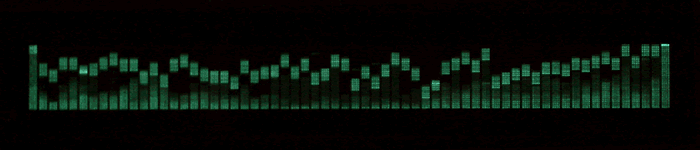


My favorite screensaver by far is the Analog VU Meter and I was extremely surprised to
see it when it came on. The effect is very cool and it was a step above what I thought I would see when I
initially selected it. The Spectrum Analyzer is also a good one and provides a nice frequency spectrum
overview of the current track. The RSS News Ticker is also a great feature and we found we could even add
our own
Audioholics RSS Feed
to the available selections.
Plugins
 This area is multifaceted and almost a grab bag or catchall for the Squeezebox2 software. It is useful
for monitoring and directly accessing installed plugins, including Games (check out the SlimTris
screenshot), RSS News Ticker, and Screensavers. It also offers direct, and redundant, access to Internet
Radio as well as a way to save and name Playlists. This is also the place to go if you want to Rescan
your music library.
This area is multifaceted and almost a grab bag or catchall for the Squeezebox2 software. It is useful
for monitoring and directly accessing installed plugins, including Games (check out the SlimTris
screenshot), RSS News Ticker, and Screensavers. It also offers direct, and redundant, access to Internet
Radio as well as a way to save and name Playlists. This is also the place to go if you want to Rescan
your music library.
Forget What You Know
Now, are you impressed by the configuration of the menu system on the Squeezebox2? Really? Well, guess what 舑 you can completely reorganize it anyway you want using the SlimServer software. Simply go to Home / Player Settings / Menus and have at it. Want a specific Internet Radio plugin at the top level of the Squeezebox' menu system? No problem. Want to re-order the menu and (my favorite) add the "Save Playlist" menu item? Done. The possibilities are endless and you can customize the player's interface just about any way you'd like.
Using the SlimServer Software
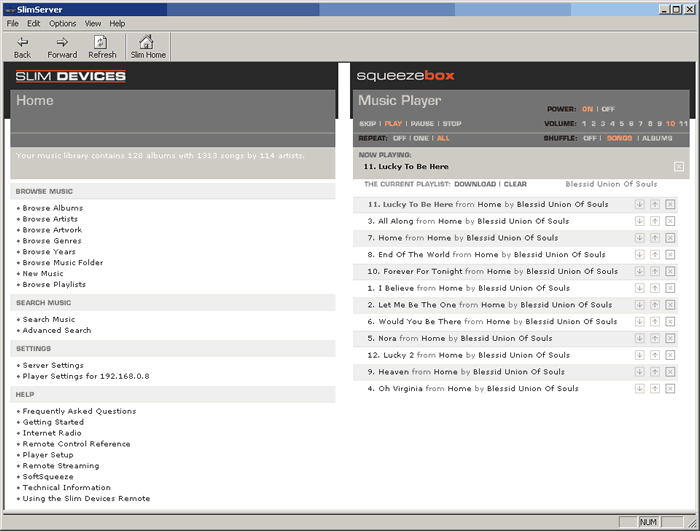 The SlimServer software (reviewed as
version 6.0.2) gives you a nice interface from which to browse and play music files and control your
Squeezebox2. It is actually accessing the Squeezebox2 hardware via a URL so you are interacting with the
box itself when using the SlimServer software. As such, it gives you most of the features available on
the unit itself, plus additional configuration and customization options. I found it to be a tad
difficult to utilize in contrast to the effortless remote-driven functions of the Squeezebox2, but with
great flexibility comes a more intricate interface.
The SlimServer software (reviewed as
version 6.0.2) gives you a nice interface from which to browse and play music files and control your
Squeezebox2. It is actually accessing the Squeezebox2 hardware via a URL so you are interacting with the
box itself when using the SlimServer software. As such, it gives you most of the features available on
the unit itself, plus additional configuration and customization options. I found it to be a tad
difficult to utilize in contrast to the effortless remote-driven functions of the Squeezebox2, but with
great flexibility comes a more intricate interface.
The SlimServer software screen is split into two panes. The left side is your browsing and content area for searching and selecting tracks and also for your various settings and help topics. Here you can display your music by Album, Artist, Music Folder, etc. You can even browse by Album Artwork - an incredibly handy feature for quickly locating an album by sight.
The right pane is your music player which allows you to play, pause and stop music tracks as well as adjust volume, shuffle, and repeat modes. You can even turn off the Squeezebox2 here. This pane will display your current playlist, whether it be a series of just-selected music, an existing playlist, or an Internet radio station.
Speaking of Internet radio, one of the biggest oddities I found was the confusing, sometimes repetitive nature of how Internet radio stations interacted with play lists. For starters, there didn't seem to be a way to directly browse Internet Radio stations using the software, only the remote control. To access a station using SlimServer you'll first need to go there with the Squeezebox2 remote and select it. After this it should show up in your Playlist. To store it, you need to add the station as a playlist file to your playlist folder (either manually or by using the "Add" button or "Save Playlist" plugin on the Squeezebox2) where it will show up in the Playlist area of the SlimServer directory. At this point the station can be edited and its playlist manipulated or renamed.
Manually Adding an Internet Radio Station to the Playlist Folder (from the SlimServer Help Topics)
To save a pointer to an Internet Radio station that you listen to often, you can create an .m3u or .pls playlist file containing the URL of the station in your Saved Playlists folder. You can download these files by right-clicking on the links at most streaming radio web sites.The SlimServer can also create and use M3U playlist files. M3U playlist files simply contain a list of one or more URLs or path names, each on its own line in the file.
The software also uses a custom CSS style that makes inactive and active hyperlinks the same color as the page text. As a result many of the help files, which contain very helpful links directly to the pages needed to resolve various issues, tend to be hard to see. Each page contains "breadcrumb" links that allow you to see the hierarchy to where you have traveled, also allowing you to step back one level to get to another area without starting from scratch.
I found a couple of items to be quite invaluable. In addition to fields such as title, artist , and album, the Advanced Search function lets you search your music library by such obscure data as Duration, Track, Bitrate, File Format, and File Length (size). If you can't quickly navigate through your music library to find a particular track using these tools than you might as well re-purchase the track online or re-rip the CD, cause it's probably not in your system. With that said, I found it incredibly vexing that the SlimServer software lacked any sort of Search feature for its extensive help files. Instead you need to call up a main topic and use your browser's search function to quickly jump to a part of the page containing that term. I think this is something that could be improved in future versions.
More Nifty Features
This is one example where I actually got angry at a company for providing too many neat, helpful, and otherwise groovy options! As soon as I thought I had the system figured out, yet another flexible feature would creep up and surprise me. One such feature is the ability for the SlimServer to broadcast to not only the Squeezebox2 player, but also other software-based media players. What this means is that if you have the Squeezebox2 system set up in your living room but would like to stream alternate files from your master database to another room, you can set up a computer to act as the head unit and still access the SlimServer software from that location. This allows you to utilize all of the playlists as well as broadcast stored Internet radio stations to the remote PC. In this sense you can have one centralized piece of software which controls a larger house-wide audio playback system. It's a bit convoluted, but like I said, this unit seems to be all about options and features. The only negative that I found with this was that the destination software player took upwards of a minute and a half to update with any playlist or streaming audio changes unless you restart the stream by reloading the URL.
Remote Control
 The remote control that comes with the player is ergonomic and small. It contains
the controls needed to navigate through the Squeezebox2 menu system and also an alphanumeric keypad to
allow naming of files and typing IP address when necessary during setup or storing of information. A red
power button and conveniently located play, pause, rewind and fast-forward buttons are located at the top
next to horizontally-arranged volume controls. The remote, unfortunately, cannot be easily rearranged
like the Squeezebox2 user interface!
The remote control that comes with the player is ergonomic and small. It contains
the controls needed to navigate through the Squeezebox2 menu system and also an alphanumeric keypad to
allow naming of files and typing IP address when necessary during setup or storing of information. A red
power button and conveniently located play, pause, rewind and fast-forward buttons are located at the top
next to horizontally-arranged volume controls. The remote, unfortunately, cannot be easily rearranged
like the Squeezebox2 user interface!
There are some nice "direct-access" buttons available on the remote: shuffle, repeat, sleep, search, (display) size, and brightness are positioned at the bottom of the remote control along with a "Now Playing" button that very handily can be used to bring up the title and artist for the current song.
Overall the remote is sufficient, though I think power users will program the functions into their universal remote. With some of the more "out of the norm" button names those with an LCD-style remote will have a slight advantage.
Slim Devices Squeezebox v2 Listening Tests and Conclusion
CD: Trisha Yearwood - The Song Remembers WhenWhen listening to MP3s I always try to find a well-mixed album that was completed prior to the recent "louder is better" mastering trend that plagues our airwaves and CDs. Trisha Yearwood's The Song Remembers When is just such an album. If you haven't heard this album, it will make you a Nashville country fan in no time. This isn't your typical country twang, and just about everyone shows up to help out on these tracks (even Willie Nelsen plays guitar and does some backing vocals on "Hard Promises to Keep"). There are both soft and strong vocals and instrumentation includes a steel guitar, slide box, dobro, and the mandatory fiddle (that's a violin to you north-easterners) which stretches the range of these tunes beyond the typical instruments you may be used to hearing in less-produced country music.
For the listening session I sent coax S/PDIF output from the Squeezebox2 into an Emotiva DMC-1 which was driving a Rotel RMB-1095 amplifier . I queued up the CD from a Denon DVD-3910 , also using a coax digital output, and simultaneously started playback of the MP3 files. I was then able to more or less instantaneously switch back and forth between the MP3 and CD while the songs played in sync with each other.
There was excellent fidelity in the 320kbps MP3 tracks - for MP3. However, what I heard from the Squeezbox2 was more likely attributed to the faithful reproduction of what is, essentially a compressed and re-encoded format. The MP3s sounded a tad harsh and lacked the low-end punch and depth of the original CD recording. The CD also had a smoother sound with more spacious reverb on piano and vocals. The sound stage was also affected in that is was much narrower on the MP3 tracks.
Determined to learn more, I ripped the CD using the Ogg Vorbis CODEC at 320kbps and retried the listening session. While the low-end regained some of its punch, and the reverb sounded more natural, the vocals still lacked the clarity of the original.
What does this mean? In a nutshell it means that you really cannot easily evaluate the Squeezebox2 on audible performance unless you would like to simply listen and describe a lot of MP3 compression artifacts. Simply put, I will be writing an upcoming review comparing CODECs. For now, I simply recommend that people stay away from standard MP3 encoding, regardless of the bitrate, if they desire high fidelity playback of their music. For portable players it's a fantastic compromise. As for the Squeezebox 2, the fact that I could so clearly hear the differences in the MP3 tells me that it is an articulate player and is likely providing a very faithful reproduction of the source files. For the best fidelity, we recommend using the bit-accurate formats such as WAV, AIFF, or FLAC and allow the on-board Burr Brown DAC do its job.
Internet Radio
Internet radio was a blast to listen to. Whatever
your preference, you can probably find it here. The bitrates vary, most are 64kbps or 128kbps, but all
are entertaining and provide endless hours of enjoyment. I was hooked on CLUB 977 The 80's Channel (hey,
it's just what I listened to growing up) but this is a 24kbps station and is not for those who want full
frequency response. Still, many channels offered 128kbps solutions, enough that I felt my choices were
anything but limited, especially compared to the relatively few pop/rock radio selections we have in
Myrtle Beach. Quality was as good as I've heard, with the subwoofer getting some use on tracks and
nothing detracting from the "fun" factor.
Conclusions and Overall Perceptions
The Squeezebox2 can be described in many ways, but the most important words are "open source". This device is developed so that the community can have some ownership through the development of plugins and software that can enhance the listening experience. The Squeezebox2 is a successful Digital Music Player in that it provides an ergonomic wireless solution to streaming music from your library to any room in your house. The implementation is solid and the software, barring a few nitpicks, is powerful and comprehensive. For $299, this system is hard to beat and presents a compelling solution for those looking to get their music collections streamed to a home theater system or separate room in the home.
Squeezebox2 Wireless Digital Music Player
MSRP
$299
(wireless)
MSRP $249 (wired)
Slim Devices
958 San Leandro Avenue, Suite 400
Mountain View, CA 94043
(650) 210-9400
About Slim Devices
Founded in early 2000, Slim Devices
specializes in low-cost, easy-to-use networked devices. Their unique combination of elegant hardware and
Open Source software has built an active worldwide community of users and developers. Their first
product, the SLIMP3 Networked Music Player, has received numerous rave reviews and awards since it was
released in 2001.
Slim Devices continues to improve on their current products and develop new and exciting solutions for the home and office environments. In November of 2003, Slim Devices announced the next generation network music player, Squeezebox.
The Score Card
The scoring below is based on each piece of equipment doing the duty it is designed for. The numbers are weighed heavily with respect to the individual cost of each unit, thus giving a rating roughly equal to:
Performance × Price Factor/Value = Rating
Audioholics.com note: The ratings indicated below are based on subjective listening and objective testing of the product in question. The rating scale is based on performance/value ratio. If you notice better performing products in future reviews that have lower numbers in certain areas, be aware that the value factor is most likely the culprit. Other Audioholics reviewers may rate products solely based on performance, and each reviewer has his/her own system for ratings.
Audioholics Rating Scale
 — Excellent
- — Very Good
- — Good
- — Fair
- — Poor
| Metric | Rating |
|---|---|
| Analogue Audio Performance | |
| Build Quality | |
| Ergonomics & Usability | |
| Ease of Setup | |
| Features | |
| Remote Control | |
| Performance | |
| Value |  |
Clint Deboer was terminated from Audioholics for misconduct on April 4th, 2014. He no longer represents Audioholics in any fashion.
View full profile Subscribe to our newsletter