


Roku Netflix Player Set-top Box Review
- Product Name: Roku Netflix Player Set-top Box
- Manufacturer: Roku
- Performance Rating:

- Value Rating:
- Review Date: July 15, 2008 12:00
- MSRP: $ 99.99 - $129.99
-
Over 10,000 movies and TV episodes instantly
-
No change in monthly Netflix costs and you continue to get your DVDs by mail
-
Easily connects directly to your TV
-
Pause, rewind or play anytime - just like a DVD
-
Guaranteed to work with your TV
-
Video Outputs: HDMI (audio and video), component, S-video, composite
-
Audio outputs: HDMI audio, optical TOSlink, stereo analogue
-
Included: Netflix Player, infrared remote control, two AAA batteries, A/V cables (composite video, stereo audio), power adapter, Getting Started guide
-
30-day money back guarantee and a 1-year warranty
Pros
- Easy to setup and use
- Inexpensive way to access thousands of movies
- No additional monthly fees for existing Netflix subscribers
Cons
- No HD content
- No 5.1 surround sound
- High percentage of 4:3 content
- Some movies have incorrect aspect ratios
Roku Netflix Player Introduction
When rumors of a Netflix set-top box started surfacing around the Internet, my ears perked up. The thought of bringing Netflix' Watch Now technology to my home theater made me nearly salivate. After all, current "free" on-demand offerings from cableTV are extremely limited, showing up as channel-specific, public domain, and/or Black & White classic fare. Satellite TV's flavor of on-demand is nearly nonexistent and its crippled functionality currently gives it a steep uphill climb before it can even begin to mature.
Upon hearing Roku announce immediate availability of its new set-top Netflix Player I immediately ordered one. There's been much criticism and skepticism about the player and its usefulness to enthusiasts. What I'll attempt to do is break it down technically, demonstrate the interface, examine the playback quality, and then summarize what different types of users might think of this new technology.
The Roku Netflix Player doesn't actually store movies within the set-top unit itself - at least not in their entirety. Rather, it caches enough to enable playback of the film, uninterrupted via streaming download. There are several advantages to this. First, it maintains the status of the box so that Netflix isn't paying royalties on full downloads which then need to be concerned with HDCP or other copy protection. With the Roku box the other significant advantage is that selected films will playback almost immediately. Thirty seconds was the average time I measured for new downloads. Compare that to the length of time it would be to download an entire DVD movie, which could be in excess of 3 GB.
Roku Netflix Build Quality
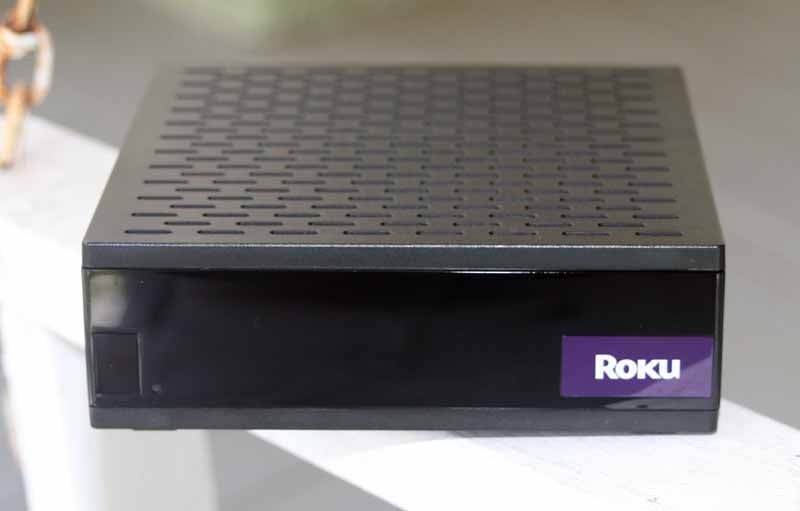 Upon opening the small retail packaging I was rather surprised by the
diminutive size of Roku's Netflix Player. The device is about the size of four
(4) CD jewel cases stacked together. It's so small, in fact, that we decided to
take it with us on vacation. The Roku Player, its power supply cord, a
component video, and an analogue audio cable all fit neatly into a gallon
Ziploc bag. That's a pretty handy way to take 10,000 movies along with you on
your next trip!
Upon opening the small retail packaging I was rather surprised by the
diminutive size of Roku's Netflix Player. The device is about the size of four
(4) CD jewel cases stacked together. It's so small, in fact, that we decided to
take it with us on vacation. The Roku Player, its power supply cord, a
component video, and an analogue audio cable all fit neatly into a gallon
Ziploc bag. That's a pretty handy way to take 10,000 movies along with you on
your next trip!
There is no power switch and also no Standby mode, a definite drawback but not one that interferes with its use. In fact, to get around the power issues, we recommend plugging the Roku into one of the power receptacles found on the back of most AV receivers (this may be difficult for some, due to the size of the actual DC adapter). This will allow the Player to power up only when the receiver is being utilized. A firmware update with a sleep/hibernation mode would be a welcome addition, especially since - when the unit is on - the video output remains active. On displays with auto-sensing inputs, this may pose an inconvenience when you power down other devices (the display would auto-switch to the Roku whenever, for example, the DVD player was powered off). There are about 6 different workarounds to this, so we quickly moved on.
Connections
There are no surprises on the back of the Netflix Player, save the pleasant kind. The box has all the analogue flavors of video: composite, S-video, and component. For audio there is both TOSlink optical digital and analogue stereo. This means that, at the very least Dolby Digital and DTS audio tracks are supported by the hardware - even though neither is currently implemented. The pleasant surprise was the inclusion of an HDMI output (the version is unspecified, but at least 1.1) which supports high definition audio and video. You can use the HDMI output for playback now, even though the source content being streamed is currently limited to 480p video with stereo PCM audio.
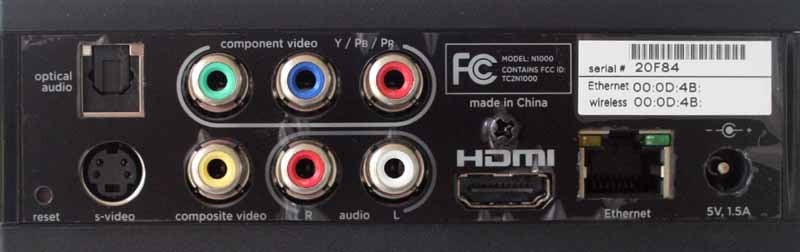
While you can certainly use the HDMI connection on the back of the Roku, Netflix has yet to enable any actual HD audio or video beyond the 480p/stereo fare it has available in its system. For some this will be a huge issue. For others, like me, this is just icing on the cake. The Netflix Player is powered by an external DC power supply that is actually just a power adapter. While quite small the bulk of it is around the power plug, but aligned sideways so as to not hog traditional power strips.
Roku Netflix Setting Up the System
 Setup was extremely simple for me since I was using the box with a wired
network connection. The bandwidth here is around 6 Mbit/s (Mbps) and I wanted
to get as much of that as possible to maximize my resolution. For those who
can't do a hardwired Ethernet cable, the $99 Roku Netflix Player includes
wireless network connectivity. Yes, way. The network can take into account WEP
encryption and the unit provides a MAC address for configurations requiring
this information. Regardless of which method I used (I tried both) setup was
extremely easy and required little brain power. One thing to note is that the
strength and proximity of your wireless network will determine your video
quality. In my system, going wireless took me from a full 4 dots (the maximum)
down to just 2. On-screen this resulted in some observable macroblocking
effects from the reduced bandwidth stream which was getting to my 47-inch LCD
display (I bounced the system around several displays in my home).
Setup was extremely simple for me since I was using the box with a wired
network connection. The bandwidth here is around 6 Mbit/s (Mbps) and I wanted
to get as much of that as possible to maximize my resolution. For those who
can't do a hardwired Ethernet cable, the $99 Roku Netflix Player includes
wireless network connectivity. Yes, way. The network can take into account WEP
encryption and the unit provides a MAC address for configurations requiring
this information. Regardless of which method I used (I tried both) setup was
extremely easy and required little brain power. One thing to note is that the
strength and proximity of your wireless network will determine your video
quality. In my system, going wireless took me from a full 4 dots (the maximum)
down to just 2. On-screen this resulted in some observable macroblocking
effects from the reduced bandwidth stream which was getting to my 47-inch LCD
display (I bounced the system around several displays in my home).
Roku Tech Note for Airport Express Users
There is an incompatibility with some Airport WiFi APs (Airport Express or AirPort Base Station) - usually if you connect wirelessly with security disabled. You can use the following steps to upgrade your software. The upgraded software has the issue fixed. If you connect wirelessly, with security disabled, during guided setup the connection will fail the first time. Try and connect a second time. The second time you try to connect, it should succeed. Setup will then upgrade the software. After the software update completes, you will get an error screen (The software update has actually completed successfully). You should now unplug, wait 5 seconds, and plug in your box. You will need to go through setup again, and then everything should work.
Before you can do much of anything, the Roku box will walk you through the process of registering the new Netflix Player with your online Netflix account. You must have some kind of unlimited account with Netflix in order to use the player. Currently these plans start at just under $9/month. Configuring the Player involves entering a Roku-supplied number into your online account using a URL the system provides for just that purpose. According to Roku and Netflix, you can have as many as four Netflix players in your home tied to a single account. I find that extremely lenient and adequate for any possible uses. You can always tack on another Netflix account if you happen to live in a giant mansion and want a Netflix player in every room.
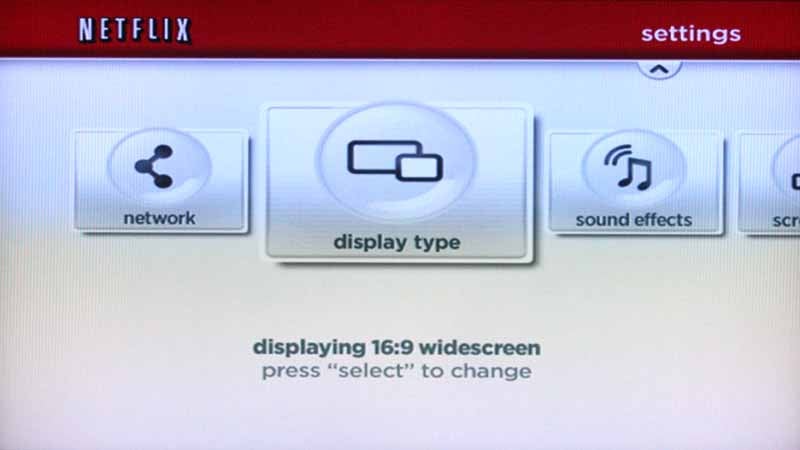
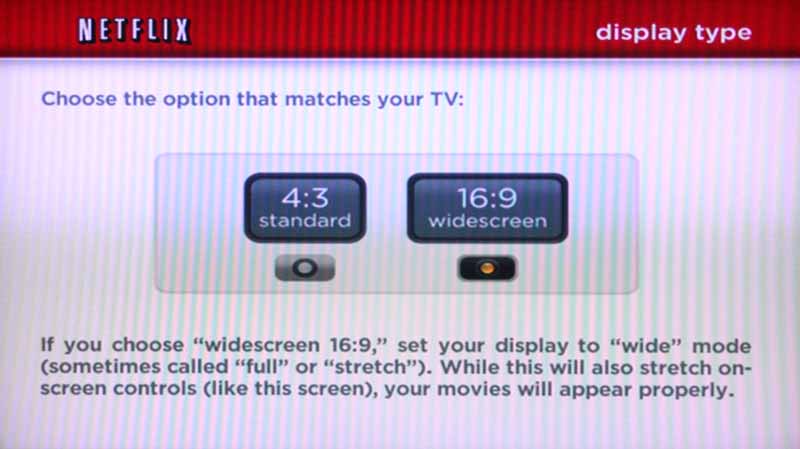 Once network and account
setup is out of the way you'll want to tell the Roku what type of screen you
have (4:3 is the default). You can also tweak the audio effect and sound,
though I found the default settings on these and other items to be just fine.
Roku doesn't inundate users with lots of settings and configurations. Perhaps
if the system is updated with HD content in the future there will be additional
options. For now, though, it's about as simple as it gets. I would like to see
Roku add more display options - perhaps an ultra stretch mode which would
stretch any 4:3 aspect ratio films and possibly correct some of the films which
were encoded incorrectly by Netflix (see below in our Viewing Tests).
Once network and account
setup is out of the way you'll want to tell the Roku what type of screen you
have (4:3 is the default). You can also tweak the audio effect and sound,
though I found the default settings on these and other items to be just fine.
Roku doesn't inundate users with lots of settings and configurations. Perhaps
if the system is updated with HD content in the future there will be additional
options. For now, though, it's about as simple as it gets. I would like to see
Roku add more display options - perhaps an ultra stretch mode which would
stretch any 4:3 aspect ratio films and possibly correct some of the films which
were encoded incorrectly by Netflix (see below in our Viewing Tests).
Remote Control
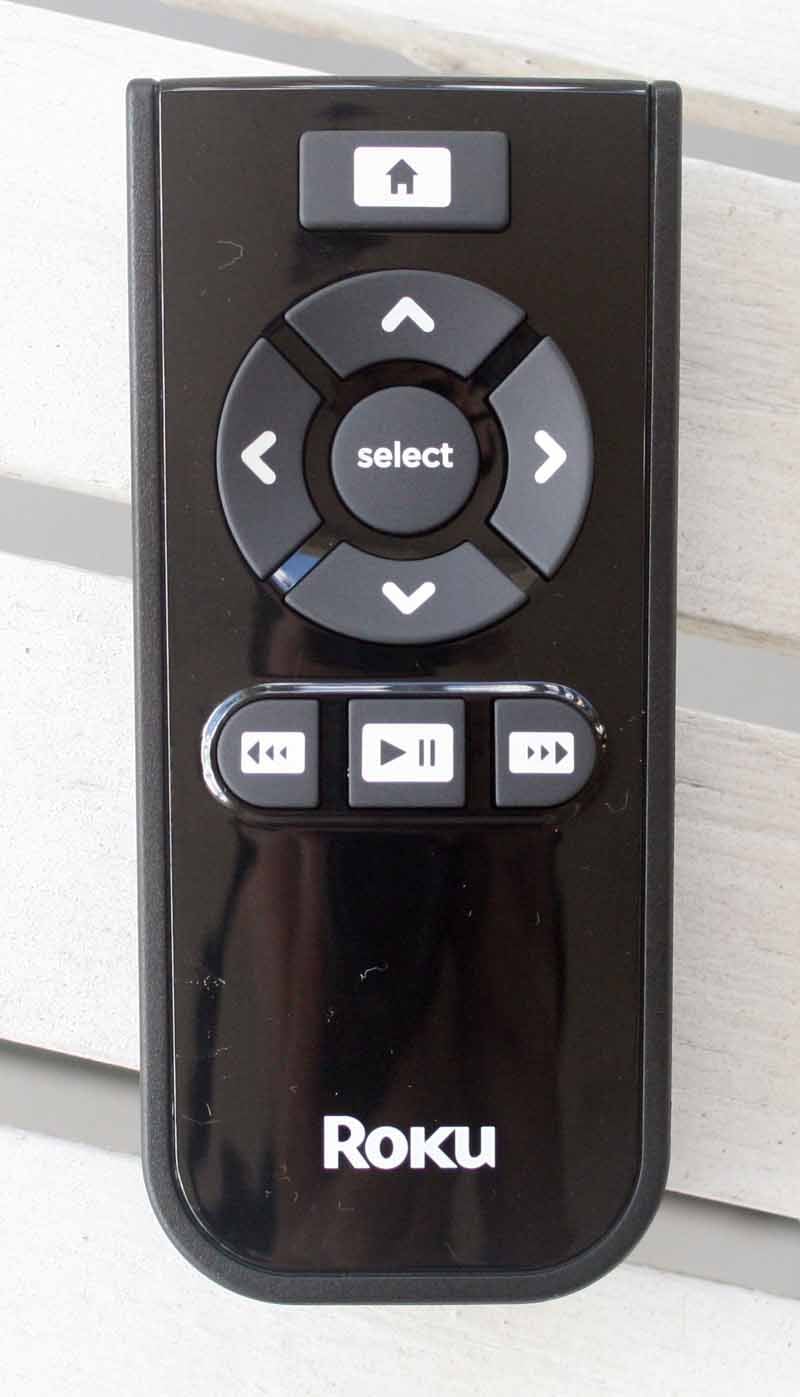 The
remote for the Netflix Player is perfectly simple. It's only got 9 buttons. Nothing
else is needed in order to navigate the system. You've got a Home button, four
directional keys and a Select button in the middle. Below you have Play/Pause
(single button), Rewind, and Fast Forward. There is one difficult thing about
the remote - inserting the batteries. To accomplish this you have to slide the
entire case in a funky way to gain access to the battery compartment. I admit
it took me a few minutes to figure it out - and ultimately it was the
instruction manual that showed me the light. The remote could use a
Standby/Power button - but of course Roku would need to presumably make a
hardware change to facilitate its use.
The
remote for the Netflix Player is perfectly simple. It's only got 9 buttons. Nothing
else is needed in order to navigate the system. You've got a Home button, four
directional keys and a Select button in the middle. Below you have Play/Pause
(single button), Rewind, and Fast Forward. There is one difficult thing about
the remote - inserting the batteries. To accomplish this you have to slide the
entire case in a funky way to gain access to the battery compartment. I admit
it took me a few minutes to figure it out - and ultimately it was the
instruction manual that showed me the light. The remote could use a
Standby/Power button - but of course Roku would need to presumably make a
hardware change to facilitate its use.
Selecting and Watching Your Movies
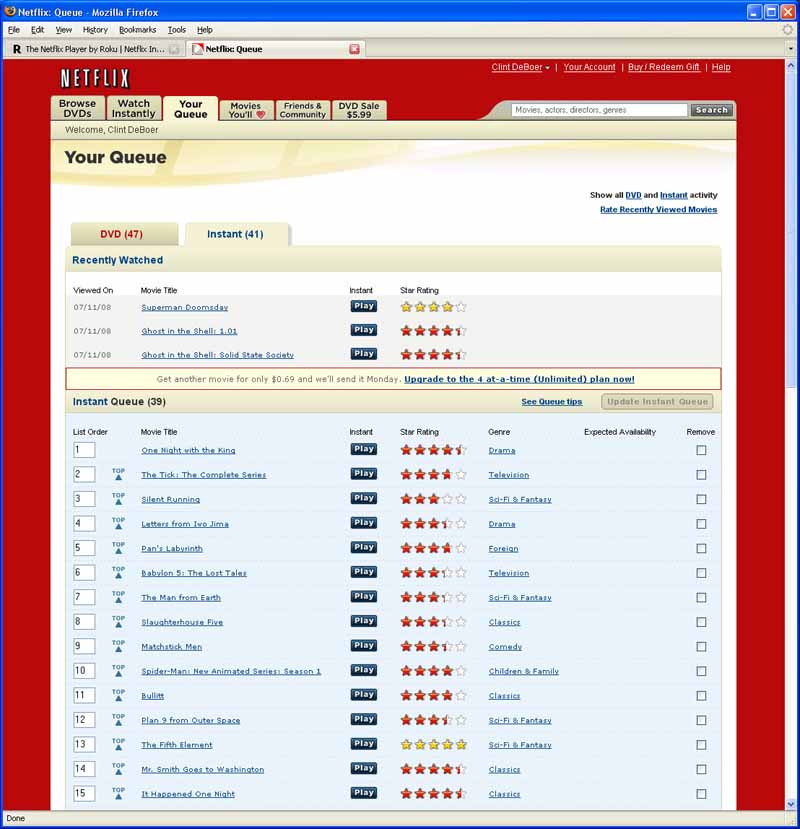 According to Netflix you can add up to 500 titles to your instant Queue,
but that would be nearly impossible to navigate. Instead, we'd recommend adding
around 50 (or less) titles so that can easily find what you want to watch. As
you watch movies you can simply rate (optional) and delete them right then and
there from your list. Your account on the Netflix website will be updated to
reflect the deletion and you can add more movies at your leisure.
According to Netflix you can add up to 500 titles to your instant Queue,
but that would be nearly impossible to navigate. Instead, we'd recommend adding
around 50 (or less) titles so that can easily find what you want to watch. As
you watch movies you can simply rate (optional) and delete them right then and
there from your list. Your account on the Netflix website will be updated to
reflect the deletion and you can add more movies at your leisure.
To watch any movies, you first need to dump/select/place those movies into your Watch Now Queue. This reflects an update from the old Watch Now system which didn't involve a queue. Netflix seems to have done an excellent job of integrating the new queue and it automatically grabbed any movies from my existing DVD queue which were available for instant viewing. I added a bunch more and soon I had 39 movies ready to go.
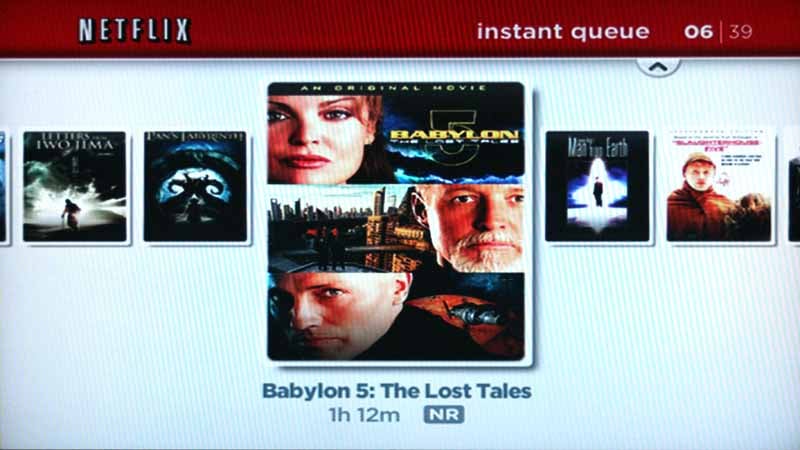 Browsing the Watch Now Queue
on the Netflix Player is extremely intuitive, though Roku only gives you one
interface for doing so. It's an Apple-like sideways flip style of the DVD
covers - but without any fancy drop shadow or 3D effects. The title, duration
and MPAA rating are given for each movie/show and it is certainly very easy to
get around. Kind of a user interface nut, I found it glorious that someone
thought enough to have the list circle around when you get to either end. If
you are on disc 39 of 39, simply scroll right one more time and you come back
to disc #1 in your list.
Browsing the Watch Now Queue
on the Netflix Player is extremely intuitive, though Roku only gives you one
interface for doing so. It's an Apple-like sideways flip style of the DVD
covers - but without any fancy drop shadow or 3D effects. The title, duration
and MPAA rating are given for each movie/show and it is certainly very easy to
get around. Kind of a user interface nut, I found it glorious that someone
thought enough to have the list circle around when you get to either end. If
you are on disc 39 of 39, simply scroll right one more time and you come back
to disc #1 in your list.
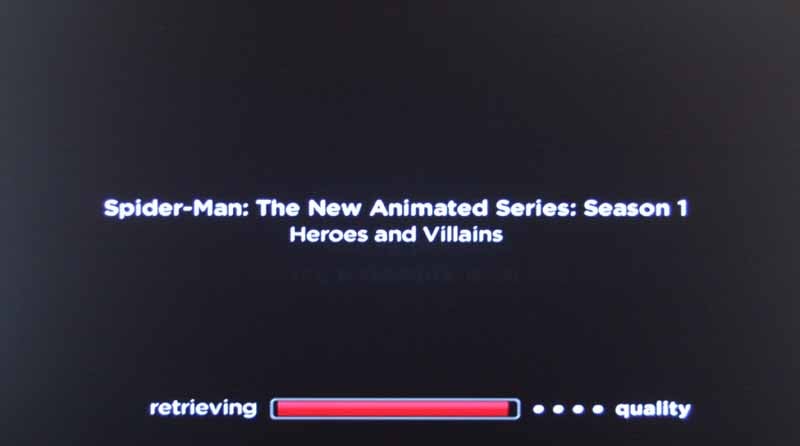 To select a show you simply
hit the Select button on the remote control. At this point the system takes
into account your network download speed and grabs the video at one of four
quality levels. While it is loading the amount of cached video it requires for
uninterrupted playback a black screen appears with the show title, quality
level, and a progress bar. As I mentioned above, I never dropped below level
four (the max) with a wired Ethernet connection to my broadband cable modem,
and wireless (802.11g) netted me 2 out of four. I am guessing there are some
wireless network setups which can be tweaked to get better results, but at the
$99 price of this box - the presence of any wireless connectivity at all is,
quite frankly, amazing.
To select a show you simply
hit the Select button on the remote control. At this point the system takes
into account your network download speed and grabs the video at one of four
quality levels. While it is loading the amount of cached video it requires for
uninterrupted playback a black screen appears with the show title, quality
level, and a progress bar. As I mentioned above, I never dropped below level
four (the max) with a wired Ethernet connection to my broadband cable modem,
and wireless (802.11g) netted me 2 out of four. I am guessing there are some
wireless network setups which can be tweaked to get better results, but at the
$99 price of this box - the presence of any wireless connectivity at all is,
quite frankly, amazing.
Once the movie begins you can Fast Forward, Rewind and Pause the picture. Pausing simply freezes the image on the screen and shows you a progress bar of where you are at. Fast Forwarding or Rewinding actually brings up thumbnails of the movie/show, almost like sub-chapter marks which remind me of the new navigation style on some Blu-ray discs. While fast forwarding or rewinding you can actually see that the aspect ratio of the encoded material determines the width of the thumbnails (which are already stretched wide if you are using a 16:9 display).
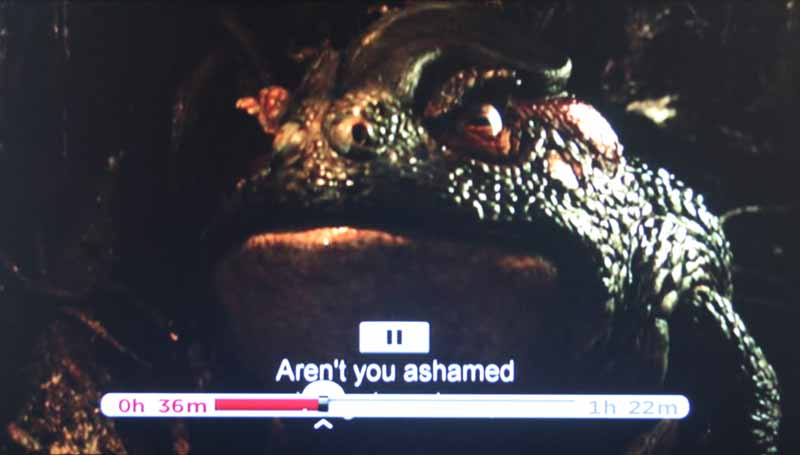
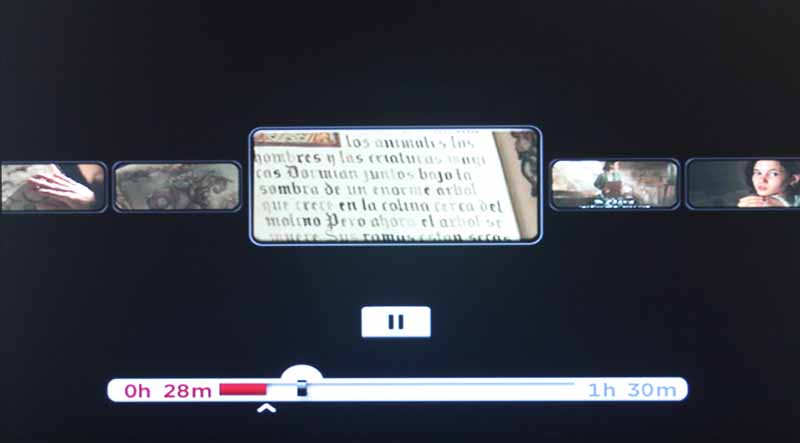
Roku Netflix Viewing Tests
I found the material to be impressive for the most part in terms of quality. It really was DVD quality and at "Level 4" I never noticed any artifacting or macroblocking from the encoded material. Here are some screen shots to give you a feel for how the system performs:


LCD-to-camera effects aside, these images from The Fifth Element looked just as good to me as their (non-Superbit) DVD counterparts.
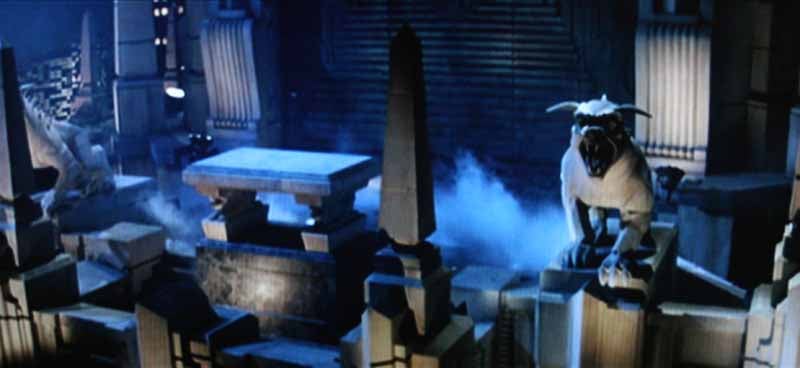
This scene from Ghostbusters was ripe for jaggies, but I found none, even during this motion pan across some very challenging material.
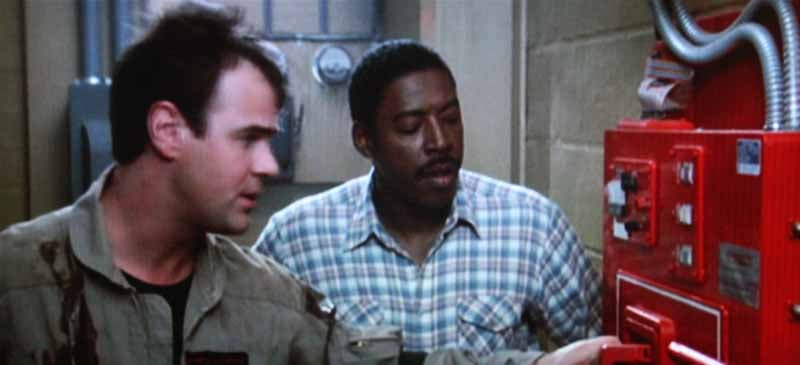
The lines in this shirt and the details in the ghost containment system looked perfect and, for an older film, this looked much better than when I saw it last (years ago on VHS)


Kids are going to love the selection of animation and children's movies and Spiderman looked fine, though it was in a 4:3 aspect ratio
Where the Roku Netflix Player faltered was in two particular areas:
1.
The amount of
material encoded as 4:3
2.
Several movies
which were incorrectly encoded with the wrong aspect ratio (resulting in
"thin" people.
To get an idea of the distribution of aspect ratios, let's take the 39 videos I initially placed into my Watch Now Queue. The genres were a mix of Drama, Television, Sci-Fi & Fantasy, Foreign, Comedy, Classics, Action & Adventure, and Anime & Animation. That covers a lot of ground and, I feel, gave a nice cross-section of the available titles. Here is how those broke out in terms of the encoded aspect ratios:
- 13 were in letterbox format - or some flavor of cinemascope/2.35:1 (33%)
- 14 were in 4:3 format (36%)
- 9 were in full 16:9 (23%)
- 3 were in a distorted, incorrect aspect ratio (7.7%)
Some of the material that was in 4:3 aspect ratio was originally shot in that format (such as Mr. Smith Goes to Washington, which was restored by the Library of Congress), but for the most part it was full-screen versions of either television or film content. That number should definitely go down - as quickly as possible. In fact, a half dozen interns with a couple souped-up Netflix accounts (or heck, a Blockbuster card) should be able to remedy the entire library in about three months if they did nothing else. Most of the 16:9 material looked like it was done on purpose, though a few titles were likely cropped in from original 2.35:1 or similar film ratios (Slaughterhouse 5, for example). Of the incorrect aspect ratios, The Man from Earth was incorrectly squashed, so everyone looked extra-thin. The same was the case for Ghost in the Shell: Solid State Society, and Babylon 5: The Lost Tales.
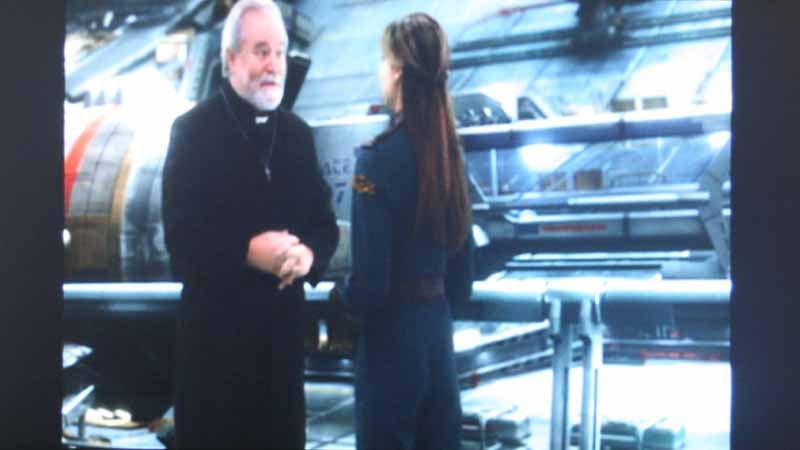
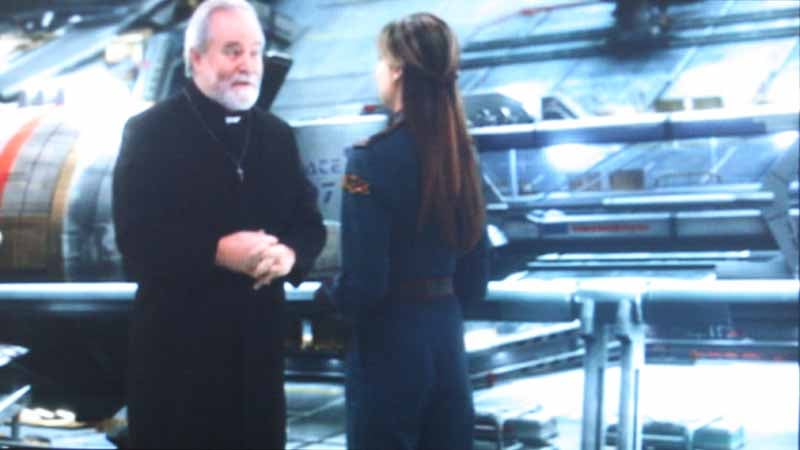
Babylon 5 on Netflix (left); Babylon 5 as it should be (right)
Some notes I took while reviewing the content for aspect ratios:
- Bullitt (Steve McQueen) and Cat on a Hot Tin Roof were exceptionally blurry. This to the point of being almost unwatchable. This was uncommon and thus worthy of mention.
- The Fifth Element looked remarkably close to the DVD, absolutely indistinguishable when sitting a respectable distance from the screen
- The Guns of Navarone was encoded with the FBI Warning still intact (which I found both comical and annoying).
Roku Netflix Conclusion, or "Who Will Like This Box, and Who Will Hate It"
The best way to summarize what I think about the box is to divide my conclusion into several paragraphs which specifically address different potential users:
Current Netflix Subscribers
For $99 you can't afford NOT to get this player. It's the biggest no-brainer since chocolate. In short, you'll love it (and it won't give you any extra calories!). Expect DVD quality movies, but realize that this is going to be a way to easily drive older movies, kid's shows and television shows you loved as a child to your television without much hassle and almost no cost. With no monthly fees this blows away the Apple TV. Of course, if you like to wait before you can watch a movie, simply have to have newer shows and want to pay for absolutely every program you download, new or old, then the $229 Apple TV is for you. I personally think most Netflix users are going to opt for the $99 option, but that's me.
 People Considering Netflix and Factoring in This Box
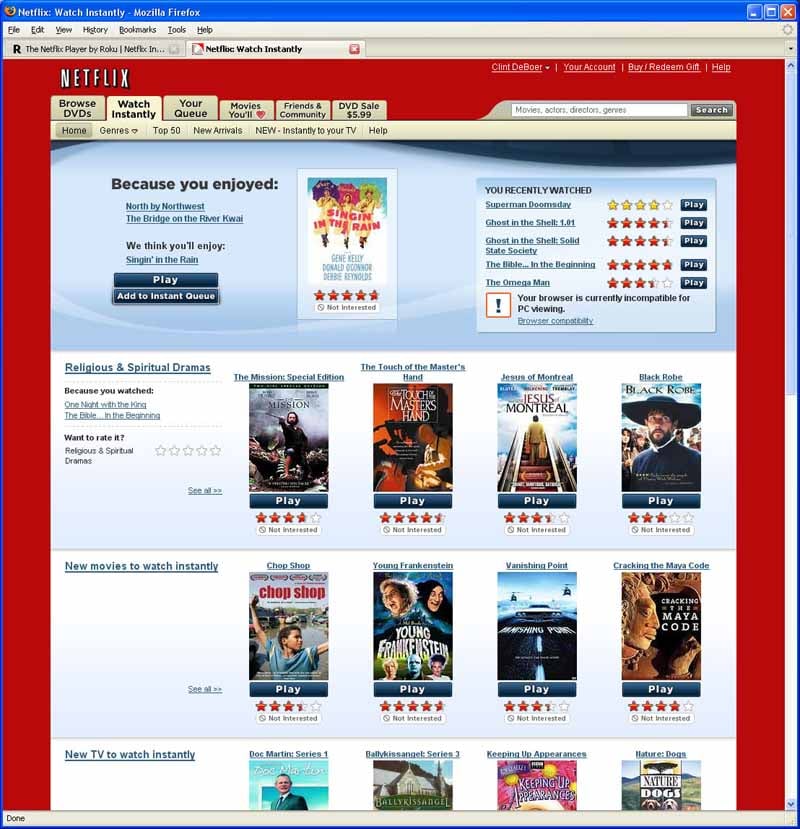
Look at it this way, Netflix is the best movie-by-mail company available. Blockbuster is fine if you still like to walk into a store from time to time; but for those of us who strictly want by-mail rentals, Netflix has the system down pat. With that said, until Blockbuster does the same thing, adding a 10,000 movie library for $99 with no additional monthly fees is darn compelling. It’s almost ridiculous when you think about it. The other thing to take into account is that some people will find paying $8.99/month is a great way to get a 1 DVD-at-a-time plan plus the ability to purchase this box to fill in the gaps between shipping. With 1 DVD at a time you can easily have 4-5 rentals each month, and add the $99 Roku box to give you unlimited movies from their Watch Now library. That's not bad for a virtually unlimited source of entertainment.
The first two groups should remember that this is all about getting thousands of standard definition titles. Audio will be stereo for the foreseeable future (since anything else should surprise us, not be expected within any discernable timeline). Since there isn't a monthly fee, the attraction of this box is simply what you can catch up on from the not-terribly-distant past. In short, being able to watch episodes of Quantum Leap and Sliders (Season 1, mind you) alone makes this a worthwhile purchase!
Audio and Videoholics & Propellerheads
You're going to get hung up on the fact that there is "no content" and how Netflix isn't allowing you to stream brand new DVD movies. You'll also hate the fact that there is no surround sound and that the current fare is not available in high definition. You'll also criticize the slightest quality difference you see between the full quality the Netflix Player has to offer and the quality you see on a high-quality DVD player. In short, you don't understand the intended purpose of the Roku Player and aren't part of the market this $99 add-on box is intended for. Shut up and go watch a Blu-ray disc.
Roku Netflix Player
$99.99
Roku, Inc.
12980 Saratoga Ave.,
Ste. D
Saratoga, CA
95070
888-600-7658 (ROKU)
About Roku
Roku, Inc., is a privately held company located in Saratoga, Calif.,
and founded in 2002 by Anthony Wood, the inventor of the personal video
recorder (PVR). Roku is a leading supplier of innovative and easy to use
digital media products. Our best known consumer products are the Netflix Player
by Roku and the stylish SoundBridge Internet radio line. We also make market
leading B2B digital signage and kiosk solutions -- the BrightSign line.
The Score Card
The scoring below is based on each piece of equipment doing the duty it is designed for. The numbers are weighed heavily with respect to the individual cost of each unit, thus giving a rating roughly equal to:
Performance × Price Factor/Value = Rating
Audioholics.com note: The ratings indicated below are based on subjective listening and objective testing of the product in question. The rating scale is based on performance/value ratio. If you notice better performing products in future reviews that have lower numbers in certain areas, be aware that the value factor is most likely the culprit. Other Audioholics reviewers may rate products solely based on performance, and each reviewer has his/her own system for ratings.
Audioholics Rating Scale
 — Excellent
- — Very Good
- — Good
- — Fair
- — Poor
| Metric | Rating |
|---|---|
| Standard Definition Video Performance | |
| Analogue Audio Performance | |
| Build Quality | |
| Ergonomics & Usability | |
| Ease of Setup | |
| Features | |
| Remote Control | |
| Network Features/Performance | |
| Performance | |
| Value | |
Clint Deboer was terminated from Audioholics for misconduct on April 4th, 2014. He no longer represents Audioholics in any fashion.
View full profile Subscribe to our newsletter