


Olive Symphony Wireless Music Center Review
Olive Symphony
- Product Name: Symphony
- Manufacturer: Olive
- Performance Rating:

- Value Rating:
- Review Date: April 19, 2008 19:00
- MSRP: $ 899.99
KEY FEATURES:
IBM PowerPC - Full-scale 32-bit processor
Hard Drive - 80 GB, 3.5"
CD mechanism - Panasonic CD-R/RW
Networking
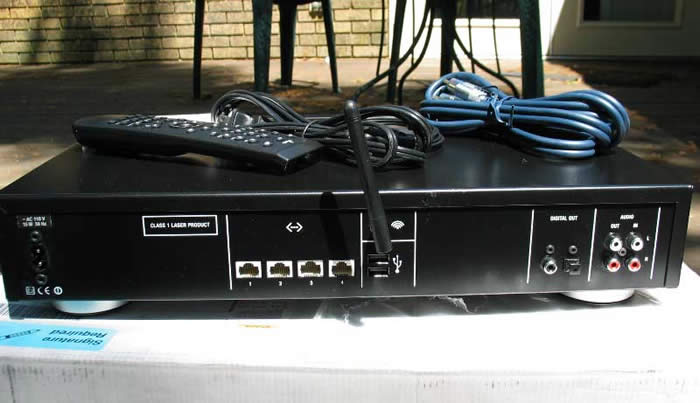
-Wired -4-port switch, auto-sense (10/100)
-Wireless -54 Mbit/s WLAN-Access point (802.11g)
-Protocols -UPnP A/V and Apple Bonjour (formerly Rendezvous)
-Encryption -WEP, 64 and 128 bit
Audio Ports
-Input -1x analog (gold-plated RCA)
-Outputs: analog (gold-plated RCA), S/PDIF optical Toslink, S/PDIF coaxial
Other ports: 2x USB 1.1/2.0
Navigation
-Two-level jog-shuttle
-7-line, backlit, wide-screen, high-resolution LCD (400x160; 4 grey scales)
-Web interface
Audio formats and compressions
Playback: MP3 and MP3 VBR, MP3 streaming (multi-room) , RAW: AIFF, PCM, WAV
OGG/Vorbis, FLAC (Free Lossless Audio Codec), AAC (MPEG4)
System requirements (Playlist software): Mac G3, G4, G5 with OS 10.4.
Recording: RAW: AIFF, WAV (1411.2 kbit/s), FLAC (800 to 1411 kbit/s), MP3 and MP3 VBR (128 to 320 bit/s)
Frequency: Multiple frequency support: 11.025, 22.050, 32.000, 44.100 and 48.000 Hz
Internet radio: Wide selection of free Internet radio stations based on shoutcast.com
Features
Dynamic audio compression - Set a maximum volume level for your music collection
CD Database - Built-in database with 2,000,000 tracks to recognize and tag CDs. Updateable via the Internet.
Energy efficient design: 0.6 Watt in Standby- and 7 Watt in PLAY-mode
Color: Black
Dimensions: 17.13" W x 3.35" H x 11.42" D
Weight: 13.2 lb.
Box includes: Olive|SYMPHONY, Quick Startup Guide, remote control w/ battery, CD with recovery and Playlist software, power cord, RCA cable.
Pros
- Extremely easy interface
- Lots of choices of compression
- Software upgradeable over the Internet
- Great looks
- Inexpensive for what it does
Cons
- No onscreen interface
- Internet Radio spotty over wireless connection
- Hard drive a bit small
- Remote substandard
Olive Symphony Introduction
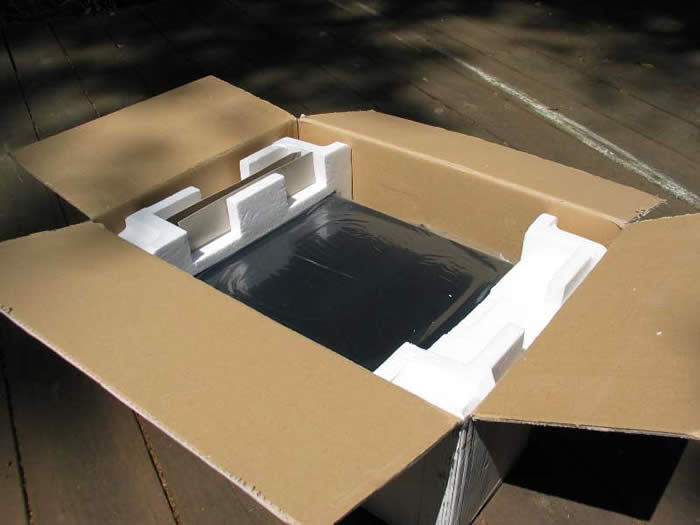
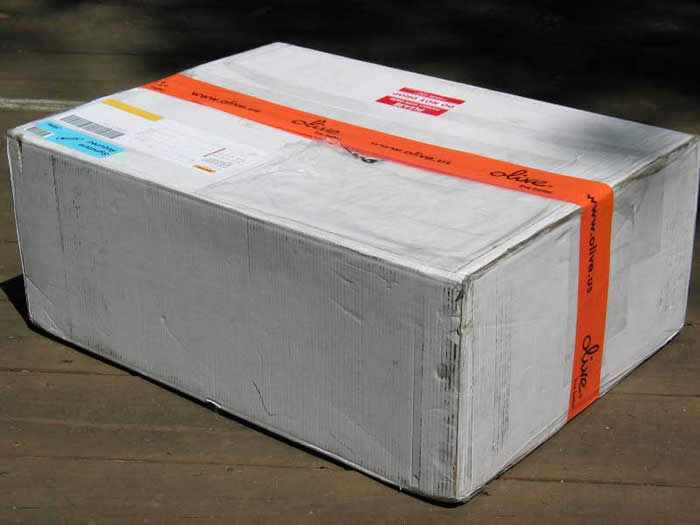
The Symphony unit was packed normally with two Styrofoam end-caps. I was dismayed when I found the antenna attached to the unit as it could have been broken by the manual in transport. As it is your general screw on kind, I thought that asking the end user to attach it shouldn’t be that big of a deal. I received a large three ring binder with all kinds of materials in it but upon inquiry found that generally users are given a quick start guide and a reference to the website to look up the latest manual. As the software can be updated via the Internet, this is not completely unfounded.
Olive Symphony Build Quality
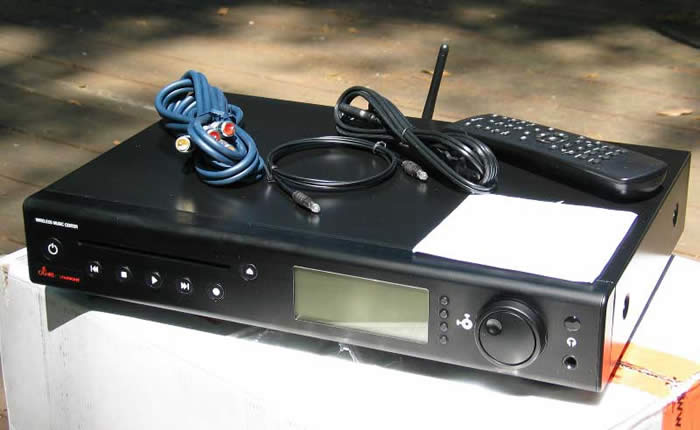 The unit came with some fairly nice analog cables, a TOSlink cable that
is impossibly thin, a recovery disc (the white square on top of the
unit), and a removable power cable. The aesthetics of this unit are
superb in my opinion. Everything save the “turn and select wheel” and the four little buttons to the right is flush-mounted.
Even CDs are inserted into the unit like a vacuum-loading car system.
I’ve often wondered why manufacturers still use trays when this
technology is available. It makes the front of the unit so much cleaner. The forward edge of the unit is rounded giving it a slightly different look from the other components in your rack.
The unit came with some fairly nice analog cables, a TOSlink cable that
is impossibly thin, a recovery disc (the white square on top of the
unit), and a removable power cable. The aesthetics of this unit are
superb in my opinion. Everything save the “turn and select wheel” and the four little buttons to the right is flush-mounted.
Even CDs are inserted into the unit like a vacuum-loading car system.
I’ve often wondered why manufacturers still use trays when this
technology is available. It makes the front of the unit so much cleaner. The forward edge of the unit is rounded giving it a slightly different look from the other components in your rack.
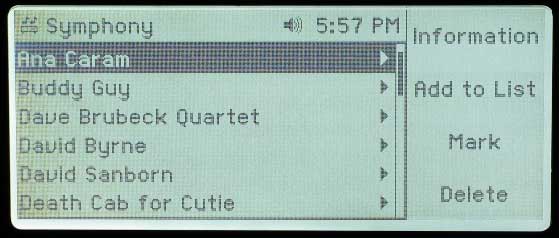
The screen on the unit is too small but the software version I was using allowed you to blow up the text so that it was legible from a distance. Future iterations of the software promise to allow control over the Internet by dialing into the unit’s IP address. The power and control buttons (play, fast forward, etc) light up with a glowing white light that makes the buttons visible in the dark but casts very little ambient light. The screen can also be dimmed. The Symphony is the PERFECT example of how to light the front of a unit. The last two units I reviewed were literally brighter than nightlights. The Symphony sits on four plastic round grey legs. I connected the unit to my Denon AVR-3805 via S/PDIF coax.
Olive Symphony System Setup
 After
plugging in and powering up the unit, it takes about 40 seconds (I
didn’t time it) for the unit to boot up for the first time. After that,
it will go into standby mode if left alone long enough or you can
manually shut it off with the power button on the remote or the unit.
The “turn and select wheel” is easy to use to navigate the screens.
Part of me just REFUSES to read the manual before I have to. In some
ways, I think this makes me better equipped to judge the usability of
the unit in the way that Joe Consumer would. Hey, let’s face it, most
of us don’t read the manual unless something starts smoking. Basically,
I had the entire unit configured, set up, and connected to the network without having to crack the book. That, my friends, is what I’m
talking about when I say the interface is intuitive.
After
plugging in and powering up the unit, it takes about 40 seconds (I
didn’t time it) for the unit to boot up for the first time. After that,
it will go into standby mode if left alone long enough or you can
manually shut it off with the power button on the remote or the unit.
The “turn and select wheel” is easy to use to navigate the screens.
Part of me just REFUSES to read the manual before I have to. In some
ways, I think this makes me better equipped to judge the usability of
the unit in the way that Joe Consumer would. Hey, let’s face it, most
of us don’t read the manual unless something starts smoking. Basically,
I had the entire unit configured, set up, and connected to the network without having to crack the book. That, my friends, is what I’m
talking about when I say the interface is intuitive.
Basically,
out of the box the unit comes configured with quite a few albums from
Olive for review. On my unit that consisted of mostly jazz, blues, and
easy listening, but there was some Steely Dan and Tool to placate the
masses. Most of it was really well recorded and had exceptional audio
quality. It was nice of Olive to include some music that really showed
off what the unit could do. After you get the network configured for
the Internet, a number of Internet Radio stations pop up as default.
For some reason, in my area, I got like 133 Dance/House stations and
like 13 Rock ones. Go figure. You can manually add your own stations if
you like.
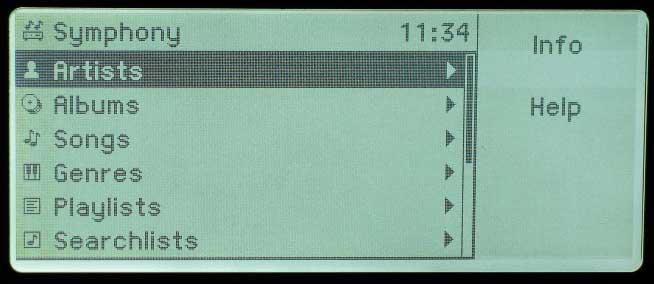 After
spending a few moments on the phone with Olive, they determined that
some of my questions could be addressed by upgrading my software to a
new beta version that they are rolling out soon. I agreed to use the
new software and hope that some of my observations will help refine it
before release. Olive gave me a list of some of the differences in the
2.2 software over the 2.1.8:
After
spending a few moments on the phone with Olive, they determined that
some of my questions could be addressed by upgrading my software to a
new beta version that they are rolling out soon. I agreed to use the
new software and hope that some of my observations will help refine it
before release. Olive gave me a list of some of the differences in the
2.2 software over the 2.1.8:
-
MP3 CD/DVD can be played back and imported, MP3 and data CDs can be burned (to be found under SETTINGS > BURNING and >IMPORT FROM CD). When burning a CD the Symphony automatically asks for the desired format.
-
Support of USB based MP3 players that handle like USB flash drives (i.e. devices that require no software). Olive will prepare a list of supported MP3 Players.
-
Navigation/Typeface is zoomed when Symphony is controlled via Remote Control to improve legibility from distance
-
Improved sorting of the Internet radio stations (categories according to bitrates)
-
Memory-Feature: The Symphony saves the current position of the track when put to sleep / turned off so users can continue listening where they stopped. Music is automatically faded in and out.
-
Music volume can be adjusted to match for all tracks (i.e. recordings with different gain level are played back at the same volume).
-
Turning on PREVENT CHANGES (under SETTINGS) ensures that guests (at e.g. a party) do not accidentally delete or mess up your music collection
-
You can now burn several marked songs (also from SEARCH- and PLAYLISTS)
-
Combining of the first 2 tracks of a recording is now possible
-
The Symphony can now automatically adjust its time/date via the network/Internet. Olive has also included different time zones (SETTINGS > DATE & TIME)
-
Users can transcode songs that are in WAV, AIFF and FLAC to MP3 (set encoding to MP3 in SETTINGS > IMPORT FROM CD and then select song, artist, album > click on INFORMATION and highlight ENCODING. The CONVERT button allows you to transcode the music to MP3)
The most important (all are important but some affected me more than others) are numbers 3, 4, 8, and 11. Zooming was the ONLY way to use this unit from a distance but the unit wouldn’t stay “zoomed.” I’d constantly have to go back and “re-zoom” it from the main menu. I’d like to see the text stay large so that you do not have to constantly back out to the main menu. The display was plenty legible from a distance but not really that well off axis (these types of LCD screens are like that).
The sorting of the Internet radio stations was a HUGE help. Before, the only way you could tell the bitrate was by selecting the station and hitting Info. If you are using a wireless connection, bitrate suddenly becomes VERY important (see below).
Transcoding songs are important if you plan on importing them at a high bitrate (like you should) and want to download them to an MP3 or similar player and need a lower bitrate. While I’ve not had to deal with the problem personally (I live in an iPod free zone as per my wife) I understand that it can be a real hassle for some.
Set up and Performance – Music
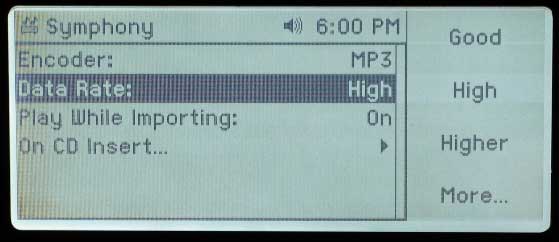
Getting music on and off the Symphony is a snap. Insert a disc and select “Import”. If you are like me, you fiddled around with the settings beforehand and configured the unit to automatically import upon loading a disc. If you load the same disc twice, it lets you know. You have a great number of burning options available - from low res MP3s to lossless FLAC and WAV files. I asked Olive why they had the lower res options available on a unit that is marketed to Audiophiles and their response was that even Audiophiles have children. And sometimes those children want to record Britney Spears on your Symphony. And when they do, MP3 at 128kbit/s is good enough. Can’t say I can find any fault with that logic.
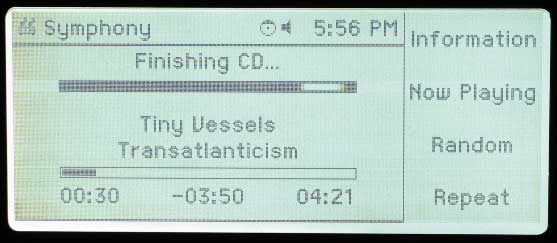 Getting
music off the unit is just as easy; find the album you want to burn and
hit the “Record” button. The unit will ask you to insert a blank disk
(you can use any CD-R, not just the CD Audio ones) and ask if you want
to record an Audio, MP3, or Data CD (this functionality is new for the
beta version of the software I was using). Once you select “Audio”, it
starts burning. When it’s done, it spits out the disc. I ripped Death
Cab for Cutie: Transatlanticism to the unit in just over 6
minutes. It took just over 10 to burn to a disc (I wanted one for the
car, anyhow). The only problem I had was the first time I burned a
disc, it wouldn’t eject. I tried EVERYTHING (it is supposed to eject
automatically). Finally, I turned off and unplugged the unit and the
disc ejected upon restart. I tried to replicate the problem by burning
a bunch more copies but every other time it worked perfectly.
Getting
music off the unit is just as easy; find the album you want to burn and
hit the “Record” button. The unit will ask you to insert a blank disk
(you can use any CD-R, not just the CD Audio ones) and ask if you want
to record an Audio, MP3, or Data CD (this functionality is new for the
beta version of the software I was using). Once you select “Audio”, it
starts burning. When it’s done, it spits out the disc. I ripped Death
Cab for Cutie: Transatlanticism to the unit in just over 6
minutes. It took just over 10 to burn to a disc (I wanted one for the
car, anyhow). The only problem I had was the first time I burned a
disc, it wouldn’t eject. I tried EVERYTHING (it is supposed to eject
automatically). Finally, I turned off and unplugged the unit and the
disc ejected upon restart. I tried to replicate the problem by burning
a bunch more copies but every other time it worked perfectly.
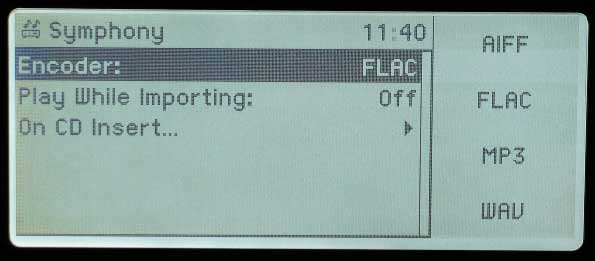 I’ve
noted the ability to rip the music to various formats. There is also
the ability to apply different compression algorithms to the music for
playback. This would be useful in a professional setting (if you used
this unit in a restaurant or office) or during a dinner party where you
don’t want to have to continually adjust the volume. I’ve had a couple
of discs (namely some LaserLight classical discs) that have tripped up
machines in the past. Not the Symphony. Almost everything I threw at
it, it recognized and identified correctly. The ONLY exception was a Very Best of Bach
CD from VOX Cameo Classics. So far, no one has gotten that one correct
- though it did get a number of other ones correct that the DMS-701
messed up. Basically, you don’t really have to be concerned that this
unit won’t properly identify your music, it will… at least in my
experience.
I’ve
noted the ability to rip the music to various formats. There is also
the ability to apply different compression algorithms to the music for
playback. This would be useful in a professional setting (if you used
this unit in a restaurant or office) or during a dinner party where you
don’t want to have to continually adjust the volume. I’ve had a couple
of discs (namely some LaserLight classical discs) that have tripped up
machines in the past. Not the Symphony. Almost everything I threw at
it, it recognized and identified correctly. The ONLY exception was a Very Best of Bach
CD from VOX Cameo Classics. So far, no one has gotten that one correct
- though it did get a number of other ones correct that the DMS-701
messed up. Basically, you don’t really have to be concerned that this
unit won’t properly identify your music, it will… at least in my
experience.
 The
one disconcerting thing about the unit is how the discs are loaded. As
I stated, there is no tray so you just insert the disc into the slot.
Well, I expected the unit to grab the disc when it was about halfway
in. Nope. Kept pushing, still nothing. I got nervous, broke out the
manual, everything I read made it sound like the unit was working
correctly so I tried again. You literally have to push the disc until
only about a half an inch is showing before it grabs it. Scared the
bejesus out of me. I was terrified I’d get it stuck and have to call
Olive and say, “Dude, I, uh, just shoved it in and it wouldn’t take it
so I kept shoving and now it won’t come out.” I could just see the look
on my colleagues’ faces with that call, “Your reviewer is a moron,
we’re not sending you another unit.”
The
one disconcerting thing about the unit is how the discs are loaded. As
I stated, there is no tray so you just insert the disc into the slot.
Well, I expected the unit to grab the disc when it was about halfway
in. Nope. Kept pushing, still nothing. I got nervous, broke out the
manual, everything I read made it sound like the unit was working
correctly so I tried again. You literally have to push the disc until
only about a half an inch is showing before it grabs it. Scared the
bejesus out of me. I was terrified I’d get it stuck and have to call
Olive and say, “Dude, I, uh, just shoved it in and it wouldn’t take it
so I kept shoving and now it won’t come out.” I could just see the look
on my colleagues’ faces with that call, “Your reviewer is a moron,
we’re not sending you another unit.”
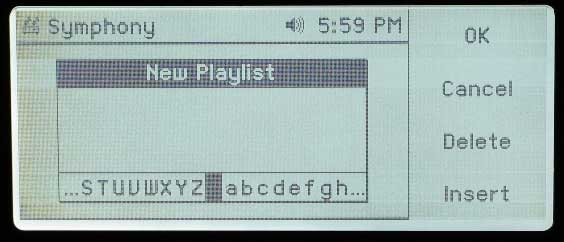 Playlists
are fairly easy to define and set up. If you have the unit networked,
you can dial into its IP address (viewable if you hit INFO on the main
menu) and do it on your computer (far easier than on the unit). If you
do it on the unit, you can either use the remote or the wheel. Go to
“Playlists”, select “New”, give it a name, then run through and “Mark”
the songs/albums you want and “Add” them to your Playlist. If you want
multiple songs from an album (but not all of them) there is even a way
of marking multiple songs and adding them at the same time. Very nice.
Once you have a Playlist defined, you can burn the entire thing to a
disc. Or try rather. It will give you an error if the Playlist is too
big. So basically, yes, you can make mixed CDs with the thing!
Playlists
are fairly easy to define and set up. If you have the unit networked,
you can dial into its IP address (viewable if you hit INFO on the main
menu) and do it on your computer (far easier than on the unit). If you
do it on the unit, you can either use the remote or the wheel. Go to
“Playlists”, select “New”, give it a name, then run through and “Mark”
the songs/albums you want and “Add” them to your Playlist. If you want
multiple songs from an album (but not all of them) there is even a way
of marking multiple songs and adding them at the same time. Very nice.
Once you have a Playlist defined, you can burn the entire thing to a
disc. Or try rather. It will give you an error if the Playlist is too
big. So basically, yes, you can make mixed CDs with the thing!
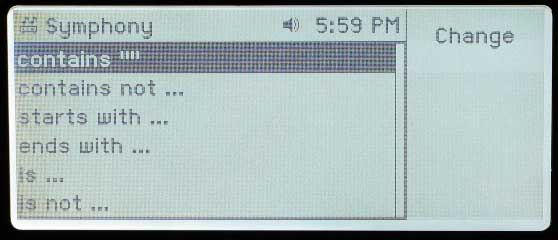 There
are also Searchlists, something that was a bit new to me. Basically,
you can define some search parameters that has the unit search though
your database and only play the songs that fit the simple “if”
statements you define. As an example, the directions have you create a
Searchlist called “The Best” which plays all songs rated 5 (out of 5)
stars by you. Of course, I didn’t rate any of the songs so none popped
up. I made a couple of other lists to test it out, one playing any song
by any artist whose name started with “The.” A second Playlist played
any song that I had listened to more than 4 times (which is another way
of asking for my favorites). Personally, I found the Searchlists to be
a fun, easy, and informative tool. I was surprised to see what played
during my “4 or more” search. It is also nice if you have a particular
artist in mind that has songs on a number of different compilation
albums plus their own. Rather than constantly update a Playlist, you
can create a Searchlist on that artist’s name. If you load a new disc
with one song by them, you can rest assured that it will be added to
the Searchlist with no work on your part.
There
are also Searchlists, something that was a bit new to me. Basically,
you can define some search parameters that has the unit search though
your database and only play the songs that fit the simple “if”
statements you define. As an example, the directions have you create a
Searchlist called “The Best” which plays all songs rated 5 (out of 5)
stars by you. Of course, I didn’t rate any of the songs so none popped
up. I made a couple of other lists to test it out, one playing any song
by any artist whose name started with “The.” A second Playlist played
any song that I had listened to more than 4 times (which is another way
of asking for my favorites). Personally, I found the Searchlists to be
a fun, easy, and informative tool. I was surprised to see what played
during my “4 or more” search. It is also nice if you have a particular
artist in mind that has songs on a number of different compilation
albums plus their own. Rather than constantly update a Playlist, you
can create a Searchlist on that artist’s name. If you load a new disc
with one song by them, you can rest assured that it will be added to
the Searchlist with no work on your part.
Olive Symphony Remote, Listening Tests, and Conclusion
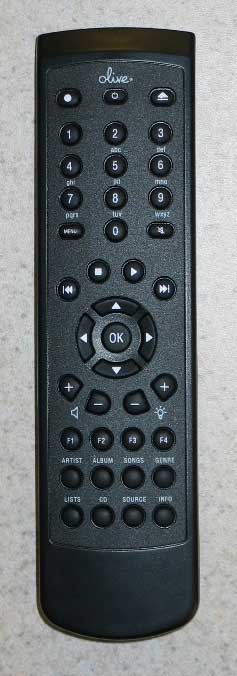 The
remote is mostly OK except that it isn’t at all (not even a little)
backlit. It is extremely light and fits well in your hand. The
navigation buttons land naturally under your thumb when you grab the
remote. The playback controls are all above the navigation buttons
except the ‘Record’ button which is inexplicably located on the very
top on the left. I guess the thought was that it would stop the user
from accidentally hitting it instead of ’Play’ (of course, now the user
hits it instead of ’On’). There is no ’Pause‘ button (scratched my head
for a while at that one) but hitting the ‘Play’ button a second time
pauses playback.
The
remote is mostly OK except that it isn’t at all (not even a little)
backlit. It is extremely light and fits well in your hand. The
navigation buttons land naturally under your thumb when you grab the
remote. The playback controls are all above the navigation buttons
except the ‘Record’ button which is inexplicably located on the very
top on the left. I guess the thought was that it would stop the user
from accidentally hitting it instead of ’Play’ (of course, now the user
hits it instead of ’On’). There is no ’Pause‘ button (scratched my head
for a while at that one) but hitting the ‘Play’ button a second time
pauses playback.
The function buttons oriented horizontally under the navigation buttons correspond to the vertical buttons on the unit (had to look that one up). This makes it so you can control just about everything on the unit from the remote. It would have been nice if the function buttons were located next to the navigation buttons and oriented vertically like they are on the unit. This would have made them a little more intuitive. The eight Quick-keys on the bottom lead you to all the major functionalities of the unit. Of course, the remote isn’t backlit and the buttons are very small so it is easy to hit the wrong one, especially in the dark. If it were me, I’d have four buttons preprogrammed and four that were user configurable.
Overall, I found the sensitivity of the remote to be a bit lacking. This could be because the IR receiver was too close to the control wheel and sometimes blocked the remote’s signal. It seemed that sometimes I’d get stuck on a screen and have to get up to control the unit from the face. I also found myself pressing buttons multiple times trying to get it to recognize the command. When I’m sitting directly in front of the unit, I know it is not my position.
Listening Tests
Obviously, I listened to a great deal of music on this box. I ripped a number of CDs to it and compared it to what I had heard in the past. I also had the opportunity to explore some of the music that Olive was nice enough to provide for me. Since I had an unprecedented level of control, I decided to test the Death Cab for Cutie SACD to the CD version I burned to the Symphony using a FLAC format to the burned copy I made from with the symphony (mind boggling, isn’t it? I feel like I might have ripped a hole in the space time continuum or something). Switching back and forth as quickly as it took for the Denon AVR-3805 to lock on to the new signal, I both reaffirmed by belief that the CD and SACD versions of this album were identical and that the disc burned from the Symphony was just as good as the original. I also discovered that the Symphony sounded as good as any CD/DVD transport I’ve heard to date. No coloring of the signal was present in any form. The FLAC lossless compression made no audible difference that I could ascertain.
 I
took a listen to some of 25+ albums provided by Olive and was surprised
by some of the vocalists I heard. Most striking to me was Lorna Hunt. I
wish I could say that I was familiar with this artist before this
review but I must admit that I wasn’t. The one album that they had
loaded into the Symphony was All in One Day, her first of two albums (according to her website).
The audio quality of this album was superb and the vocals were as
interesting as they were compelling. The accompaniment was usually a
guitar with a bass and some simple drums allowing her voice to take
center stage. Reminiscent of early Jewel or Joni Mitchell, I have
rarely been so captivated by an album so quickly. I think what drew me
in was the honesty of her voice and the absolutely raw quality of the
recording. It sounded live in the way that a new artist unfamiliar with
the studio sounds their first time in. They don’t know that they can
“fix” things in post production so they just sing the way they always do. She has a second album out… I’m guess I’m going to have to pick them both up.
I
took a listen to some of 25+ albums provided by Olive and was surprised
by some of the vocalists I heard. Most striking to me was Lorna Hunt. I
wish I could say that I was familiar with this artist before this
review but I must admit that I wasn’t. The one album that they had
loaded into the Symphony was All in One Day, her first of two albums (according to her website).
The audio quality of this album was superb and the vocals were as
interesting as they were compelling. The accompaniment was usually a
guitar with a bass and some simple drums allowing her voice to take
center stage. Reminiscent of early Jewel or Joni Mitchell, I have
rarely been so captivated by an album so quickly. I think what drew me
in was the honesty of her voice and the absolutely raw quality of the
recording. It sounded live in the way that a new artist unfamiliar with
the studio sounds their first time in. They don’t know that they can
“fix” things in post production so they just sing the way they always do. She has a second album out… I’m guess I’m going to have to pick them both up.
Recommendations
 At
its price point, very little can touch the Symphony. I’d like to see a
’Standby‘ button on the remote as the ’Power‘ button shuts the unit
down completely. Not a problem really except when dealing with Internet
radio. If the unit goes to standby, the stations all stay in the
buffer, if you turn the unit off, all the stations have to be
reacquired. Reacquiring stations takes anywhere from 30 seconds to a
couple of minutes in my experience and is an annoyance I don’t need. In
fact, if the ‘Power’ button on the remote only put the unit in standby
that would be OK by me. The ‘Power’ button on the unit could perhaps
put the unit in standby with a regular press and shut the unit down
completely with a held press.
At
its price point, very little can touch the Symphony. I’d like to see a
’Standby‘ button on the remote as the ’Power‘ button shuts the unit
down completely. Not a problem really except when dealing with Internet
radio. If the unit goes to standby, the stations all stay in the
buffer, if you turn the unit off, all the stations have to be
reacquired. Reacquiring stations takes anywhere from 30 seconds to a
couple of minutes in my experience and is an annoyance I don’t need. In
fact, if the ‘Power’ button on the remote only put the unit in standby
that would be OK by me. The ‘Power’ button on the unit could perhaps
put the unit in standby with a regular press and shut the unit down
completely with a held press.
Future software iterations will make the unit configurable and controllable over the Internet. While this is a great thing, I also would like to see a video output so that those of us with a display in our listening rooms could see something on the screen. Even if it was the same thing that was on the little display, that would be alright. Something. I don’t want to have to carry my laptop into my home theater to control this thing and I don’t think I should have to. There is also talk of an improved remote or the ability to interface with Crestron type remotes. That would work too.
Conclusions and Overall Perceptions
After reviewing several products in the $2000-$5000 category, I was hesitant to think the $900 Symphony could compete. Compete? No, it doesn’t. It dominates. In ease of use, flexibility, and overall performance, it is a least as good if not better than anything else I’ve tested at any cost. With universal players costing much more, I don’t see how this unit could be considered anything but worthy of inclusion into a high-powered system. It stores music in the form you want, it plays it back in the way you desire, and it makes itself available to every other device in your home. No worries about loss or compression, the Olive Symphony gives you your music back the exact same way it was recorded, bit for bit. Best of all, it looks as good as it works!
The Score Card
The scoring below is based on each piece of equipment doing the duty it is designed for. The numbers are weighed heavily with respect to the individual cost of each unit, thus giving a rating roughly equal to:
Performance × Price Factor/Value = Rating
Audioholics.com note: The ratings indicated below are based on subjective listening and objective testing of the product in question. The rating scale is based on performance/value ratio. If you notice better performing products in future reviews that have lower numbers in certain areas, be aware that the value factor is most likely the culprit. Other Audioholics reviewers may rate products solely based on performance, and each reviewer has his/her own system for ratings.
Audioholics Rating Scale
 — Excellent
- — Very Good
- — Good
- — Fair
- — Poor
| Metric | Rating |
|---|---|
| Build Quality | |
| Ergonomics & Usability | |
| Ease of Setup | |
| Features | |
| Remote Control | |
| Network Features/Performance | |
| Performance | |
| Value | |
As Associate Editor at Audioholics, Tom promises to the best of his ability to give each review the same amount of attention, consideration, and thoughtfulness as possible and keep his writings free from undue bias and preconceptions. Any indication, either internally or from another, that bias has entered into his review will be immediately investigated. Substantiation of mistakes or bias will be immediately corrected regardless of personal stake, feelings, or ego.
View full profile Subscribe to our newsletter