


Miglia TVMini HD Review
Miglia TVMini HD
- Product Name: TVMini HD
- Manufacturer: Miglia
- Performance Rating:


- Value Rating:
- Review Date: October 31, 2006 18:00
- MSRP: $ 199.95
|
Host Interface: USB 2.0 |
Power: Powered by USB 2.0 bus. No external power
supply is needed |
Pros
- HDTV on your laptop or desktop
- One-click export to iPod
- Supports resolutions of up to 1080i
- Does not modify or reduce quality of digital video stream
Cons
- Not available for PCs
- Not compatible with paid digital cable or satellite services
- Signal is location-dependant (as with all antenna systems)
Miglia TVMini HD Introduction
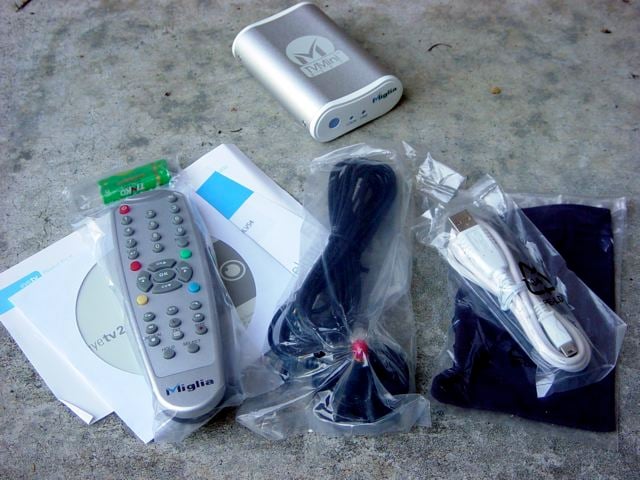 In the small box you will find the TVMini HD HDTV USB 2.0 Device, which is a small, brushed aluminum curvy box about the size of a pack of cigarettes, a CD-ROM with the Eye TV software and PDF guide, a remote control with 2 AAA batteries, a portable TV antenna, a slick little microfiber carry bag for the device, and a white USB 2.0 cable. The device weighs about 4.5 oz, and is aluminum with white plastic finish.
The front panel has a large IR receiver for the remote, and blue light indicators for channel lock and USB. The rear has a USB port and a standard cable TV input. I tested the unit with my laptop, and found it to be very portable and easy to throw in my backpack with my other gear.
Miglia TVMini HD Connecting the System
When it comes to computers, what you want is something that is truly plug and play. Ask any Mac user, and they will tell you that this is the main reason they have chosen the Apple platform.
I unpacked the TVMini HD and installed the EyeTV software. I then plugged the antenna into the back of the unit, hooked the unit to my MacBook Pro via the USB port, and it immediately lit up and launched the EyeTV software. For my test, I went outside to my covered, screened porch in order to get the best shot at getting over the air channels.
The software began to immediately scan the airwaves for channels. Now I should note that I live in a small town, and digital signals are sketchy around here. I was not optimistic that I would be able to receive anything, fully expecting to take the unit with me on an upcoming trip to a larger city to do the review. But to my pleasant surprise, it found and tuned in several channels, both standard and HD. At times I would lose thesignal. If you live in a larger metro area with good coverage, you might not have as tough a time as I did. (The bottom line on signal is this: It is location dependent, both the area you live in, and where you set up the antenna.)
 I then decided to try my Time Warner Cable.
I took the unit into my theater and
unhooked the cable from the cable box (Miglia explains
"TVMini HD is compatible with ATSC/Clear
QAM broadcasts. It will let you watch unencrypted digital TV content, but is not compatible with paid
digital cable or satellite services. Many cable TV providers broadcast free-to-air digital channels on
their networks") and plugged it into the device.
I told it to scan for cable signals,
and after about 10 minutes it found around 25 channels.
I then decided to try my Time Warner Cable.
I took the unit into my theater and
unhooked the cable from the cable box (Miglia explains
"TVMini HD is compatible with ATSC/Clear
QAM broadcasts. It will let you watch unencrypted digital TV content, but is not compatible with paid
digital cable or satellite services. Many cable TV providers broadcast free-to-air digital channels on
their networks") and plugged it into the device.
I told it to scan for cable signals,
and after about 10 minutes it found around 25 channels.
Miglia TVMini HD Watching, Recording & Conclusion
It is simple within the EyeTV software to record something. There is a small window shaped like a remote control that floats on the screen, and you simply click the record button to begin a recording. There are buttons for play, pause, forward and reverse as well.
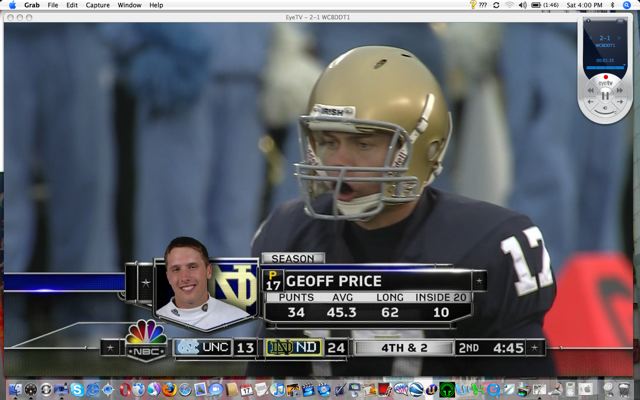
Just clicking around on the available channels I found, I was able to watch and record HD programming from TNT, NBC, Discovery HD, and ETV HD (PBS). Overall, the picture was excellent on all of the channels. There were no audio sync issues, either.
There was a show about polo on PBS (go figure) and there was pixilation at times during the action shots of horses running, but later on a documentary about the old West the images were pristine. It is probable that the over-the-air signal strength during the polo program was weak, thus contributing to the pixilation.
The Today Show on NBC was crisp and clean, almost as good as sports programming (which I find to be the best picture quality of HD programming). As Al Roker sucked up every last bite of fish that guest chef was preparing on the morning show, I was able to see it in way too much detail.
Reruns of ER on TNT HD looked good for film-based material, with appropriate grain and contrast during the moody, dark emergency room hallway confrontations between Dr. Green and an evil psychiatrist.
And I couldn't resist watching a few minutes of standard definition programming as Ernie and Bert sang to each other about their, uh, um, friendship over the years. The picture was every bit the pathetic NTSC quality we have come to expect over the years.
Interface & Software
The EyeTV software interface is very familiar to users of iLife, Apple's suite of applications that includes iTunes, iPhoto, iDVD, etc. In the left column there are categories to choose from for each of the major functions: Recordings, Schedules, Channels and Program Guide. Clicking on one of these turns the right side of the window into the working area of the selection.
When you click on Recordings, you get icons showing a still shot from each of the recordings you have saved, with Title, Date, Duration and Size listed by each.
Schedules shows you any pending scheduled recordings.
Channels displays a channel listing. There is a toggle button for antenna/cable.
Program Guide displays the TitanTV program guide, from which you can easily schedule recordings. I have had mixed results with TitanTV over the years. At first I had trouble getting the program guide to load into EyeTV. Eventually, I was able to log into my TitanTV account (that I had set up a few years earlier, but had not used in a while) and update my preferences. Once I told it I had the TVMini HD hooked up, it loaded in immediately. In my experience, TitanTV is a continually improving site.
You also have the ability to create Playlists, which are similar to an iTunes playlist or an iPhoto photo album. Just drag recordings from the Recordings window into the playlist. This makes for easy organization of programs you want to burn to a DVD or export to your iPod.
And exporting to your iPod is incredibly simple. Select the program or playlist you want to export, and click on the iPod button, and it immediately begins the export directly into iTunes.
Conclusions and Overall Perceptions
The Miglia TVMini HD is a great product for Mac users wanting to bring HD video to their desktop or laptop computers. The DVR and programmed recording options make the package a complete solution, allowing the user to record, edit and export high definition programming.
The EyeTV software is hungry - you can watch your hard disk space fill right before your eyes. A one minute clip of HD material can easily take up over 100MB of space. My MacBook Pro's internal fans kicked in often when watching or exporting material in order to cool the 2 GHz Intel Core Duo processor. But hey, small price to pay for HD on your computer, no?
I can't help but think that combining this product with a $599 Mac Mini creates an amazing HTPC. Or should I say HTMac. With the Front Row and iLife software that Apple bundles with the Mini, you would have a very stable, user friendly, incredibly usable media center. Could be a future Audioholics project!
206 Naamans Building
Wilmington, DE 19810
(302) 351 4252
www.miglia.com
The Score Card
The scoring below is based on each piece of equipment doing the duty it is designed for. The numbers are weighed heavily with respect to the individual cost of each unit, thus giving a rating roughly equal to:
Performance × Price Factor/Value = Rating
Audioholics.com note: The ratings indicated below are based on subjective listening and objective testing of the product in question. The rating scale is based on performance/value ratio. If you notice better performing products in future reviews that have lower numbers in certain areas, be aware that the value factor is most likely the culprit. Other Audioholics reviewers may rate products solely based on performance, and each reviewer has his/her own system for ratings.
Audioholics Rating Scale
 — Excellent
- — Very Good
- — Good
- — Fair
- — Poor
| Metric | Rating |
|---|---|
| Video Performance | |
| Ergonomics & Usability | |
| Ease of Setup/Programming/Integration | |
| Features | |
| Performance |  |
| Value | |
Over the years J. has constantly found himself to be an "early-adopter," spending way too much money on "new" technologies such as Compact Disc, LaserDisc, and DVD. He is one of the few people who actually purchased (and still owns) a CORE programmable remote control (bonus points if you remember this product).
View full profile Subscribe to our newsletter