


Linksys by Cisco Premier Kit Wireless Music System Review
Linksys by Cisco Premier Kit
- Product Name: Premier Kit Wireless Music System
- Manufacturer: Linksys by Cisco
- Performance Rating:

- Value Rating:
- Review Date: April 03, 2009 12:00
- MSRP: $ 999.99
|
The Director (DMC250)
The Player (DMP100)
|
The Controller
|
Pros
- Excellent styling
- Uses the latest wireless networking protocols
- Virtually unlimited expandability
- Beautiful LCD touchscreen remote
Cons
- Lackluster website support and product information
Linksys Premier Kit Introduction
I had the pleasure of working with three elements of the Linksys system; The Director, The Player, and The Controller. We also had access to the Docking Station for iPod, which allowed us to set an iPod into the cradle and send that music throughout our networked system. In addition to these items, Linksys also offers The Conductor (coming soon), and speakers. All items come in a sleek black matte finish.
Linksys Premier Kit Build Quality
The Director
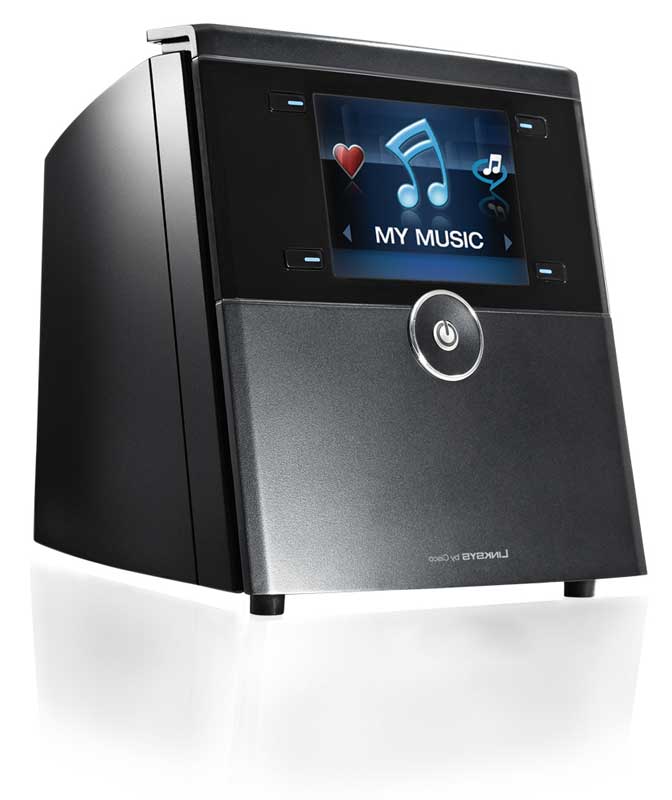 As
you can imagine "The Director", as Cisco labels this component, is
the brains of the Linksys system.
Appropriately titled, the Director orchestrates synchronization of music
files for your entire house. Music
begins by plugging in the power cord and connecting speakers. With a built-in 50 watt per channel amplifier,
the Director is designed to be connected to virtually any speaker or audio system
via speaker cables. On the rear of the unit you'll notice a pair of gold-plated
spring clips which will connect to any bare wire up to 16 gauge in diameter. Of
course, it can also connect to an amplified system through USB, S/PDIF
(TOSlink), dual RCA or even 3.5mm outputs.
The Director can also be linked with an iPod dock to allow direct access
to iPod songs that may not be on your network. We were very surprised (but
pleased) to find a dedicated subwoofer RCA output as well, so feel free to use
this with your existing subwoofer to give your music some kick (though we still
advocate running a digital output to your A/V receiver and using it's bass
management whenever possible).
As
you can imagine "The Director", as Cisco labels this component, is
the brains of the Linksys system.
Appropriately titled, the Director orchestrates synchronization of music
files for your entire house. Music
begins by plugging in the power cord and connecting speakers. With a built-in 50 watt per channel amplifier,
the Director is designed to be connected to virtually any speaker or audio system
via speaker cables. On the rear of the unit you'll notice a pair of gold-plated
spring clips which will connect to any bare wire up to 16 gauge in diameter. Of
course, it can also connect to an amplified system through USB, S/PDIF
(TOSlink), dual RCA or even 3.5mm outputs.
The Director can also be linked with an iPod dock to allow direct access
to iPod songs that may not be on your network. We were very surprised (but
pleased) to find a dedicated subwoofer RCA output as well, so feel free to use
this with your existing subwoofer to give your music some kick (though we still
advocate running a digital output to your A/V receiver and using it's bass
management whenever possible).

Controlling the Director is very easy. Through its clear 3.5 LCD screen, you are able to scroll through several different music sources with the provided Controller, four buttons on the front of the Director, or by linking the Director with the touch screen Controller remote (not included). On the screen several different audio sources are available, including any computer connected to Linksys, libraries of music, Radio Tune, and Rhapsody (30-day trial included with purchase of the Wireless Home Audio system). To help organize your music, you can create playlists and favorites.
The Player
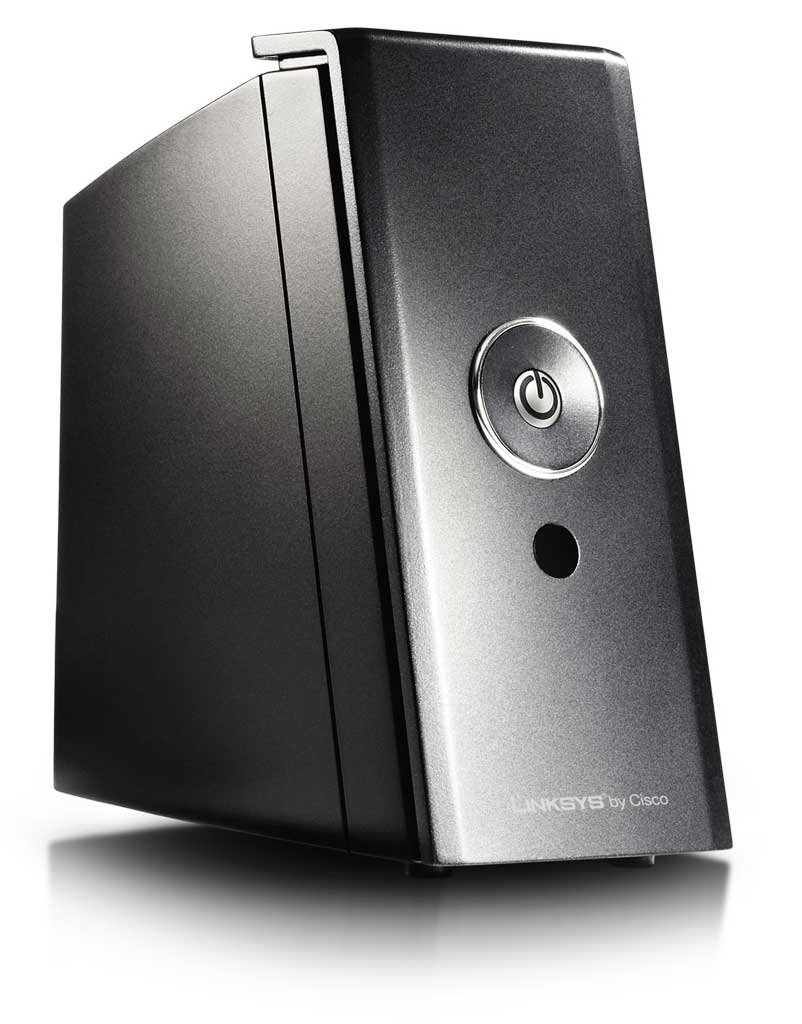 Expandability
of the Director comes into play with the "Play to" feature, where you
can link different rooms and control them through the Director. This is done through The Player which slaves
to the Director and acts as a remote music hub to distribute audio throughout a
home. A "Party Mode" allows
you to link up all systems in a network to provide the same source audio
throughout your home – perfect for parties. The Player is an extension of the
Director but with some major differences.
Unfortunately you cannot control content, skip songs or pause with The Player. You can only adjust volume with the provided
remote or separate touch-screen remote (not included). Audio outputs on The Player are limited to
S/PDIF, dual RCA, or 3.5mm.
Expandability
of the Director comes into play with the "Play to" feature, where you
can link different rooms and control them through the Director. This is done through The Player which slaves
to the Director and acts as a remote music hub to distribute audio throughout a
home. A "Party Mode" allows
you to link up all systems in a network to provide the same source audio
throughout your home – perfect for parties. The Player is an extension of the
Director but with some major differences.
Unfortunately you cannot control content, skip songs or pause with The Player. You can only adjust volume with the provided
remote or separate touch-screen remote (not included). Audio outputs on The Player are limited to
S/PDIF, dual RCA, or 3.5mm.

The Controller
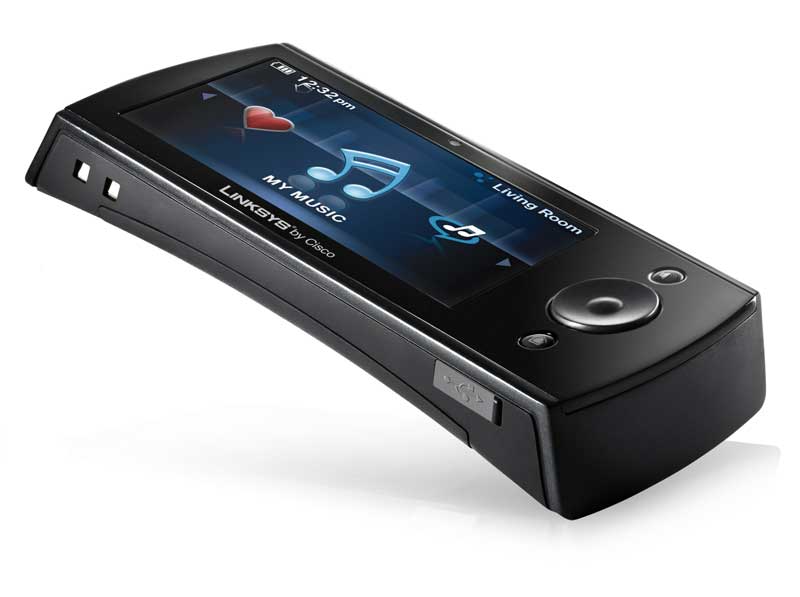 Because
you cannot control the Player except for volume, in order to change a song or
music source, you would have to be in the same room as the Director. That is,
of course, unless you have Linksys' wireless touchscreen remote control. Then you
can control audio wirelessly throughout the entire house via wireless
networking. The Controller is a hand
held remote that measures 6" x 3" x 1" and weighs about 2 lbs. Configuring and operating this remote is very
simple. Directions on how to configure
the remote to your network are the same as any other device in the Linksys
system, and configuring the screen requires you to touch the screen only
twice. As we mentioned, the Controller
operates on the RF band via your wireless network, so it is compatible with
802.11b/g and even Wireless n-draft networks.
Because
you cannot control the Player except for volume, in order to change a song or
music source, you would have to be in the same room as the Director. That is,
of course, unless you have Linksys' wireless touchscreen remote control. Then you
can control audio wirelessly throughout the entire house via wireless
networking. The Controller is a hand
held remote that measures 6" x 3" x 1" and weighs about 2 lbs. Configuring and operating this remote is very
simple. Directions on how to configure
the remote to your network are the same as any other device in the Linksys
system, and configuring the screen requires you to touch the screen only
twice. As we mentioned, the Controller
operates on the RF band via your wireless network, so it is compatible with
802.11b/g and even Wireless n-draft networks.
The Conductor
Another piece that is available for use with this system is the Conductor. While I did not have the opportunity to work with the Conductor it works on the same platform as the Director but adds speakers and a CD player for truly standalone use. The stylish Conductor is essentially an all-in-one wireless music center that is designed to receive and play digital music streams over your wireless network. Its built-in amplifier drives its built-in speakers. It includes a CD-player if you want to simply pop in a disc. The Conductor is light and easily portable, so you can move the Conductor from room to room wherever you want your music to play. It's good in the garage, perfect for the patio, and cool for the kitchen.
Linksys Premier Kit Setup
 Whoever
buys for today is a fool; it is the future we must look towards. Whenever we purchase an item we are wise if
we take into consideration the future.
If a car or a home is needed, two needs should be addressed; our current
needs, and the needs of our foreseeable future.
The same is true for our music.
We don’t want a music system that will be good for today and then gone
tomorrow, or at least I don’t. I want a
music system that can grow as I grow, change when I change.
Whoever
buys for today is a fool; it is the future we must look towards. Whenever we purchase an item we are wise if
we take into consideration the future.
If a car or a home is needed, two needs should be addressed; our current
needs, and the needs of our foreseeable future.
The same is true for our music.
We don’t want a music system that will be good for today and then gone
tomorrow, or at least I don’t. I want a
music system that can grow as I grow, change when I change.
Cisco, a leader in technology for over 20 years, seems to understand the need to expand and grow. Needs change; we are not the same person we were 10 years ago, or even last year. If I want a house be full of music one day, and the next, I just want to listen to music on my headphones, then so be it. That progressive adaptability is what the Linksys Wireless Music System provides. Linksys takes some of the latest wireless technology, asks you where you want music, and then responds, "I can do that."
Setup
For those of us who are somewhat technologically impaired, Cisco makes setting up the Linksys system a very easy process. Step by step directions are provided through an auto run CD that is provided with Director or Conductor. Simply insert the CD into your personal computer and Cisco takes care of the rest. Setup takes about 5-20 minutes depending on how many items you have to link to the Linksys system.
Upon inserting the provided CD, "Linksys EasyLink Advisor" program begins the process of filling your house with sound. Simple steps are laid out for anyone to understand.
Linksys EasyLink Advisor asks what device you would like to set up first. (I selected the "Director" to set up first, but you may select any component.) Selection of the component you wish to install is completed by simply clicking the image of the component. (If you are not sure what item you are installing, the screen also lists the Model Number for reference.) Once an item is selected, you will be able to rename that item, i.e. "Living Room Director", "Office Player" etc. Renaming the different components is a simple, but nice feature, because with potentially unlimited expandability with several Directors, Players… etc, confusion can set in.
After selecting what component of the Linksys system you wish to install, you will be asked whether you will be using a wired or wireless network. If using a wired network, directions on how to plug in the provided Ethernet cable and other required cables will then be given. If you’re using wireless, realize that the system supports the newest 802.11n draft format and can work with WEP, WPA encryption to ensure you can integrate it into just about any home network not controlled by the Department of Defense. We can’t help but compare this system to the Sonos Digital Music System, which we reviewed several years back. One of the chief differences appeared right here in that the Sonos continues to work off an older software and hardware networking platform, while the Linksys comes to market with the latest networking technology.
With our wired connection, once everything was connected, we clicked Proceed, and an auto detection of our network began. Linksys’ EasyLink Advisor will locate and configure each item to that network. Once installation and synchronization is finished with the first item you selected, you will return to the first installation screen so you can select a new device. Continue this process until you have installed and synchronized all components of the Linksys system.
In addition to synchronizing the Linksys system to your network, the EasyLink Advisor allows you to connect any computers that you have in the house. For multiple computer households, configuring to the Linksys system is identical. Make sure that the computers that you wish to add are connected to your network. After setup is complete, you may always add another component or computer at a later date.
Linksys Premier Kit Conclusion
Because the Linksys speakers were not yet available to us as of the time of this review, I connected the Wireless Home Audio Premier Kit to my sound system in both my living room and office. The sound was nice and clear - and with the 30 day trial of Rhapsody included with Linksys, I was able to expand my normal music library. Since I was using my own speakers, I could tell that the sound was crisp and clear. Navigating from different artists and songs was very easy with the use of the included Wi-Fi remote. There is something nice about having a powerful LCD touchscreen remote that can control, not only what you are currently listening to in your room, but also drive musical content to any other room in the home with the touch of a button.
To find music through Rhapsody, you are able to search for music, artist, genre, etc. by simply typing the letters via the number keypad on the remote. Much like texting on a cell phone, you slowly spell out who or what you are looking for and the system provides the search results. I did not have any trouble with wireless remote typing in the letters, but the remote included with the Director seem to delay every once in a while. I typed "Avril" for Avril Lavigne, but when the remote was not pointed directly at the Director, it turned out to be "Cuqik". Once I pointed the remote directly at the Director, "Avril" typed in correctly. This delay happened every once in a while, so if you have the option of the Wi-Fi touchscreen remote, we would recommend using that instead. Once I selected my artist or song, music began to play a few seconds later.
Conclusions and Overall Perceptions
The simplicity of Linksys makes it very easy to find music, save favorites, and create playlists. Setup was smooth and would be simple for just about anyone – significant, since getting audio throughout your home can be a complex task if not handled well. I appreciate the effort Linksys by Cisco put in to this system so that you do not need to be a "techy" to use Linksys. The sleek black finish is very appealing and will fit in any home. Small in size, no item is more than 3-4 pounds, making this system easily portable from room to room. You won’t need to worry about a lot of wires or complicated setup. It’s really accessible for anyone.
Overall this system was a lot of fun to use and I believe it would be a great addition to any home. Though the cost may be higher than some other wireless systems, because you can expand as you need, I believe the overall cost is priced very competitively. To keep costs down, start off with the Conductor, eventually add a couple of Players, and soon enough your entire house will be covered. The Wireless Music System expands when you need to expand. Whatever your current or future audio needs are, The Linksys by Cisco Premiere Kit has you covered.
Linksys
120 Theory Drive
Irvine, CA 92617
(800) 546-5797
About Cisco
Started in 1988 Cisco is
transforming life's experiences by helping people live a connected life that is
more personal, more social, and more visual. The Cisco Consumer Business Group
(CBG), formally known as Linksys, a division of Cisco, is the center of
expertise for Cisco's consumer business and go to market model, focused on
capturing consumer market transitions for growth. CBG develops products and
solutions under the Linksys by Cisco brand that target consumer and small
office/home office (SOHO) segments. The organization sells its Linksys by Cisco
home networking and networked entertainment products and services through
retail, online and consumer reseller partners.
The Score Card
The scoring below is based on each piece of equipment doing the duty it is designed for. The numbers are weighed heavily with respect to the individual cost of each unit, thus giving a rating roughly equal to:
Performance × Price Factor/Value = Rating
Audioholics.com note: The ratings indicated below are based on subjective listening and objective testing of the product in question. The rating scale is based on performance/value ratio. If you notice better performing products in future reviews that have lower numbers in certain areas, be aware that the value factor is most likely the culprit. Other Audioholics reviewers may rate products solely based on performance, and each reviewer has his/her own system for ratings.
Audioholics Rating Scale
 — Excellent
- — Very Good
- — Good
- — Fair
- — Poor
| Metric | Rating |
|---|---|
| Analogue Audio Performance | |
| Music Management | |
| Internet Radio Performance | |
| Streaming Media Performance | |
| Wireless Performance | |
| Build Quality | |
| Ergonomics & Usability | |
| Ease of Setup | |
| Features | |
| Remote Control | |
| Fit and Finish | |
| Performance | |
| Value | |
 Subscribe to our newsletter