


Escient FireBall DVDM-300 Review
- Product Name: DVDM-300
- Manufacturer: Escient
- Performance Rating:


- Value Rating:
- Review Date: November 24, 2005 18:00
- MSRP: $ 4999
Key Features
-
300GB internal hard drive for storing digital music files
-
Built-in CD-RW drive for playing, burning and ripping CDs
-
Store, secure, browse and play up to 1200 DVDs or CDs stored in Sony, Kenwood, or Pioneer CD/DVD changers
-
Simple and intuitive on-screen user interface for browsing, selecting, and playing movies, music, Internet Radio stations and for all system configuration and setup functions
-
Automatic DVD identification using Escient's MovieDB
-
Automatic CD identification using Gracenote CDDB® with cover art provided by AMG
-
PC File Sharing for transferring music files to and from a PC or Mac (includes support for iPod, Rio, and other portable players)
-
Web interface for remote control and music streaming via any standard web browser
-
PDA interface for controlling the DVDM-300 from any pocket sized web enabled device
-
Create custom playlists and genres
-
Music playback in repeat and random modes
-
Play any WMA or Shoutcast Internet Radio stations
-
Create and edit Internet Radio stations
-
Connects to other FireBall Music Servers to share music libraries
-
Record audio to hard drive from external changers or from any legacy analog or digital audio device (LPs, Cassettes, DAT, MD, etc.)
-
Built-in component video switcher for automatic changer selection and routing to your receiver
-
User selectable 16x9 or 4:3 on screen TV user interface
-
Gapless playback feature for classical and live recordings
-
Customizable User Interface skins for an exciting new look
Dimensions:
-
17 3/8"W x 11 7/8"D x 4 5/8"H
Supported Audio Formats:
-
CD-Audio, MP3, WMA, FLAC
Supported Changers:
-
Sony DVP-CX777ES 400 disc DVD/CD changers
-
Kenwood DV5050 and 5900 403 disc DVD/CD changers
-
Sony 200, 300, 400 disc CDP series CD-only changers
Pros
- It does everything you expect, many things you don't, and does them well
- Intuitive interface
- Impressive movie/music recognition system
- Unparalleled access for installers
- Humongous WOW factor
Cons
- No in-box wireless ability
- No multi-zone capability without additional purchases
- Flimsy CD tray
- Some fan noise
Escient DVDM-300 Introduction
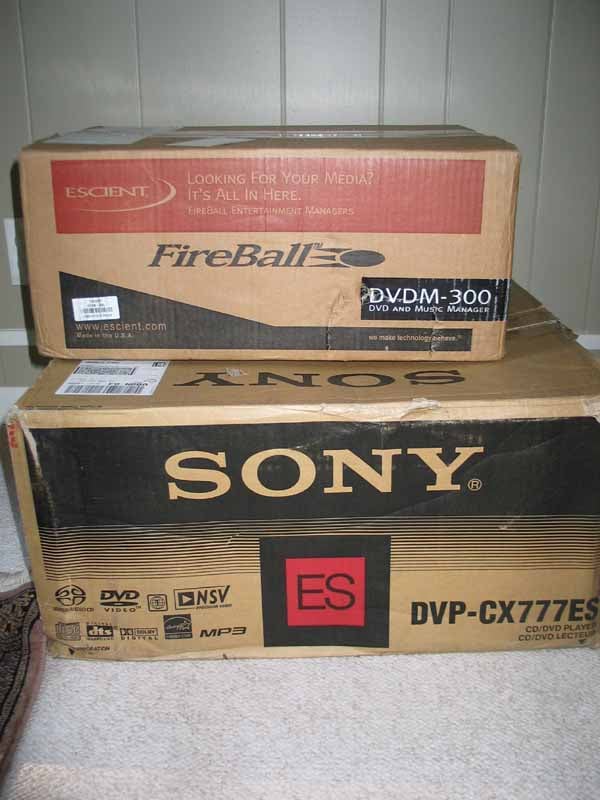
For those of you that have a wireless router in your home, you understand the joy that only a WiFi network can give. If you are like me, you also understand the frustration that integrating a router into you system can bring. Apparently, when I switched from DSL to Cable, something came askew and the computer wasn't recognizing the router. I don't know. I do know that it took me three hours on the phone with tech support to get the router working and three minutes with the FireBall to get it to work. User friendly? Plug and play? I think so. In fact, it bears mentioning that ALL (not some, not most) of my "problems"integrating the Escient FireBall into my system were from the computer side. Having a 5 year old computer with a history of (what can only be described as) psychotic behavior, has gotten me used to such occurrences. Heck, plug-n-play is practically non-existent in my house!
Escient DVDM-300 Build Quality and Set up
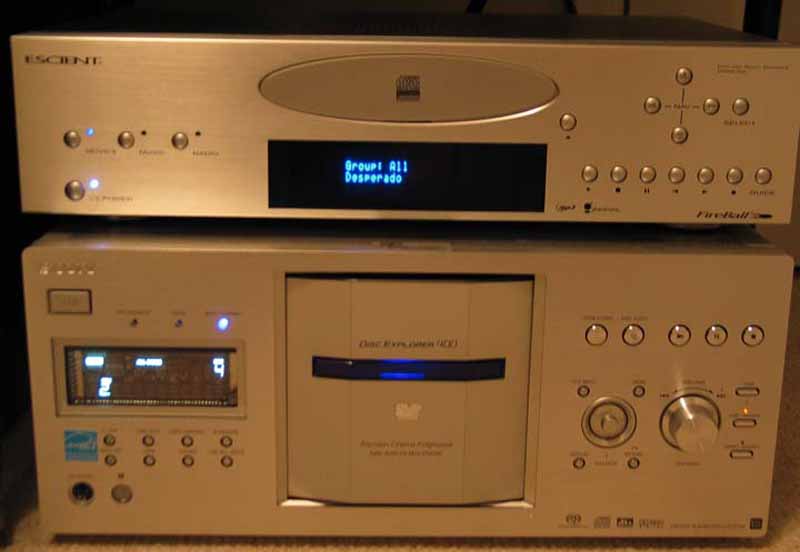
Set up - General
Can you hook up a VCR? This is slightly more complicated -but only slightly (about the same as hooking up a DVD player). Depending on the number of units you will be connecting for the DVM-300 to manage, you are likely to complete the process in minutes. Yes, I said MINUTES. The large, easy to follow Quick Setup guide is more than adequate to lead even the least tech savvy among us to successful FireBall integration. Note: You MUST have the unit connected to the Internet in order to access it. There is no getting around it. As I struggled with my router, I tried to power up the unit because... well, because it's a $5k box and I wanted to play with it. Without an Internet connection, you can't get past the first screen. The Escient doesn't have an internal WiFi card so a physical connection must be made. Once connected to the Internet, though, the setup takes... well, about a minute.
There is a user manual and available online support for the FireBall, but truthfully, the thing is pretty self-explanatory. Every menu is well laid out, the setup and option screens have easy to understand labels, and frankly, anyone that can operate a Denon 3805 (or program a VCR for that matter) is probably going to ignore the manual for the most part. Some of the functions that I "discovered" included:
- Using the included wireless keyboard, the first two letters you type will be used for a search.
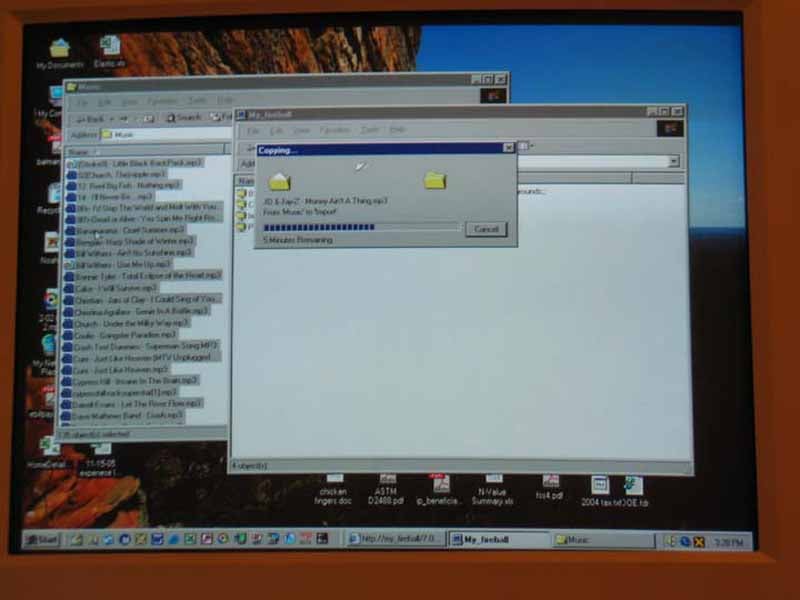
- If you have WiFi in your house, you can log into the FireBall, and control it (including all the setup and option menus). All you need to do is go into the options (using the keyboard or remote), select network , and give the FireBall a name. Type that name into the URL location on Explorer or Safari and whamo! You have all the control you would with the remote.
- When you control the FireBall with a computer, the display on the TV doesn't follow exactly what you see on the computer, allowing you to do things like watch a movie on the main system while browsing the movie library or making edits to other discs via the Internet UI.
- You need to have the unit on "display and play" rather than "record and eject" if you want to duplicate a disc. Otherwise you need to use the "create a mixed CD" option when recording.
- The guide followed by the menu/view buttons are your friends. Use them well, use them often.
Set up and Performance - Movies
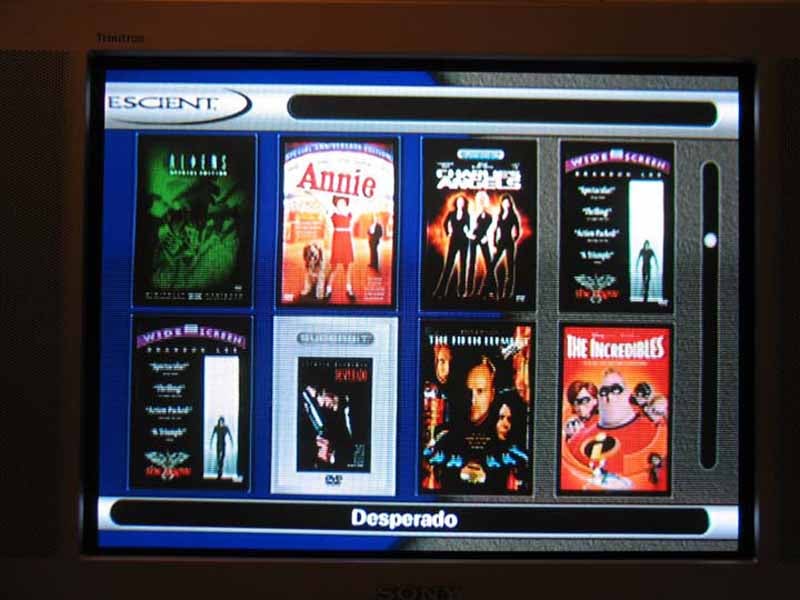
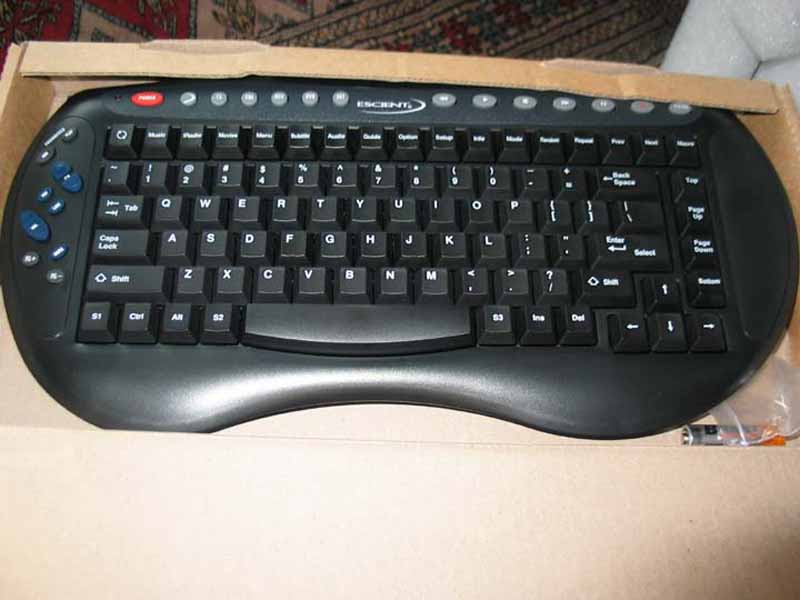
Setting up play lists or groups is easy enough; just name one, click on each of the movies you want included, and save. Simple. The one thing I would have liked to see was some ability to choose scenes from movies, however this is a limitation of the DVD format that cannot easily be overcome. I envisioned compiling a montage of explosions or deep bass or funny one-liners to use to demo my system. Would have been cool except that I really don't think there is a way to bypass all that anti-piracy FBI warning stuff at the beginning of discs. Oh well. It's a thought.
I really appreciated the fact that they included parental controls. All you have to do is set up a numeric password and choose the ratings that you are allowing. Then, whenever the kiddies turn the unit on, it asks if you want to enter the password for full access or if you want to enter as a guest. Pretty easy to implement and change if the kids wise up (and you know they will).
I questioned Escient about why they didn't include the ability to rip movies to the hard drive. Other than the space concerns (apparently, 300 gigs is not NEARLY enough space to rip an appropriate number of movies) the legal implications were the big hurdle. With piracy being on the forefront of the studio's minds, no one wants to put out a product that could be viewed as encouraging such acts. Once the hubbub settles down and DRM standards are set for protecting and/or transferring movies, I wouldn't be surprised if products like the FireBall to include this functionality -especially since the price of hard disc storage keeps dropping.
Escient DVDM-300 Set up - Music and Internet Radio
There are four ways to get music onto the FireBall:
Use the QuickFire CD ripping service
- Insert the disc into the FireBall (or an external changer) and let it rip it for you
- Drag and drop from your computer to the FireBall over your network (requires that the music already be on your computer)
- Record from an external source.

Well, I wasn't using the QuickFire CD ripping service (it seems that unless you have an inordinately large catalog of music, an excess of money, or a little of both, this would be a bit extravagant). I know that I, since the illegalization of Napster and the clones, have officially stopped downloading content from free sites. I also know that I tended not to download anything I already owned, so in my case nearly all my CDs would have to be ripped (not a small number). There are a number of different options (MP3-128, -160, -192, -320, and FLAC) for storing music on the 300 gig internal hard drive of the FireBall with the most compressed (MP3-128) giving around 5000 hours of storage and the least compressed (CD quality lossless FLAC files) allowing about 850 hours. I grabbed a random disc and loaded it using every one of the available storage options, none of them ripped significantly faster than the other (most between 3 and 4 minutes). You can load all your discs into a changer (Sony DVP-CX777ES 400 disc DVD/CD changer, Kenwood DV5050 and 5900 403 disc DVD/CD changers, or the Sony 200, 300, 400 disc CDP series CD-only changers) and either let the FireBall manage them from there (like the movies) or have it rip any one, any range (discs 5 though 100), or all to the hard drive.
So, in my impressionable youth, I worked briefly for a record store (a chain out in California, now defunct I think). One of the things that manufacturers would do is to send free discs for the crew (often identified by holes punched in the cover) and demo discs (often a subset of the best songs, pasteurized if needed) to be played over the store's speaker system. I have one of these discs from those days that I used as one of my two "ringer"discs. The FireBall, using Gracenote as its identification database (it uses AMG for the cover art), easily identified at least the title, artist, and song list, and usually the cover art of everything I threw at it. With a sick grin on my face, I stuck the demo disc in the FireBall. Much to my surprise, it was picked up! It didn't get the cover art (I'm not sure if there ever was any) but it got the artist's name, album info, and all the songs. Pretty impressive. It didn't find my second ringer, "Isaac the Procrastinator,"a giveaway from Chic-fil-a. Hey, given the completeness of the database, they will probably have it added before too long!
The default for the FireBall is to play the disc that is loaded into
the machine.
This is easily reconfigurable from the setup menu allowing you to choose to
immediately rip the disc and allowing you to choose the format.
I would have preferred to have it
default to "rip"as that is most likely the first use of the machine, but I agree with the logic:
If
you make the user choose rip, they are forced to pick a format.
Later on, it can be switched to
auto play once you've ripped your library (honestly, with only a 3 minute rip time, I don't see why you
wouldn't rip every disc).
I've toyed with the idea that it should ask you if you want to auto-play
or rip when you insert every disc but decided it would be more annoying than setting a default.
Personally, it is kind of a catch 22, no matter what way Escient went, someone would complain.
In
my opinion, I like setting the default and forgetting about it.
The last method of getting content onto the hard drive is to record from another source. That's right, you can take that old tape deck or record player or any other "real time"source and move all that content over to the Escient! All you have to do is hit the record button, select "record from an external source,"set the record time, and hit play. Then you can name it and even search the Internet for its cover art.
The content is viewable by artist, title, song, genre/user defined
groups, and cover art (the artist name, title, label, year, and track names are all modifiable).
You can select individual songs or select an entire album to play by pressing PLAY while the Album Title
is selected.
You can also select the entire contents of an album when building a Playlist or
selecting tracks to rip, by using the TOGGLE key on the remote (the double spinning arrows key).
A
small quip I had was that, while there are the standard repeat (track/title/group) and random
(title/group) play options, you couldn't do them both - it was either one or the other.
The FireBall is also capable of burning playlists to CD, copying a CD from an external changer or the internal drive, or even recording to a CD from the external analogue inputs. It can burn either music CDs (redbook-compatible) or data CDs for FLAC or MP3 files. It burned the CDs (at FLAC) in about 8 to 10 minutes. Granted, it was not the fastest CD burning experience I've ever had, but it worked. It can also manage CD-RW's allowing you to add or delete content at a later date.
Set up and Performance - Internet Radio
The
FireBall comes preprogrammed with a number of Internet Radio stations, many of which those of you who use
this type of service will be familiar with.
These are separated by genre for easy access.
Of
everything I have covered so far, this is the only function that required a broadband connection.
While I use a cable modem, it is not the "top of the line"highest speed connection you can get (honestly,
it was the connection speed they were having a special on at the time I signed up).
I've
experienced Internet Radio in the past and, while less than impressed with its quality, I was impressed
by its ability to send me EXACTLY the music I want to hear -for free
舰
at least until they starting
charging for it
舰
at which point I stopped listening to it.
Up until now, my experience has
been that Internet Radio stations tend to have random pauses, breaks, and other such artifacts that I put
up with because it was free.
I can honestly say, the FireBall delivered the best Internet Radio
experience I have ever had.
The one thing I wanted to explore in particular was the ability to program in new stations based on my personal preferences. You can have the FireBall scan for stations, and it comes back with a good cross section of station types. But if you are into a specific type of music/station, you are going to have to do a little research. The menu screen for this is easily accessible (as is most of the functionality of the FireBall) but finding a station that you can add proved more of a challenge. Once I got the correct URL, it connected right away and was stored in memory even if I had it rescan for stations (I assumed it would wipe out the ones I entered, but it didn't). Basically, once you find the URL for the station you want (thanks Clint for providing a great link), you give the station a name, location (both can be made up), the URL, and the connection type/speed. Press save and BAM! you are done. Simple, easy, and intuitive. I will note that using a laptop, or in this case my desktop, made entering the stations a breeze. Surf in one window; enter in another 舰 use the mouse instead of the arrow keys, lots of copying and pasting opportunities that are not available using the remote, etc.
Set up and Performance - Other
Another feature that I thought was a really nice touch is the ability to print out your play lists for movies, music, and even Internet Radio. Lets face it, there are plenty of people out there that print out every single email they receive (paperless office, yeah right). For those, the ability to view a hardcopy list of everything on the hard drive speaks exactly to their needs. From the option menu in each of the three categories, simply select the "print X library"and out pops a page that can either be printed or PDF'ed.
When they told me I could access the FireBall of the Internet and listen to my music from a
remote computer (read: work
舰
heh, heh, heh) I was
舰
intrigued to say the least (rubs hands
together megalomaniacally).
Truly, of all the functionality I expected from a music/movie server,
this was unexpected.
Unfortunately, I wasn't able to test this functionality as it was meant to be
utilized (see sidebar), but the streaming from the Escient to a computer on the internal network was as
effortless and intuitive as everything else.
Feedback from Escient
The FireBall can be accessed via the Internet by enabling your router to forward the IP address of your FireBall via port 80. This is called port forwarding and there should be a setting in your router for doing this. Once you have setup the port forwarding in your router then you can enter the IP address of your router from any location on the Internet. You can also put the web interface into Streaming Client mode so you can play the music on the FireBall to the remote location. Do this by clicking the Setup button in the FireBall web interface and then selecting the Web Client Mode link.
Installers take note: You can set this system up in a client's house and have ALL the same access to the menus and option screens that they do. No more house calls because Mr. Moneybags can't figure out how find his jazz play list and he has guests coming over in an hour. Connect to the system from your computer, switch it to music, find the play list, and hit play. That, my friend, is convenience! The only drawback that I can see 舰 overdependence of clients. Suddenly Mrs. Ilosttheremote has got you on the phone twenty times a day. Solution -charge by the incident, not the hour. Watch the money roll in.
Since the Escient FireBall is really meant to be controlled with either third party products (AMX, Creston, etc.) or via your laptop or PDA, the remote deficiencies are kind of excusable. I mean, come on, who is going to drop $5k on a music/movie server and NOT have a touch screen remote? I mean other than me, that is? The remote works fine, it is utilitarian, it lights up, and it is black. The writing is a bit small and the buttons are too close together and too small but I really think the remote is only to be used during the initial setup and then replaced by something else. My vote? For set up issues (especially setting groups and radio stations) the laptop. You can do things a lot easier. The remote (or preferably some sort of touch panel remote) is more than enough for day-to-day operation. The LEFT arrow key will automatically back you out of whatever screen you are on while in the Setup or Options menus. Also, there in no scrolling ability via the wheel on a mouse 舰 you have to hit the down arrow (not on the keyboard, on the screen). Minor points.
If there is one knock I have against the FireBall other than the lack of in-box wireless access, it is the lack of multi-room support in the box. There is, however, the ability to add FireBall MP-150 multi-zone players. There are several advantages to this approach. 1) You can add as many zone players as you want (which play up to 5 simultaneous streams from one server), 2) Each MP-150 provides independent control and GUI browsing from each zone, and 3) digital audio outputs are provided for each zone (unlike analogue-only systems). These are some cool options, but it does mean another purchase has to be made in order to get sound to a second zone. Many $500 receivers have a Zone 2 audio output with discrete source selection and we'd love to see this on future products from Escient to make the system a bit more flexible for small multi-room use. When combining servers, each box is additive - meaning it all looks like one network. So if you have 80 GB of music on your SE-80 and 300 GB on the DVDM-300, from the user's standpoint, it all looks like one 380 GB database. The two servers are completely interlaced. You don't have to search one and then another.
The last two features that really deserve a mention are the customizable GUI and the backup capability. Sometimes, it's the little things that make a difference. While many may be content with all speakers being black boxes, the first company that gave us a choice of real wood (veneer or no) made the consumers slap their collective foreheads saying, "Duh, why didn't someone think of this before!" Someone over at Escient said, "You know, the thing is hooked up to their computer anyhow, why don't we let them set their own background?" And someone else added, "Yeah, and why don't we let them set their screen saver to display their own pictures?" It's those simple yet intuitive touches that really make the difference between a good product and a great one. (Note: backgrounds should be 720 x 640 and less than 500k, and screen saver pictures must be less than 500k.) It would have been nice if you could choose a global background theme or set instead of having to change all 11 screens individually. Also, oddly enough, I couldn't find this customization screen on the computer interface where it would have been easiest to manage. (Escient has informed us that this feature will be available at a later date via the automatic software update feature built into every Fireball product.)
Escient DVDM-300 Conclusions and Overall Perceptions
To put it in the lingo of the kids these days, the FireBall DVDM-300 is crazy mad cool (ok, I don't know how the kids talk). Translation -I was completely blown away by this box. Is it expensive? Yes. Is it for everyone? Probably not though I don't know a single person that wouldn't want one. For the serious videoholics that are considering an addition onto their house for storing their movies, the Escient FireBall DVDM-300 is a serious contender and perhaps more cost efficient than other solutions (including high-quality, high WAF storage furniture). No more worries or scratched discs. No more searching your shelves for the right movie. Plus, the convenience...I can't explain how much easier it is to manage your movies this way. The minute I loaded only 20 movies into the 400-disc changer, I forgot what I had loaded. Keeping a pencil and paper list or spreadsheet sounds more like a punishment than a convenience. The FireBall makes such headaches a thing of the past. If you've got the money, and more importantly the MOVIES, this product makes life a WHOLE lot easier for you. The Escient FireBall DVDM-300 does things you didn't know you needed - but once you have them, you'll wonder what you ever did before.
A quick note about the Value rating on this product: For not a few of us, this product may seem way out of a price range. The fact is, this is a specialty niche product that is really targeted towards custom home theater installers. When viewing the product in this light, its value rating takes on new meaning. The fact that the Escient can be accessed from off-site alone gives the custom installer an unparalleled ability to service their clients. Add to that the nearly bulletproof and intuitive nature of the interface, and it is hard to say that the Escient is anything but a stellar value.
The Score Card
The scoring below is based on each piece of equipment doing the duty it is designed for. The numbers are weighed heavily with respect to the individual cost of each unit, thus giving a rating roughly equal to:
Performance × Price Factor/Value = Rating
Audioholics.com note: The ratings indicated below are based on subjective listening and objective testing of the product in question. The rating scale is based on performance/value ratio. If you notice better performing products in future reviews that have lower numbers in certain areas, be aware that the value factor is most likely the culprit. Other Audioholics reviewers may rate products solely based on performance, and each reviewer has his/her own system for ratings.
Audioholics Rating Scale
 — Excellent
- — Very Good
- — Good
- — Fair
- — Poor
| Metric | Rating |
|---|---|
| Standard Definition Video Performance | |
| Build Quality | |
| Ergonomics & Usability | |
| Ease of Setup | |
| Features | |
| Remote Control | |
| Performance |  |
| Value | |
As Associate Editor at Audioholics, Tom promises to the best of his ability to give each review the same amount of attention, consideration, and thoughtfulness as possible and keep his writings free from undue bias and preconceptions. Any indication, either internally or from another, that bias has entered into his review will be immediately investigated. Substantiation of mistakes or bias will be immediately corrected regardless of personal stake, feelings, or ego.
View full profile Subscribe to our newsletter