


GefenTV Wireless HDMI Extender 5 GHz Review
GefenTV Wireless HDMI
- Product Name: GefenTV Wireless HDMI Extender 5Ghz
- Manufacturer: Gefen, Inc.
- Performance Rating:


- Value Rating:
- Review Date: June 18, 2009 05:00
- MSRP: $899.00
- Frequency band range: 5.1 - 5.8 GHz
- HDMI: v1.2a
- Supported Resolutions: 640x480, 800x600, 1024x768, 480i, 480p, 576i, 576p,
- 720p, 1080i and 1080p@30Hz
- Distance Rating: 100 feet
- Operating humidity: 10% to 90% relative humidity, non-condensing
- Power Supply / Consumption: 5V DC / 13W (max)
- Dimensions (Sender & Receiver): 6.5" W x 1.5" H x 6.5" D
- Dimensions (Plastic Bases, Each): 3.4" W x 0.8-1.1" H x 8.5" D
- FCC Compliancy: Part 15
- Shipping Weight: 10 lbs.
Pros
- Up to 1080p/24 high-definition video can be displayed
- Plug 'n play operation
- Stable video signal
- Can handle fairly long distances
Cons
- A bit costly
- No controls to "tweak"
- Physical placement and distance can affect performance
- "Daisy-chaining" the video source signal can slow initial linking and affect performance
GefenTV Wireless HDMI Extender Introduction
Can you dig this? I hooked up a wireless, high-definition transmitter and was watching HD movies and TV in less than 15 minutes. If you're surprised, imagine how I felt. I had approached reviewing this GefenTV Wireless HDMI Extender 5Ghz with extreme cynicism; after all I've seen plenty of these devices demoed at Consumer Electronics Shows. First there'd be the elation - wow, no wires! Then the exclamation - wow, you mean I can really just hook up my Blu-ray player or Dish HD satellite Receiver and send up-to-1080p/24 frames per second video over to my front projector or HDTV some 100 feet away? But then there'd be the dejection - what do you mean, it's been delayed again? That this GefenTV is actually shipping doesn't remove any of the questions except the last, but at least that means I can try it out in the "real-world" and not at some trade event or controlled setting.
GefenTV Wireless HDMI - Is Wireless HD Possible?
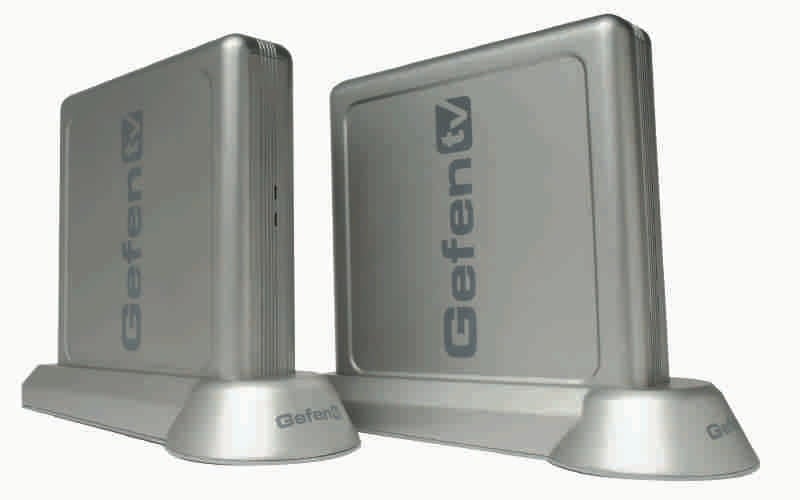 So there I was, holding the lightweight and slightly larger than a paperback book-sized Sender in one hand and the Receiver in the other. At $900 for the set, it isn't cheap, but more important is whether it can actually do the job. And for that to happen, that meant no video freezing up or blanking out. Or any hiss stuttering or loss of audio either (although that's a lot easier to get right than video). Which brings me to one of the key issues that has been holding back other companies from bringing devices like this out: interference. The technology that's doing the heavy lifting has to not just perform, but perform consistently in an environment that's filled with EMI (electromagnetic interference). As in coming from wireless networks, cell phones, microwaves, cordless phones, you name it. And add on all this coming from neighbors as well for apartment dwellers.
GefenTV uses wireless 802.11n to do its thing and operates in the unlicensed 5 GHz band to transmit HDTV. The tech folks at Gefen say that this is a dependable technology, compared to all the hoopla of using lasers and so-called futuristic choices. And I'm also told that the technology is robust enough to deal with issues like EMI. We'll see.
GefenTV Wireless HDMI Setup and Config
 The included manual is miniscule and better served by being downloaded as a PDF from Gefen's website. Basically everything you need to know becomes obvious as you put the various parts together. To begin, nothing on the units indicate which is which, but it's pretty obvious which is the Sender and which the Receiver once you look at the connections on back. The Sender has a HDMI output and a plug for power, while the Receiver has a HDMI input, plug for power as well as left/right analog audio outputs (note: this output is only active when the audio being carried along by the HDMI source is 2 channel LPCM).
The GefenTV is HDMI 1.2a compliant and supports multichannel 5.1 audio and PCM through HDMI. Both Sender and Receiver have a front Power light and runs off of a 5V power adapter (there is also a Link light, but more on that in a second). The AC plugs include multiple taps for use in various countries, and it's easy enough to seat the correct plug, just remember to remove the protective insert that's already in place first. Also included is a pair of stands that the Sender/Receiver can be easily fit into. While this makes the units stand vertically, I don't have any problems with the small footprint created. And I agree with Gefen's suggestion that this placement lets the radios function at their best (my experience in the past with standard-def wireless transmitters having shown this to be true). Finally, a good quality HDMI cable is included for connecting to the Sender. By the way, the cable, power supplies and Sender/Receiver come in a compact and nicely designed box for storing the unit or, as is more likely, as a sensible way of transporting everything from one location to another.
Both the Sender and Receiver use a Mode button to toggle between Unicast (one Sender/one Receiver) and Multicast (one sender/up to 5 Receivers). A green power light indicates Unicast while red designates that Multicast has been selected. As I only have one Receiver anyway, I selected Unicast mode. My living room setup consists of a number of video and audio sources connected via HDMI to a Yamaha AV receiver. An HDMI cable then snakes from the Yamaha's HDMI output to a front projector about 20 feet away. I plugged the output from the receiver to the Sender's HDMI input and inserted the AC plug (both Sender/Receiver are always on as there's no on/off switch). I then went over to the front projector which sits on a small table and moved it farther back - making the distance from the Yamaha receiver now greater than 50 feet. I took the HDMI cable coming out of the GefenTV Receiver and plugged it into the projector's HDMI input (and of course plugged in the AC for power). I then switched everything on in the order Gefen specified: first the Sender/Receiver (which are already on, as is the Yamaha), then the display (in this case the front projector) and finally the video source, the BD player. The Link LEDs on the front of the Sender and Receiver started blinking rapidly - meaning that they were searching for each other. This was an automatic process.
GefenTV Wireless HDMI Use and Conclusion
As the Blu-ray disc started to play, this blinking slowed down to indicate that a connection was being established between the two units (including HDCP authentication). In less than a minute both units were displaying a solid blue light indicating that the picture was being sent through. This was echoed by the projector, now warmed up, that showed the splash screen for Star Trek Season 1 (the original series).
I let the disc play for about 40 minutes. It was a quiet Saturday afternoon, but my apartment neighbors were home and using their WiFi networks (as was I). I didn't encounter any interference coming from that. I walked around the room using my cell phone, talked a bit on my cordless phone and even made popcorn on the microwave in the kitchen nearby. The picture continued to look fine - I didn't see any glitches or problems with the video that a cable would have obviated. I also played recorded 1080i HD television from my Dish Network HD DVR satellite receiver. The new HD opening of the Simpson's looked great and I was hard pressed to find anything to complain about in Bart's yellow complexion. I did have one small video failure during the 4 hours of watching when a truck rumbled by outside. As it did, the picture started having little bursts of static which lasted for about 20 seconds. The Link lights also blinked a bit before going back to solid. Whether the truck's passing was a coincidence or there was actually a momentary power glitch that affected the Sender/Receiver is unknown. Not having them on an uninterruptible power supply (as were the Yamaha and projector) made this a distinct possibility. All I do know is that for the majority of time the picture looked as good as if it had been hard-wired.
Now I wanted to see how well the GefenTV would work with physical barriers between the Sender and Receiver. To find out, I left the Sender where it was but took the Receiver into the bedroom. The two units were now separated by an interior stud wall, with the receiver in a smaller space with computers and A/V equipment that could add to the interference. With everything turned off again, I attached the Receiver to one of the HDMI inputs of my Samsung rear-projection HDTV. I then powered everything up again in the correct order. I didn't see anything on the Samsung other than some bursts of color. As I don't think I had overreached the distance, I turned everything back off and then on again. This time I saw the HD television picture from the living room on the HDTV. I could also hear it fine as well, though it was just stereo coming from the built-in speakers. I went back to the living room and put the movie Fargo in the BD player and switched to it.
Returning to the bedroom, I spent some time viewing scenes and listening to the 5.1 soundtrack through my home theater speakers. I also played The Dark Knight in its entirety and couldn't find anything to point to or differentiate it from being played through a cable (those high-def close ups of the Joker are killer!). Interference never came up - although I did lose the picture once when I accidently kicked the Receiver. I couldn't get it to re-sync by just unplugging/plugging the power back in and instead had to turn everything off and go through the startup process again. Lesson learned.
I repeated these two tests in the living room and bedroom over the course of a week without losing the video or audio or having any kind of glitches that denoted interference. But it does seem fair to say that using the GefenTV in an "open" space - one free of walls - pretty much insures that you'll have a good video signal, especially when the strength of the video source is in question or sheer distance is taken into consideration. Gefen's tech also pointed out to me that the more devices in the chain that must pass the HDCP handshaking, the longer the initial linkage time will be. So I took and attached the Sender directly to the Blu-ray player and started everything up again just to see whether it would come "up" faster. The answer is that it did on average link up about 20% faster. I expect this could also provide for a more stable video signal, so keeping down the number of devices passing the video into the Sender is probably a good thing to do in general if you can.
It should be noted that the GefenTV is listed as being HDMI version 1.2a. Gefen did point out to me that while it is compliant with all HDMI specifications and backwardly compatible with version 1.3 (supporting such functionality as Deep Color), the bandwidth has been limited to 8 bit instead of 12. Still, I didn't find anything glaringly obvious about the difference in the quality or color of the picture I was watching compared to my normal cabled experience (my projector has 1.3, while my HDTV is 1.2).
Now since the GefenTV's "Broadcast mode" allows for multiple Receivers (up to 5) to receive the same transmission, you might think it would be well suited to use for sending video to two or more locations at the same time. Unfortunately that's a no-go with any copyrighted material since the mode doesn't allow for HDCP copyright protection (as is found in the single Unicast mode). Since the Receiver's ability to lock into the Sender is such a no-brainer, it's no big deal to physically move the Receiver from one place to another - certainly a lot easier to do than say, moving a Blu-ray player from one room to the other. Practically speaking, I'd have to say that an additional receiver (at $599) is more useful for commercial applications; for example, running signage or adverts on a few displays in a store.
Conclusion
For sure the GefenTV isn't for everyone. If your HDTV isn't wall mounted or your A/V components aren't separated away from the display, there's little need to pay this price just to hide the cables. But if you're looking to cut loose without giving up on HD, it sure beats running cables under carpets or along baseboards, or poking holes in walls or ceilings (dare I mention fireplaces?) So while it might be called a "one-trick pony", it's fair to say that the GefenTV does a competent job of delivering high-definition video and multi-channel audio through the airwaves. And it's definitely convenient for those who just want the process to work without having to be fussed over or constantly tinkered with.
About Gefen
A leader in the audio/video connectivity industry, Gefen delivers advanced technologies with multi-platform extension, switching, distribution and conversion capabilities. Gefen equipment is valued around the world in professional A/V, information technology and consumer electronics/home theater environments. Their add-on hardware maximizes functionality by enabling systems to operate beyond their original capabilities. A selection of high quality cabling is also available. Visit www.gefen.com for detailed product information.
The Score Card
The scoring below is based on each piece of equipment doing the duty it is designed for. The numbers are weighed heavily with respect to the individual cost of each unit, thus giving a rating roughly equal to:
Performance × Price Factor/Value = Rating
Audioholics.com note: The ratings indicated below are based on subjective listening and objective testing of the product in question. The rating scale is based on performance/value ratio. If you notice better performing products in future reviews that have lower numbers in certain areas, be aware that the value factor is most likely the culprit. Other Audioholics reviewers may rate products solely based on performance, and each reviewer has his/her own system for ratings.
Audioholics Rating Scale
 — Excellent
- — Very Good
- — Good
- — Fair
- — Poor
| Metric | Rating |
|---|---|
| Audio Performance | |
| Video Performance | |
| Network Features | |
| Stability | |
| Build Quality | |
| Ease of Setup/Programming/Integration | |
| Features | |
| Fit and Finish | |
| Performance |  |
| Value | |
 Subscribe to our newsletter