


Video Processing in DVD Players, Receivers and Displays
Video Processing Decisions
It has come to our attention many times in the past that people are generally confused about video processing. They are confused about which components are responsible for doing what, and they are confused about which products should receive the most attention. If you are confused - you're not alone. If you don't think you're confused, you probably should be. Let's take this scenario:
Joe has a high-end DVD player connected to his high-end receiver. He also spent tons of money on a brand new standalone video processor that feeds to his top of the line front projector.
To test your knowledge of video processing, here's a question: When Joe presses 'Play' what happens? Which component is doing the deinterlacing? Which one is scaling the image to the projector's native resolution? Which one is providing noise reduction?
Don't know? That's OK - Joe doesn't either. You see, he was convinced he had to buy the very best of everything. And as a result - he's got some very nice pieces of gear… but much of the processing that goes into the cost of that gear is going unused - at least potentially.
This article is going to quickly (and we hope "simply") go through the process of explaining how and why you will utilize video processing in your AV components - and when you should be concerned about video processing and when you can get by with spending a little less. We'll do this through the use of examples and generalizations that can be applied to your own equipment. With the right amount of A-B testing we'll help you to see for yourself what each component should be doing and simplify the process of finding out how to get the best performance out of your own system.
Definitions:
- AV Processor - Any component or part of a component that changes the
incoming or source video signal in any way shape or form. This can involve
taking it off of a medium like a hard drive, DVD or HD-DVD or a dedicated
unit that does fancy noise reduction and scaling. All displays are video
processors of some sort as they all need to process the incoming signal to
ready it for display on the screen.
- AV Receiver/Processor - A component which takes audio
and video inputs and routes audio and video to the display and speakers
(respectively). It may or may not include amplification or the ability to
handle digital (HDMI) video. The newest and most feature-rich AV
processors have been adding many more video processing features of late,
leading to enhanced capabilities which have to be used carefully.
- Deinterlacing - This is the process of converting an interlaced signal
(like that found on a DVD or in many cableTV signals) to progressive scan
demanded by most HDTVs and EDTVs. The tricky part is that DVD sources are
stored at 24 frames per second and video plays back primarily at ~30
frames per second. To do the conversion, video processors must correctly
convert by using "pull down" technology to interleave (combine)
fields (every other line of a frame of picture) and create an image that
is smooth and error-free.
- ABT/DVDO - Anchor Bay Technologies DVDO video processing systems.
DVDO processing is available within other AV hardware or as a standalone
unit.
- Gennum/VXP - "Visual Excellence Processing" from
Gennum. This technology is available within other AV hardware or as a
standalone unit.
- Silicon Optix/HQV - Hollywood Quality Video processing. This is video processing
provided by Silicon Optix. HQV processing is available within other AV
hardware or as a standalone unit.
- Scaling - This is the process of taking an incoming video signal and changing the output resolution to match a particular set of dimensions. This can be to fit a display's native resolution, or to ready the signal for an anamorphic lens that projects onto a theatrical widescreen presentation.
How to Determine if HDTV or Source is Doing Video Processing
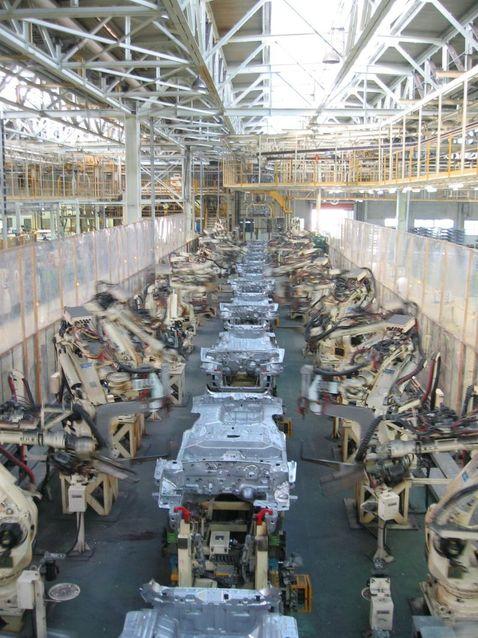 Imagine an
assembly line staffed with people who all have the same or similar tools and
all of whom, to varying degrees, want to do that same task… Now start up the
belt and send a product requiring some bolts and rivets down the line. As the
product flows down the assembly line everyone has the potential of filling any
number of holes with bolts or rivets. But if the first person in the line fills
a hole - then the rest of them can no longer work on that particular area -
they have to see if there's another place that needs work. That's the picture I
want you to put into your head about video processing. Now let's go back to the
original example.
Imagine an
assembly line staffed with people who all have the same or similar tools and
all of whom, to varying degrees, want to do that same task… Now start up the
belt and send a product requiring some bolts and rivets down the line. As the
product flows down the assembly line everyone has the potential of filling any
number of holes with bolts or rivets. But if the first person in the line fills
a hole - then the rest of them can no longer work on that particular area -
they have to see if there's another place that needs work. That's the picture I
want you to put into your head about video processing. Now let's go back to the
original example.
Joe has his fleet of top notch components. All of them provide video processing and they provide it very well… but how many times can a signal be deinterlaced? Just once (ignore any exceptions to the rule for now.) How many times will an image need to be scaled to match the native resolution of the projector or display? Just once. Hmmm… so why pay all that money for the best video processing in every single component? Well there are reasons for buying top quality products, but it wouldn't be solely for their ability to do the same types of video processing. Let's break down a worst-case scenario:
Scenario 1: DVD > Receiver > Processor > Display = What a Waste!
- Our high-end Upconverting DVD player w/HQV Realta processing is not only deinterlacing - it's performing noise reduction and scaling as well! And it's doing a fine job of it. Output: 720p.
- The AV Processor/Receiver is a new unit that provides HDMI scaling and upconversion as well with premium video processing built in. Guess what - it's not doing a thing to the signal since the DVD player is feeding 720p signal to the receiver. Output: Passed-through 720p.
- The Processor/Receiver is also top-of the line and has an on-board DVDO scaler. While it may be useful for feeding additional inputs into it and handling video processing for other sources, the 720p output from the receiver (which was the same signal sent from the DVD player) isn't being touched but merely sent on to the display. Output: The same passed-through 720p. Ouch.
- The Display is a native 720p unit with an integrated Gennum VXP processor that is not doing anything other than displaying the input signal as received. All of the video processing built into this unit is completely bypassed.
So what's the result of Scenario 1:
- DVD Player - Upconversion & Scaling to 720p
- Receiver: Pass-through only
- Video Processor: Pass-through only
- Display: No processing or scaling
Scenario 1 has the DVD player doing virtually ALL the video processing and all other components merely passing the signal on through the chain to the display. If we take nothing else into account but DVD playback for this system, then there is no reason to have anything other than a DVD player, mid-level receiver and display. Video could be sent directly to the display or sent through an HDMI switcher on its way to the projector or display while audio is routed separately to the receiver. The presence of a video processor, while handy for cableTV and scaling other sources, is completely useless in this focused example. But let's look at another scenario:
Scenario 2: DVD > Receiver > Processor > Display = What a Picture!
- Entry level 480i DVD player w/clean 480i output: This transport is economical and has good clean 480i output (and believe us that's not always easy to find). Output: 480i.
- The receiver is a mid-level unit whose real purpose is to provide excellent audio quality, not provide fancy video conversions. Output: Passed-through 480i or bypassed altogether.
- The Processor is a top-of the line model from Gennum, Silicon Optix, Anchor Bay Technologies or another company. It is doing what it does best - processing the incoming video signal, deinterlacing, and scaling the output for the projector. Output: Processed 720p.
- The Display is a good quality 720p unit that has good black levels and excellent color accuracy. All of the video processing built into this unit is completely bypassed - on purpose.
So what's the result of Scenario 2:
- DVD Player - Provides clean 480i source
- Receiver: Provides excellent audio quality and video pass thru
- Video Processor: Performs deinterlacing and scaling to 720p
- Display: Provides excellent black level, detail and color accuracy.
Scenario 2 simply has each component performing to the best of its ability in a way that makes fiscal and "system" sense. Having the entry level 480i player provides a solid source for the video processor to work with. The receiver is focused on audio and the display was purchased so that the processed signal would be displayed with all of its maximized potential. Scenario 2 is a smart system and the owner didn't spend "redundant" money on processing that wasn't needed.
Breaking It Down for the Masses
There are reasons why you would want to buy exceptional products in all categories, but we want you to understand the "whys" behind this so you don't make mistakes and think that each component will necessarily help your video to look better. Here are reasons why you'd want to max out expenditures in each area:
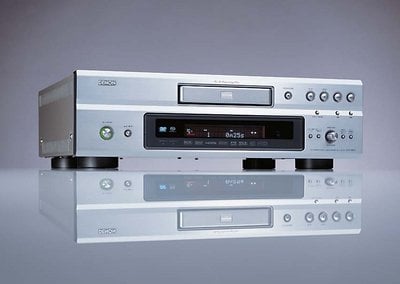
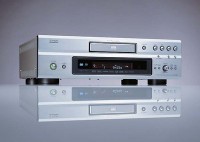 DVD Player: Top of the line DVD
players offer more than just good video quality. They often add
exceptional audio quality as well. For people looking to get the most out
of their DVD-Audio, CD and SACD collections, having a top-quality player
may be the best move you can make. If, however, you want the DVD player to
be responsible for the audio quality of these discs, realize that you will
need to use the analogue outputs of the player - otherwise you are passing
the audio signal digitally to the AV receiver to process into the analogue
audio required for amplification and delivery to your loudspeakers.
DVD Player: Top of the line DVD
players offer more than just good video quality. They often add
exceptional audio quality as well. For people looking to get the most out
of their DVD-Audio, CD and SACD collections, having a top-quality player
may be the best move you can make. If, however, you want the DVD player to
be responsible for the audio quality of these discs, realize that you will
need to use the analogue outputs of the player - otherwise you are passing
the audio signal digitally to the AV receiver to process into the analogue
audio required for amplification and delivery to your loudspeakers.
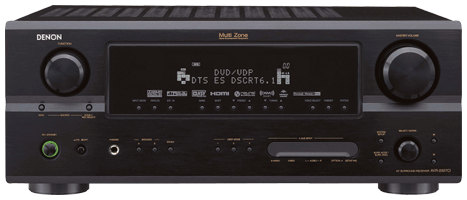
 AV Receiver: The flagship AV
receivers and processors possess, among other things, high quality DACs
(digital-to-analogue converters) and amplifiers (for receivers). If you
have a flagship AV processor or receiver, chances are you will have a
convenience product that can handle accurate bass management, route
various AV components to the proper destinations/outputs and even provide
some room EQ.
AV Receiver: The flagship AV
receivers and processors possess, among other things, high quality DACs
(digital-to-analogue converters) and amplifiers (for receivers). If you
have a flagship AV processor or receiver, chances are you will have a
convenience product that can handle accurate bass management, route
various AV components to the proper destinations/outputs and even provide
some room EQ.
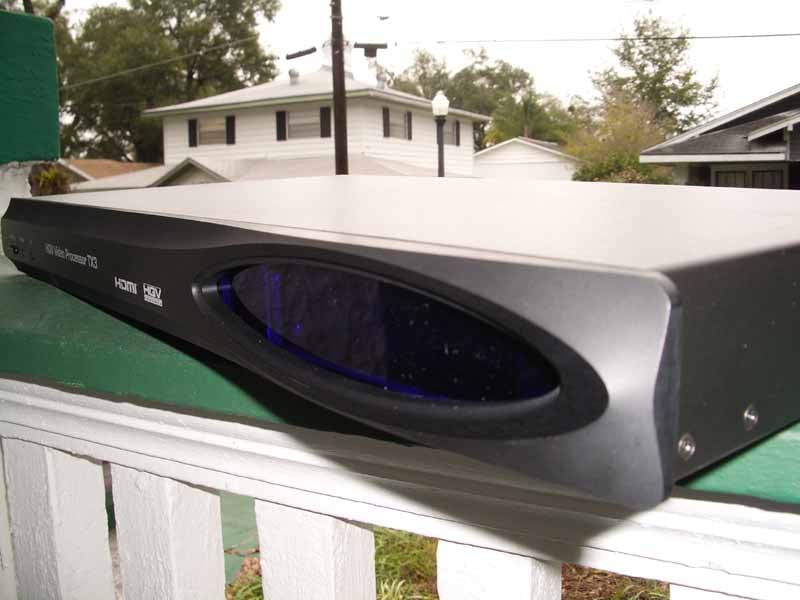
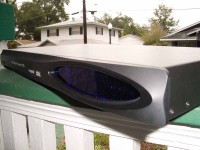 Video Processor: Utilizing a
good video processor is an eye-opening experience. The differences in
video quality are often amazing - especially on poor source material.
Another popular use for dedicated video processors is to provide special
scaling to enable to use of anamorphic lens systems to display the full
resolution of a DVD or HD DVD to be experienced on wide 2.35:1 cinema
screens.
Video Processor: Utilizing a
good video processor is an eye-opening experience. The differences in
video quality are often amazing - especially on poor source material.
Another popular use for dedicated video processors is to provide special
scaling to enable to use of anamorphic lens systems to display the full
resolution of a DVD or HD DVD to be experienced on wide 2.35:1 cinema
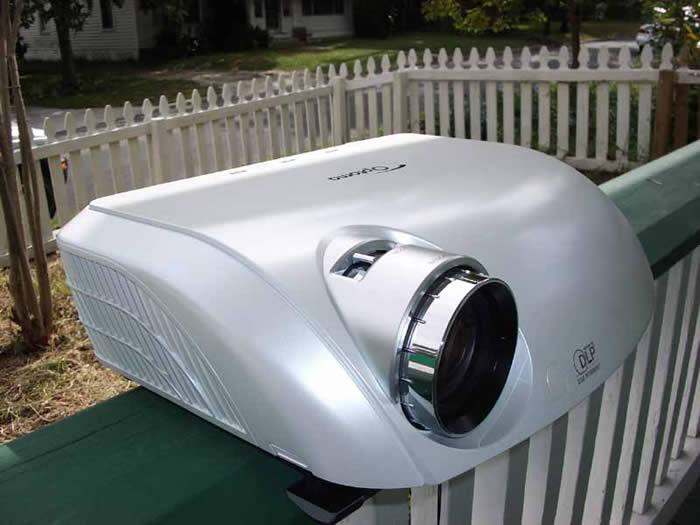
screens.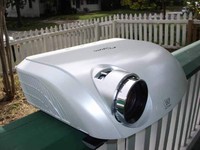 Display:
You never want to skimp on the
display, but advanced displays will enable you to ensure you have a front
projector, flat panel, etc that will display clean detail, deep blacks and
vibrant, accurate colors. The display is, for obvious reasons, the most
important piece of any video system - and no amount of video processing in the
world will make a bad display look good.
Display:
You never want to skimp on the
display, but advanced displays will enable you to ensure you have a front
projector, flat panel, etc that will display clean detail, deep blacks and
vibrant, accurate colors. The display is, for obvious reasons, the most
important piece of any video system - and no amount of video processing in the
world will make a bad display look good.
Which Product Should Handle Deinterlacing and Processing?
This is actually simpler than it sounds. Since we've already determined that only one device can handle deinterlacing and one typically does scaling, then finding your best component is as simple as this:
- Turn ON deinterlacing (progressive output) and any scaling on your DVD player. This means that you are now watching the quality of the deinterlacer and scaler of the player on your display. Be sure to match the output scaling of the player to the display or you will be encountering a "re-scaling" of the image to the native resolution of the display
- Turn OFF deinterlacing and scaling of the DVD player (output only interlaced 480i) and turn deinterlacing (progressive conversion, film mode, etc) and scaling (if applicable) on your AV receiver/processor or display. You are now observing the processing and scaling capabilities of your AV processor/receiver.
- Turn OFF deinterlacing and scaling of the DVD player (output only interlaced 480i) and turn OFF deinterlacing (progressive conversion, film mode, etc) on your AV receiver/processor or display. Allow pristine 480i (interlaced) signal to hit your display. Now you are watching the video processing and scaling of the display.
Technical Note: Exceptions with 1080i
While most new HD displays are either 720p or 1080p, many broadcasts are in 1080i. This is also the format for first generation HD DVD players from Toshiba. As a result there are two scaling scenarios possible when dealing with 1080i. When using a standard definition DVD and utilizing an upconverting DVD player, it is possible that you could be outputting 1080i. If coupled with a new 1080p display, your display will then take this and bring it up to the full resolution of 1080p. We do not recommend double scaling, so try not to purposely force a 1080i output for a 720p display when a 720p output is available (as in an upconverting DVD player).
Sounds easy? It is, though you'll need to research the capabilities of your components as well as how to turn these modes on and off. It's typically very easy and you will quickly find out which method works best in your system. How do you test? Read on…
There are several handy test discs available on the market for testing the deinterlacing, scaling and noise reduction capabilities of various displays. We are fond of the Silicon Optix HQV Benchmark DVD. This disc will allow you to test many aspects of video processing including detail reproduction, noise reduction, film pulldown, deinterlacing and jaggie reduction. It even hits more obscure tests like video over film and various cadences where the deinterlacing was set to a different timing that traditional film to video conversion. AVIA Guide to Home Theater also has some popular tests that will give you additional insight into the processing of a component. In particular I like the resolution and moving zone plate tests.
Hopefully this article answered some questions that may have been on your mind concerning video processing, but we realize that there will be additional questions to follow. Send those along to us and we'll create a series of follow-up articles to enhance this one. Over time we hope to simplify and explain some of these more difficult topics so that even consumers new to the world of AV can make intelligent choices when shopping for equipment.
Clint Deboer was terminated from Audioholics for misconduct on April 4th, 2014. He no longer represents Audioholics in any fashion.
View full profile Subscribe to our newsletter